
Path: Workspace Homepage >> Navigation Panel >> Settings >> Community >> Data >> Export Data >> Community Data
| What is Community Data Export? |
|---|
| Community Data Export is a tool for exporting idea, stage, tag, comment, member, and other community data to an Excel file, based on the fields and options selected in the export report. |
The Community Administrator configures which data to include in the export by selecting a campaign scope, an optional date range or time period, the tabs and stage types to include, and a timezone. The resulting Excel file organizes the selected data across multiple sheets, each covering a specific data type.
Role Permissions
- Community Administrator: Configures and generates the Community Data Export, selecting the campaign scope, date filters, tabs, stage types, and timezone for the export.
Export Report Options
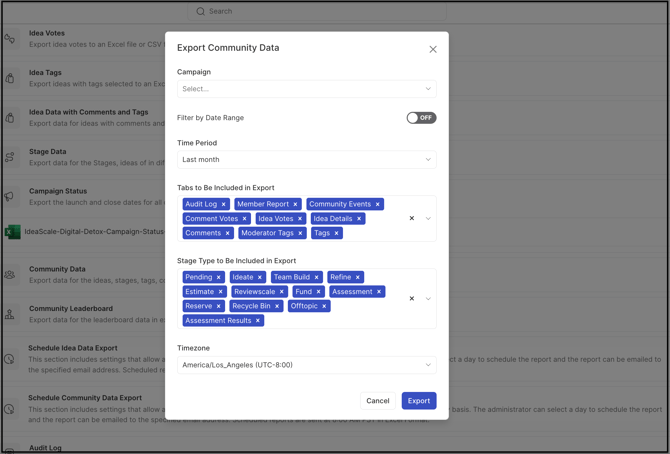
Before generating the export, the Community Administrator selects the following options:
- Campaign: Determines whether data is exported for all campaigns, active campaigns only, or a particular campaign.
- Filter by Date Range: Disabled by default, exporting all data from the beginning up to the current date. When enabled, a start date and an end date can be specified to export data for a specific time period.
- Time Period: An alternative to Filter by Date Range, allowing selection of one of the following ranges instead of a custom start and end date: Last Week, Last Two Weeks, Last Three Weeks, or Last Month.
- Tabs to Be Included in Export: Determines which of the following tabs are included in the export: Member Report, Community Events, Comment Votes, Idea Votes, Idea Details, Comments, Moderator Tags, and Tags.
- Stage Type to Be Included in Export: Determines which of the following stage types are included in the export: Pending (ideas awaiting approval), Ideate, Build Team, Refine, Estimate, Review, Scale, Fund, Assessment, Reserve, Recycle Bin, Off-Topic, and Assessment Results.
- Timezone: Allows the exported data to be viewed in a selected timezone instead of the community's default timezone.
Fields on each Exported Excel sheet
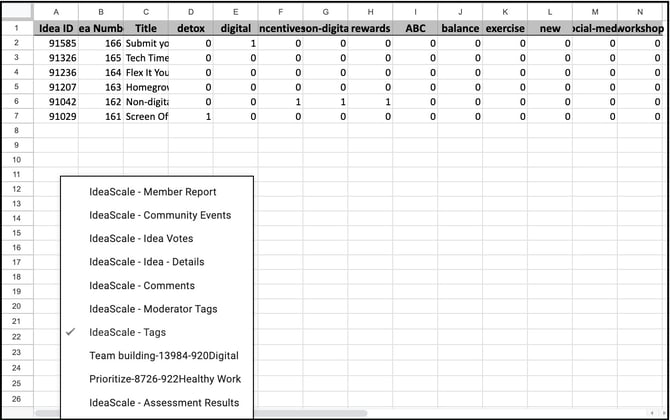
Once generated, the export produces an Excel file with a separate sheet for each selected data type, with each sheet's contents outlined below.
Sheet 1: Member Report
- Member ID
- Email Address: Email address of the member.
- Name: Display name of the member.
- Member Since: Date and time of member registration.
- Source: The member's source, such as Web, Upload, or Admin.
- Status
- Ideas
- Votes
- Comments
- Member Profile Language
- TOS Accepted
- TOS Accepted Date
- Member Profile Questions
Sheet 2: Community Events
- Event ID
- Timestamp
- Member ID
- Action Name
- Action Direction
- Idea ID
- Comment ID
Sheet 3: Idea Votes
- Up/Down
- Voter ID
- Voter Name
- Email Address
- Idea ID
- Idea Number
- Idea Title
- Stage ID
- Stage Name
- URL
- Timestamp
- Voter IP
Sheet 4: Idea Details
- Creation Date/Time
- Idea ID
- Idea Number
- Author ID
- Stage
- Author
- Author Email
- Campaign
- Campaign Group
- Total Votes
- Vote Up
- Vote Down
- Comments
- Title
- Description
- Tags
- Labels
- URL
- Attachments
- Owner
- Contributors
- Latitude
- Longitude
- Idea Event
- Modification Date/Time
- Private
- Annotations
- Details
- Custom Questions: Any custom questions configured for the community appear as a separate column.
Note: The Title and Description columns display the customized field names if the Idea Submission form has been customized to rename them.
Sheet 5: Comments
- Date
- Idea ID
- Comment ID
- Member ID
- Idea Number
- Author
- Author Email
- Comment
- Attachments
Sheet 6: Moderator Tags
- Idea ID
- Idea Number
- Idea Title
- Moderator Tags: Each Moderator Tag configured for the community appears as a separate column.
Sheet 7: Tags
- Idea ID
- Idea Number
- Idea Title
- Tags: Each tag configured for the community appears as a separate column.
Sheet 8: Stages
Each stage within each workflow appears as its own tab, including the Pending, Pending Review, and Off-Topic stages.
- Stage Name
- Stage Type
- Idea ID
- Idea Number
- Title
- Description
- Details
- Idea Custom Fields: Each custom field configured for the idea appears as a separate column.
- Idea Campaign
- Tags
- Labels
- Contributors
- Up Votes
- Down Votes
- Upvotes Downvotes (Net Votes)
- Number of Comments
- Attachments
- Idea Submitter
- Idea Submitter Email Address
- Idea Owner
- Idea Owner Email Address
- Stage-Specific Columns: Additional columns specific to the stage.
Sheet 12: Assessment Results
- Idea ID
- Idea Title
- Idea Description
- Idea Submitter
- Member ID
- Stage Name
- Idea Campaign
- Assessment Rating
- Assessment Question
- Assessing Member ID
- Assessing Member
- Date
Note: The idea title and idea description columns will display the customised names if it is customised in the Idea Submission form.
Frequently Asked Questions
What file format is the exported community data delivered in?
The Community Data Export produces an Excel file, with the selected data organized across multiple sheets.
Is it possible to export data without applying a date filter?
Yes. Leaving Filter by Date Range disabled exports all data from the beginning up to the current date.
Can Filter by Date Range and Time Period be used together?
No. Time Period is an alternative to Filter by Date Range, offering preset ranges (Last Week, Last Two Weeks, Last Three Weeks, Last Month) instead of a custom start and end date.
Will the exported Idea Details sheet show the original field names if the Idea Submission form has been customized?
No. The Title and Description columns display the customized names configured on the Idea Submission form rather than the original field names.
Does the export always reflect the community's default timezone?
No. A different timezone can be selected for viewing the exported data, overriding the community's default timezone for that export.
Related Articles