
Path: Workspace Homepage >> Navigation Panel >> Settings >> Workspace Configuration >> Workspace Info >> Appearance >> Logo
| What is the Workspace Logo? |
|---|
| The Workspace Logo is the company logo uploaded to an IdeaScale Workspace for branding purposes, displayed across every Workspace page and community. |
A Workspace Administrator can upload a company logo to brand an IdeaScale Workspace. The logo displays consistently across the Workspace and, by default, links back to the Workspace Homepage when selected.

Role Permissions
- Workspace Administrator: Uploads and customizes the Workspace Logo, including setting the redirect link and selecting a file from the File Library.
- All Roles (Community Administrators, Moderators & Members): Does not have access to Workspace Logo settings.
TABLE OF CONTENTS
Logo PlacementUploading the Workspace Logo
Workspace Homepage Logo Redirect Link
Exceptions
Frequently Asked Questions
Logo Placement
The Workspace Logo appears in the location marked by the red arrow in the image below.
The logo displays consistently across every Workspace page and community.
By default, selecting the logo directs a member to the Workspace Homepage. See Workspace Homepage Logo Redirect Link below for details on changing this destination.
Note: The Workspace Logo also appears on the Workspace topbar as well as the login and registration page.
Uploading the Workspace Logo
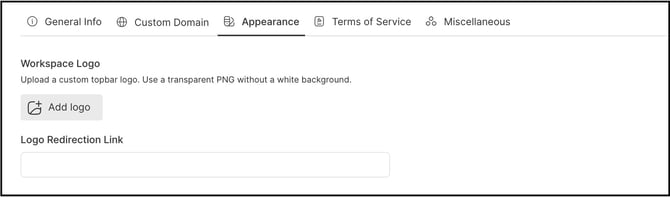
To upload a new Workspace Logo, a Workspace Administrator selects the Add Logo button, then selects Browse File to choose an image file, or drags and drops the image directly into the designated area. A Workspace Administrator can also select an image already uploaded to the File Library instead of uploading a new file.
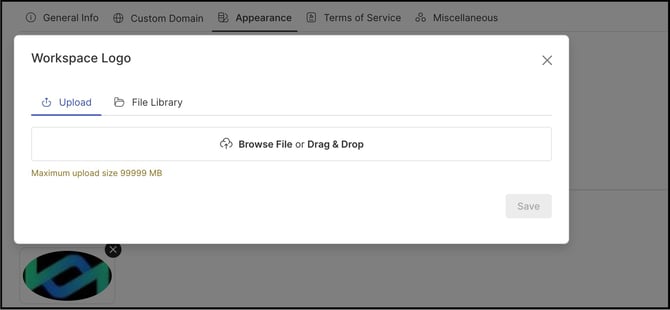
For optimal display, logo image files should be sized at either 96px by 96px or 192px by 192px. See Exceptions below for what happens when an uploaded image exceeds the maximum allowed dimensions.
Note: A transparent PNG file without a white background is recommended, though images with a dark background are also acceptable.
Workspace Homepage Logo Redirect Link
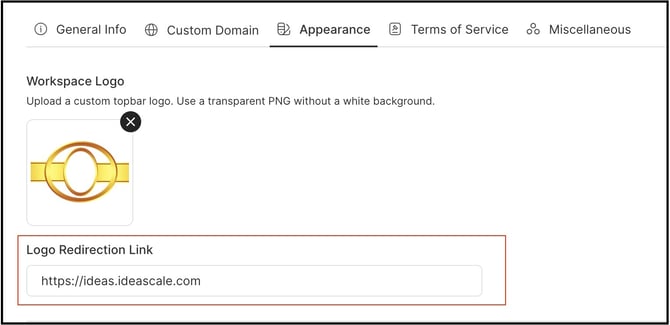
The Workspace Logo can be hyperlinked to any desired URL. When a member selects the logo, the member is directed to the specified page. By default, the logo links to the Workspace Homepage.
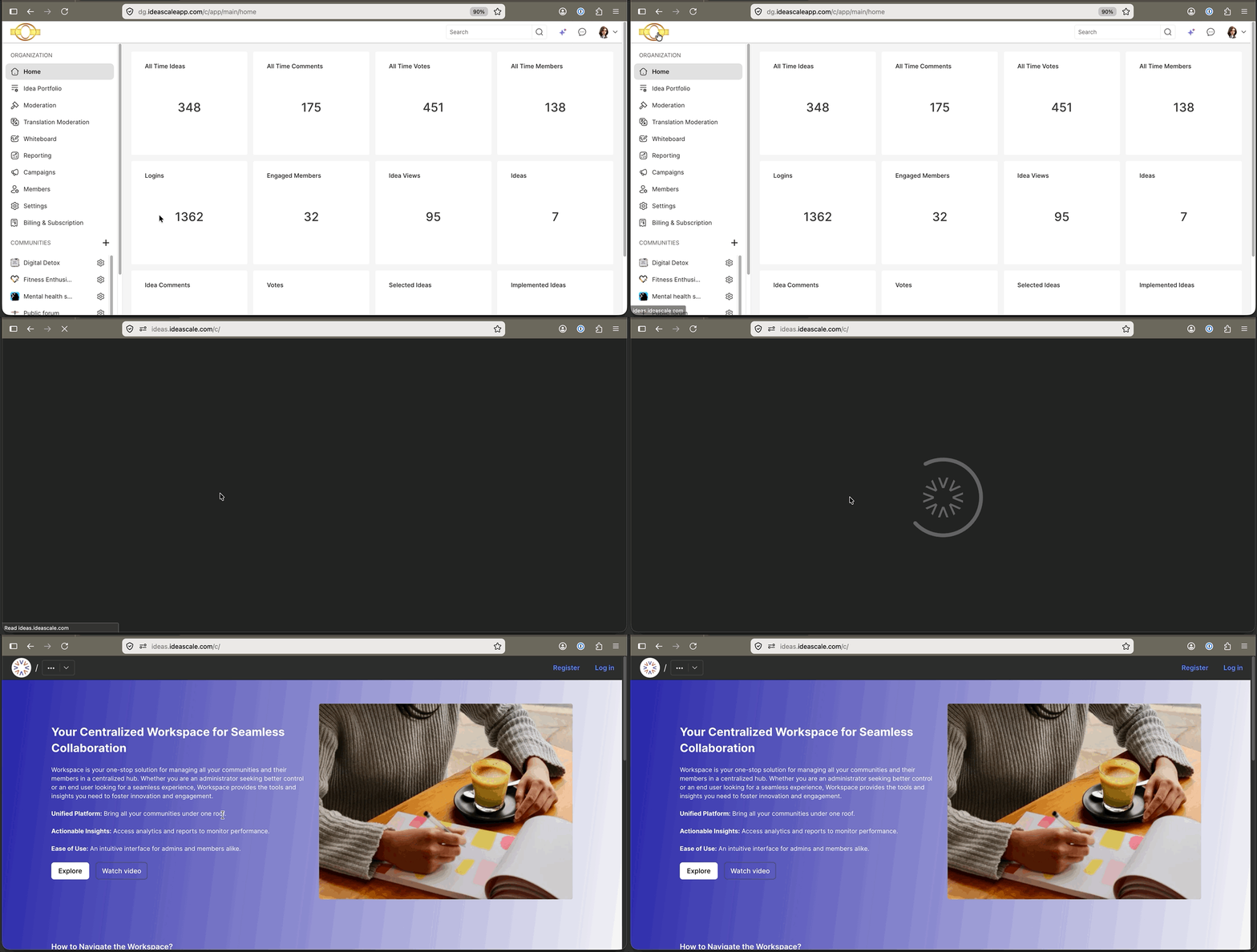
Exceptions
- Oversized Logo Upload: An uploaded image exceeding the maximum allowed dimensions of 300px by 300px is automatically resized to fit.
Frequently Asked Questions
Where does the Workspace Logo appear?
The Workspace Logo appears consistently across every Workspace page and community, including the Workspace topbar and the login and registration page.
What happens if an uploaded logo exceeds the maximum allowed dimensions?
An image exceeding the maximum allowed dimensions of 300px by 300px is automatically resized to fit, per Exceptions above.
What image format is recommended for the Workspace Logo?
A transparent PNG file without a white background is recommended, though images with a dark background are also acceptable.
Can the Workspace Logo link to a page other than the Workspace Homepage?
Yes. The Workspace Logo can be hyperlinked to any desired URL. By default, it links to the Workspace Homepage, but a Workspace Administrator can set a different destination.
Related Articles