
| What is Idea Submission? |
|---|
| Idea Submission is the process by which members create, save as Draft, and submit ideas to an IdeaScale campaign for community voting, commenting, and participation |
Idea submission is one of the key factors in crowdsourcing, since it is where community participation begins: submitted ideas move through funnels under the supervision of Moderators and Administrators before being implemented. The Idea Submission Form can be completed in a single sitting or left in progress, since IdeaScale automatically saves incomplete entries as Draft ideas.
Role Permissions
- Member: Accesses the Idea Submission Form to create, submit, and manage ideas, including Draft ideas saved through Auto-Save.
- Community & Campaign Administrator: Controls the Idea Submission Form, including which fields display and which optional settings — Add Linked Ideas, Submit Idea Anonymously, and Private Idea Submission — are enabled.
- Community Administrators, Moderators, and Authorized Group Members: Can view an idea submitted through Private Idea Submission, in addition to the member who submitted it.
TABLE OF CONTENTS
Access the Idea Submission FormComplete the Idea Submission Form
Auto-Save and Draft Ideas
Exceptions
Frequently Asked Questions
Access the Idea Submission Form
The Idea Submission Form can be opened in two ways:
- Select the Submit (+) icon on the top bar.
- Select the Submit field below the community banner.
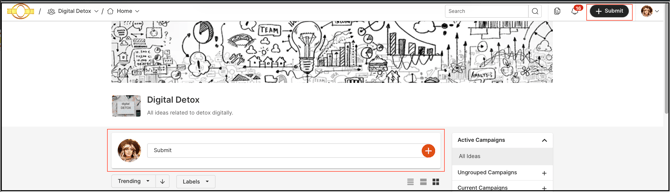
Both options open the same Idea Submission Form.
Complete the Idea Submission Form
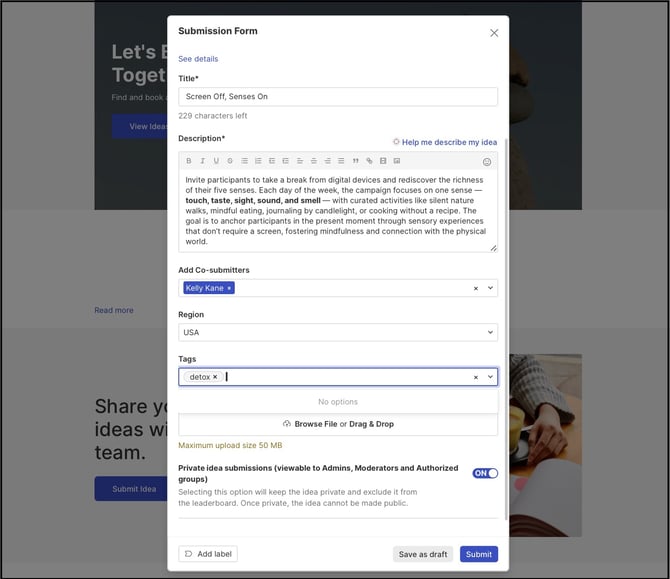
The Community Administrator configures the fields that appear on the Idea Submission Form, so the exact set of fields may vary by community.
Idea Submission Form Fields
- Campaign: The folder/bucket/section where the idea will reside.
- Title: The heading of the idea.
- Description: The details about the idea.
- Co-submitter: Adds one or more co-authors to the idea.
- Add Linked Ideas: Links existing ideas from the community to the idea being submitted, for reference or relevance. Visible only if enabled by the Community Administrator.
- Submit Idea Anonymously: Switching this on submits the idea without the submitting member's name being disclosed. Visible only if enabled by the Community Administrator.
- Private Idea Submission: Switching this on submits the idea privately, visible only to Administrators, Moderators, and the authorized group specified by the Administrator. A privately submitted idea is excluded from the Leaderboard. See Exceptions below.
- Attach an Image or Supporting Document: Uploads a related image or document for additional information about the idea.
- Tags: Provides tags for an easy search of the idea.
- Custom Fields: Answers Custom Field questions as per their type. Help Article for Custom Fields on Ideas
- Add Label: Adds labels to the idea during submission. Help Article for Custom Labels
Note: Any field marked with a red asterisk is mandatory. Selecting the X icon at the top-right corner of the Idea Submission Form closes it and returns to the previous page without submitting the idea.
Note: If a Campaign has an end date set for idea submission, a submission timer appears on the Campaign page's right sidebar, and ideas must be submitted before that date. See Exceptions below.
Help Article for Idea Submission Form
Auto-Save and Draft Ideas
IdeaScale automatically saves entries in progress on the Idea Submission Form as Draft ideas, so information is not lost if a member navigates away before formally submitting.
How Auto-Save Works
- A member enters information into the Idea Title, Idea Description, or a Custom Field response on the Idea Submission Form.
- Once the member has remained on the Idea Submission Form for at least 3 minutes, the entered details are saved automatically to Draft, without the member selecting Save as a Draft.
- The member can then navigate away — for example, by selecting the Home icon — without losing the saved information.
- The saved entry appears in the Draft section, where the member can reopen it to continue editing or to view the Draft idea.
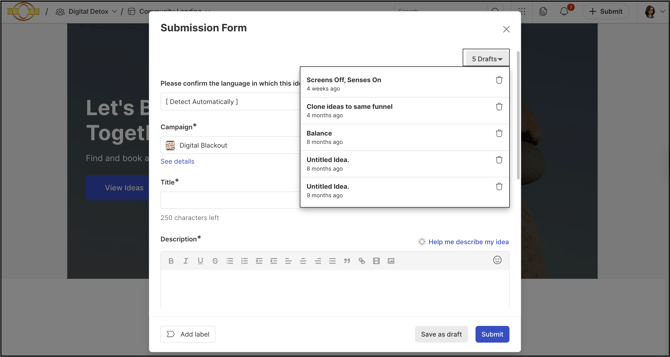
Note: Auto-Save does not work for read-only communities. See Exceptions below.
Note: Contents of the Comment section are stored in local storage by default when a member types a comment and leaves the page without selecting Submit.
Draft Reminder Emails
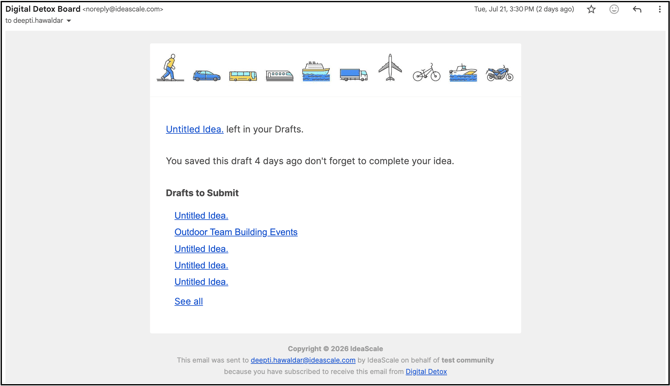
Members are reminded about unsubmitted Draft ideas by email according to the following schedule:
- First Reminder: Sent 24 (or more) hours after the Draft was first saved.
- Second Reminder: Sent 4 days/96 (or more) hours after the first reminder was sent.
- Third Reminder: Sent 7 days/168 (or more) hours after the second reminder was sent.
Exceptions
- Private Idea Submission: Once an idea is submitted privately, it cannot be made public.
- Submission Deadline: If a Campaign has an end date set for idea submission, ideas must be submitted before that date; a submission timer appears on the Campaign page's right sidebar.
- Read-Only Communities: The Auto-Save function does not save Draft ideas in read-only communities.
Frequently Asked Questions
Can a Draft idea be recovered after navigating away from the Idea Submission Form?
Yes. As long as a member remained on the Idea Submission Form for at least 3 minutes, the entered details are saved automatically to the Draft section and can be reopened for editing or review.
Can a privately submitted idea be made public later?
No. Once Private Idea Submission is switched on and the idea is submitted, it remains private and cannot be changed to public. See Exceptions above.
Who can view an idea submitted through Private Idea Submission?
Community Administrators, Moderators, and the group authorized by the Administrator can view a privately submitted idea, in addition to the member who submitted it. A privately submitted idea is excluded from the Leaderboard.
Are Add Linked Ideas and Submit Idea Anonymously always available on the Idea Submission Form?
No. Both options display on the Idea Submission Form only when enabled by the Community Administrator.
Does Auto-Save work in every community?
No. Auto-Save does not save Draft ideas in read-only communities. See Exceptions above.
Related Articles