
Path: Workspace Homepage >> Navigation Panel >> Settings >> Security >> Authentication >> Single Sign-on Settings
| What is Single Sign-On (SSO)? |
|---|
| Single Sign-On (SSO) is a method of integrating an organization's existing user directory with IdeaScale's authentication system, allowing a member to access an IdeaScale community using existing organizational credentials rather than a separate IdeaScale login. |
Single Sign-On (SSO) integrates an organization's existing user directory with IdeaScale's authentication system. Configuring SSO removes the need for a member to log in to IdeaScale with a separate set of credentials — access to the community is instead determined by the member's existing access to the organization's intranet, removing a login step that many Workspace Administrators consider a barrier to participation. Once SSO is enabled and added to the workspace, the following global settings become available for configuration.
Role Permissions
- Workspace Administrator: Configures the SSO General Settings described in this article and selects the workspace's Single Sign-On type (SAML 2.0, Token-Based/Multipass, or Azure AD).
- Community Administrator: Can choose to enable or disable the SSO set up by Workspace Administrator.
- Member: Logs in using the Single Sign-On method enabled for the workspace and, depending on configuration, may be able to change the username passed through SSO or create a username through a prompt shown at first login.
TABLE OF CONTENTS
SSO General SettingsHow SSO Login Works for Members
Types of Single Sign-On
Exceptions
Frequently Asked Questions
SSO General Settings
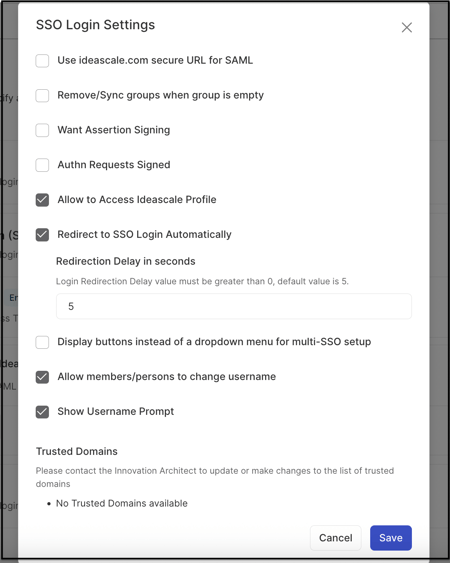
The following settings apply globally once SSO has been enabled for the workspace:
- Remove Sync Groups When Empty: Removes any synced group that has no members assigned to it, improving overall efficiency.
- Want Assertion Signing: Determines whether the SAML response, the assertion, or both must be signed; requiring both is treated as redundant, since signing either one alone is sufficient. Accepts a value of True or False in the XML data.
- Authn Requests Signed: Signs the authentication request using the private key associated with the workspace's local certificate (for example, an SP.PFX file). The identity provider (IdP) must be configured with the corresponding certificate.
- Redirect to SSO Login Automatically: Automatically redirects the SSO-enabled community to the SSO login page when enabled.
- Display Buttons Instead of a Dropdown Menu for Multi-SSO Setup: Presents a separate button for each SSO login option on the login page when more than one SSO configuration exists in the workspace. When only a single SSO configuration is set up, that configuration is displayed as a single button.
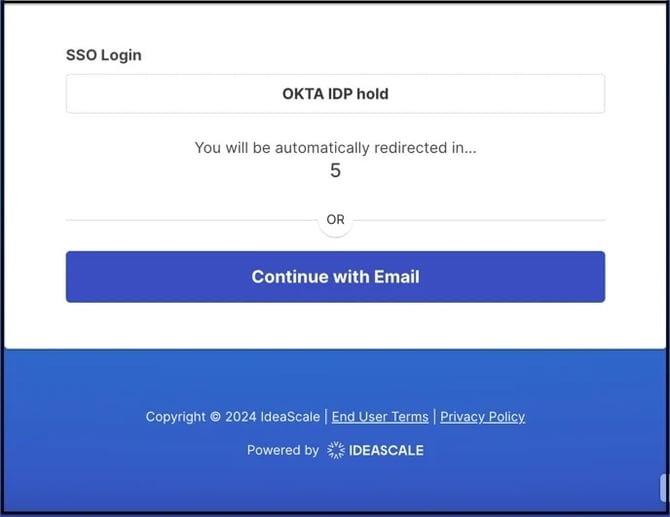
- Login Redirection Delay (in seconds): Sets a delay before redirecting to the SSO login page. The value must be greater than 0; the default value is 5.
- Allow Members/Persons to Change Username: Lets a member change the username that the organization's system passes to IdeaScale through SSO.
- Show Username Prompt: Shows a prompt that lets a new member create their own username for the workspace.
Enabled: IdeaScale leaves the username unset, allowing the profile/setup flow to prompt the member to choose one.Disabled: IdeaScale automatically generates and assigns an available username.
If the SSO provider supplies a valid username, IdeaScale uses it regardless of this switch. Existing usernames are not replaced merely because of this setting.
How SSO Login Works for Members
Once SSO is set up, a member's login follows these steps:
- The member opens the IdeaScale community.
- The member is sent to the organization's login page, either automatically (if Redirect to SSO Login Automatically is enabled) or by selecting the SSO login option on the IdeaScale login page.
- The member signs in with their organizational credentials.
- The member returns to the IdeaScale community, signed in.
On first login, the member may be asked to create a username if Show Username Prompt is enabled.
Types of Single Sign-On
IdeaScale supports three types of Single Sign-On, each suited to a different method of connecting an organization's existing identity system to IdeaScale.
SAML 2.0
SAML (Security Assertion Markup Language) is an XML-based standard for exchanging authentication and authorization data between an identity provider (IdP), such as Okta, and a service provider (SP). For IdeaScale SSO integrations, the IdeaScale community serves as the service provider.
Help Article for Okta Configuration Process
Help Article for SAML Single Sign-On at IdeaScale
Token-Based/Multipass
Multipass authentication is a single sign-on strategy that allows an organization to share its user authentication with IdeaScale through an encrypted token, passed either in the URL or as a parameter in a POST form.
Help Article for Multipass SSO Setting
Help Article for Token-Based/Multipass SSO
Azure AD
Azure AD determines which members have access to IdeaScale and helps manage accounts from a single central location — the Azure portal.
Help Article for Azure Active Directory Integration
Exceptions
- Login Redirection Delay: The value must be greater than 0. If no value is changed, the default of 5 seconds applies.
- Single SSO Configuration: When only one SSO configuration exists, it is always shown as a single button, regardless of the Display Buttons Instead of a Dropdown Menu for Multi-SSO Setup setting.
Frequently Asked Questions
What is Single Sign-On and why should it be used?
Single Sign-On integrates an organization's existing user directory with IdeaScale's authentication system, so a member's access to the IdeaScale community is determined by existing access to the organization's intranet rather than a separate IdeaScale login. This removes a login step that many Workspace Administrators consider a barrier to participation.
What is the difference between SAML 2.0, Token-Based/Multipass, and Azure AD?
SAML 2.0 exchanges authentication and authorization data between an identity provider, such as Okta, and IdeaScale as the service provider. Token-Based/Multipass shares user authentication through an encrypted token passed in the URL or a POST form. Azure AD manages which members have access to IdeaScale from a single central location, the Azure portal.
What happens when Redirect to SSO Login Automatically is enabled?
The SSO-enabled community is automatically redirected to the SSO login page after the configured Login Redirection Delay, which must be greater than 0 seconds and defaults to 5 seconds.
Can a member change the username that was passed to IdeaScale through SSO?
Yes, if the Workspace Administrator has enabled Allow Members/Persons to Change Username.
Why are empty synced groups removed automatically?
Enabling Remove Sync Groups When Empty eliminates any synced group that has no members assigned to it, which improves overall efficiency.
Related Articles
- Help Article for Workspace Single Sign-On Settings
- Help Article for SAML Single Sign-On at IdeaScale
- Help Article for Okta Configuration Process
- Help Article for Token-Based/Multipass SSO
- Help Article for Azure Active Directory Integration
- Help Article for SSO Debugger
- Help Article for SCIM in IdeaScale