
Path: Workspace Homepage >> Navigation Panel >> Settings >> Security >> Authentication >> Single Signon Settings
| What is Okta Configuration? |
|---|
| Okta Configuration is the process of connecting Okta, acting as a SAML 2.0 Identity Provider, to IdeaScale as the Service Provider, so members can authenticate to IdeaScale using existing Okta credentials. |
Configuring Okta for IdeaScale Single Sign-On involves two parts: creating an application integration for IdeaScale within Okta, and completing the corresponding SAML 2.0 connection in Single Signon Settings within IdeaScale. Once both sides are configured, members can be assigned access to the Okta application and authenticate to IdeaScale automatically.
Role Permissions
- Workspace Administrator: Creates the IdeaScale application integration in Okta and completes the corresponding SAML 2.0 connection in Single Signon Settings within IdeaScale.
- Community Administrator: Can enable or disable the SSO set up by the Workspace Administrator for their community.
- Member: Authenticates through Okta once assigned access to the IdeaScale application in Okta, rather than logging in with separate IdeaScale credentials.
TABLE OF CONTENTS
Configuring the IdeaScale Application in OktaConfiguring Okta as the Identity Provider in IdeaScale
Exceptions
Frequently Asked Questions
Configuring the IdeaScale Application in Okta
Configuring Okta as an Identity Provider begins with creating an application integration in Okta that represents IdeaScale as the Service Provider.
To configure the application in Okta:
- Sign in to Okta.
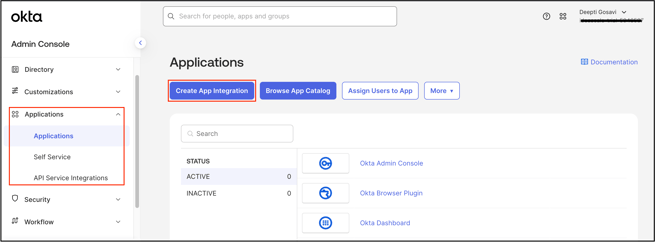
- Navigate to the Applications tab and select Create App Integration.
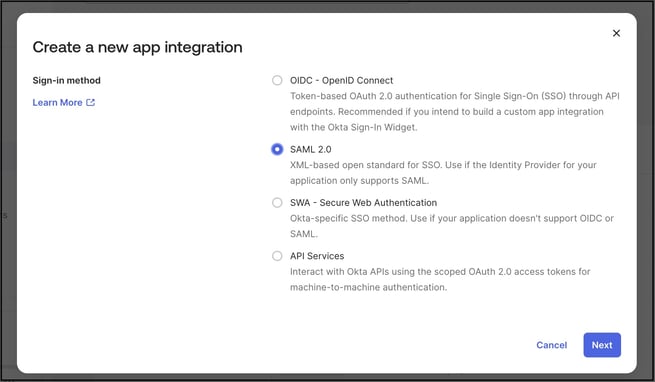
- Choose SAML 2.0 as the sign-in method.
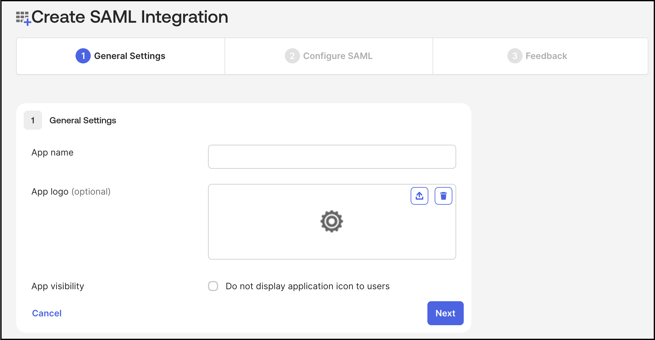
- Enter a name for the application, and optionally add a logo, then select Next.
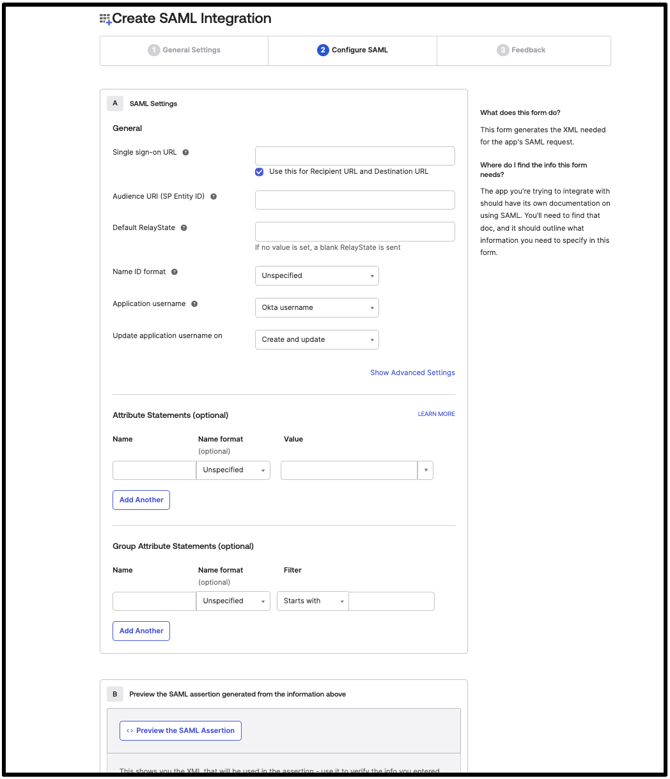
- In the Single Sign On URL field, enter the Assertion Consumer Service (ACS) URL:
https://{WORKSPACE-URL}/a/saml/sso/alias/default - In the Audience URL (SP Entity ID) field, enter:
https://{COMMUNITY-URL}Note: These values can also be copied directly from the workspace SP metadata, available athttps://{WORKSPACE-URL}/a/saml/metadata. - Choose the Persistent or EmailAddress NameID format.
- Optionally, add additional attributes.
- Select Done.
- Assign Users or Groups to the application, or enable self-service.
Configuring Okta as the Identity Provider in IdeaScale
Once the application integration is created in Okta, the connection is completed from the Single Signon Settings page in IdeaScale.
- Switch Single Signon Settings on.
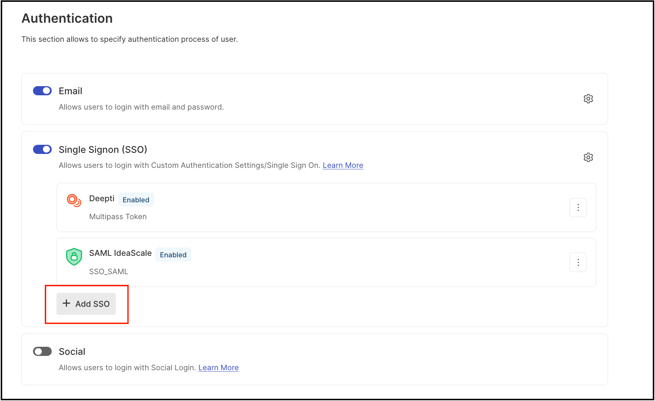
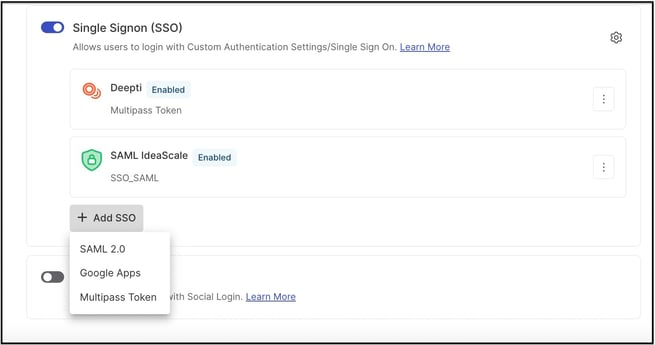
- Select Add SSO to add a new Identity Provider configuration.
- Choose SAML 2.0 as the Single-Signon Type.
- Enter a Display Name for the Identity Provider. See Exceptions below for display name visibility rules.
- Paste the Identity Provider metadata from the Okta application into the SAML IdP Metadata field.
- Enter the EntityID from the metadata in the SAML IdP Entity ID field.
- Select the Debugging checkbox.
- Select the Enabled checkbox.
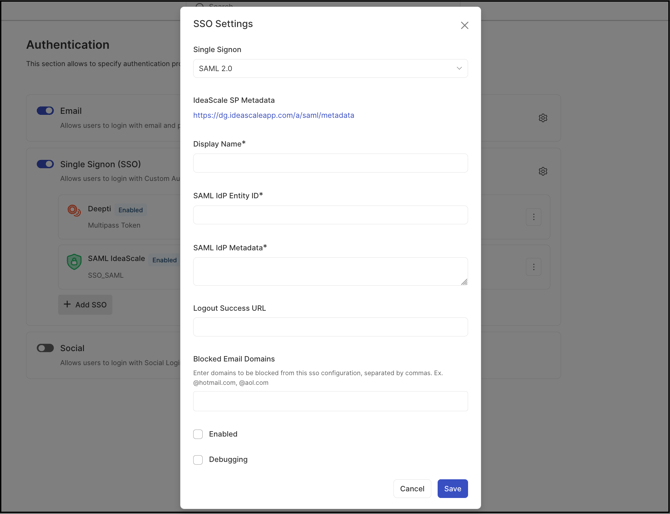
- Select Save Changes.
Note: Testing the connection after saving is recommended. Help Article for SSO Debugger can assist with identifying Single Sign-On issues.
Exceptions
- Display Name Visibility: If only one Identity Provider is configured for the workspace, the Display Name does not appear to members. If multiple Identity Providers are configured, the Display Name appears in the drop-down or image members use to select the Identity Provider.
Frequently Asked Questions
What authentication protocol does Okta use to connect with IdeaScale?
Okta connects to IdeaScale using SAML 2.0, with Okta acting as the Identity Provider and IdeaScale as the Service Provider.
What is the difference between the Single Sign On URL and the Audience URL fields in Okta?
The Single Sign On URL is the Assertion Consumer Service (ACS) URL that Okta sends the SAML response to, in the format https://{WORKSPACE-URL}/a/saml/sso/alias/default. The Audience URL, also called the SP Entity ID, identifies IdeaScale as the Service Provider, in the format https://{COMMUNITY-URL}.
Where can IdeaScale's Service Provider metadata be found?
IdeaScale's Service Provider metadata is available at https://{WORKSPACE-URL}/a/saml/metadata, and its values can be copied directly into the corresponding fields in Okta.
Will members see the Display Name entered for the Okta connection?
Only if more than one Identity Provider is configured for the workspace. See Exceptions above.
Related Articles
- Help Article for SAML Single Sign-On at IdeaScale
- Help Article for Workspace Single Sign-On Settings
- Help Article for SSO Debugger