
Path: Workspace Homepage >> Navigation Panel >> Settings >> Community >> Community Access >> Access Control >> Approvals >> Member Approval
| What is Member Approval? |
|---|
| Member Approval is a Community Access Control feature that requires administrator review before a new member can join, protecting the community from unwanted members such as spammers. |
When Member Approval is enabled, an administrator receives a notification and must approve each new member before that member can join, ensuring the community's interests are prioritized.
Role Permissions
- Community Administrator: Receives a notification when a new member joins and must approve the member before the member gains access, when Member Approval is enabled at the Community level.
- Workspace Administrator: Receives a notification to approve a new member when Member Approval is enabled at the Workspace level. The member's verification email is not sent until this approval is complete.
TABLE OF CONTENTS
Adding New MembersQuick Add or Import Member
Member Registration
Auto-Approval
Member Status in Member Management
Exceptions
Frequently Asked Questions
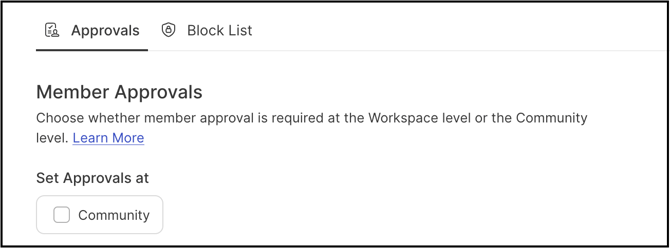
Adding New Members
New members can be added to a community through Quick Add, Import Member, or self-registration.
Quick Add or Import Member
When a member is added using the Quick Add or Import Member option in Member Management, the member receives a verification email to verify the email address. After verifying, the member is asked to set a password and complete a profile.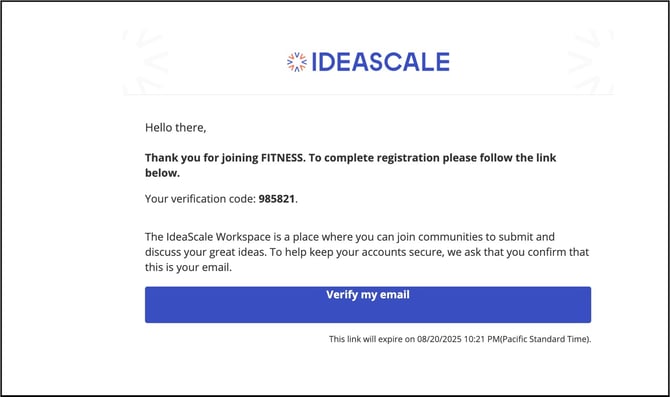
At the same time, the Workspace Administrator receives an email notifying that a new member has joined the community. 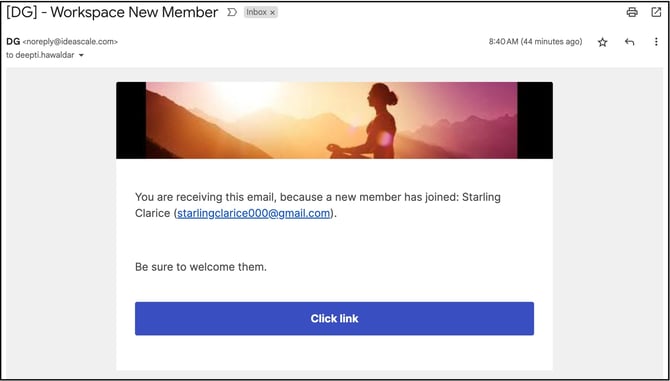
Once the member is added successfully, the Community Administrator receives a confirmation email.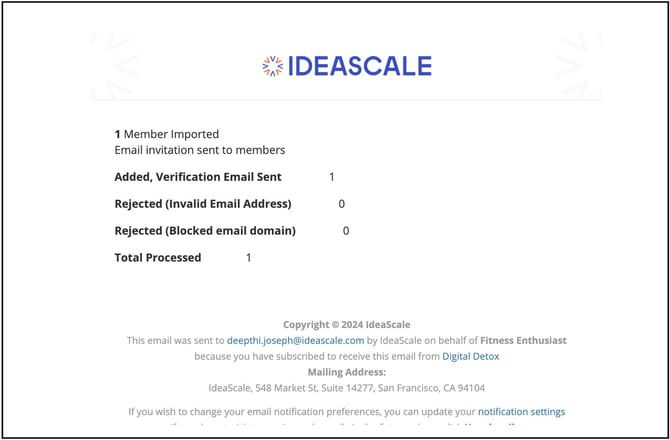
Note: If Member Approval is enabled at the Workspace level, the Workspace Administrator receives a notification to approve the member first. The verification email is sent to the member only after that approval. See Exceptions below for how this affects visibility in Member Management.
Member Registration
When a member registers to the community directly, the member is informed that participation is possible only after an administrator approves the account.

Once the Community Administrator approves the account, the member receives an email with a link to complete the profile.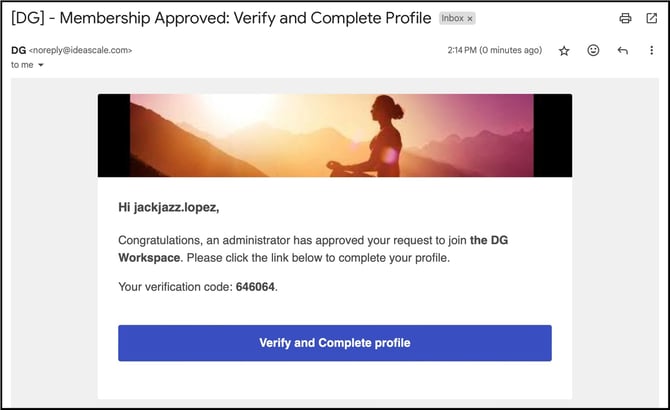
Auto-Approval
Email domains added to the auto-approval list do not require approval from the Community Administrator. Members with an email address on an approved domain join without administrator review.
Help Article for Auto-Approval
Member Status in Member Management
Member Management displays each member's approval and verification status using color coding:
- Pending Approval: Displayed in light yellow. The member has not yet been approved by an administrator.
- Approved, Not Verified: Displayed in light green. The member has been approved but has not yet verified the account.
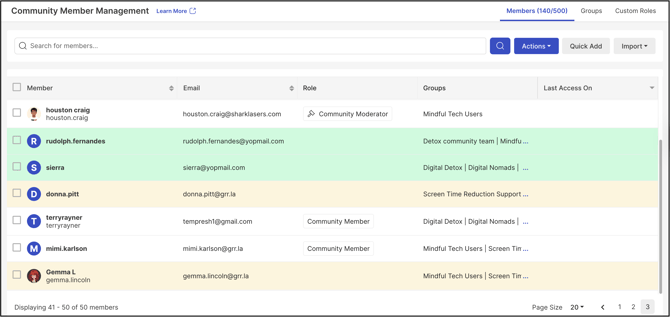
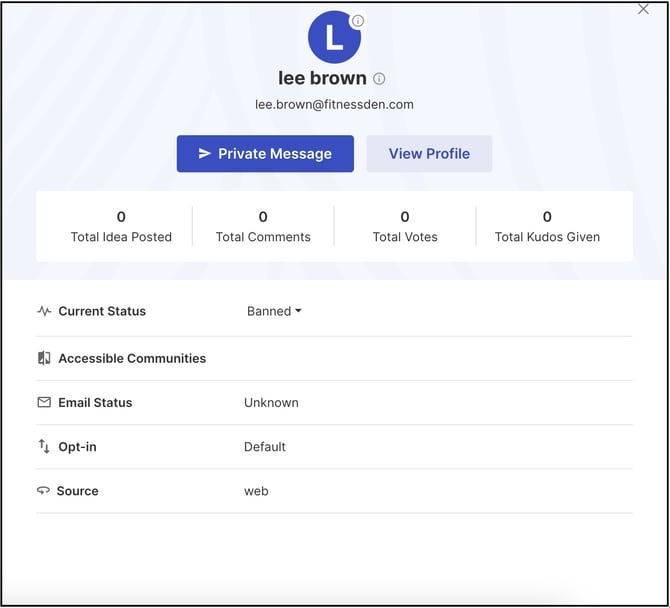
3. Banned: A member rejected by an administrator is updated to Banned status in the Member Management dashboard.
Exceptions
- Workspace-Level Approval Enabled: Newly added members do not appear in the Member Management dashboard until approved.
- Community-Level Approval Only: Members added through Quick Add or Import remain visible in the Member Management dashboard while awaiting approval.
Frequently Asked Questions
Does a member need to verify an email address before or after administrator approval?
It depends on where Member Approval is enabled. If enabled at the Workspace level, the Workspace Administrator must approve the member first, and the verification email is sent only afterward. If Member Approval is enabled only at the Community level, the verification email is sent as soon as the member is added, independent of Community Administrator approval.
Can a member bypass administrator approval entirely?
Yes. A member whose email domain is on the auto-approval list joins without requiring approval from the Community Administrator.
What happens to a member who is rejected by an administrator?
The member's status is updated to Banned in the Member Management dashboard.
Will a newly added member always appear in the Member Management dashboard right away?
Not necessarily. If Workspace-level approval is required, the member does not appear in Member Management until approved. If only Community-level approval is enabled and the member was added through Quick Add or Import, the member is visible immediately.
Related Articles