---
title: Map Attributes & Create/Manage Groups using SSO
description: Create & manage user groups
---
[Skip to content](https://help.ideascale.com/map-attributes-create-groups-sso-new-admin-panel#main-content)
English
Show submenu for translations
[](https://help.ideascale.com/?hsLang=en)
Open main navigation
Close main navigation
- English
Show submenu for translations
- [Go to ideascale.com](https://ideascale.com/)
[Go to ideascale.com](https://ideascale.com/)
Hi!👋 How can we help you today?
- There are no suggestions because the search field is empty.
1. [IdeaScale Support Center](https://help.ideascale.com/?hsLang=en)
2. [Manage Workspace](https://help.ideascale.com/manage-workspace?hsLang=en)
3. [Security](https://help.ideascale.com/manage-workspace?hsLang=en#security)
# Map Attributes & Create/Manage Groups using SSO
## Create & manage user groups
***Path: Workspace Homepage \>\> Navigation Panel \>\> Settings \>\> Security \>\> Authentication \>\> Single Signon \>\> More \>\> Map Attributes***
| What are Map Attributes & Create/Manage Groups Using SSO? |
| --- |
| Map Attributes & Create/Manage Groups Using SSO refers to two methods for creating and managing IdeaScale member groups automatically through Single Sign-On (SSO): mapping a group attribute directly from an Identity Provider (IdP), or mapping other IdP-supplied attributes to profile questions used as criteria for manually created groups. |
Using IdeaScale's Single Sign-On (SSO), Attributes can be mapped and member Groups created or managed in one of two ways: through SSO Group Attribute Mapping, in which groups are created and assigned automatically from an IdP-supplied group attribute, or through SSO Profile Field Mapping, in which other IdP attributes are mapped to profile questions used as criteria for manually created groups.
---
### Role Permissions
1. **Workspace Administrator:** Accesses Map Attributes from the Single Signon Settings page to configure SSO Group Attribute Mapping and SSO Profile Field Mapping, creates Workspace Member Profile Questions used as group-assignment criteria, and overrides or modifies group membership for an IdP-mapped group from *Member Management \>\> Groups*. Cannot switch the Auto Assign by SSO setting on or off for an IdP-mapped group (see Exceptions below).
2. **Member:** Logs in through SSO and is automatically assigned to one or more groups based on either the mapped IdP group attribute or the profile question response supplied, depending on the mapping method configured.
---
**TABLE OF CONTENTS**
[SSO Group Attribute Mapping](https://help.ideascale.com/map-attributes-create-groups-sso-new-admin-panel#group-attribute-mapping)
[SSO Profile Field Mapping](https://help.ideascale.com/map-attributes-create-groups-sso-new-admin-panel#profile-field-mapping)
[Exceptions](https://help.ideascale.com/map-attributes-create-groups-sso-new-admin-panel#Exceptions)
[Frequently Asked Questions](https://help.ideascale.com/map-attributes-create-groups-sso-new-admin-panel#faq)
---
### SSO Group Attribute Mapping
If the Identity Provider (IdP) sends a group attribute in the SAML assertion, IdeaScale can automatically create and assign groups with no manual setup required in **Member Management \>\> Groups.**
***Path: Workspace Homepage \>\> Navigation Panel \>\> Settings \>\> Security \>\> Authentication \>\> Single Signon***
To configure SSO Group Attribute Mapping:
1. Select the More option (three dots) beside the SSO name, then select Map Attributes from the dropdown.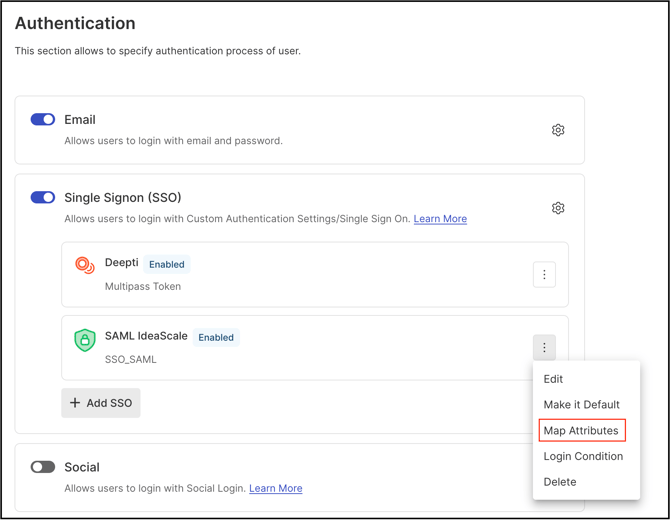
2. Enter the group name in the attribute field to be used within the Workspace or community via the IdP. The group name is extracted from the SSO assertion based on the Name or Friendly Name provided. If multiple values are entered, the system searches for each one and creates a group as necessary. When a member logs in using SSO, that member is either automatically assigned to the designated group or a new group is created if needed.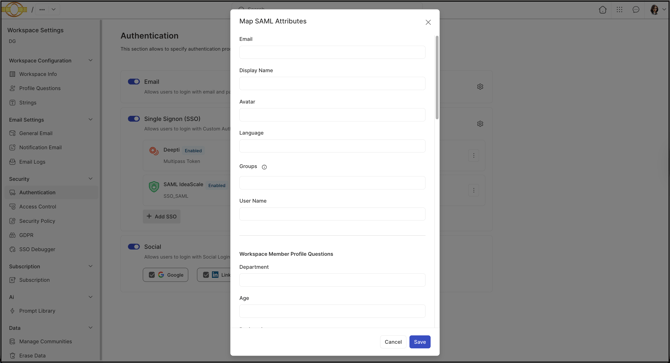
**Example SAML Attribute:**
```
Finance HR
```
With Finance and HR entered as the attributes in the Groups field, a member is automatically placed into both the Finance and HR groups.
A Workspace Administrator can override or modify the membership of an IdP-mapped group from Member Management \>\> Groups.
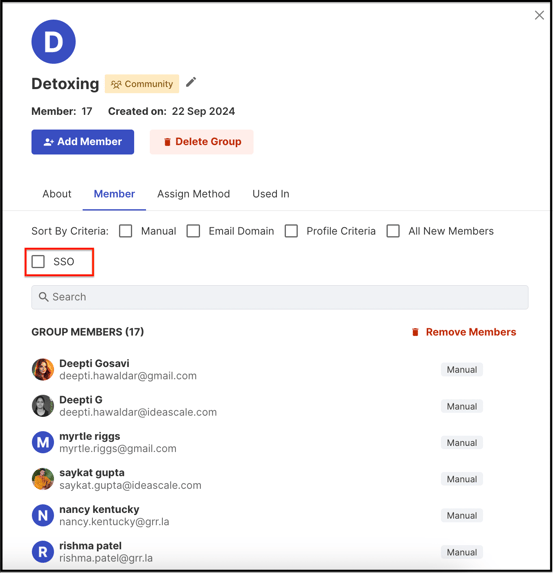
**Note:** The **Auto Assign by SSO** setting under Group Settings for an IdP-mapped group cannot be switched on or off manually by a Workspace Administrator (see Exceptions below).
---
### SSO Profile Field Mapping
If the IdP sends other attributes — such as department, region, or role — those attributes can be mapped to IdeaScale profile fields and used as criteria for manually created groups. Configuring this method has three parts: creating the profile questions, mapping IdP attributes to those profile questions, and configuring the resulting groups for auto-assignment.
#### Creating Profile Questions
Profile questions can be created at either the Workspace or community level, depending on where the mapped groups should apply:
1. Workspace Member Profile Questions — **Path: Workspace Homepage \>\> Navigation Panel \>\> Settings \>\> Workspace Configuration \>\> Profile Questions.**
2. Community Member Profile Questions — **Path: Workspace Homepage \>\> Navigation Panel \>\> Settings \>\> Community \>\> Community Configuration \>\> Member Profile Questions.**
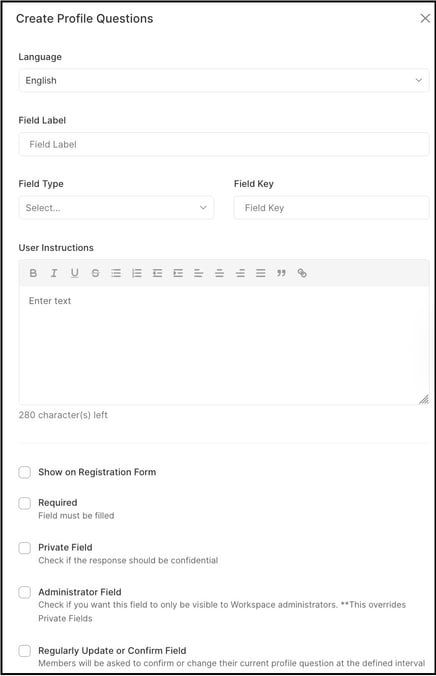
When paired with IdeaScale's group function, described in Configuring Group Auto-Assignment below, members are segmented into groups according to the response given for each profile question.
**[Help article on Workspace Profile Questions](https://help.ideascale.com/workspace-member-profile-questions-new-admin-panel?hsLang=en)
[Help article on Community Member Profile Question](https://help.ideascale.com/community-member-profile-questions?hsLang=en)**
#### Mapping Attributes to Profile Questions
After profile questions have been created, IdP attributes are mapped to them from the Single Signon Settings page.
**Path: Workspace Homepage \>\> Navigation Panel \>\> Settings \>\> Security \>\> Authentication \>\> Single Signon**
1. Select the More option (three dots) beside the SSO name, then select Map Attributes from the dropdown.
2. Map the attributes to create groups based on the profile questions created for the Workspace or community.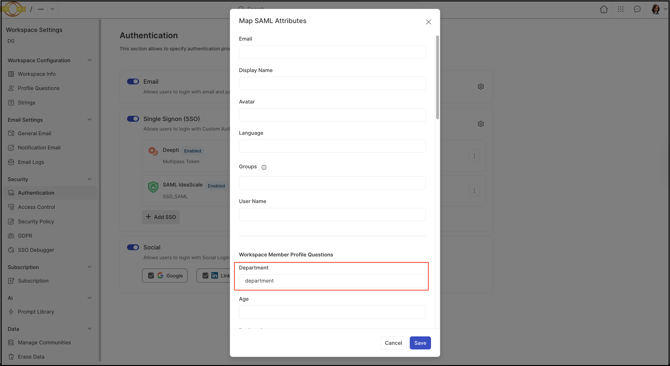
Example SAML Attribute:
```
Finance
```
With Department mapped as the attribute entered in the Workspace Member Profile Questions or Community Member Profile Questions field, and the Group Criteria value set to HR, a member is automatically placed into the HR group. (TO BE VERIFIED — the sample SAML attribute value shown above is Finance, which does not match the HR value referenced in this example; the source content may contain an inconsistency between the two.)
#### Configuring Group Auto-Assignment
After SSO Profile Field Mapping is configured, groups are created and set to assign members automatically based on profile question responses.
**Path: Workspace Homepage \>\> Navigation Panel \>\> Members \>\> Groups**
1. Create the user group.
2. Enter the group's name and update any other settings.
3. Switch to the Assignment Method.
4. Select Auto Assignment based on Profile Criteria.
5. Select the profile question response required for a member to be automatically added to the group.
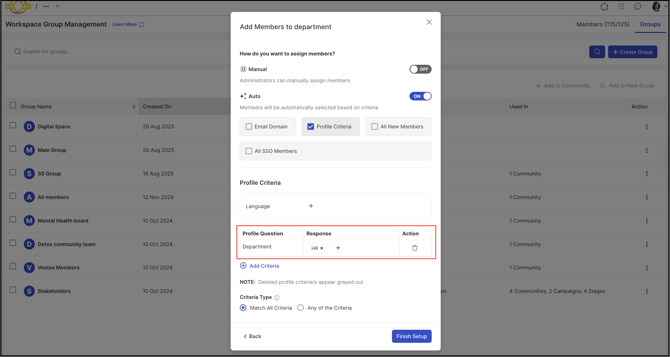
Under Groups, group membership can also be managed manually, and the number of members in a particular group can be viewed.
**[Help article on Group assignment method](https://help.ideascale.com/group-creation?hsLang=en#assign-method)**
---
### Exceptions
1. Auto Assign by SSO Restriction: The Auto Assign by SSO setting under Group Settings for an IdP-mapped group switches on automatically the first time a member logs in via SSO and is added to that group. A Workspace Administrator cannot switch this setting on or off manually.
2. IdP Group Attribute Requirement: SSO Group Attribute Mapping requires the Identity Provider (IdP) to send a group attribute in the SAML assertion. Without this attribute, groups cannot be created or assigned automatically using this method.
---
### Frequently Asked Questions
#### What is the difference between SSO Group Attribute Mapping and SSO Profile Field Mapping?
SSO Group Attribute Mapping automatically creates and assigns groups directly from an IdP-supplied group attribute, with no manual group setup required. SSO Profile Field Mapping instead maps other IdP attributes to profile questions, requiring groups to be manually created and configured with Auto Assignment based on Profile Criteria.
#### Can a member be placed into more than one group at once through SSO Group Attribute Mapping?
Yes. If multiple values are supplied in the mapped group attribute, IdeaScale searches for each value and places the member into every corresponding group, creating a new group when necessary.
#### Can a Workspace Administrator disable Auto Assign by SSO for an IdP-mapped group?
No. The Auto Assign by SSO setting switches on automatically once a member logs in through SSO and is added to the group, and cannot be switched off by a Workspace Administrator. See Exceptions above.
#### Where can group membership be managed after groups are created through SSO mapping?
From Member Management \>\> Groups, where a Workspace Administrator can override or modify group membership and view the number of members in each group.
---
**Related Articles**
- [Help Article for Workspace Single Sign-On Settings](https://help.ideascale.com/workspace-single-sign-on-settings-new-admin-panel?hsLang=en)
- [Help Article for SAML Single Sign-On at IdeaScale](https://help.ideascale.com/saml-single-sign-on-at-ideascale-new-admin-panel?hsLang=en)
- [Help Article for Common SSO Questions](https://help.ideascale.com/common-sso-question?hsLang=en)
- [Help Article for Workspace Profile Questions](https://help.ideascale.com/workspace-member-profile-questions-new-admin-panel?hsLang=en)
- [Help Article for Community Member Profile Questions](https://help.ideascale.com/community-member-profile-questions-new-community-settings?hsLang=en)
- [Help Article for Group Creation](https://help.ideascale.com/group-creation#assign-method)
- [Help Article for Member Management](https://help.ideascale.com/workspace-member-management-dashboard?hsLang=en)
Last Updated: August 17, 2026
- [Product Updates](https://help.ideascale.com/product-updates?hsLang=en#main-content)
- [2026](https://help.ideascale.com/product-updates?hsLang=en#2026)
- [2025](https://help.ideascale.com/product-updates?hsLang=en#2025)
- [Workspace](https://help.ideascale.com/workspace?hsLang=en#main-content)
- [Workspace Homepage](https://help.ideascale.com/workspace?hsLang=en#workspace-homepage)
- [Manage Workspace](https://help.ideascale.com/manage-workspace?hsLang=en#main-content)
- [Workspace Configuration](https://help.ideascale.com/manage-workspace?hsLang=en#workspace-configuration)
- [Email Settings](https://help.ideascale.com/manage-workspace?hsLang=en#email-settings)
- [Security](https://help.ideascale.com/manage-workspace?hsLang=en#security)
- [Data](https://help.ideascale.com/manage-workspace?hsLang=en#data)
- [Campaign Management](https://help.ideascale.com/campaign-management?hsLang=en#main-content)
- [Campaigns](https://help.ideascale.com/campaign-management?hsLang=en#campaigns)
- [Workflow](https://help.ideascale.com/campaign-management?hsLang=en#workflow)
- [Team Roles](https://help.ideascale.com/campaign-management?hsLang=en#team-roles)
- [IdeaScale AI](https://help.ideascale.com/ideascale-ai?hsLang=en)
- [IdeaScale Whiteboard](https://help.ideascale.com/ideascale-whiteboard?hsLang=en#main-content)
- [Facilitator Guides](https://help.ideascale.com/ideascale-whiteboard?hsLang=en#facilitator-guides)
- [Best Practices](https://help.ideascale.com/best-practices?hsLang=en#main-content)
- [FAQs](https://help.ideascale.com/best-practices?hsLang=en#faqs)
- [New User Guides](https://help.ideascale.com/new-user-guides?hsLang=en#main-content)
- [Starter Guide](https://help.ideascale.com/new-user-guides?hsLang=en#starter-guide)
- [Registration, Password & Authentication, New Users](https://help.ideascale.com/new-user-guides?hsLang=en#registration-password-authentication-new-users)
- [Participation](https://help.ideascale.com/new-user-guides?hsLang=en#participation)
- [Notifications](https://help.ideascale.com/new-user-guides?hsLang=en#notifications)
- [Personal Settings](https://help.ideascale.com/personal-settings?hsLang=en#main-content)
- [Email, Services & Devices](https://help.ideascale.com/personal-settings?hsLang=en#email-services-devices)
- [Your Communities & Notifications](https://help.ideascale.com/personal-settings?hsLang=en#your-communities-notifications)
- [Messages](https://help.ideascale.com/personal-settings?hsLang=en#messages)
- [Reporting](https://help.ideascale.com/reporting?hsLang=en)
- [Idea Portfolio](https://help.ideascale.com/idea-portfolio?hsLang=en)
- [Moderator Dashboard](https://help.ideascale.com/moderator-dashboard?hsLang=en)
- [Member Management](https://help.ideascale.com/member-management?hsLang=en#main-content)
- [Administrators](https://help.ideascale.com/member-management?hsLang=en#administrators)
- [Custom Admin](https://help.ideascale.com/member-management?hsLang=en#custom-admin)
- [Members](https://help.ideascale.com/member-management?hsLang=en#members)
- [Moderators](https://help.ideascale.com/member-management?hsLang=en#moderators)
- [Groups](https://help.ideascale.com/member-management?hsLang=en#groups)
- [Community Overview](https://help.ideascale.com/community-overview?hsLang=en)
- [Community Settings - Community Configuration](https://help.ideascale.com/community-settings-community-configuration?hsLang=en#main-content)
- [Community Info](https://help.ideascale.com/community-settings-community-configuration?hsLang=en#community-info)
- [Profile Questions](https://help.ideascale.com/community-settings-community-configuration?hsLang=en#profile-questions)
- [Tags](https://help.ideascale.com/community-settings-community-configuration?hsLang=en#tags)
- [Labels](https://help.ideascale.com/community-settings-community-configuration?hsLang=en#labels)
- [Strings](https://help.ideascale.com/community-settings-community-configuration?hsLang=en#strings)
- [Landing Pages](https://help.ideascale.com/community-settings-community-configuration?hsLang=en#landing-pages)
- [Custom Pages](https://help.ideascale.com/community-settings-community-configuration?hsLang=en#custom-pages)
- [Footer](https://help.ideascale.com/community-settings-community-configuration?hsLang=en#footer)
- [File Library](https://help.ideascale.com/community-settings-community-configuration?hsLang=en#file-library)
- [Community Settings - Email Settings](https://help.ideascale.com/community-settings-email-settings?hsLang=en#main-content)
- [General](https://help.ideascale.com/community-settings-email-settings?hsLang=en#general)
- [Notifications](https://help.ideascale.com/community-settings-email-settings?hsLang=en#notifications)
- [Broadcast Emails](https://help.ideascale.com/community-settings-email-settings?hsLang=en#broadcast-emails)
- [Idea Inactivity Emails](https://help.ideascale.com/community-settings-email-settings?hsLang=en#idea-inactivity-emails)
- [Email Logs](https://help.ideascale.com/community-settings-email-settings?hsLang=en#email-logs)
- [Community Settings - Automation](https://help.ideascale.com/community-settings-automation?hsLang=en)
- [Community Settings - Community Access](https://help.ideascale.com/community-settings-community-access?hsLang=en)
- [Community Settings - Integrations](https://help.ideascale.com/community-settings-integrations?hsLang=en#main-content)
- [App Directory](https://help.ideascale.com/community-settings-integrations?hsLang=en#app-directory)
- [Developer API](https://help.ideascale.com/community-settings-integrations?hsLang=en#developer-api)
- [Community Settings - Data](https://help.ideascale.com/community-settings-data?hsLang=en#main-content)
- [Export Data](https://help.ideascale.com/community-settings-data?hsLang=en#export-data)
- [Import Data](https://help.ideascale.com/community-settings-data?hsLang=en#import-data)
- [Erase Community Data](https://help.ideascale.com/community-settings-data?hsLang=en#erase-community-data)
- [Government](https://help.ideascale.com/government?hsLang=en)
- [Policies & Notices](https://help.ideascale.com/policies-notices?hsLang=en)
- [Community Settings - Logs](https://help.ideascale.com/community-settings-logs?hsLang=en)
[](http://ideascale.com)
IdeaScale's Help Center
Copyright © 2026, IdeaScale