
Path: Workspace Homepage >> Navigation Panel >> Settings >> Community >> Community Configuration >> Labels
| What are Labels? |
|---|
| Labels are small, color-coded indicators that appear at the end of idea titles and comments, used to categorize and flag ideas and comments for easier tracking and filtering. |
In addition to the system labels available by default, the Community Administrator can create an unlimited number of custom labels, which authorized groups can then apply to ideas and comments. Custom labels appear before system labels wherever labels are displayed.
The community administrator can add unlimited custom labels and they will appear before the system labels on ideas and comments.
Role Permissions
- Community Administrator: Creates and configures custom labels, including each label's name, key, color, and which groups are authorized to view, add, or remove it.
- Community Moderator: Authorized by default to apply the "Actionable" system label, and can label or unlabel ideas and comments from the Moderator Dashboard.
- Labeler: A group option that can be granted authorization to remove a label, most notably the default "Actionable" label.
Note: Off-topic is now managed under Labels
TABLE OF CONTENTS
Setting Up Custom labels
Applying Labels
Clickable Labels
Removing Labels
Label Activity
Labels in Idea Portfolio
Labels in Moderator Dashboard
Importing Labels
Exceptions
Frequently Asked Questions
Setting Up Custom Labels
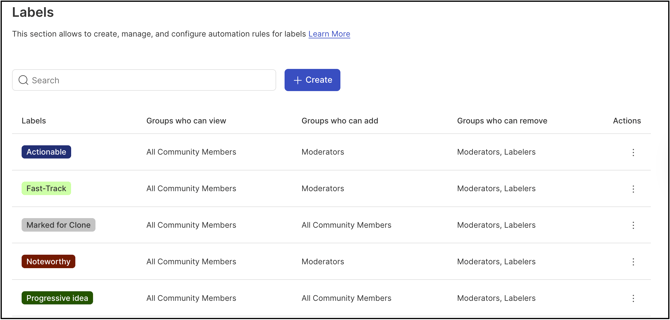
By default, an "Actionable" label is available in the community and is visible to all community members. The Community Moderator is authorized to apply this label, while both Moderators and Labelers are authorized to remove it.
An automation rule can be configured for a label using the Configure Automation option. Selecting this option opens the rule-creation screen with the rule name pre-populated with the label name, and the label automatically selected under Actions >> Label.
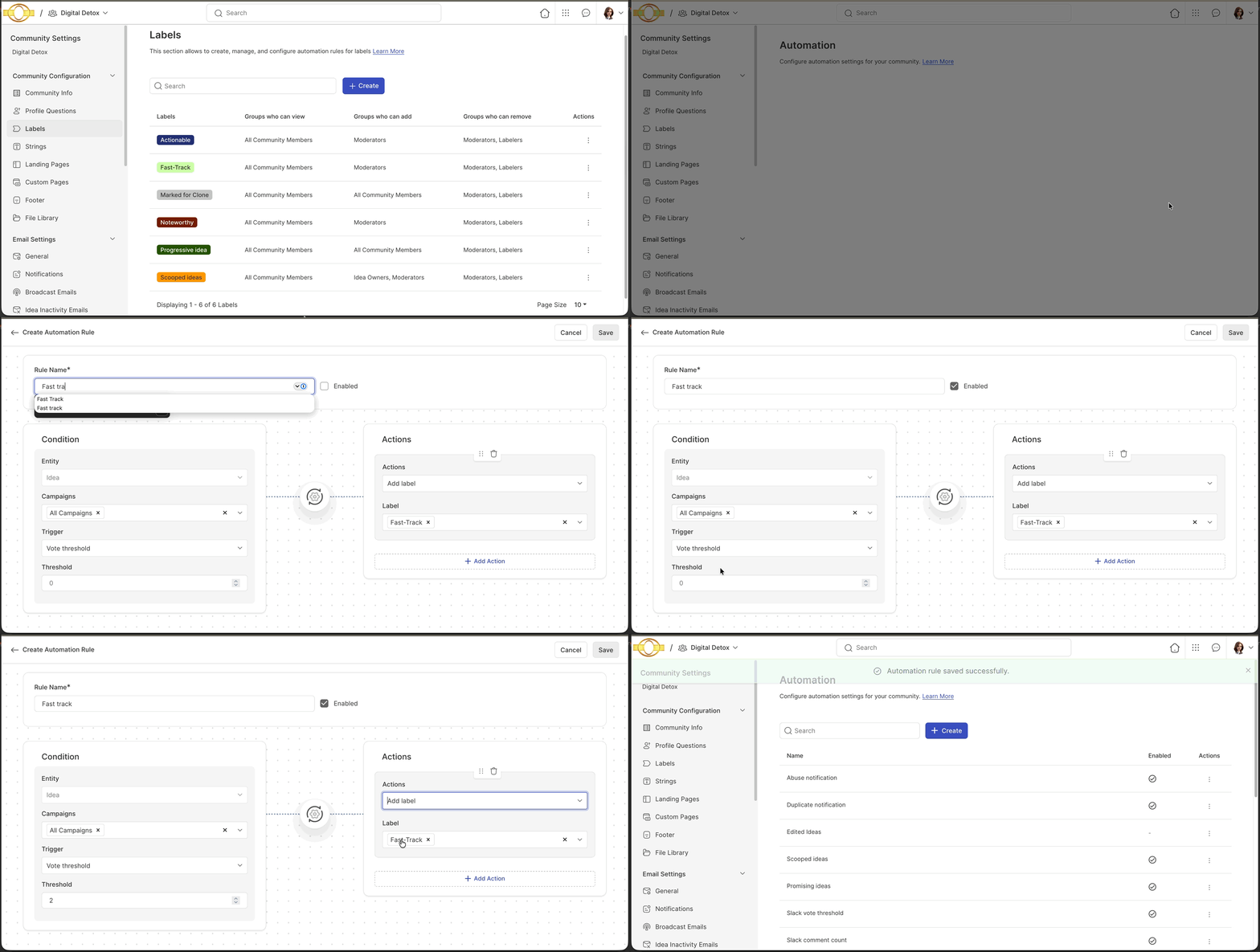
Help Article on Labels in Automation Builder
To set up a new custom label, navigate to Community >> Community Configuration >> Labels >> Custom Labels and select the + Create button.
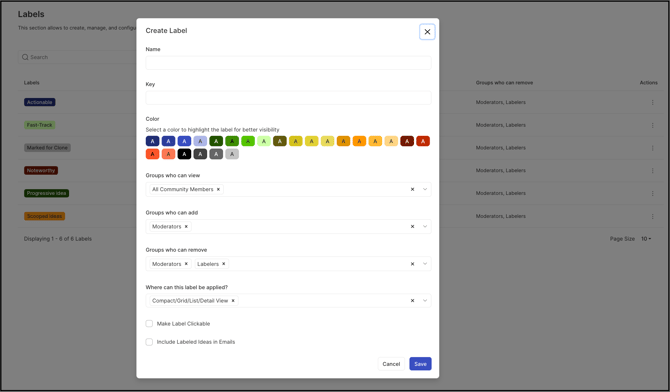
The following fields are completed to create the label:
- Name: The name given to the label. Limited to 25 characters maximum.
- Key: Auto-generated by the system once the Name is entered.
- Color: The color assigned to the label, selected from the color palette.
- Groups who can view: The groups authorized to see the label once assigned to an idea or comment. This is a multi-selection field; the Community Administrator can select from All Community Members, Authors, Idea Owners, Moderators, All Team Members, or member groups created in the community.
- Groups who can add: The groups authorized to assign the label to an idea or comment. This is a multi-selection field with the same available options as Groups who can view.
- Groups who can remove: The groups authorized to remove the label from an idea or comment. This is a multi-selection field; options include All Community Members, Authors, Idea Owners, Moderators, All Team Members, member groups created in the community, or Labelers.
- Where can this label be applied: The screens on which the label can be applied to an idea or comment. This is a multi-selection field; options include Grid/List/Detail View, Comments, or Idea Submission.
- Make Label Clickable: A switch that determines whether the label is clickable on the Homepage, Moderator Dashboard, and Idea Portfolio, allowing selection of the label to display all ideas associated with it. See Clickable Labels below.
- Include Labeled Ideas in Email: A switch that determines whether labeled ideas and comments are included in email notifications sent from the community. See Exceptions below for the effect of disabling this setting.
Once created, the label appears in the custom labels list.
Applying Labels
1. Compact/Grid/List/Detail View
On the Compact, Grid, List, or Detail View, labels are applied using the Set Label button.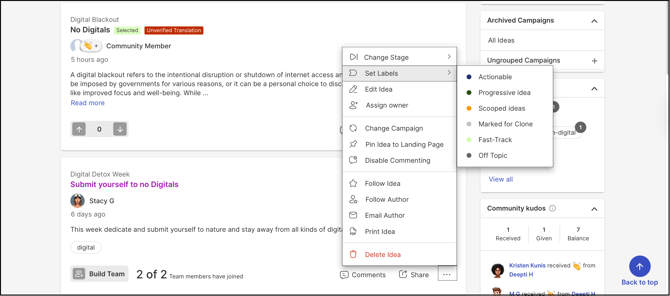
Note: Members who are not authorized to add labels do not see existing labels or the option to add new ones.
2. Comment
A label can be added to an existing comment, as well as while submitting a new comment. For a new comment, the Label button appears beside the Submit Comment button.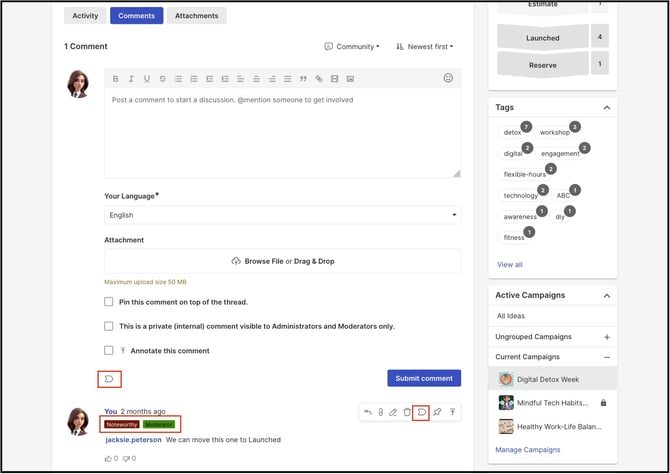
3. Idea Submission
Labels can also be applied while submitting an idea. The Label button appears on the left side, at the end of the submission form.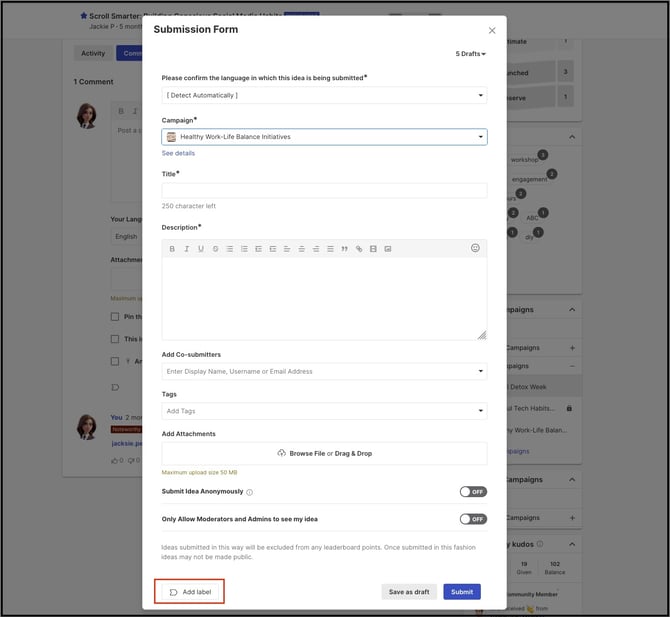
Clickable Labels
1. Homepage
Labels are clickable on the Homepage. Members can select a label authorized as clickable by the Community Administrator, similar to a tag, to view the list of all ideas that have that label applied. 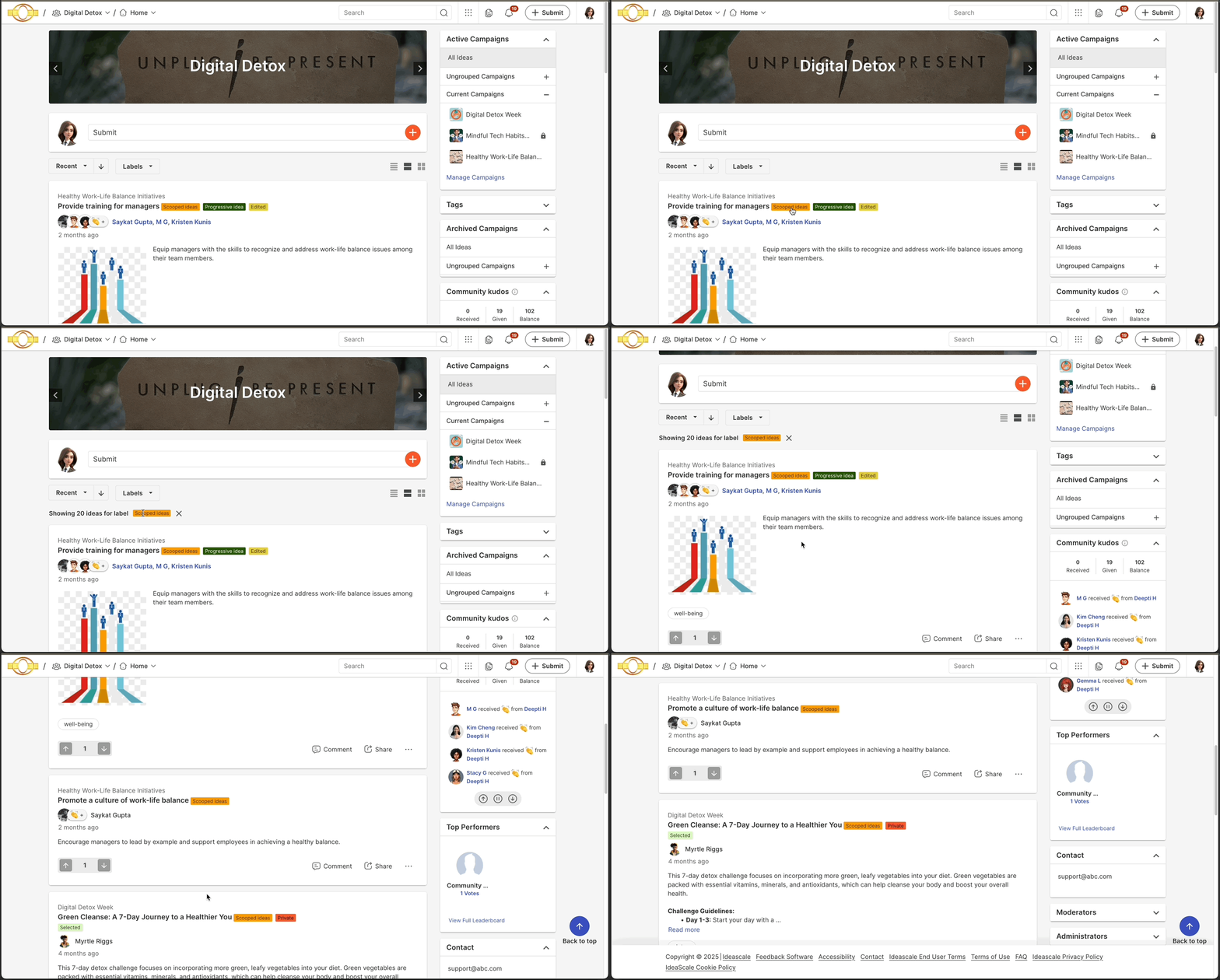
Labels display as a separate tab adjacent to the Idea Filter tab within the Ideas section on the Homepage and on each campaign page. The dropdown menu for labels shows every label available to be applied to ideas.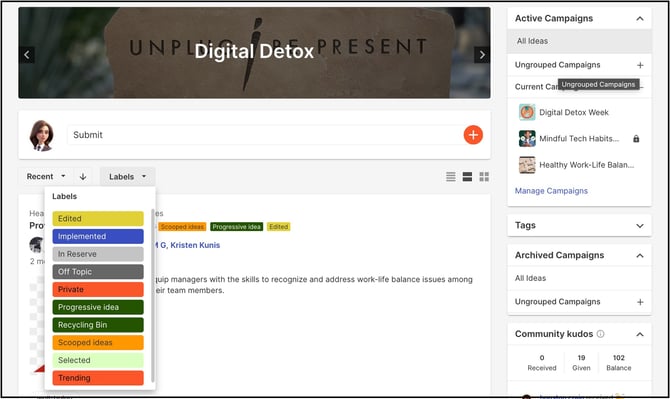
2. Moderator Dashboard
Labels are clickable in the Moderator Dashboard as well. Selecting the label name shows Moderators the list of all ideas that have the given label applied.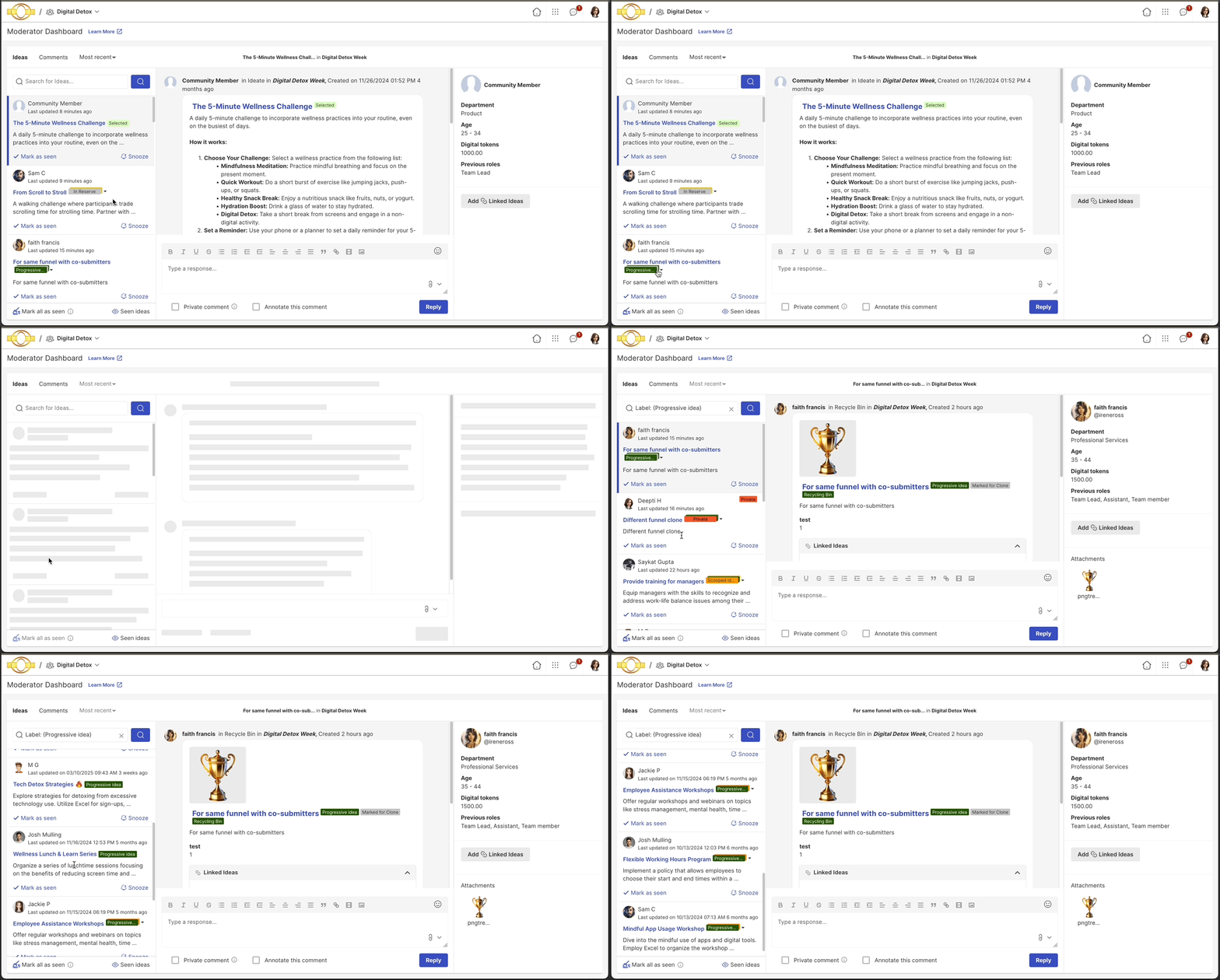
3. Idea Portfolio
Selecting the label name from idea details in Idea Portfolio filters the view to show all ideas containing that label.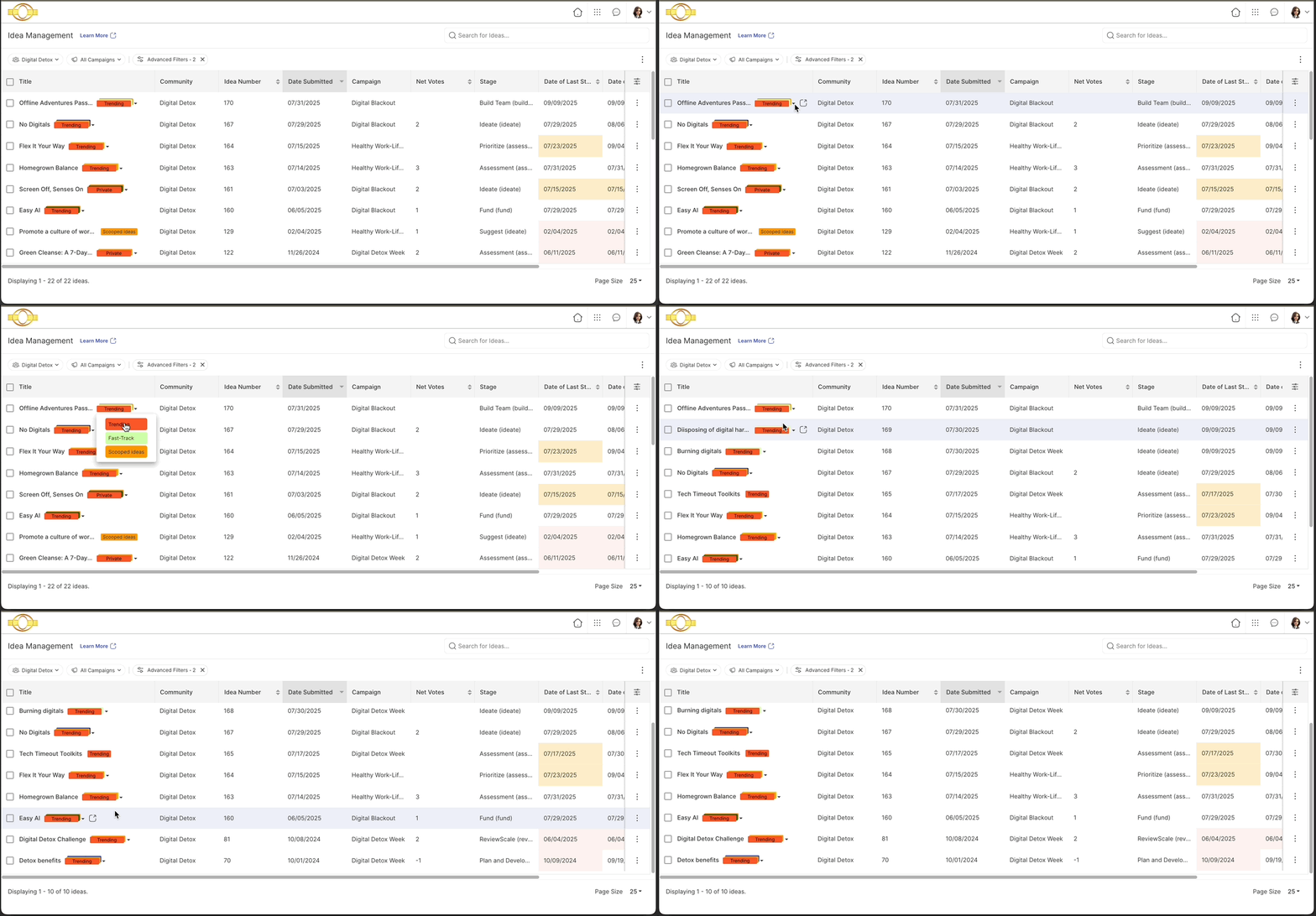
Removing Labels
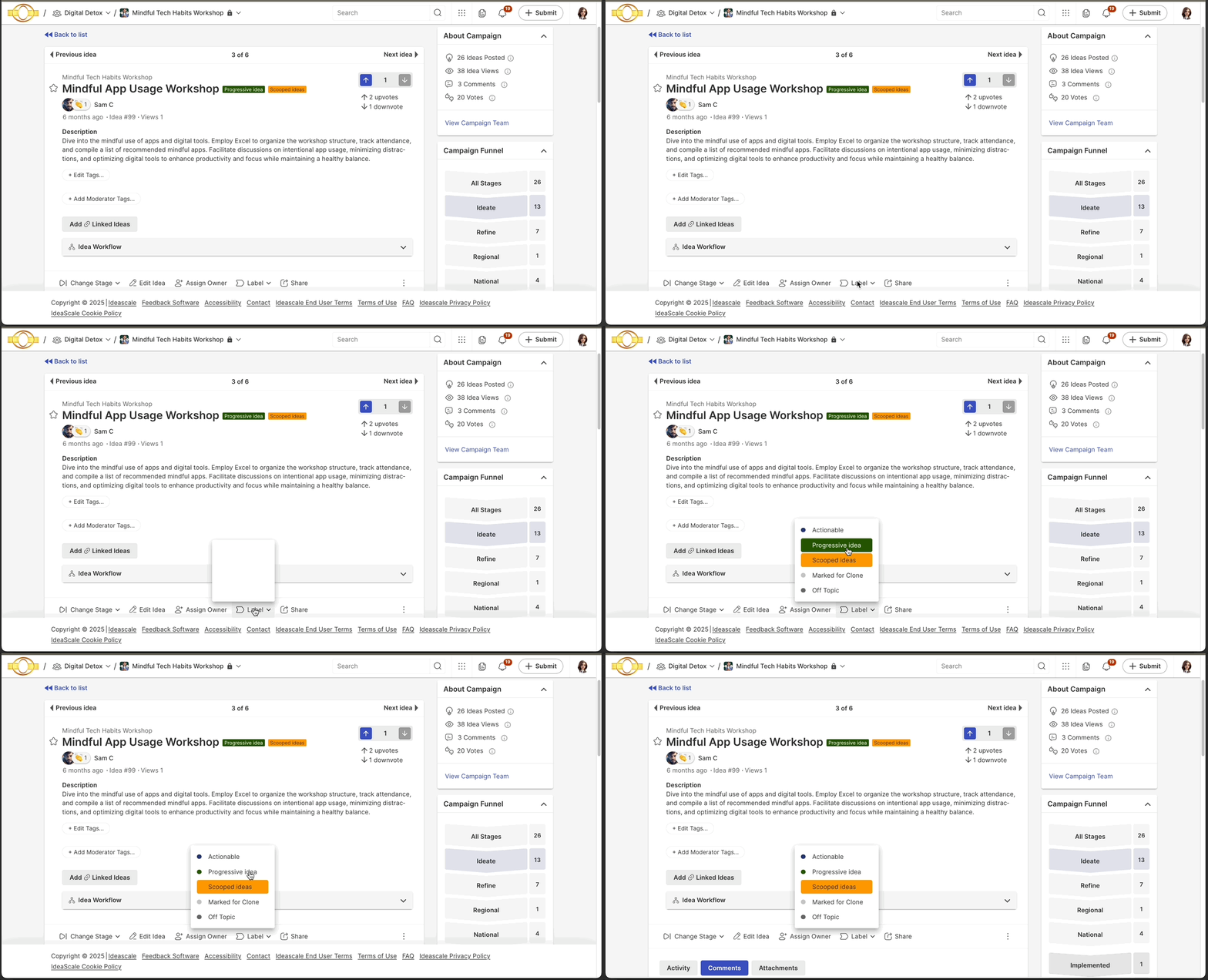
Labels are removed by an authorized group by selecting the label name from the Label button. A label that is already applied is highlighted in its selected color, while non-selected labels appear with a white background.
Label Activity
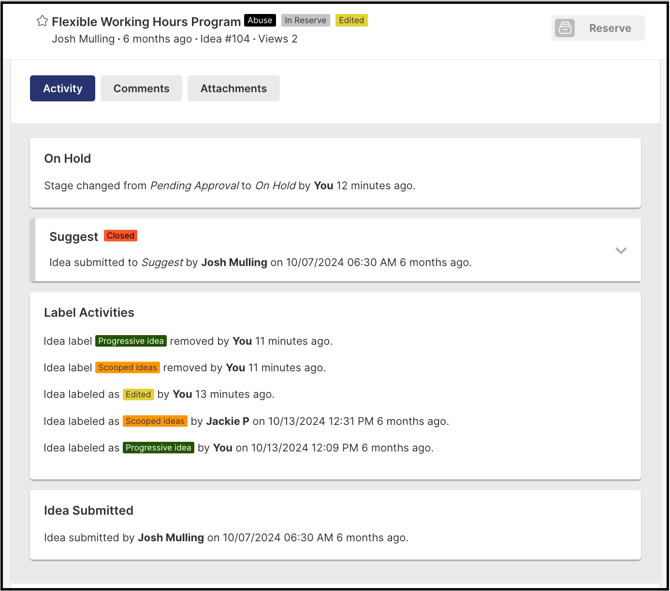
Idea submitters, Idea Owners, Moderators, and Administrators can view the Label Activities section on the Idea Details page. This section shows the label name, the person who applied or removed it, and the date and time the action was performed.
Labels in Idea Management
Ideas are labeled or unlabeled in Idea Management using the More >> Label option, followed by selecting the label name.
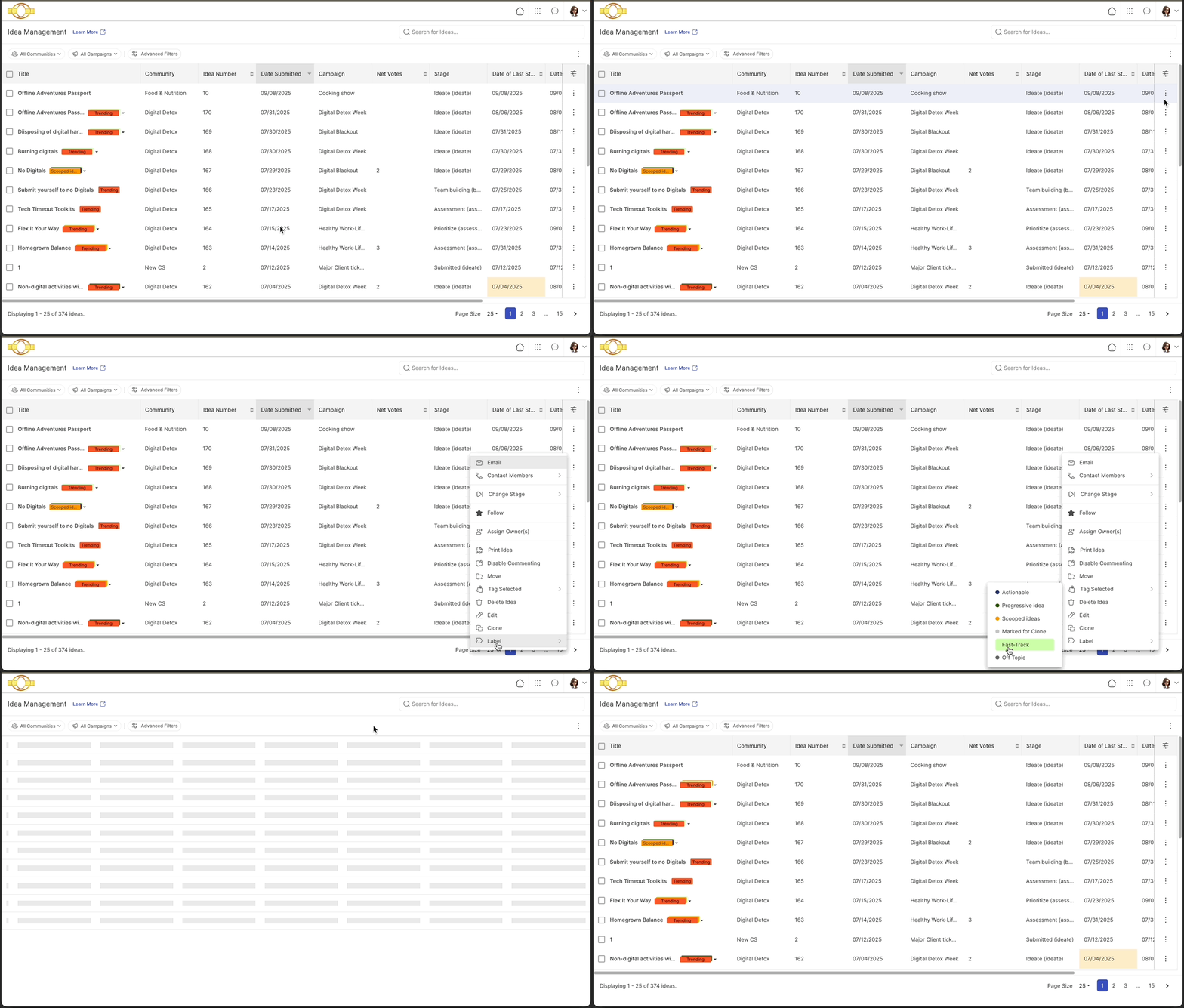
To remove a label, the same path is followed; the only difference is that the label already applied is highlighted in its selected color, while non-selected labels appear with a white background. Selecting the highlighted label removes it from the idea.
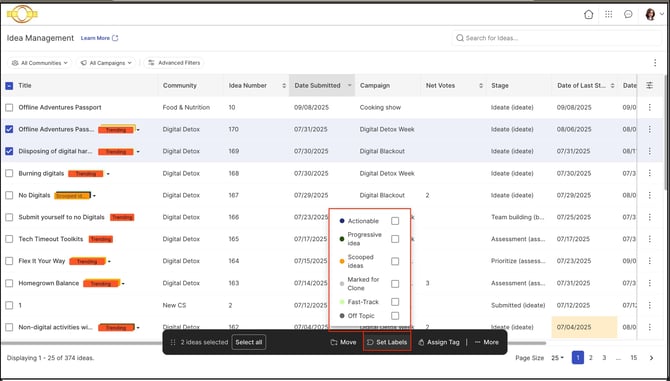
Labels can also be applied in bulk to multiple ideas. Select the ideas, then select Set Labels from the Bulk Actions bar.
Labels in Moderator Dashboard
Labels can be applied to or removed from both ideas and comments in the Moderator Dashboard.
To label an idea, select the Moderate Idea button, select the Label option, and select the desired label. To remove a label, select the highlighted label; this removes it from the idea.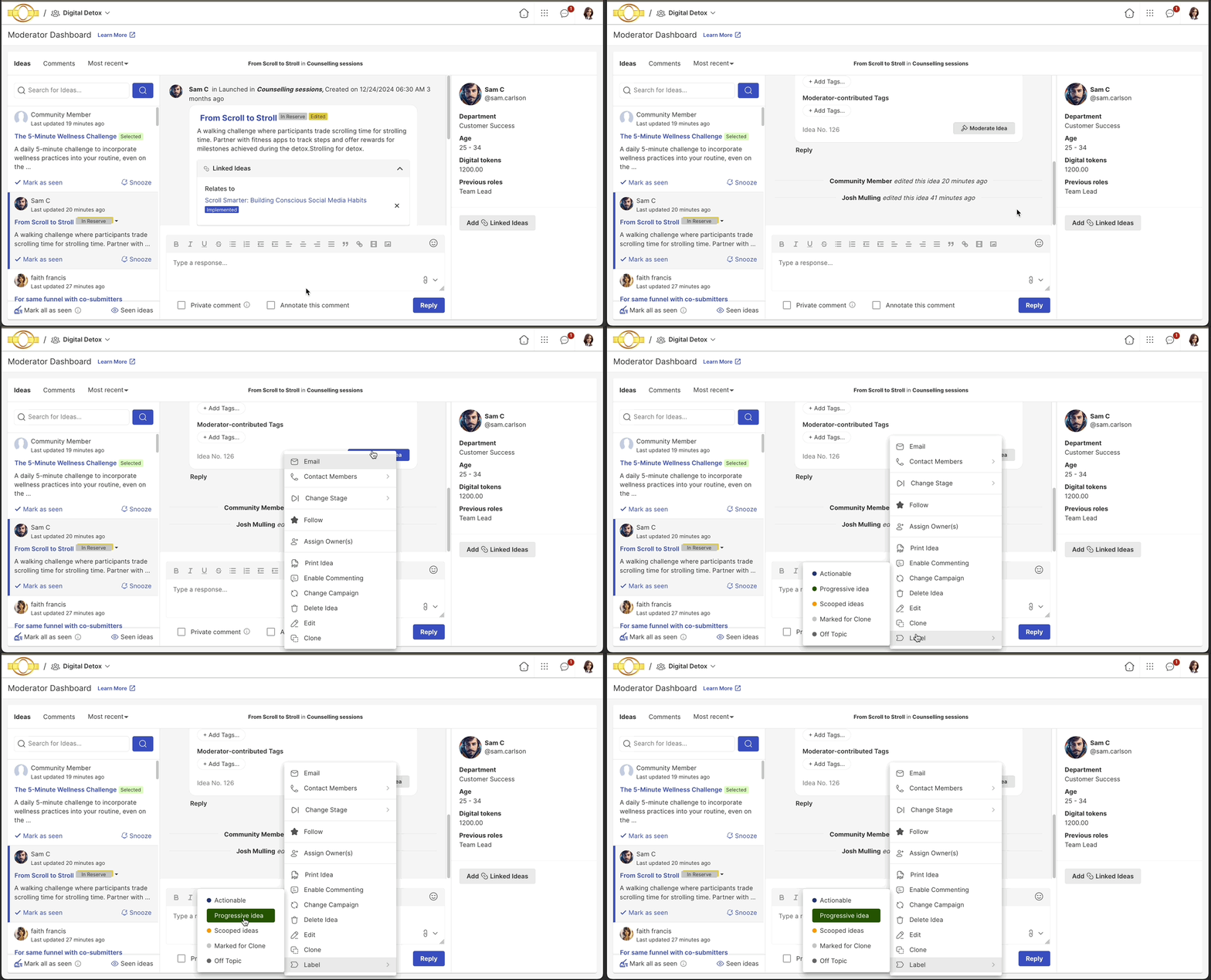
To label a comment, select the Label button under the comment and select the desired label. To remove a label, select the highlighted label; this removes it from the comment.
Importing Labels
Labels can be imported for both ideas and comments while uploading idea or comment data.
Help Article on Importing Ideas
Help article on Importing Comments
Exceptions
- Label Not Clickable: If a label is not made clickable from the Custom Label settings, it is not clickable on the Homepage, Moderator Dashboard, or Idea Portfolio, and is not searchable in the Moderator Dashboard or Idea Portfolio search.
- Add Authorization Required: Members who are not authorized to add labels do not see existing labels or the option to add new ones.
- Include Labeled Ideas in Email Disabled: When this setting is disabled, labeled ideas and comments are excluded from email notifications sent from the community. This also removes access to the Email Idea, Email Author, Share on Facebook, Share on Twitter, and Share on LinkedIn options for all members except Moderators.
Frequently Asked Questions
What is the difference between a custom label and a system label?
System labels are available in the community by default. Custom labels are created in addition to system labels by the Community Administrator, who can create an unlimited number of them. Custom labels appear before system labels wherever labels are displayed.
Who can remove the default "Actionable" label?
The Community Moderator, who can also apply the label, and any group assigned the Labeler role for that label are authorized to remove the default "Actionable" label.
Where can a label be applied?
A label can be applied to Grid/List/Detail View, Comments, or Idea Submission, depending on which of these screens are selected under Where can this label be applied when the label is configured.
What happens if the Make Label Clickable switch is off for a label?
See Exceptions above — the label is not clickable on the Homepage, Moderator Dashboard, or Idea Portfolio, and is not searchable in the Moderator Dashboard or Idea Portfolio search.
Can labels be applied in bulk?
Yes, in Idea Management. Multiple ideas can be selected and labeled at once using the Set Labels option from the Bulk Actions bar.
Related Articles
- Help Article for System Labels
- Help Article for Labels in Automation Builder
- Help Article for Importing Ideas
- Help Article for Importing Comments