
Path: Workspace Homepage >> Navigation Panel >> Settings >> Community >> Data >> Import Data >> Comments Data
| What is Comments Data Import? |
|---|
| Comments Data Import is a feature that allows a Community Administrator to bulk upload a spreadsheet of comments, along with an optional zip file of attachments, into a community. |
Comments Data Import is used to migrate or bulk-load comment records onto existing ideas, including replies, attachments, pinned status, and private (internal) status. Before importing, the ideas the comments will attach to must first be exported, since the resulting Idea URL values are required in the comment upload sheet.
Role Permissions
- Community Administrator: Can access Import Data and bulk upload the Comments Data spreadsheet and Attachments file.
TABLE OF CONTENTS
Uploading Comments DataComment Excel File Structure
Attachment Sheet Structure
Things to Note Before Importing
Exceptions
Frequently Asked Questions
Uploading Comments Data
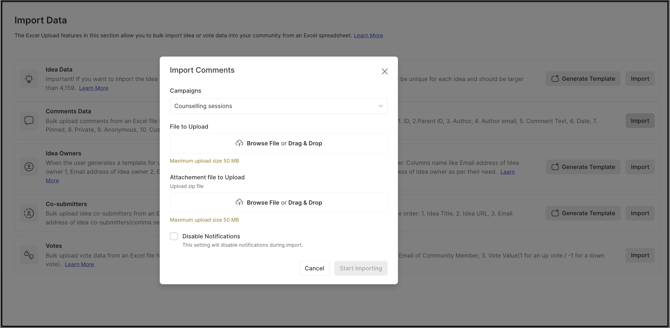
- File to Upload: Browse for the Comments Data Excel file from the community, or drag and drop it into the upload area. See Comment Excel File Structure below for how this file must be built.
- Attachments File to Upload: A zip file containing every file referenced in the Attachment Sheet.
- Disable Notifications: Enabling this setting prevents email notifications from being sent to members on whose idea a comment is being imported.
- Upload: Select Upload after adding the Comments Data Excel file and the Attachments zip file. See Things to Note Before Importing below before uploading.
Note: If malicious content, a virus, or malware is detected during upload, the system displays an error and the upload fails.
.webp?width=670&height=129&name=downloads%20(7).webp)
Comment Excel File Structure
Before exporting the comments, the ideas must be exported first — the idea export provides the Idea URL values the comments will be attached to. None of the columns below can be left blank.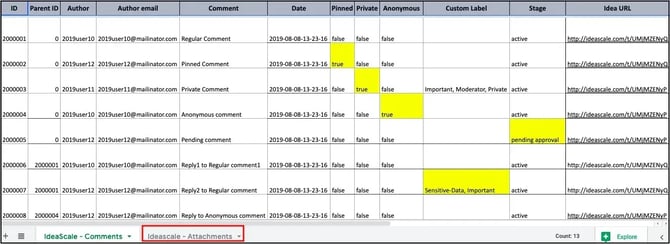
- Reference ID: A reference key used within the upload file to associate replies and attachments with a comment. Optional when a comment is imported as a standalone record, but mandatory when the comment has a reply or attachment associated with it. See Exceptions below for row-ordering requirements.
- Parent ID: Set to 0 when the comment has no parent comment. See Exceptions below for row-ordering requirements.
- Author: The commenter's name.
- Author Email: The commenter's email address.
- Comment Text: The comment's text content. HTML tags and entities — including greater-than/less-than signs, bullets, smart (curly) quotes, ampersands, copyright (©), and registered trademark (®) symbols — are not supported.
- Date: The date and time the comment was made, in YYYY-MM-DD-HH-MM-SS format. Excel automatically converts date-formatted values, so this column must be set to Text type before the sheet is populated.
- Pinned: Yes if the comment should be pinned to the top of the thread, otherwise No. Only a Moderator can pin a comment, so the Author Email column must contain the email address of the Moderator who pinned it when this value is Yes.
- Private Comment: Yes if the comment is a private comment visible only to Administrators and Moderators, otherwise No. Only an Administrator or Moderator can make a private comment, so the Author Email column must contain the email address of the Administrator or Moderator making it when this value is Yes.
- Anonymous: Yes if the commenter's identity should be hidden, otherwise No.
- Custom Labels: Any custom labels to apply to the comment. Multiple labels are separated by a comma.
- Stage: active if the comment is active, or pending approval if it is awaiting Moderator approval.
- Idea URL: The URL of the idea the comment attaches to, obtained from the idea export.
All of the above columns are required to be populated.
To upload attachments alongside comments, a second sheet named IdeaScale-Attachments must be added within the same workbook as the comment upload sheet. See Attachment Sheet Structure below.
Attachment Sheet Structure
%20copy.png?width=670&height=306&name=downloads%20(10)%20copy.png)
- Reference ID: The Reference ID of the comment the attachment belongs to, copied from the IdeaScale-Comments sheet. See Exceptions below for a condition that prevents an attachment from uploading.
- Author Email: The email address of the member uploading the attachment — either the comment's author or another verified (or assumed verified) user with access to the comment.
- File Name: The saved file name of the attachment (for example, mushrooms-1662959_960_720.png).
- Note (Optional): Any additional text about the attachment.
- Size: The attachment's size in bytes. The file size must fall within the Maximum upload size allowed for the community.
- Date: The same YYYY-MM-DD-HH-MM-SS format used in the Comment sheet.
Things to note before importing
- The Excel file must be in Plain Text format.
- All headers on both sheets must match the column names described above.
- The Comments Data Excel file and the attachments zip file must be located in the same directory when uploading.
- The two sheets within the workbook must be named Ideascale Comments and Ideascale Attachments.
Exceptions
- Reference ID and Parent ID Row Order: The Parent ID must appear in a row before its corresponding child Reference ID within the same sheet. If the child Reference ID appears in an earlier row than its Parent ID (for example, the child in row 50 and the parent in row 60), the child comment will not be uploaded.
- Missing Attachment File: If a file name and its details are listed in the IdeaScale-Attachments sheet but the actual file is not included in the zip file, the attachment will not be uploaded. The Reference ID in the IdeaScale-Attachments sheet must also appear in the IdeaScale-Comments sheet, or the attachment will not be uploaded.
- Malicious Content Detected: If malicious content, a virus, or malware is detected during upload, the system displays an error and the upload fails.
Frequently Asked Questions
Can HTML tags or special characters be included in the Comment Text?
No. HTML tags and entities — including greater-than/less-than signs, bullets, smart quotes, ampersands, ©, and ® — are not supported in the Comment Text column.
Who can pin a comment during import?
Only a Moderator can pin a comment. When the Pinned column is set to Yes, the Author Email column must contain the pinning Moderator's email address.
Who can create a private comment during import?
Only an Administrator or Moderator can create a private comment. When the Private Comment column is set to Yes, the Author Email column must contain that Administrator's or Moderator's email address.
Is the Reference ID required for every comment?
Not always. Reference ID is optional for a comment imported as a standalone record, but becomes mandatory when the comment has a reply or an attachment associated with it.
Why must the Date column be set to Text type before entering values?
Excel automatically converts date-formatted values to its own date type, which does not match the required YYYY-MM-DD-HH-MM-SS format. Setting the column to Text type before populating it preserves the format the import expects.
Related Articles