
Path: Workspace Homepage >> Navigation Panel >> Settings >> Community >> Data >> Import Data >> Idea Data
| What is Import Idea Data? |
|---|
| Import Idea Data is a feature that allows idea data to be uploaded into a campaign in bulk using an Excel sheet, rather than submitting ideas individually. |
Import Idea Data lets a Community Administrator generate a formatted Excel template, populate it with idea details, and upload it to add ideas — along with attachments, moderator tags, and votes — to a campaign in a single batch.

Role Permissions
- Community Administrator: Generates the import template, uploads idea data, and receives the resulting success or error notifications. (TO BE VERIFIED: whether Campaign Administrator or Custom Administrator roles also have access to Import Data.)
TABLE OF CONTENTS
Generate TemplateInstructions for the Excel Template
Stage IDs Sheet
IdeaScale - Attachments Sheet
Moderator Tags Sheet
File Format Requirements
Import Results
Exceptions
Frequently Asked Questions
Generate Template
Selecting Generate Template is always recommended, as it produces the correct file format for a successful upload.
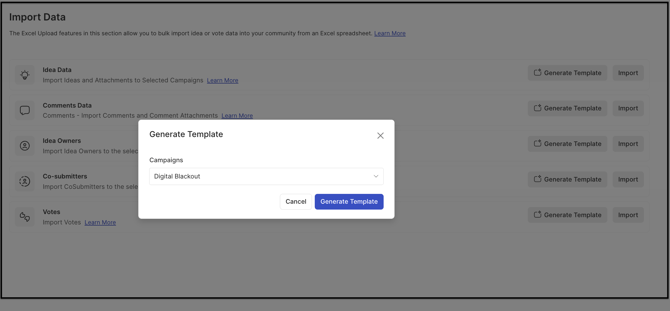
Once Generate Template is selected, the Community Administrator receives an email containing a link to download the generated template.
Note: No more than 5,000 ideas should be uploaded at one time.
Once the template is generated the community admin will receive an email with the link of the template generated to be downloaded. 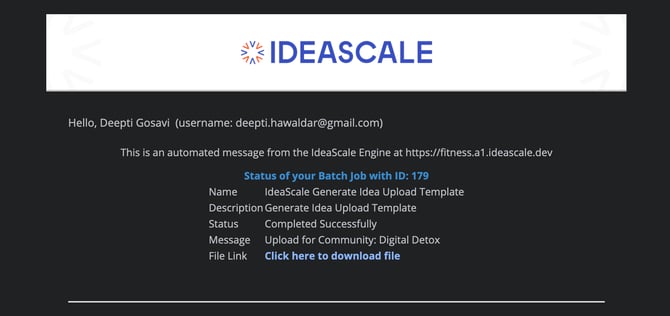
Instructions for the Excel template
The generated template varies based on the information a community collects about ideas. The Idea Sheet within the template includes the following columns:

-
Idea Id: Any unique number, used to link ideas to each other and to associate attachments and moderator tags with the correct idea.
-
Idea Title: The name of the idea.
-
Idea Description: The description of the idea.
-
Tags (Optional): Left blank if tags are not being uploaded. If tags are predefined in the community, they are entered exactly as defined. Multiple tags are comma-separated.
- Idea Submitter Email Address: The email address of the member submitting the idea. If ideas are being uploaded on behalf of members, this column contains their email address; otherwise, it contains the email address of a Community Owner or Community Administrator. See Exceptions below for what happens when this column is left blank.
- Co-Submitters Email (Optional): Available if the campaign has enabled co-submitters on the Idea Submission form. Multiple co-submitter email addresses are comma-separated.
- Idea Owners Email (Optional): Available if the community has enabled idea owners in Workflow. Multiple idea owner email addresses are comma-separated.
- Idea Submission Date (Optional): Left blank if pre-dated ideas are not being uploaded, in which case the idea shows the upload date as its submission date. When populated, the date must be entered in MM-DD-YYYY format, with the column formatted as text rather than date, since Excel automatically converts date-formatted fields.
- Stage ID: The ID of the stage to which ideas are uploaded, referenced from the Stage IDs Sheet. Ideas can be uploaded to multiple stages within the same import. When left blank, ideas are uploaded to the first stage of the funnel.
- Idea Number (Optional): A unique idea number not already assigned to any idea in the community. When specified, the sheet must be sorted in ascending order by Idea Number, and a number must be assigned to every idea in the sheet. Left blank, the system assigns idea numbers automatically.
- Anonymous Idea (Optional): Yes for ideas submitted anonymously, No for public ideas; the value is not case sensitive. See Exceptions below for column completion requirements.
- Private (Optional): Available if the campaign allows private idea submissions, visible only to Administrators, Moderators, and authorized groups. Yes for private ideas, No otherwise. See Exceptions below for column completion requirements.
- Custom Labels (Optional): One or more labels to associate with the idea, comma-separated if more than one.
- Linking Ideas (Optional): Available if the community has the Link Idea setting enabled; left blank if ideas are not being linked. Each linkage type — Similar Ideas, Substantially Equivalent Ideas, Related Ideas, Is Part of Ideas, Contains Ideas, Supports Ideas, and Supported by Ideas — has its own column, populated with the Idea Id of the idea being linked, as defined in the Idea Id column.
- Idea Custom Fields: Community-specific custom fields, listed by name in a separate sheet of the template. Custom fields marked as Required in the community must be populated, and answers to multiple-choice custom fields are comma-separated.
.webp?width=670&height=129&name=downloads%20(7).webp)
Stage IDs Sheet
The Stage IDs Sheet lists every stage ID in the community and is automatically populated when the template is generated. It serves as the reference used to populate the Stage ID column on the Idea Sheet.
Note: This sheet should not be edited.
IdeaScale - Attachments Sheet
The IdeaScale - Attachments Sheet is included in the template when the Upload Attachments switch is enabled, and is used to upload idea attachments alongside idea data. The Idea Id entered on this sheet associates each attachment with the corresponding idea on the Idea Sheet; the same Idea Id can be repeated across multiple rows to upload multiple attachments to the same idea.
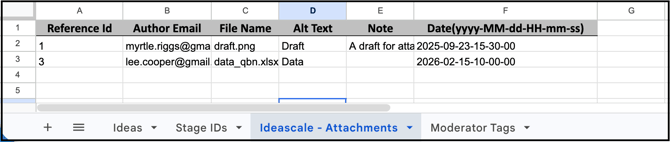
The sheet includes the following columns:
- Idea ID: The idea to which the attachment is uploaded, matching an Idea Id on the Idea Sheet.
- Author Email: The email address of the member on whose behalf the attachment is uploaded.
- File Name: The file name of the attachment as it appears in the accompanying .zip file.
- Alt Text: Alternate text for the attachment, used in case of a rendering issue.
- Notes (Optional): Additional text or notes about the attachment.
- Date: The upload date and time for the attachment, in YYYY-MM-DD-HH-MM-SS format. See Exceptions below for date requirements.
A .zip file containing all attachment files is created and placed in the same directory as the Excel file before uploading.
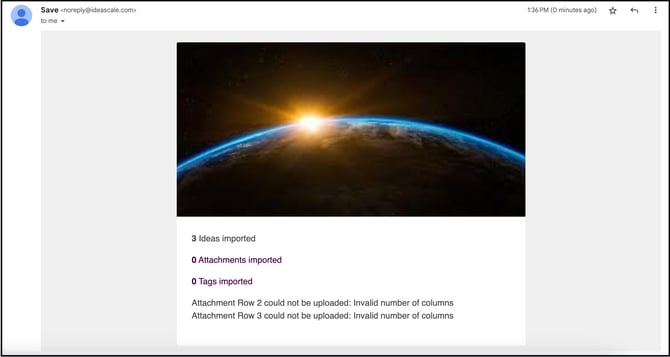
Once the import completes, the Community Administrator receives an email confirming whether the attachment import was successful, including the reason for any error.
Note: During import, any data that is filtered or hidden in the Excel file will still be imported exactly as it exists in the sheet.
Moderator Tags Sheet
The Moderator Tags Sheet is used to upload moderator tags alongside idea data, and includes the following columns:
- Idea ID: The idea to which the moderator tags are uploaded.
- Tag: The tag word assigned as a moderator tag. If moderator tags are predefined in the community, the tag word is copied exactly as defined in the community's predefined tag list.
- Tag Submitter Email: The email address of the member submitting the tag. See Exceptions below for who is authorized to submit moderator tags.
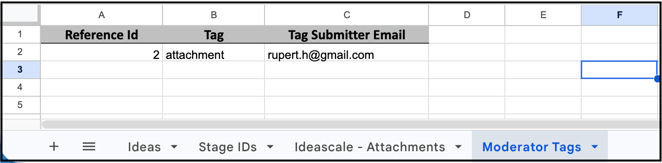
Ensure that the email Tags submitter email address is either a Community moderator/campaign moderator /Custom field moderator/group moderator of the idea to which the tags are submitted.
A Campaign Moderator can submit moderator tags only for campaigns to which they are assigned as Moderator; in other campaigns, they are treated as a regular member and cannot use the moderator tag.
Votes can also be uploaded, separately from ideas, in .xls or .xlsx format.
Help Article on Import Votes
File Format Requirements
Before uploading, the entire Excel sheet is converted to plain text format, using Ctrl+A to select all sheet content, then Format >> Plain Text.
Note: HTML tags and entities in the Idea Title, Idea Description, and custom field text are not supported — for example, greater-than and less-than signs, bullets, smart quotes, ampersands, the copyright symbol, and the registered trademark symbol. Ideas or fields containing these characters are not uploaded.
Import Results
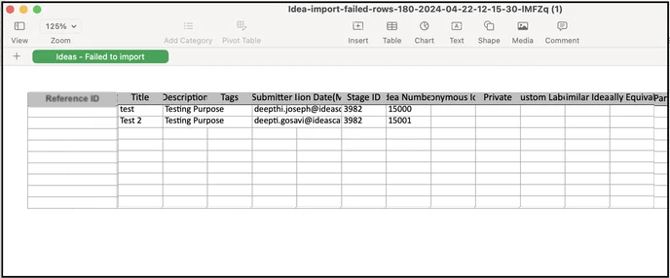
After the import completes, the Community Administrator receives an email indicating whether the import was successful, along with the reason for any error and a link to download a file of any unsuccessful rows.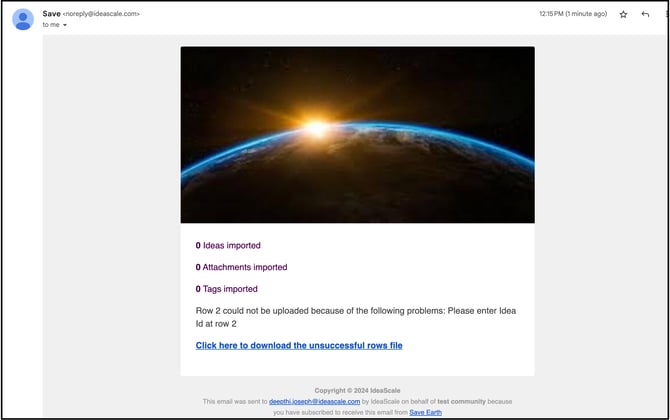
Exceptions
- Idea Submitter Email Address left blank: The sheet fails to upload.
- Idea Submitter Email Address belonging to a banned or unverified member: The system prevents the idea from being uploaded on that member's behalf.
- Idea Submitter Email Address not matching an existing member: The system creates a new member using that email address.
- Anonymous Idea or Private column partially filled: These columns are either left completely blank or filled with a value (Yes or No) in every row. Filling some rows and leaving others blank is not supported.
- Attachment Date: The date entered on the IdeaScale - Attachments Sheet cannot be earlier than the associated idea's submission date, though it can match it.
- Moderator Tags Sheet submitter authorization: The Tag Submitter Email must belong to a Community Moderator, Campaign Moderator, Custom Field Moderator, or Group Moderator with moderation rights over the idea receiving the tag.
- Malicious content detected: If the uploaded file contains malicious content, a virus, or malware, the system displays an error and the upload fails.
Frequently Asked Questions
What happens if the Idea Submitter Email Address column is left blank?
The sheet does not upload. This column must contain either the email address of the member on whose behalf the idea is submitted, or the email address of a Community Owner or Community Administrator.
What happens if the email address entered as the idea submitter does not belong to an existing member?
The system creates a new member using that email address.
Can ideas be uploaded on behalf of a banned or unverified member?
No. The system prevents ideas from being uploaded on behalf of banned or unverified members.
Can votes be imported at the same time as ideas?
No. Votes are imported separately, in .xls or .xlsx format.
Is data that is filtered or hidden in the Excel sheet still imported?
Yes. Any data that is filtered or hidden in the Excel file is imported exactly as it exists in the sheet.
What happens to rows that fail to import?
The Community Administrator receives an email indicating the import outcome, including the reason for any failure and a link to download a file containing the rows that were not imported.
Related Articles