
Path: Workspace Homepage >> Navigation Panel >> Settings >> Community >> Data >> Export Data >> Audit Log
| What is Export Audit Log? |
| Export Audit Log is the tool used to generate a downloadable record of activities that took place within a community, including a timestamp, user name, and event type for each logged action. |
The Export Audit Log feature allows a record of community activity to be generated for review or record-keeping outside the platform. The export can be limited to specific types of activity, a specific date range, and a preferred timezone before the file is generated.
Role Permissions
- Community Administrator: Exports the community's Audit Log, choosing the export format, Audit Types, date range, and timezone.
Export Options
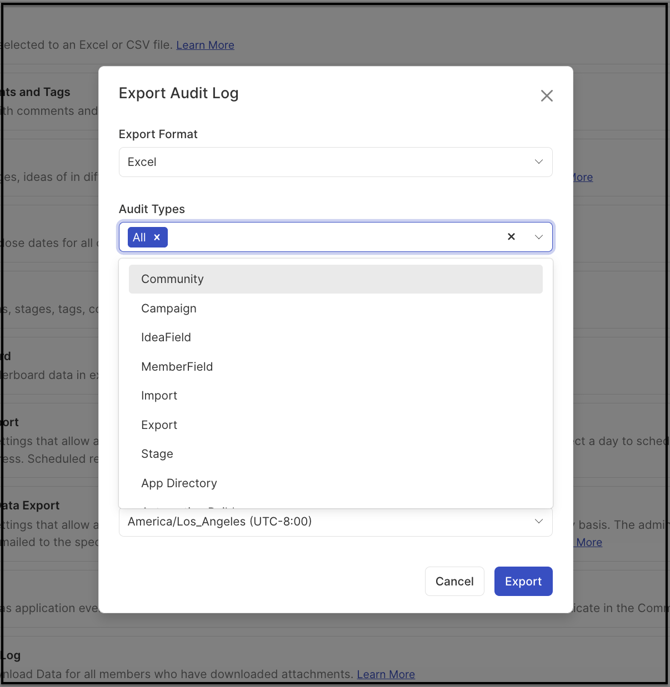
Selecting Audit Log under Export Data opens the export configuration screen, where the Community Administrator sets the export format, the Audit Types to include, an optional date range, and a preferred timezone before generating the file. Audit Types are selected from a dropdown that supports multiple selections; once an Audit Type is selected, it is greyed out in the dropdown to indicate it has already been added to the export.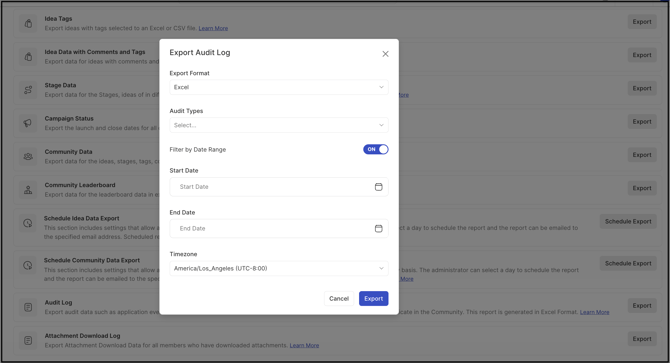
Export Format
The Audit Log can be exported in either of the following formats:
- Microsoft Excel Sheet (.xls): Exports the Audit Log as an Excel spreadsheet.
- CSV: Exports the Audit Log as a comma-separated values file.
Audit Types
The Community Administrator can export all Audit Log types at once by selecting the All option from the dropdown, or narrow the export to one or more specific Audit Types selected individually from the same dropdown.
Filter by Date Range
The Filter by Date Range switch controls whether the export is limited to a specific time period. Leaving the switch disabled exports all Audit Log data from the community's beginning up to the current date. Enabling the switch reveals fields for a start date and an end date, limiting the export to activity that occurred within that period.
Timezone
The Community Administrator can select a preferred timezone for the exported timestamps, rather than defaulting to the community's configured timezone.
Exported Sheet Columns
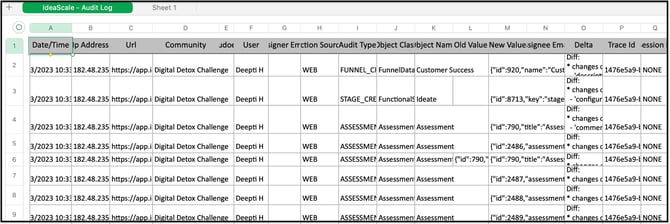
The exported Audit Log includes the following columns:
- Date and Time: The date and time when the event occurred.
- IP Address: The IP address of the person who made the change or update.
- Url: The community URL where the change or update was made.
- Community Name: The name of the community.
- User: The name of the user who made the change or update.
- Assigner Email: The email address of the member who assigned another member, where applicable.
- Action Source: The source from which the change or update was made.
- Audit Type: The specific feature that was changed or updated.
- Object Class: The name of the class in the IdeaScale codebase that corresponds to the logged action. For example, changing a funnel's name triggers the FunnelData class, which is logged in this column.
- Object Name: The name of the component in the IdeaScale application on which the action was performed. For example, changing the name of a funnel called Customer Experience logs Customer Experience in this column.
- Old Value: The value of the component before the action was performed. For example, changing a funnel name from Customer Experience to Customer Success logs Customer Experience in this column.
- New Value: The value of the component after the action was performed. For example, changing a funnel name from Customer Experience to Customer Success logs Customer Success in this column.
- Assignee Email: The email address of the member who was assigned, where applicable.
- Delta: The difference between the Old Value and New Value for the logged action. For example, a member's last successful login time changes with each successful login; this column shows the difference between the two most recent login times.
- Trace Id: A unique string generated by the system to support searching for a particular log entry.
- Session Id: The browser session ID of the user at the time the action was performed.
Frequently Asked Questions
What happens if the Filter by Date Range switch is left disabled?
The export includes all Audit Log data recorded from the beginning of the community up to the current date.
Can more than one Audit Type be included in a single export?
Yes. The Audit Types dropdown supports multiple selections, and each selected type is greyed out in the dropdown once added to the export.
Does selecting a different timezone change the underlying event data?
No. Selecting a timezone only changes how the exported timestamps are displayed; it does not alter the underlying logged event data.
Related Articles