
Path: Workspace Homepage >> Navigation Panel >> Settings >> Community >> Community Configuration >> Profile Questions
| What are Member Profile Questions? |
|---|
| Member Profile Questions are custom fields, configurable at either the Workspace or Community level, that collect additional information from members beyond standard registration data. |
Member Profile Questions help a Workspace Administrator or Community Administrator gather insights about members that go beyond what is captured at registration. Responses can be used to categorize members into groups and to filter ideas.
Role Permissions
- Workspace Administrator: Creates and manages Member Profile Questions at the Workspace level, which apply across communities within the Workspace.
- Community Administrator: Creates and manages Member Profile Questions at the Community level, and can populate response values when bulk-importing members.
- Moderator: Views and edits Private Field responses from the Moderator Dashboard or the member summary view, and enters data directly into Moderator Fields.
TABLE OF CONTENTS
Adding a Member Profile QuestionMember Profile Question Field Options
Member Profile Question Behavior
Editing Member Responses
Exceptions
Frequently Asked Questions
Adding a Member Profile Question
Member Profile Questions can be created at either the Workspace level or the Community level. Fields created at the Workspace level apply across every community within the Workspace; fields created at the Community level apply only to that community.
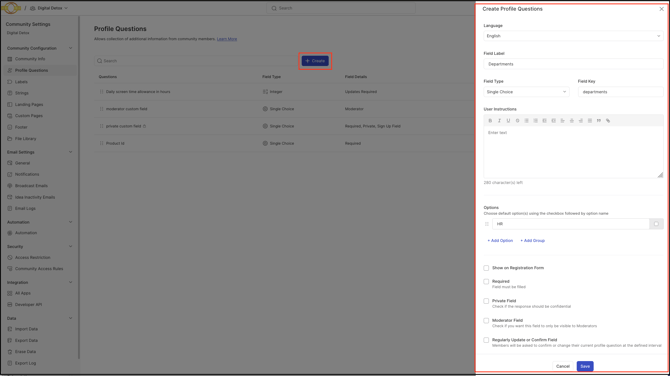
Member Profile Question Field Options
Each Member Profile Question is configured using the following fields:
- Language: The default language for the Member Profile Question.
- Field Label: The title or name of the Member Profile Question.
- Field Type: The response format for the question — Single line text box, Large text/Description, US Zipcode, URL/Hyperlink, Date, Single choice, Multiple choice, Checkbox, Integer, or Currency. See Help Article for Custom Fields on Ideas for details on each response type's output.
- Field Key: An identifier generated automatically and used in API calls.
- User Instructions: Additional guidance shown beside the Member Profile Question to help members complete their response.
- Show on Registration Form: Enabling this field displays the Member Profile Question on the Workspace registration form, or when a member joins the community. Fields enabled this way are automatically set as Required, which hides the separate Required switch on the field's creation form. For Public communities, enabling this option also displays the Member Profile Question on the public community's registration page. See Exceptions below for related display conditions.
-
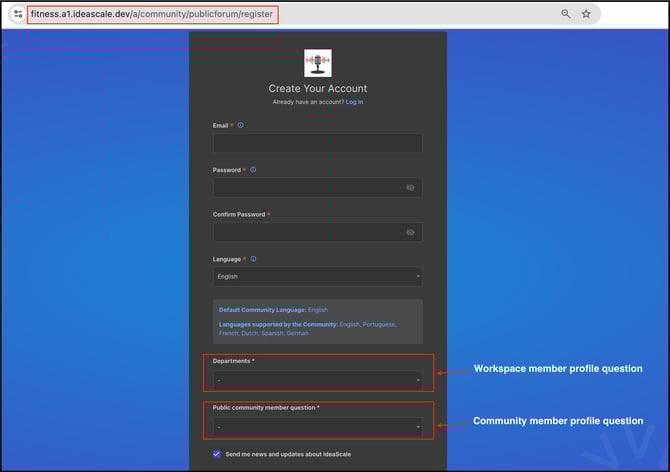
-
Required: Enabling the Required switch makes the Member Profile Question mandatory to complete. Disabling it allows members to skip the field.
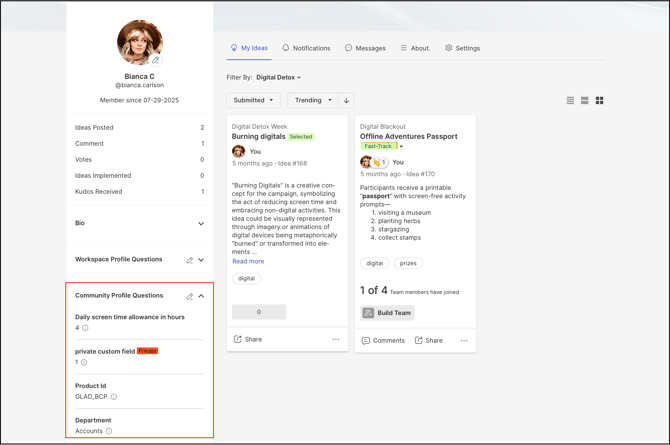
- Private Field: Marking a field as Private keeps member responses confidential; only a Moderator can view them, from the Moderator Dashboard or the summary view. A blue "Private" label appears on these fields to distinguish them from non-private fields.
- Moderator Field: Restricts a field so that only a Moderator can view and complete it, entering member details directly. Members do not see Moderator Fields and are not prompted to complete them. See Exceptions below.
- Visible to Normal Member: Appears only when Moderator Field is enabled. Enabling this option displays the Moderator Field to all members, though members cannot enter a response.
- Regularly Update or Confirm Field: When enabled, a Moderator can set a time interval, in months, at which members are prompted to update or confirm their response to the Member Profile Question. See Help Article for Update or Confirm Member Profile Fields.
Member Profile Question Behavior
Member Profile Questions appear on a member's Profile page alongside Workspace-level questions when the relevant community is selected from the Filter by dropdown. A member can update a response by selecting the pencil icon next to the field.
Members are prompted to complete Member Profile Questions upon logging in. Required fields, denoted by a red asterisk (*), must be completed before a member can participate in community activities; members are prompted again at every login until they are completed. Member Profile Questions that are not marked Required are shown only once, at first login, and members may skip them without being prompted again.
Editing Member Responses
A Workspace Administrator or Moderator can edit a member's Member Profile Question responses from the member's Profile page, or from the member's detail panel within Member Management.
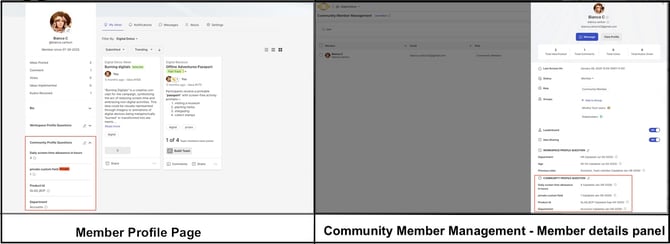
A Community Administrator can also populate Member Profile Question values when bulk-importing members.
Help article on bulk import members
Exceptions
- Moderator Field Enabled: Overrides the Private Field setting. When a field is marked as a Moderator Field, its responses are restricted to Moderators regardless of whether Private Field is also enabled.
- Show on Registration Form Disabled: When Show on Registration Form and Required for Joining are both disabled, the Member Profile Question does not display on the registration form.
Frequently Asked Questions
What is the difference between a Private Field and a Moderator Field?
A Private Field keeps a member's own response confidential, visible only to a Moderator. A Moderator Field goes further: the member never sees or completes the question at all, since only a Moderator can view and enter a response.
Can a Member Profile Question be created at both the Workspace and Community level?
Yes. Member Profile Questions can be configured at the Workspace level, applying across every community, or at the Community level, applying only to that community.
What happens if a member does not complete a Required Member Profile Question?
The member is prevented from participating in community activities and is prompted to complete the question at every login until it is submitted.
Can Member Profile Question responses be added without the member entering them directly?
Yes. A Community Administrator can populate response values when bulk-importing members, and a Moderator can enter responses directly into any field configured as a Moderator Field.
Related Articles