
Path: Workspace Homepage >> Navigation Panel >> Settings >> Security >> Access Restrictions >> Security Policy
| What is the Workspace Security Policy? |
|---|
| The Workspace Security Policy defines security-related settings — including email link expiration times, session timeouts, and failed login attempt thresholds — that are configured at the Workspace level. |
Security policies specify the active time period of various email links, such as password reset or verification links, along with session timeout, failed login attempts, and related settings. Security policies are specified at the Workspace level by the Workspace Administrator. The Workspace Security Policy is organized into six tabs, giving the Workspace Administrator the flexibility to enable and customize each policy according to specific preferences.

Role Permissions
- Workspace Administrator: Configures and customizes the Workspace Security Policy across all six tabs — Password Policies, Session Management, Authentication and Login, Link Expiration, Security Headers, and Miscellaneous.
- All other Roles (Administrators, Moderators & Members): Cannot access Workspace Security Policy.
TABLE OF CONTENTS
Password Policies
Session Management
Authentication and Login
Link Expiration
Security Headers
Miscellaneous
Exceptions
Frequently Asked Questions
Password Policies
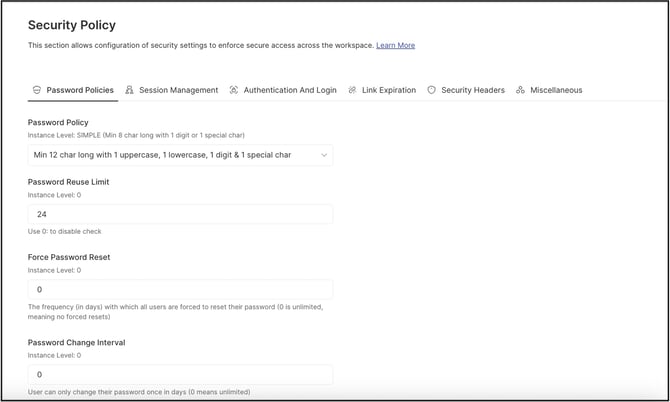
The Password Policies tab controls how member passwords are managed across the Workspace.
- Password Policy: Provides three configurable options that apply to all new members registering for or joining the Workspace.
- Password Reuse Limit: Sets a limit, at both the Workspace and community level, on how soon a member can reuse a previous password. Setting this field to 0 disables the check (see Exceptions below).
- Force Password Reset: Sets the number of times all members must reset their passwords. Setting this field to 0 removes the requirement, so no forced resets occur (see Exceptions below).
- Password Change Interval: Sets the number of days that must pass before a member can change their password again. Setting this field to 0 removes the restriction (see Exceptions below).
Session Management
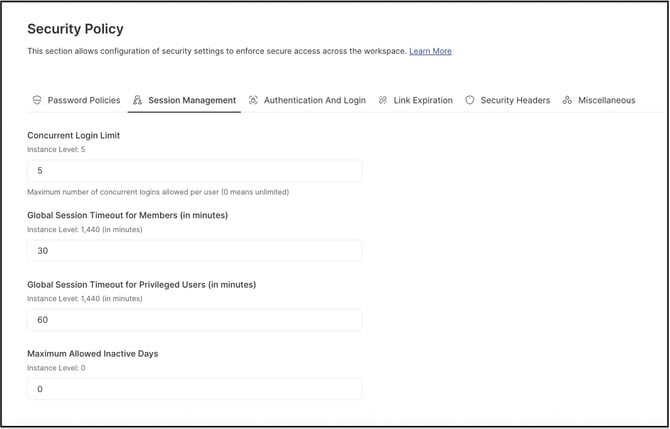
- Concurrent Login: Sets the number of simultaneous logins allowed for a single member across multiple browsers or endpoints.
- Global Session Timeout for Members: Sets the amount of idle time, in minutes, before a regular member's session is automatically ended, requiring the member to log in again. Setting this field to 0 removes the time limit (see Exceptions below).
- Global Session Timeout for Privileged Users: Sets the amount of idle time, in minutes, before a privileged user's session is automatically ended, requiring the user to log in again. Setting this field to 0 removes the time limit (see Exceptions below). Note: A privileged user refers to a Workspace Owner, Community Owner, Community Administrator, Campaign Administrator, Custom Administrator, Community Moderator, Campaign Moderator, Campaign Group Moderator, or Translation Moderator.
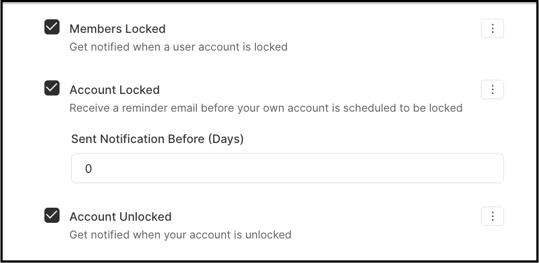
- Maximum Allowed Inactive Days: Sets the maximum number of days a member can remain inactive within the Workspace or a community. When this value is greater than 0, an additional setting appears under Workspace Configuration >> Notification Emails >> Admin Notifications. Administrators can use this setting to specify how many days before the account is locked for inactivity a reminder is sent to the member.
Authentication and Login
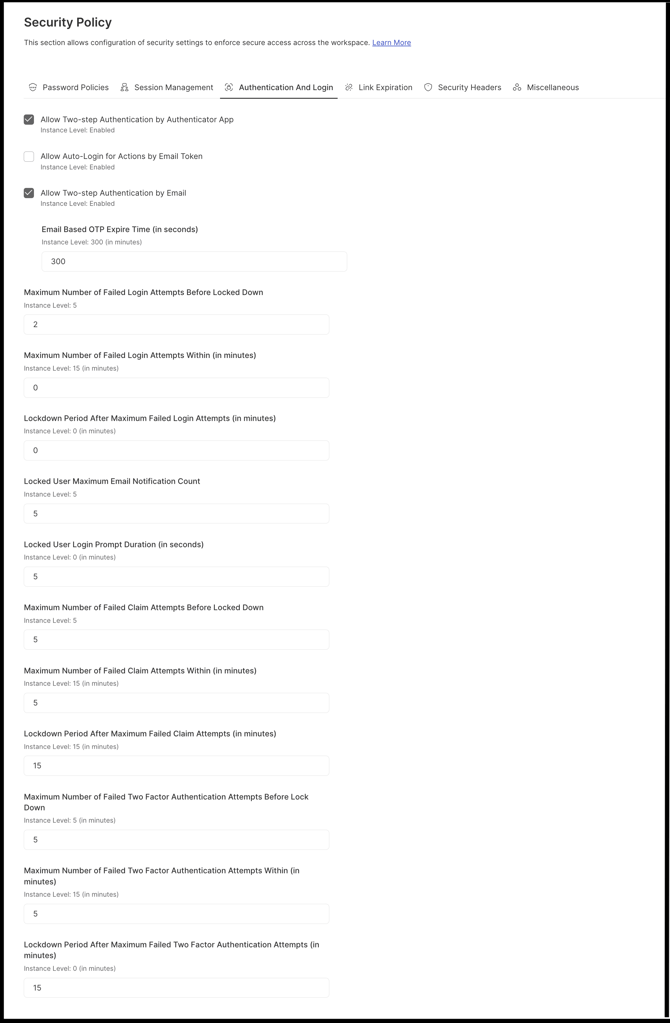
- Allow Two Step Authentication by Authenticator App: Enables two-step authentication using an authenticator app at the Workspace level, using this switch.
- Allow Auto-Login for Actions by Email Token: When enabled, a member who is already logged in and opens an email containing an idea link is redirected automatically from the email to the idea, without being prompted to log in again.
- Allow Two Step Authentication by Email: Enables two-step authentication by email at the Workspace level, using this switch.
- Email Based OTP Expire Time (in seconds): Sets the expiration time for the one-time password sent by email during email-based two-step authentication.
- Maximum Number of Failed Login Attempts Before Locked Down: Sets the number of failed login attempts allowed before a member is locked out. This limit is set by the Workspace Administrator or Workspace Owner.
- Maximum Number of Failed Login Attempts Within (in minutes): Sets the timeframe during which the maximum number of failed login attempts is counted for a member.
- Locked Down Period After Maximum Number of Failed Login Attempts (in minutes): Sets the length of the lockout period that follows the maximum number of failed login attempts.
- Locked User Maximum Email Notification Count: Sets the maximum number of email notifications sent to a locked-out member.
- Locked User Login Prompt Duration (in seconds): Sets the length of time a locked-out member is given to log back in to the Workspace.
- Maximum Number of Failed Claim Attempts Before Locked Down: Sets the number of failed attempts a member can make to verify their email while claiming an account before being locked out.
- Maximum Number of Failed Claim Attempts Within (in minutes): Sets the default timeframe, at the Workspace level, during which the maximum number of failed claim attempts is counted for a member.
- Locked Down Period After Maximum Number of Failed Claim Attempts (in minutes): Sets the default lockout period, established when the Workspace is created, that follows the maximum number of failed claim attempts.
- Maximum Number of Failed Two Factor Authentication Attempts Before Locked Down: Sets the number of failed two-step authentication attempts allowed before a member is locked out. This limit is set by the Workspace Administrator or Workspace Owner.
- Maximum Number of Failed Two Factor Authentication Attempts Within (in minutes): Sets the timeframe during which the maximum number of failed two-step authentication attempts is counted for a member. This limit is set by the Workspace Administrator or Workspace Owner.
- Locked Down Period After Maximum Number of Failed Two Factor Authentication Login Attempts (in minutes): Sets the lockout period, at the Workspace level, that follows the maximum number of failed two-step authentication login attempts.
Link Expiration
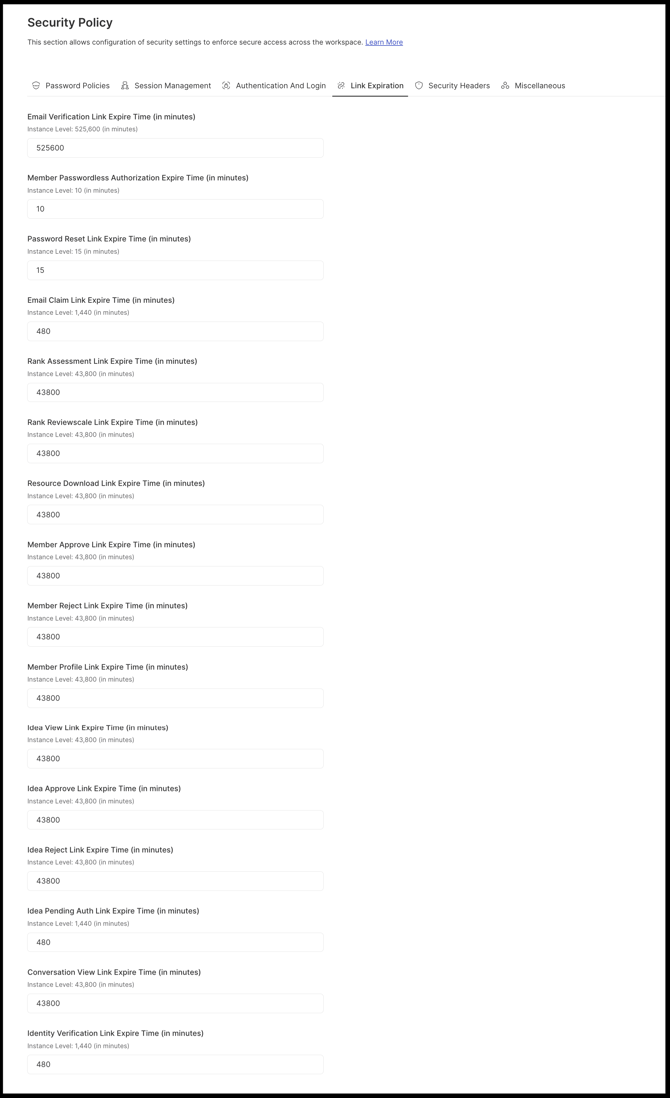
- Email Verification Link Expire Time (in minutes): Sets the expiration time for the following verification emails:
- Workspace invitation to join the Workspace
- Account verification when a member is added by a Workspace Administrator
- Complete-registration email sent after a pending member is approved
- Two-step authentication link
- Password reset
- Email claim verification
- Locked member verification
- Member Passwordless Authorization Expire Time (in minutes): Sets the length of time a member has to complete a password reset sent by the Workspace Administrator, without a password being required at the reset link.
- Password Reset Link Expire Time (in minutes): Sets the expiration time for a password reset link sent at the request of the Workspace Administrator or Workspace Owner. Setting this field to 0 removes the expiration, making the link unlimited (see Exceptions below).
- Email Claim Link Expire Time (in minutes): Sets the expiration time for the verification email sent when a member claims an existing member email address.
- Rank Assessment Link Expire Time (in minutes): Sets the expiration time for the rank assessment reminder email sent to members who have not yet completed their assessment. This setting is community-specific.
- Rank Review Link Expire Time (in minutes): Sets the expiration time for the review-complete reminder email sent to members who have not yet completed their review. This setting is community-specific.
- Resource Download Link Expire Time (in minutes): Sets the expiration time for a report file download link included in an email, after which the link no longer opens or downloads the file.
- Member Approve Link Expire Time (in minutes): Sets the expiration time for the member approval link sent to Moderators by email.
- Member Reject Link Expire Time (in minutes): Sets the expiration time for the member rejection link sent to Moderators by email.
- Member Profile Link Expire Time (in minutes): Sets the expiration time for the link a member uses to view their profile after being added.
- Idea View Link Expire Time (in minutes): Sets the expiration time for the idea view link a member receives by email when an idea is shared or acted upon.
- Idea Approve Link Expire Time (in minutes): Sets the expiration time for the idea approval link sent to Moderators by email.
- Idea Reject Link Expire Time (in minutes): Sets the expiration time for the idea rejection link sent to Moderators by email.
- Idea Pending Auth Link Expire Time (in minutes): Sets the expiration time for the idea pending link generated for authenticated apps such as Microsoft Teams or Slack.
- Conversation View Link Expire Time (in minutes): Sets the expiration time for the link, sent to a member's email with the message subject, used to view a conversation or message.
- Identity Verification Link Expire Time (in minutes): Sets the expiration time for the identity verification link sent by email after a member is locked, joins the Workspace, or registers for the Workspace.
Security Headers
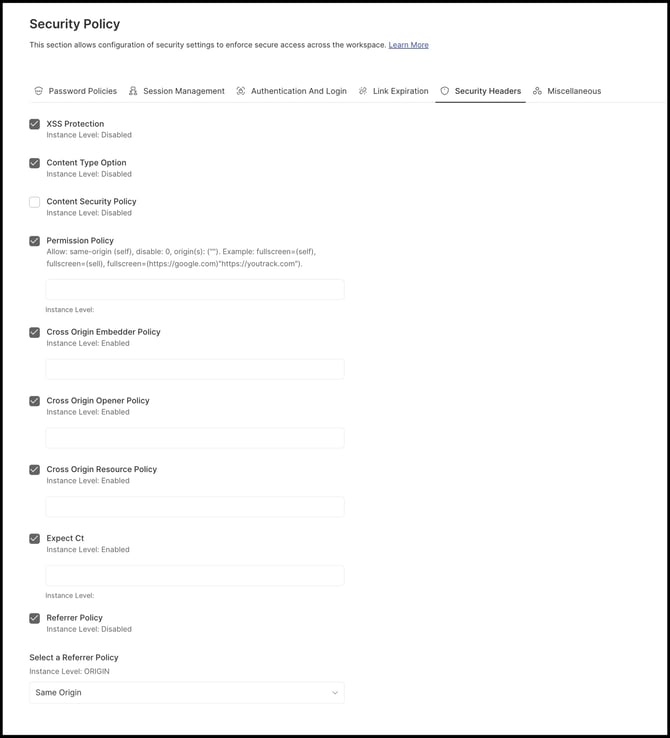
- XSS Protection: Enables or disables a response header that stops certain browsers from loading a page when they detect a reflected cross-site scripting (XSS) attack.
- Content Type Option: Enables or disables the Content-Type-Options response header, which marks the MIME types declared in the Content-Type header as deliberately configured, avoiding MIME type sniffing.
- Content Security Policy: Adds a layer of security that helps detect and mitigate certain attacks, including cross-site scripting (XSS) and data injection attacks.
- Permission Policy: Provides a mechanism to allow or deny the use of browser features within a document or within any iframe elements in the document. This can be added by the Workspace Owner when needed.
- Cross Origin Embedder Policy: Prevents a document from loading cross-origin resources that do not explicitly grant permission through CORP or CORS. This can be added when needed.
- Cross Origin Opener Policy: Isolates a top-level window from other documents by placing them in a different browsing context group, so they cannot directly interact with the top-level window. This can be added when needed.
- Cross Origin Resource Policy: Set by the Cross-Origin-Resource-Policy HTTP header, this lets a website or application opt in to protection against certain cross-origin requests, mitigating speculative side-channel attacks. It is used for authorized resource sharing with external third parties.
- Expect-CT: An HTTP header that allows a website to opt in to Certificate Transparency enforcement, from before it was enforced by default. This can be added when needed.
- Referrer Policy: Determines what information is sent in the Referer header of a request from the IdeaScale site, using the Referrer-Policy header. An additional option can be selected from Select a Referrer Policy.
Miscellaneous
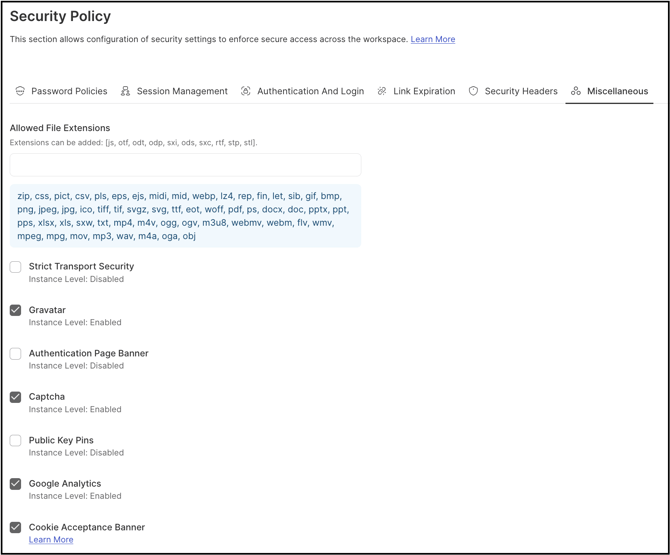
- Allowed File Extensions: Displays the default list of file types accepted by the IdeaScale application, with the option to add additional file extensions. A file that does not match an extension on this list cannot be added through the IdeaScale attachment option.
- Strict Transport Security: Enables or disables a widely supported standard that protects visitors by ensuring their browsers always connect to the Workspace over HTTPS.
- Max Age (in days) - Sets the length of time, in days, that Strict Transport Security remains in effect for the application.
- Gravatar: When enabled, automatically generates an avatar for every member added to the Workspace.
- Authentication Page Banner: Enables a page banner on the authentication page for the Workspace.
- Captcha: Enables CAPTCHA verification, used to determine whether a user is human in order to deter bots and spam. CAPTCHA appears during Workspace registration and on other pages where security verification is required.
- Public Key Pins: A response header type used to associate a specific cryptographic public key with a specific web server, reducing the risk of man-in-the-middle attacks using forged certificates.
- Google Analytics: Enables Google Analytics tracking of community engagement, allowing the Workspace Administrator and Community Administrator to track, measure, and report on additional member metrics.
- Cookie Acceptance Banner: Displays a banner for cookie acceptance. Cookies help authenticate members, secure accounts, improve services, and support marketing; disabling this banner may restrict some features.
Exceptions
- Zero-Value Limits: Setting the Password Reuse Limit, Force Password Reset, Password Change Interval, Global Session Timeout for Members, Global Session Timeout for Privileged Users, Email Verification Link Expire Time, or Password Reset Link Expire Time to 0 disables that restriction, making the setting unlimited.
Frequently Asked Questions
What happens when a numeric limit field in the Workspace Security Policy is set to 0?
Setting the Password Reuse Limit, Force Password Reset, Password Change Interval, Global Session Timeout for Members, Global Session Timeout for Privileged Users, Email Verification Link Expire Time, or Password Reset Link Expire Time to 0 removes that restriction entirely, making the setting unlimited. See Exceptions above for the full list of fields this applies to.
Who can configure the Workspace Security Policy?
The Workspace Administrator configures the Workspace Security Policy.
Is the idle-timeout setting the same for every member?
No. The Global Session Timeout for Members and the Global Session Timeout for Privileged Users are configured independently, so privileged roles can be set to a different idle-timeout threshold than regular members.
Do all Link Expiration fields support an unlimited setting?
Only the Email Verification Link Expire Time and Password Reset Link Expire Time fields are documented as supporting a value of 0 for unlimited expiration.
Related Articles