
| What is the Workspace Homepage? |
| The Workspace Homepage is the landing screen presented to a Member upon logging into a Workspace that contains multiple communities, displaying role-based sections for navigating communities and campaigns. |
The Workspace Homepage is the first view presented to a Member upon logging in, provided the Workspace contains multiple communities. See Exceptions below for single-community Workspace behavior. The sections and options visible on the Navigation Panel vary depending on the Member's role — Member, Community Administrator, Moderator, or Workspace Administrator.
Role Permissions
- Member: Views own Communities, available Communities to join, and the Explore Campaigns section (if enabled) on the Workspace Homepage.
- Administrators & Moderators: View the same Topbar options as a Member, plus the AI Assistant icon; the Workspace Dashboard and Navigation Panel are shown by default instead of the Workspace Homepage Member view.
- Workspace Administrator: Views the same options as a Community Administrator and Moderator, plus Billing & Subscription & Create Community.
TABLE OF CONTENTS
Member
Community Administrator & Moderator
Workspace Administrator
Exceptions
Frequently Asked Questions
Member
For a Member, the Topbar consists of the Workspace logo, Communities dropdown, Workspace search bar, Inbox, and Profile dropdown on the Workspace Homepage, and Profile.
Help Article for Workspace & Community Topbar

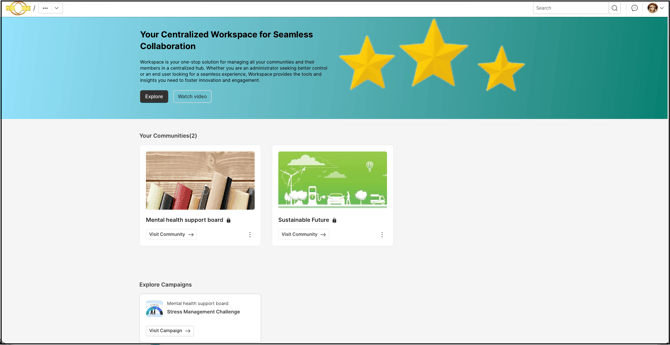
On the Workspace Homepage, a Member sees the following sections:
Your Communities
The Your Communities section displays a Member's communities along with each community's active campaign count and member count.
- Private Community Indicator: A lock icon beside the community name indicates that the community is Private.
- View Community: Navigates to the community landing page, if enabled, or otherwise to the community homepage.
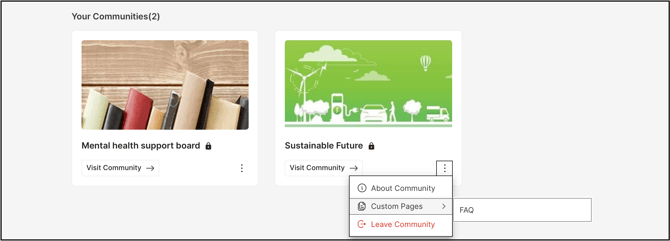
- More (3 dots): Displays a Leave Community link, allowing a Member to remove themselves from the community. A Custom Pages link is also included if the community has any Custom Pages, navigating directly to the selected Custom Page. If enabled, an About Community option is available, opening a pop-up with the community description.
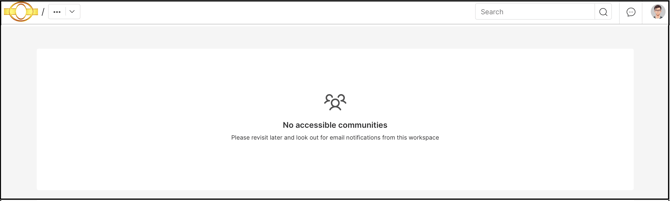
If no communities are available to join, a message indicating this is displayed instead.
Communities You Can Join
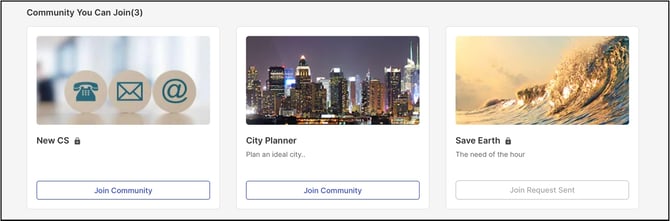
The Communities You Can Join section displays a list of communities based on the following criteria:
- Joining Permission: Communities that a Member can join within the Workspace are determined by group or domain permission.
- Invited Communities: Communities to which a Member has been invited display Accept and Reject buttons, allowing the Member to become a member or reject the invitation.
- Available Communities: Communities available to the Member display a Join Community button.
- Pending Request Communities: Communities joined by the Member but awaiting Moderator approval display a Join Request Sent label and are placed at the end of the Communities You Can Join list.
Help Article for Join a Community
Explore Campaigns
The Explore Campaigns section displays selected active campaigns chosen by the Workspace Administrator. A Member sees only the campaigns to which they have access. A campaign countdown timer is displayed if an end date has been specified for the campaign. This section is visible only if the Landing Page is enabled for the Workspace by the Workspace Administrator.

Community Administrator & Moderator
For the Topbar, a Community Administrator and Moderator see the same options as a Member, along with the AI Assistant icon.
Help article on Workspace & Community Topbar
On the Workspace Homepage, a Community Administrator and Moderator see the Workspace Dashboard by default, along with the Navigation Panel on the left.
Help article on Navigation panel & Workspace dashboard
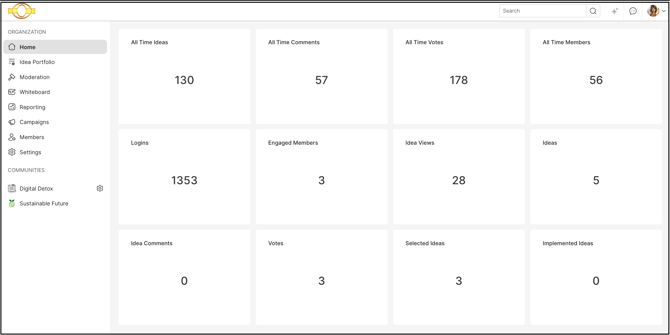
Selecting Communities in the Navigation Panel displays the Workspace Homepage. The community displays the same options under the More (3 dots) icon:
- About Community: Displays a pop-up with the community description.
- Custom Pages: Provides access to the community's specific Custom Pages.
- Leave Community: Available only to assigned Administrators and Moderators. See Exceptions below.
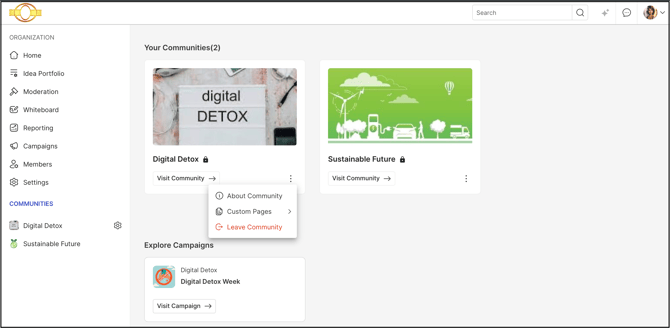
A Community Administrator can change the community image from the community's Edit mode.
Help article on Customize Community Banner
Workspace Administrator
In addition to the options available to a Member, the Workspace Administrator has access to additional features in the Navigation Panel and a Display as Member option under the Profile dropdown.
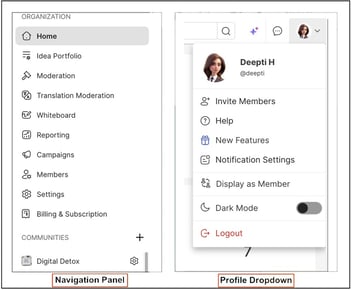
On the Workspace Homepage, the Workspace Administrator has access to additional features beyond those available to a Community Administrator and Moderator. By default, Workspace Administrators are Global Administrators and Global Moderators across every community in the Workspace, though they can be removed from that position if needed.
Note: The Leave Community option is not visible to the Workspace Owner. See Exceptions below.
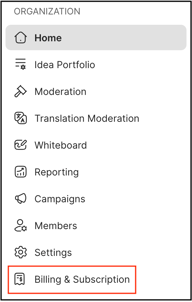
Billing & Subscription
Selecting Billing & Subscription navigates to the Billing and Subscription dashboard, where subscription details can be viewed and the subscription can be upgraded.
Create Community
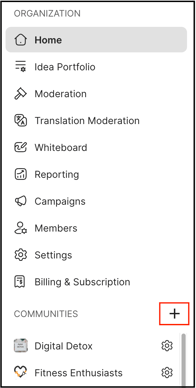
The + button beside the Communities heading in the Navigation Panel allows a Workspace Administrator to create a new community within the Workspace. This button is available only if the Workspace's subscription permits the creation of additional communities.
Help article on Community creation
Exceptions
- Single-Community Workspace: In a Workspace with only one community, Members are navigated directly into that community rather than the Workspace Homepage. The Workspace Administrator continues to be directed to the Workspace Homepage regardless of the number of communities in the Workspace.
- Workspace Owner: The Leave Community option is not available to the Workspace Owner, though it remains available to other assigned Administrators and Moderators.
Frequently Asked Questions
Does the Workspace Homepage appear the same way for every role?
No. The Workspace Homepage displays different Topbar options and sections depending on whether the person viewing it is a Member, Community Administrator, Moderator, or Workspace Administrator, with the Workspace Administrator seeing the most additional features.
What happens for Workspaces with only one community?
Members are navigated directly into that single community rather than the Workspace Homepage. The Workspace Administrator is still directed to the Workspace Homepage. See Exceptions above.
Can a Member remove themselves from a community?
Yes. Selecting Leave Community from the More (3 dots) icon on a community card allows a Member to remove themselves from that community. This option is not available to the Workspace Owner.
Who determines which campaigns appear in Explore Campaigns?
The Workspace Administrator selects which active campaigns are surfaced in the Explore Campaigns section, and a Member can only see the campaigns they have access to.
Who can create a new community within the Workspace?
A Workspace Administrator can create a new community using the + button beside the Communities heading in the Navigation Panel, provided the Workspace's subscription permits additional communities.
Related Articles
- Help article on Workspace & Community Topbar
- Help article on Navigation panel & Workspace dashboard
- Help Article for Join a Community
- Help article on Customize Community Banner
- Help article on Community creation