
Path: Workspace Homepage >> Navigation Panel >> >> Campaigns >> Community >> Campaigns>> Workflow
| What is Workflow? |
|---|
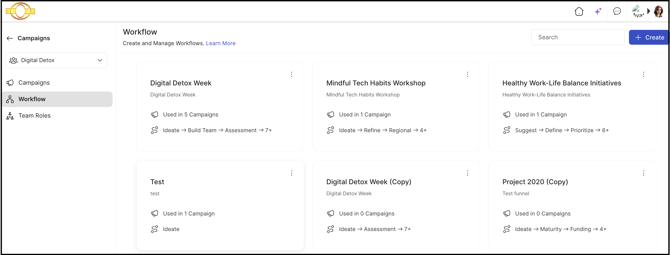
| Workflow is a feature for building multiple, clearly defined stages within a community; an appropriate Workflow can be selected when creating a Campaign to match a specific use case. |
The Workflow feature allows the Community Administrator to build multiple clearly defined stages inside the community, and an individual Workflow can be selected when creating a Campaign to ensure the most appropriate one is applied to a specific use case.
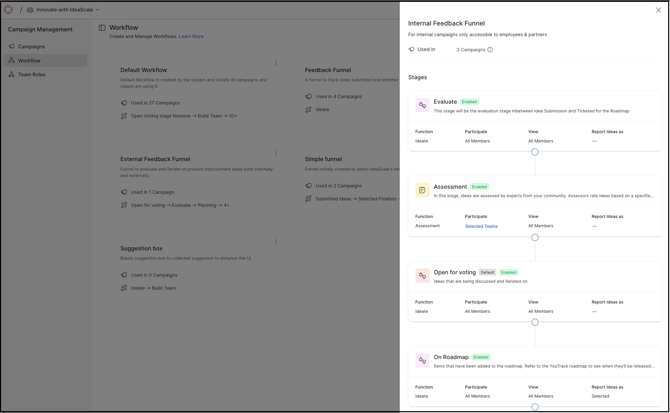
Selecting a Workflow tile opens a side drawer showing its stages in order, with the stage name, stage type, description, and current idea count for each; the Community Administrator can also view the Campaigns that use a given Workflow by selecting the information (i) icon next to the Used In count.
Role Permissions
- Community Administrator: Can create, edit, clone, delete, and search Workflows, and configure stage setup and the default stage for each Workflow.
TABLE OF CONTENTS
Workflow Creation
Workflow Setup
Search Workflow
Edit Workflow
Clone Workflow
Delete Workflow
Select Workflow
Exceptions
Frequently Asked Question
Workflow Creation
To create a new Workflow, select the + Create button and complete the following fields:
- Workflow Name: A clear, specific name for the Workflow. The name must be unique and must not exceed 50 characters.
- Description: A concise explanation of the Workflow's purpose, including any relevant instructions or guidance for how and when it should be used. Must not exceed 254 characters.
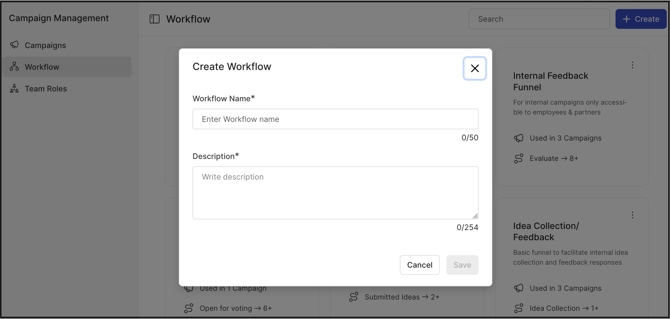
Once the Workflow details are saved, the Community Administrator is taken to the Workflow setup page to add stages to it.
Workflow Setup
The Workflow setup page allows a detailed Workflow to be created with multiple stages. On this page, the Community Administrator can define a default stage for the Workflow; this default stage is what members see first when they navigate to the Campaign associated with that Workflow.
Note: If a Workflow is already in use, an alert banner indicates how many Campaigns are currently using it. The Community Administrator can review the specific Campaigns associated with the Workflow by selecting the View button.
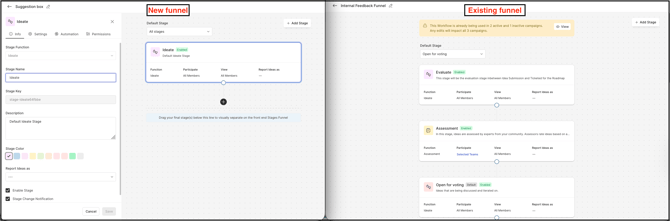
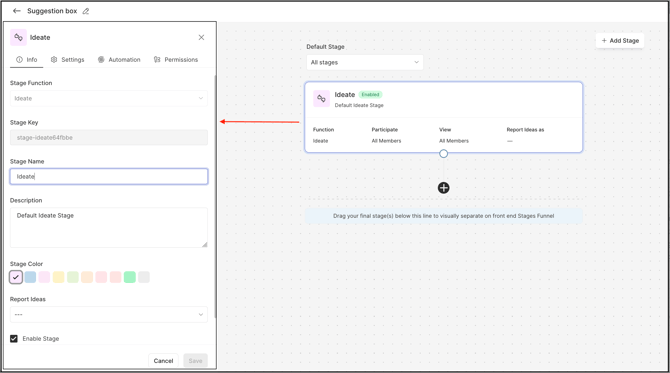
1. Stage Setup: By default, an Ideate stage is pre-populated to get started. Selecting the stage opens a side drawer to make changes to it.
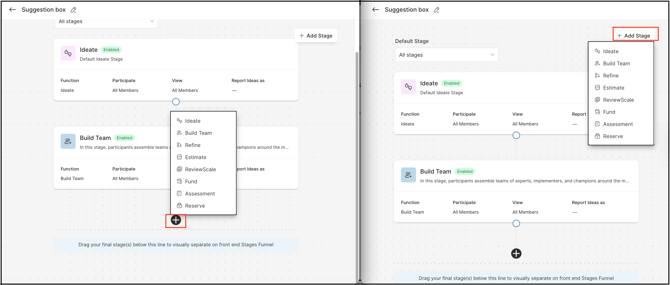
2. Add Stage: The + Add Stage button and the + button at the bottom of the existing stages open a dropdown listing all stage types.
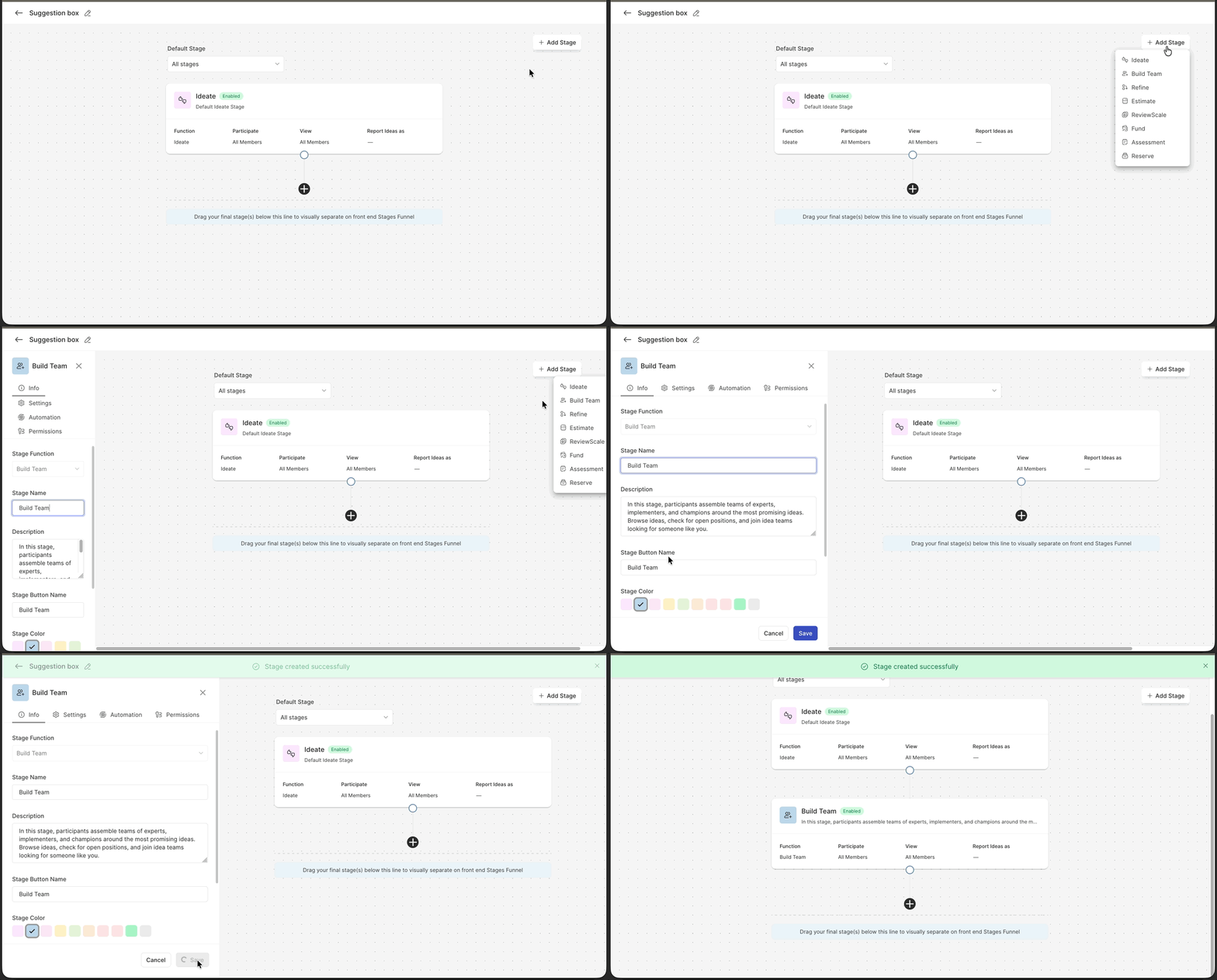
Select a desired stage type to start the stage setup. Fill in all the details and then save.
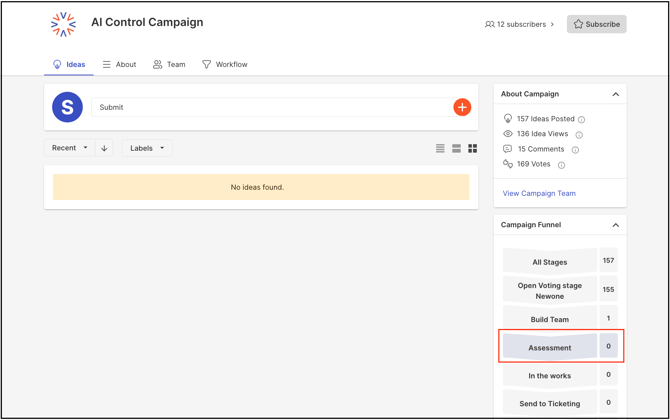
3. Default Stage: The Community Administrator can designate a specific stage as the default stage for a Workflow, or retain the All Stages option as the default.
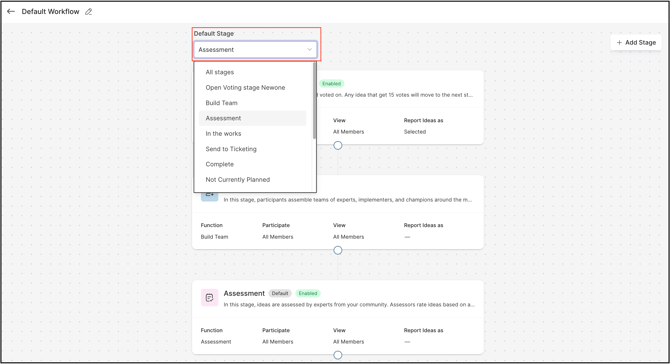
When a member visits the Campaign page, the system displays all ideas from the stage selected under the Default Stage setting. This configuration applies consistently to all Campaigns that use that Workflow.
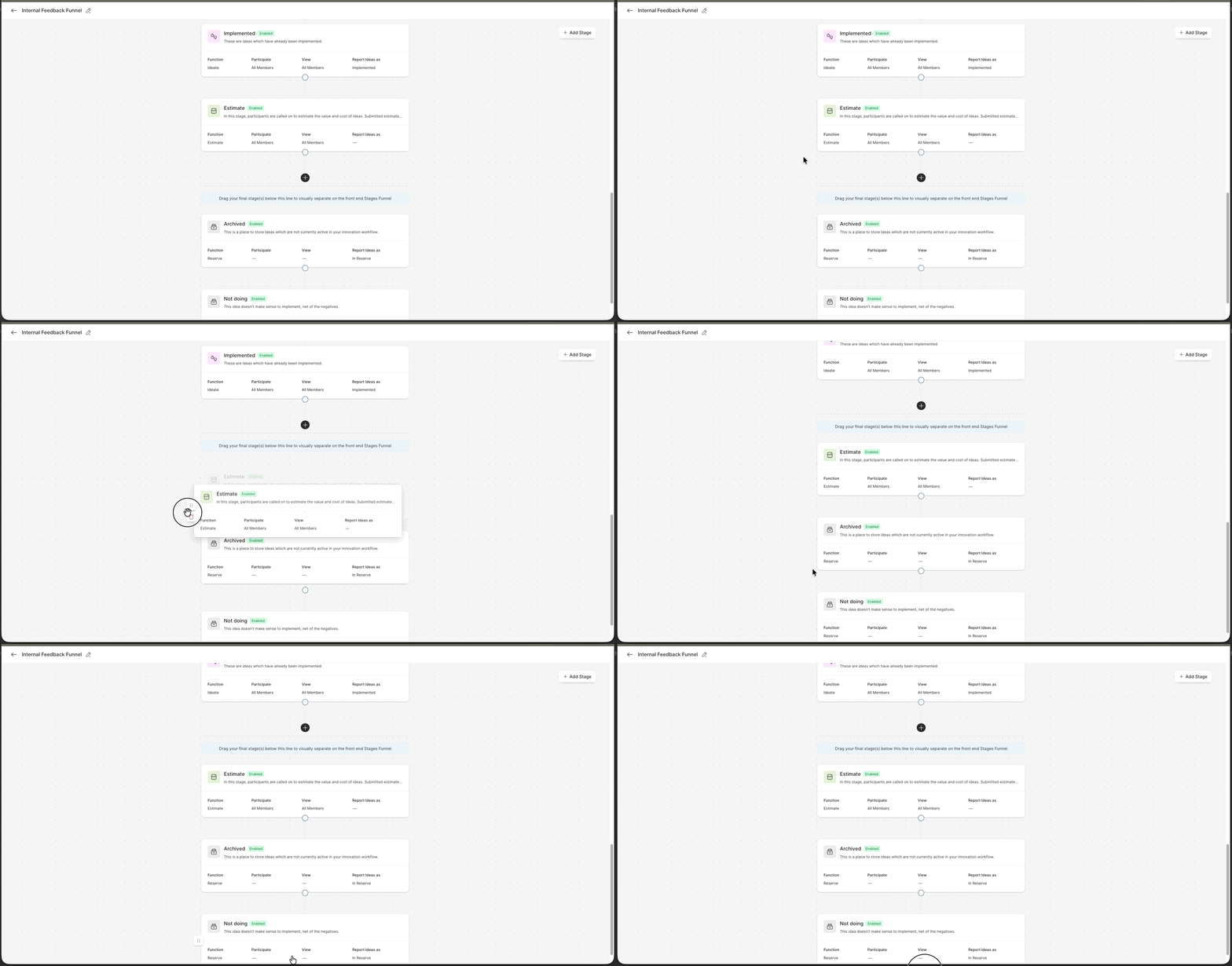
4. Reordering & Stage Separation: The Community Administrator can reorder stages by dragging and dropping. Select the six-dot grid icon beside the stage, then drag it to the desired position in the sequence. The Community Administrator can also drag one or more stages below the visibility line to create a visual separation from the rest of the Workflow.
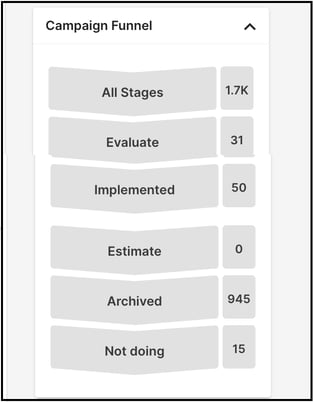
This separation can be used in several ways, such as grouping stages that represent a final phase, or highlighting stages that are closer to idea selection or implementation.
Search Workflow
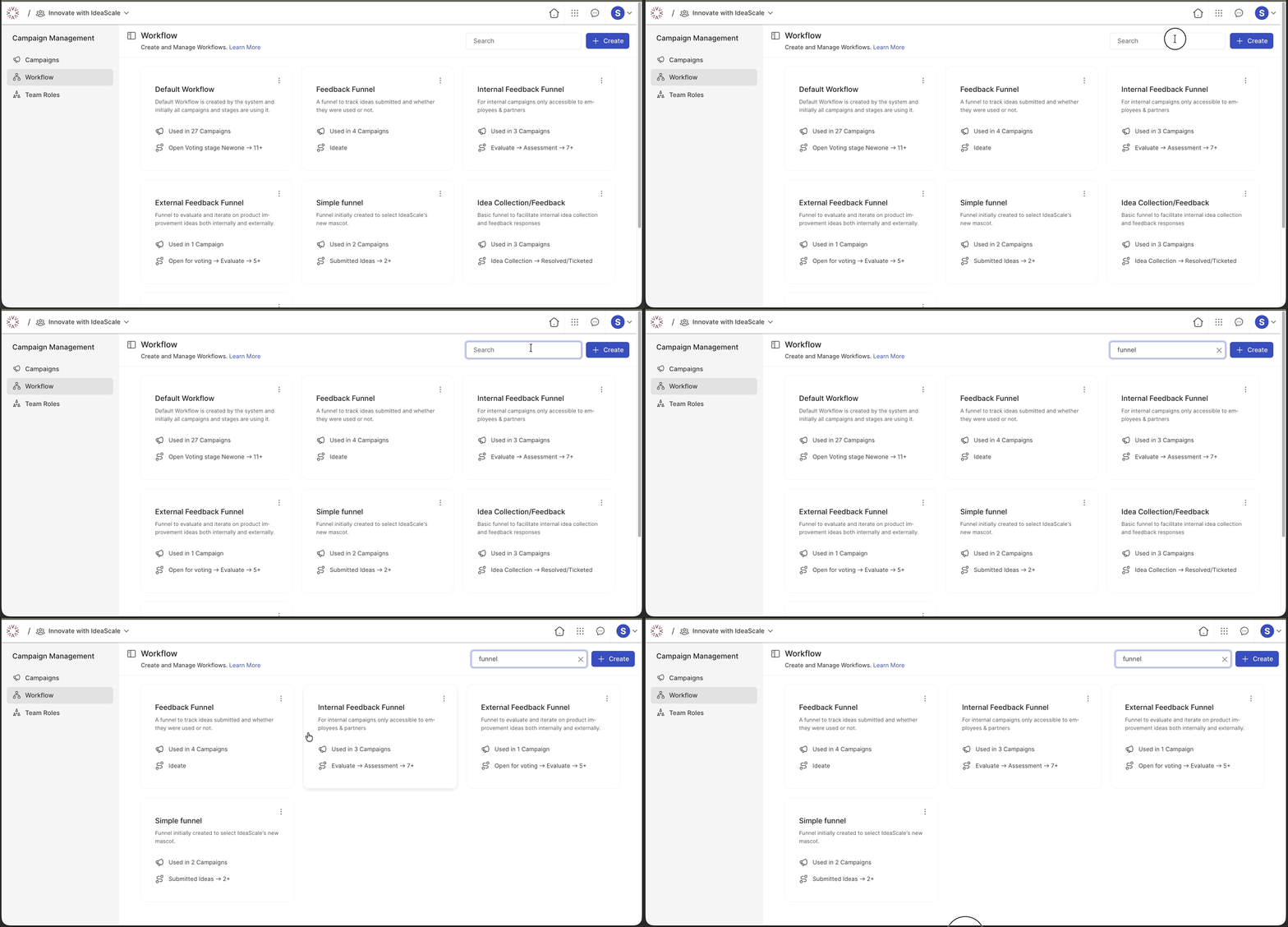
When multiple Workflows exist, locating a specific one can become time-consuming. The search bar allows the Community Administrator to quickly narrow the list by entering partial or complete keywords from the Workflow name.
Edit Workflow
The Community Administrator can modify an existing Workflow by selecting the Edit option, found under the More (three dots) menu on each Workflow tile.
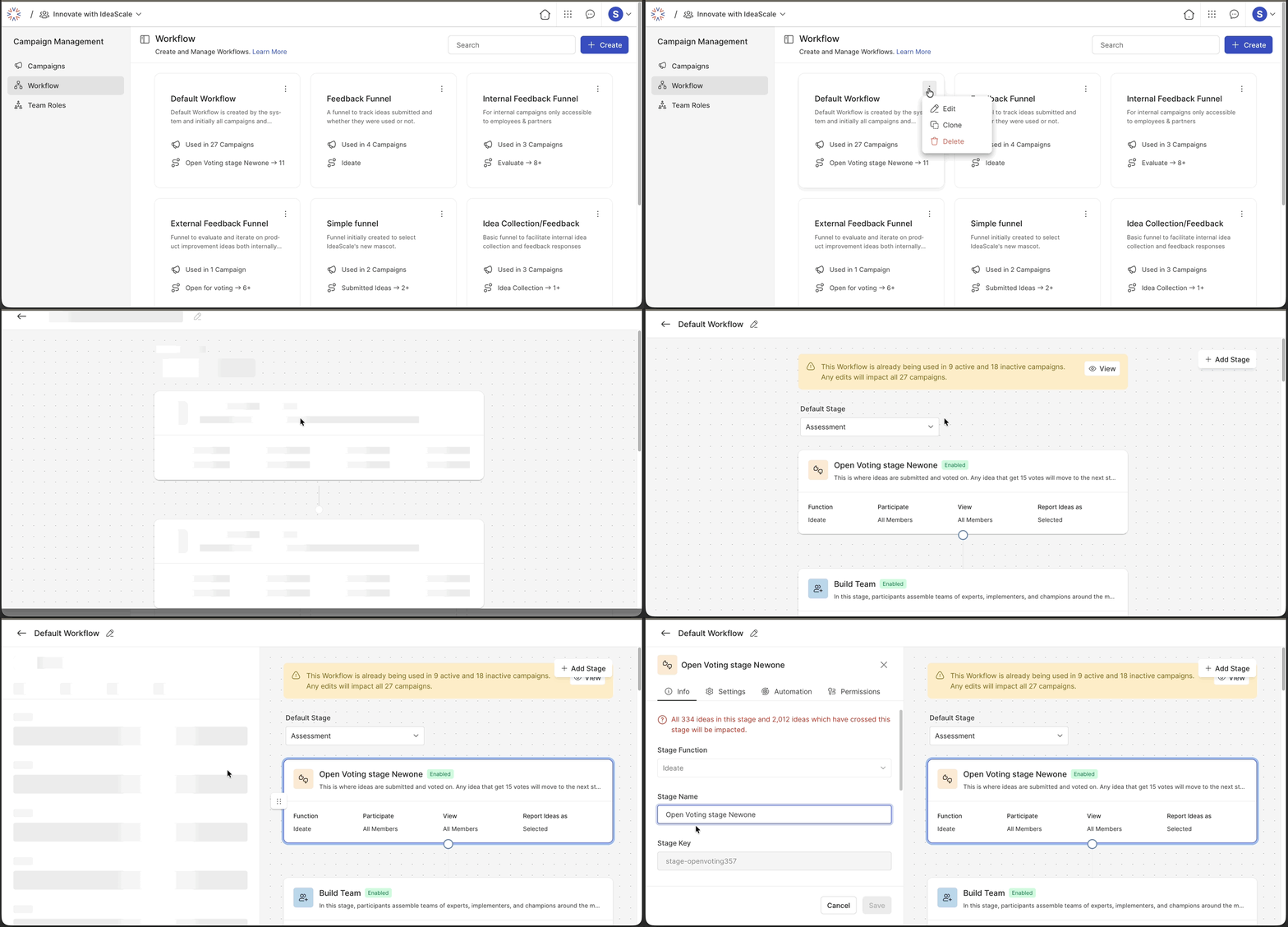
This opens the Workflow editing page, where the Community Administrator can add stages, remove stages, reorder them, and modify the settings of individual stages.
Clone Workflow
The Community Administrator can clone an existing Workflow by selecting the Clone option, found under the More (three dots) menu on each Workflow tile.
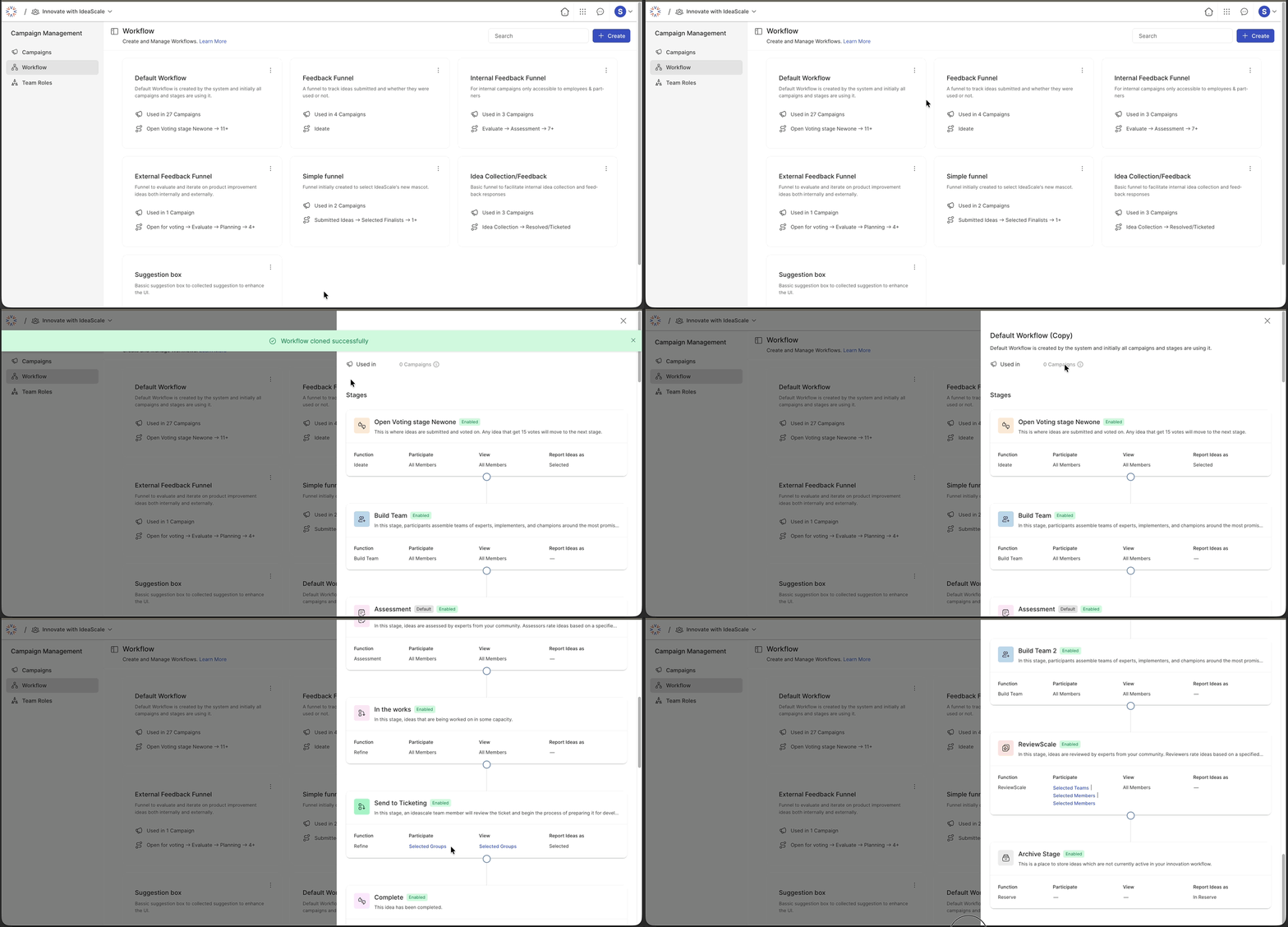
This creates a duplicate Workflow with all the stages and settings from the target Workflow. The Community Administrator can then make changes to it using the Edit option.
Delete Workflow
An existing Workflow can be deleted by selecting the Delete option, found under the More (three dots) menu on each Workflow tile.
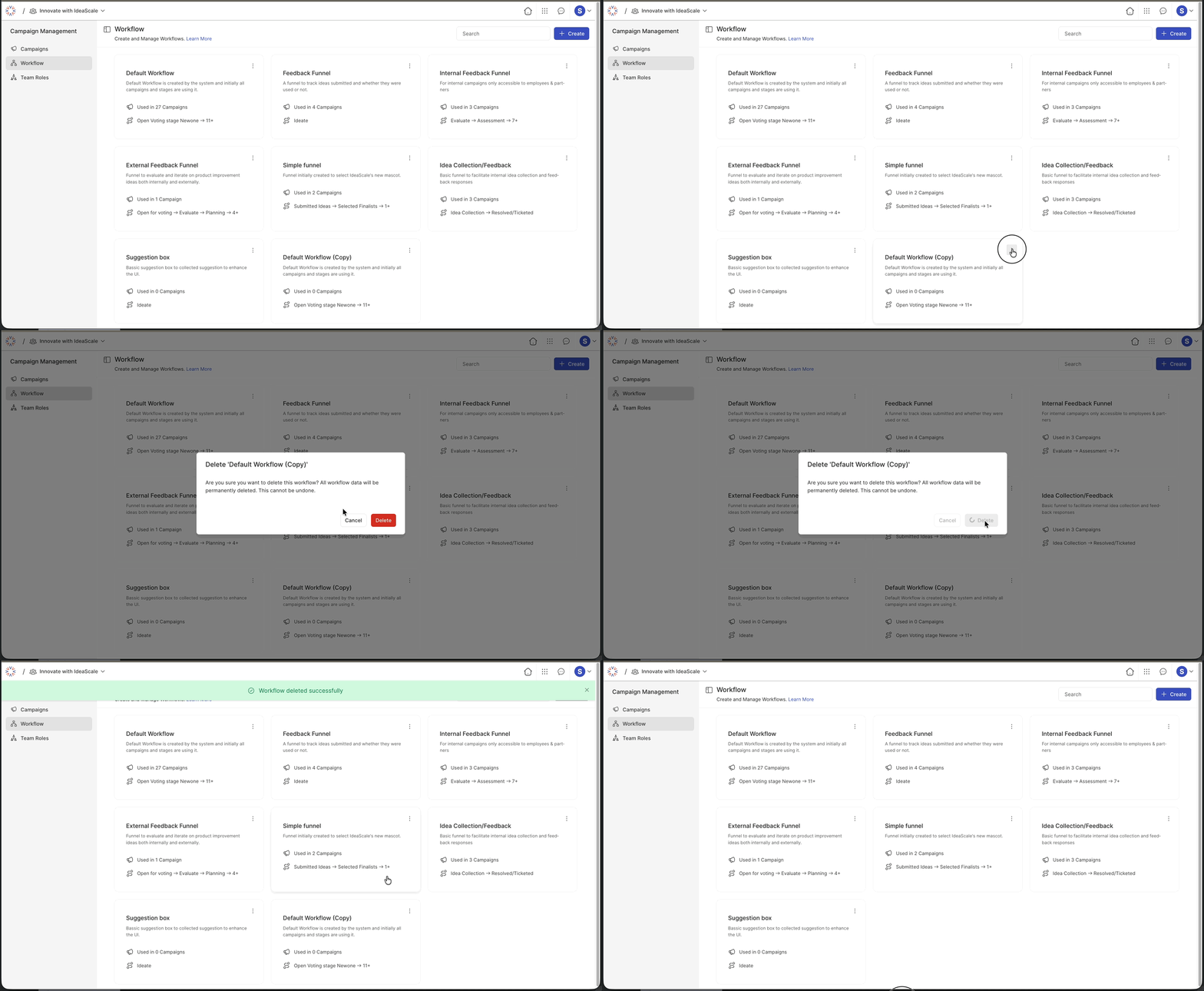
The system prompts for confirmation before permanently removing the Workflow. See Exceptions below for the condition under which a Workflow cannot be deleted.
Exceptions
- Workflow associated with a Campaign: The Workflow cannot be deleted while it is associated with any Campaigns. All Campaign associations must be removed before the Workflow can be deleted.
Frequently Asked Questions
Can a Workflow be edited after it has been assigned to a Campaign?
Yes. The Community Administrator can open the Workflow editing page from the More menu on any Workflow tile to add, remove, or reorder stages, and to modify individual stage settings, regardless of whether the Workflow is currently in use.
What happens when deleting a Workflow that is still associated with Campaigns?
The Workflow cannot be deleted until all of its Campaign associations are removed. See Exceptions above.
Does cloning a Workflow copy its stages and settings?
Yes. Cloning creates a duplicate Workflow with all stages and settings from the original, which the Community Administrator can then edit independently using the Edit option.
Related Articles