
Path: Workspace Homepage >> Navigation Panel >> Settings >> Community >> Integrations >> All Apps >> Jira
| What is the Jira Integration? |
|---|
| The Jira Integration is a two-way sync connection between IdeaScale and Jira that allows selected ideas to be pushed directly into Jira for tracking throughout the development lifecycle. |
Setting up the Jira Integration requires configuring an OAuth 2.0 connection between IdeaScale and Jira, which involves creating credentials in the Atlassian Developer Console and linking them back to IdeaScale. Once configured, ideas selected in IdeaScale sync into Jira issues, with Campaign Mapping and Field Mapping determining where each idea's data lands.
Role Permissions
- Community Administrator: Accesses Settings >> Community >> Integrations >> All Apps to configure, connect, and manage the Jira Integration, including linking OAuth 2.0 credentials, authenticating the connection, and setting up Campaign Mapping and Field Mapping.
TABLE OF CONTENTS
Access Jira Integration Settings in IdeaScale
Create a New App in Atlassian Developer Console
Configure App Authorization & Permissions
Link Credentials to IdeaScale
Authenticate and Connect
Configure Campaign Mapping & Fields
Frequently Asked Questions
Access Jira Integration Settings in IdeaScale
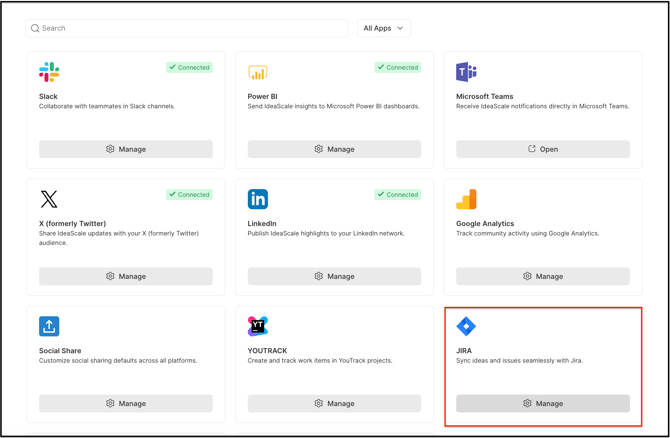
- Log into your IdeaScale account as an administrator.
- In the Navigation Panel, select Settings >> Community >> Integrations >> All Apps.
- Locate the Jira integration panel and select Manage.
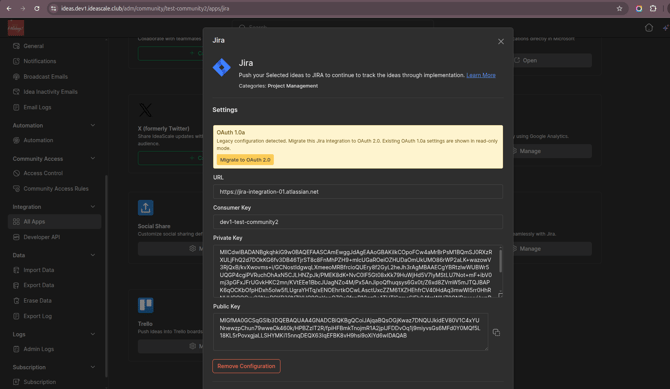
- Select Migrate to OAuth 2.0.
Create a New App in Atlassian Developer Console
Credentials generated from an Atlassian account are required to link IdeaScale to Jira.
- Open a new tab and go to the Atlassian Developer Console (
[developer.atlassian.com/console](https://developer.atlassian.com/console)).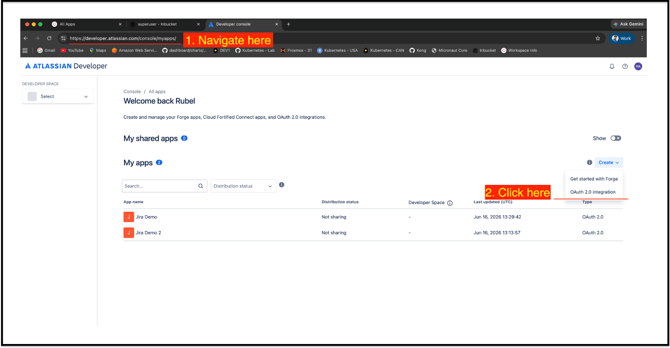
- Select Create, then select OAuth 2.0 integration.
- Give the app a recognizable name (for example, Ideas Community).
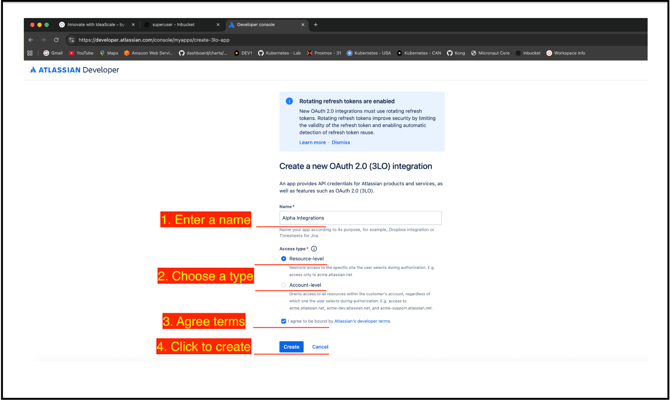
- Agree to the Atlassian developer terms and select Create.
Step 3: Configure App Authorization & Permissions
Add the Callback URL
- In the Atlassian app settings, navigate to Authorization on the left menu.
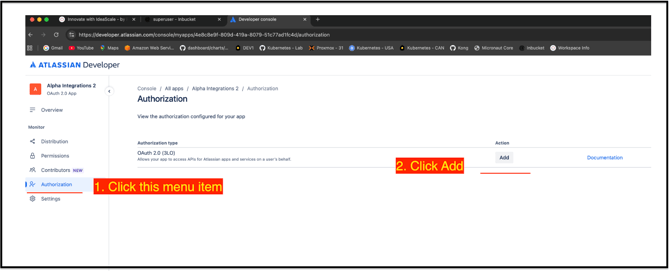
- Next to OAuth 2.0 (3LO), click Add.
- Return to the IdeaScale Jira Settings window and copy the Callback URL.
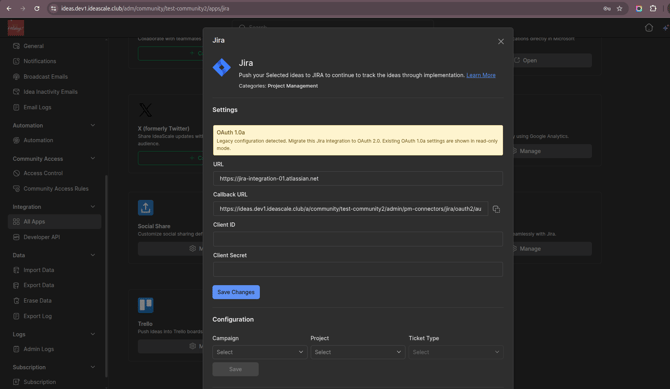
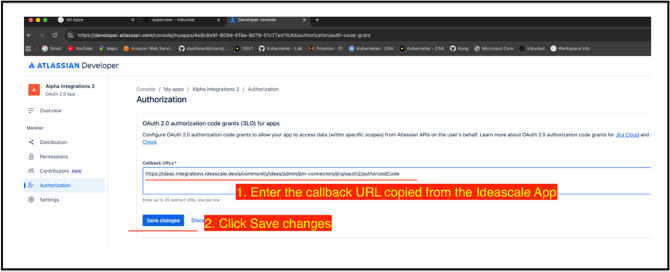
- Paste the Callback URL into the Callback URL field in the Atlassian console and select Save changes.
Configure Scopes (Permissions)
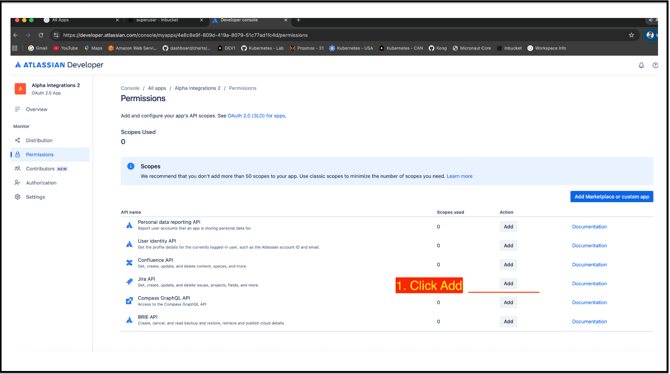
- In the Atlassian developer menu, select Permissions.
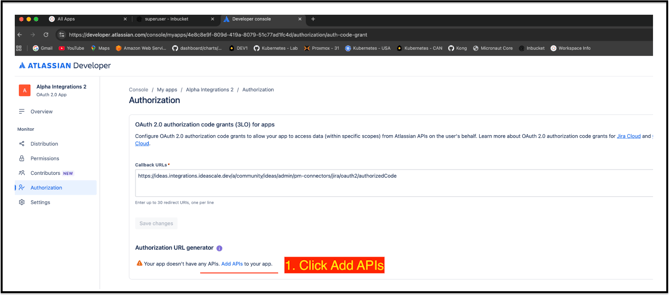
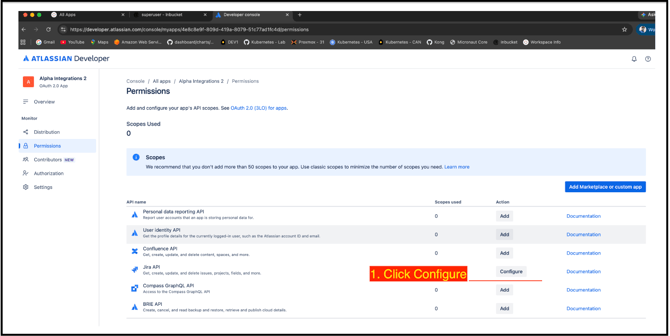
- Find Jira API in the list, select Add, then select Configure.
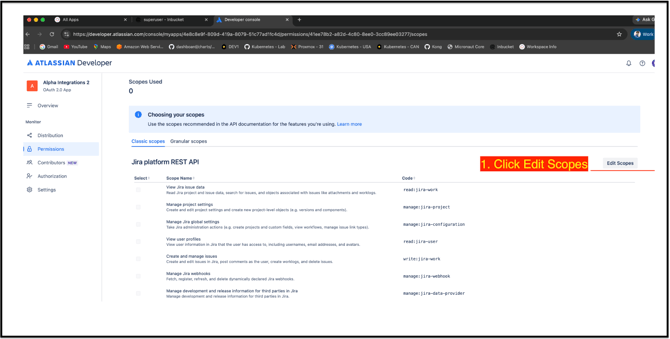
- Select Edit Scopes.
- Under the Jira platform REST API section, check the boxes for the required permissions:
- View Jira issue data (read:jira-work)
- Create and manage issues (write:jira-work)
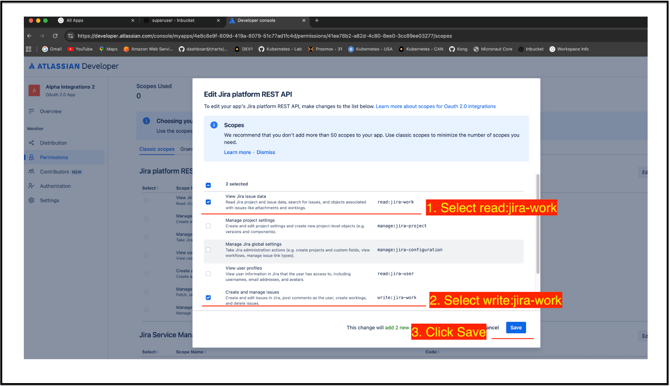
5. Select Save at the bottom of the scope configuration.
Link Credentials to IdeaScale
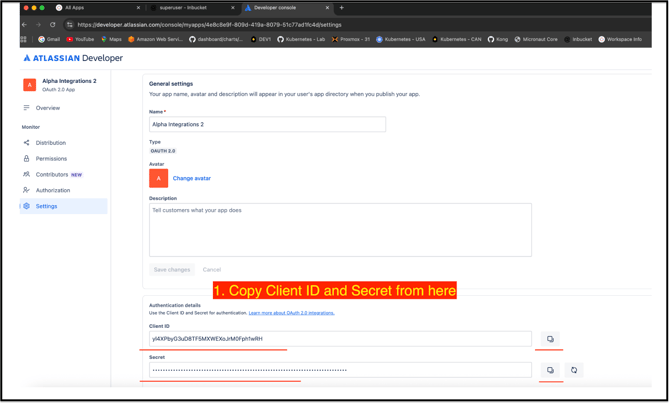
- In the Atlassian console, navigate to Settings in the left menu.
- Under the Authentication details section, locate the Client ID and Secret.
- Copy the Client ID from Atlassian and paste it into the Client ID field in IdeaScale.
4. Copy the Secret from Atlassian and paste it into the Client Secret field in IdeaScale.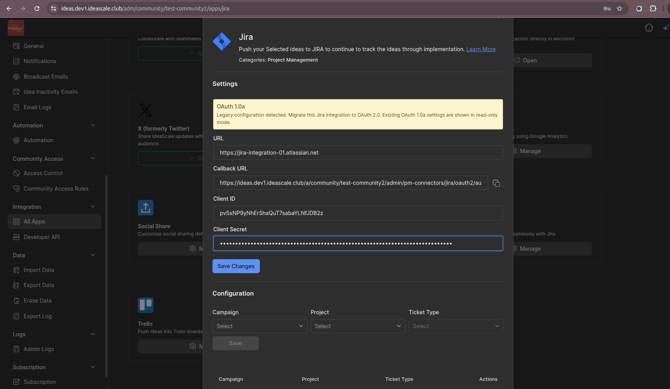
5. In IdeaScale, select Save Changes.
Authenticate and Connect
- Once saved, select the Allow Access to Connect Jira button in IdeaScale.
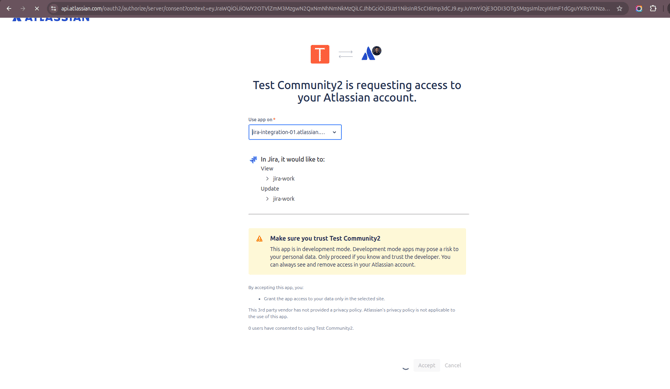
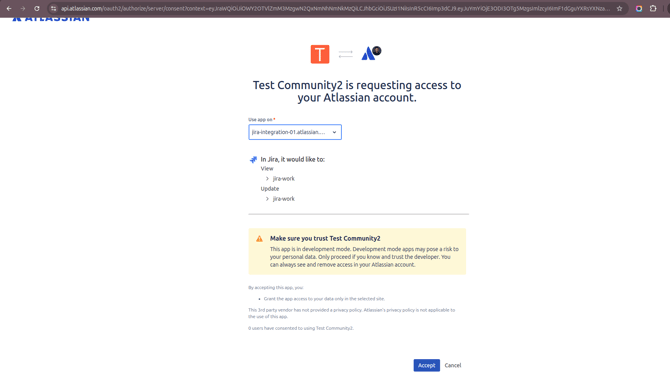
- A secure Atlassian window opens requesting access.
- Under the From site dropdown, select the correct active Jira site URL, matching the URL configured in the integration settings.
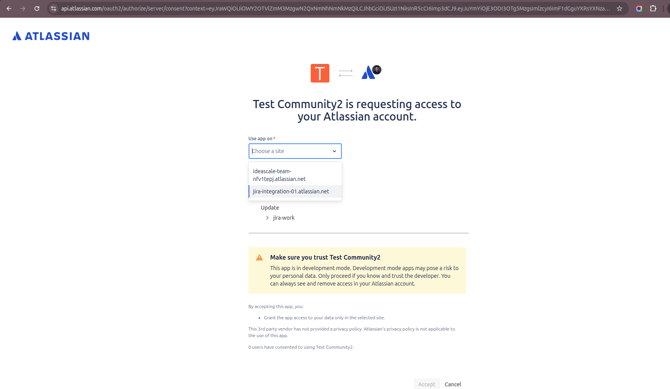
- Select Accept.
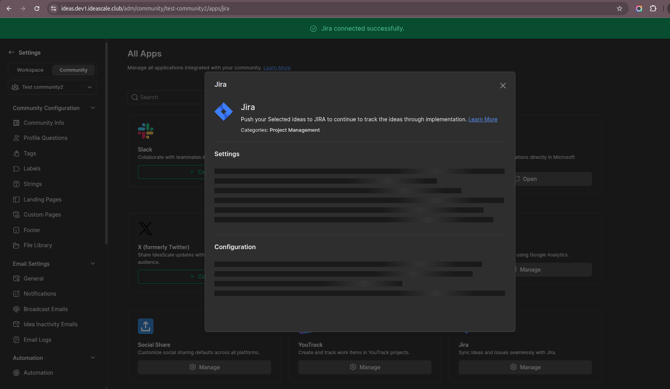
- IdeaScale redirects back with a green "Jira connected successfully" confirmation banner.
Configure Campaign Mapping & Fields
With the connection established, ideas can be mapped to where they will go in Jira.
- Under the Configuration section in IdeaScale, select the target Campaign, the target Jira Project, and the designated Ticket Type (for example, Epic, Task, or Story).
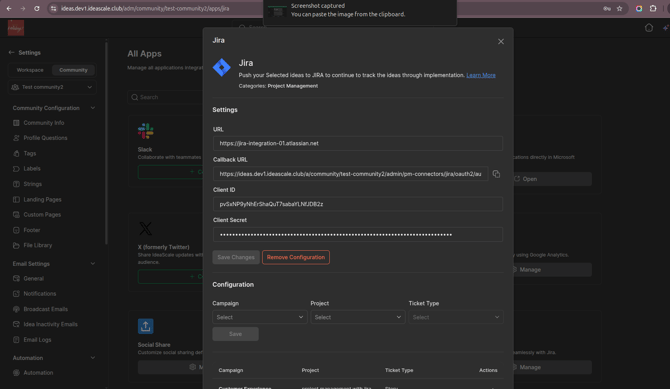
- Select Save.
- Map the technical data fields by selecting Field Mapping.
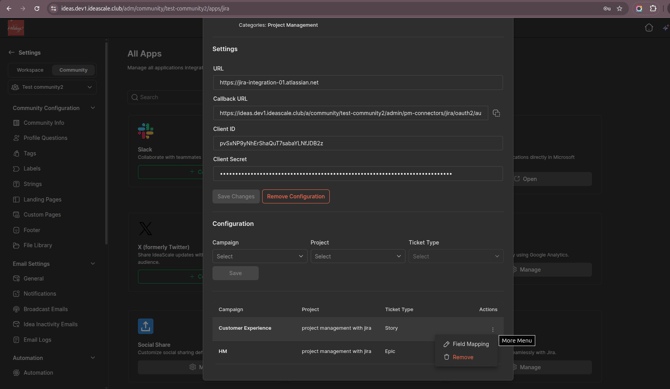
- Align the IdeaScale Fields to the corresponding Jira Fields (for example, mapping Idea Title to Jira Summary, Text to Description, Attachments, or Labels).
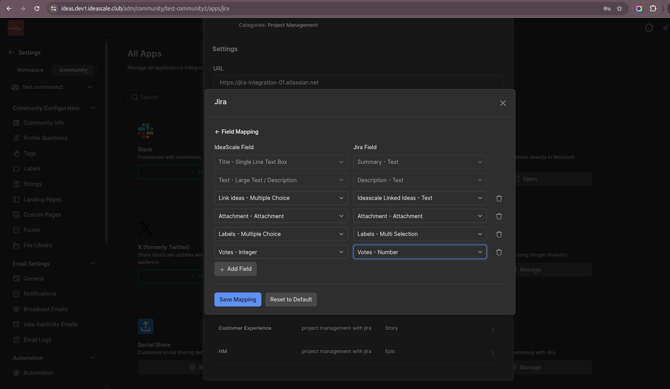
- Select Save Mapping once finalized.
- If users want to use Jira webhooks for real-time synchronization, they must add the following two additional scopes to the Jira app they create or have already created:
read:jira-usermanage:jira-webhook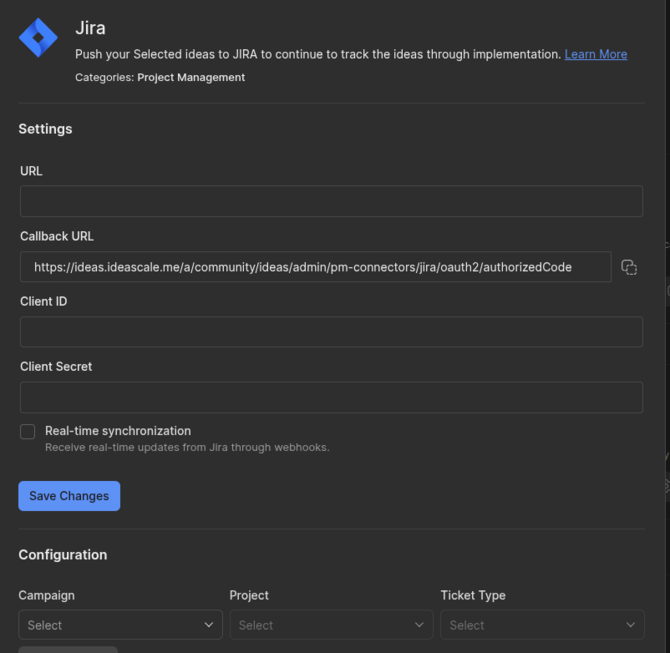
Once mapping is complete, ideas are ready to be pushed directly into Jira workflows.
Configuration can be cleared at any time using the Remove Configuration option to start fresh.
Frequently Asked Questions
What Jira permissions does the connected app require?
The connected app requires View Jira issue data (read:jira-work) and Create and manage issues (write:jira-work), configured under the Jira platform REST API scopes in the Atlassian Developer Console.
What happens to the existing setup if Remove Configuration is used?
Remove Configuration clears the existing Campaign Mapping and Field Mapping setup, allowing the Jira Integration to be configured again from Access Jira Integration Settings.
Which Jira site should be selected during authentication?
The From site dropdown should be set to the active Jira site whose URL matches the one configured in the Jira Integration settings.
What Ticket Types can ideas be mapped to in Jira?
Ideas can be mapped to any Ticket Type available in the selected Jira Project, such as Epic, Task, or Story, as configured under Configure Campaign Mapping & Fields.
Related Articles