
Path: Workspace Homepage >> Navigation Panel >> Settings >> Community >> Integrations >> All Apps >> Twitter
| What is Twitter Integration? |
|---|
| Twitter Integration is a Community setting that automatically posts a Twitter message with a link to an idea once the idea meets a defined vote or comment threshold. |
Once connected, IdeaScale posts a message to the linked Twitter account's feed for any idea that crosses the configured vote or comment threshold, giving ideas that gain traction in the community visibility on Twitter as well.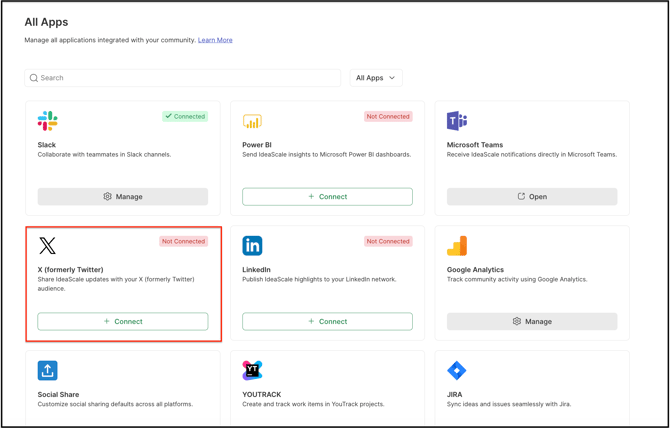
Role Permissions
- Community Administrator: Authorizes the connection between the IdeaScale community and a Twitter account, and configures the Vote Threshold, Comment Threshold, Hashtag, and other Twitter App settings.
TABLE OF CONTENTS
Connecting a Twitter Account to IdeaScaleTwitter App Settings
Disconnecting the Twitter Integration
Frequently Asked Questions
Connecting a Twitter Account to IdeaScale
An existing Twitter account or a new account created specifically for the community can be linked to IdeaScale. Once linked, every new idea that reaches the configured vote or comment threshold is automatically posted to the connected account's Twitter feed.
- Navigate to Settings >> Community >> Integrations >> All Apps >> Twitter.
- Set the Authorize IdeaScale to Connect to Your Twitter Account switch to ON.
- On the screen requesting authorization, approve the IdeaScale App on Twitter.

Once authorization succeeds, a confirmation message reading "Connected to [Administrator's email address] " appears below the Authorize IdeaScale to Connect to Your Twitter Account switch. A separate notification confirms that the application has been successfully installed and includes an option to uninstall the app.
Help Article for App Directory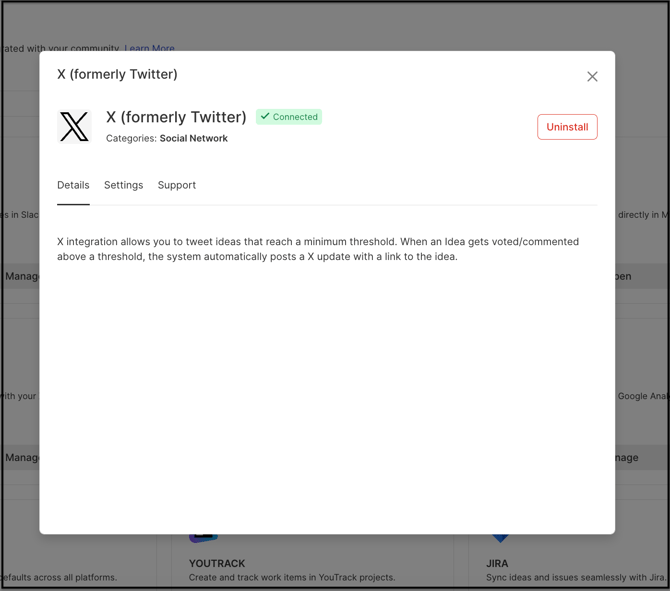
Twitter App Settings
Once the Twitter App is installed, the following fields are available on its Settings page:
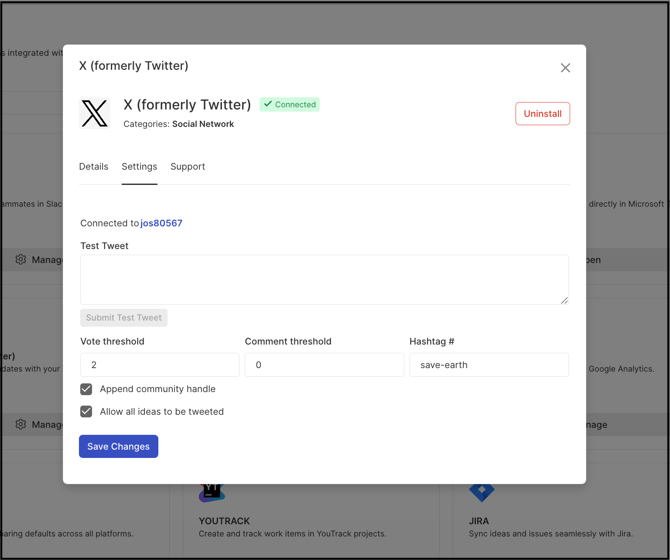
- Test Tweet: Submits a test tweet to confirm the integration is functioning correctly.
- Vote Threshold: The number of votes an idea must reach before it is posted to the Twitter feed.
- Comment Threshold: The number of comments an idea must reach before it is posted to the Twitter feed.
- Hashtag#: The hashtag included with each posted tweet. The Community name is used by default, and the Administrator may replace it with another hashtag.
- Append Community Handle: Enabling this setting allows the Administrator to update or change the community handle appended to posted tweets.
- Allow All Ideas to be Tweeted: Enabling this setting allows all ideas, including ideas in a private campaign, to be tweeted.
Below is the screenshot of how the idea will be displayed on the Twitter feed.
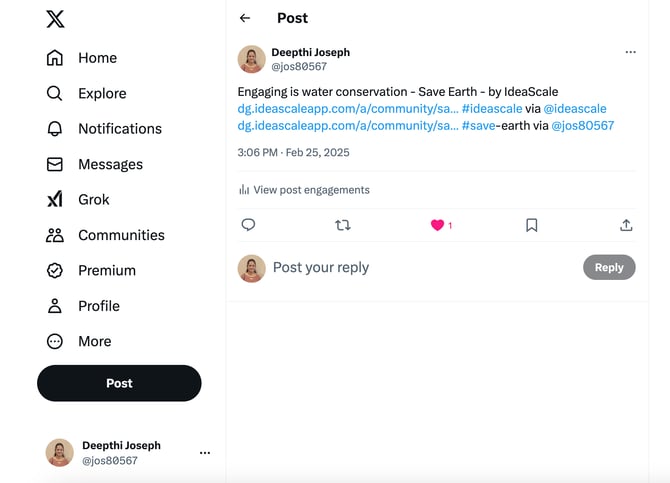
Note: An idea is posted to the Twitter feed once it meets either the Vote Threshold or the Comment Threshold, whichever it reaches first.
Disconnecting the Twitter Integration
- Navigate to Settings >> Community >> Integrations >> All Apps >> Twitter.
- Set the Authorize IdeaScale to Connect to Your Twitter Account switch to OFF.
- Select Save Changes.
Frequently Asked Questions
Does the Twitter Integration post ideas from private campaigns?
Only when Allow All Ideas to be Tweeted is enabled. Otherwise, ideas from private campaigns are not posted to the Twitter feed.
Can an idea be posted to Twitter before it reaches either threshold?
No. An idea is only posted once it reaches the configured Vote Threshold or Comment Threshold.
What happens to existing settings if the integration is disconnected and reconnected later?
No changes will be made to the settings and can be reconnected later.
Related Articles