
Path: Manage Workspace >> Subscription >> Subscription Dashboard
Path: Community Settings >> Subscription
| What is a Subscription Dashboard? |
|---|
| Subscription Dashboard is a read-only overview of an account's subscription details, usage metrics, and billing information. |
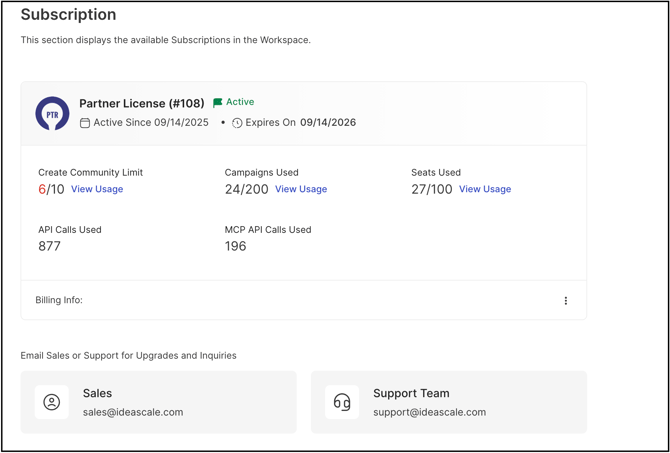
The Subscription Dashboard provides a comprehensive, read-only overview of an account's subscription details. It allows subscription information to be reviewed, community creation to be monitored, seat occupancy across communities to be tracked, and REST API usage to be checked — all from a single location.
Role Permissions
- Workspace Administrator: Views the Subscription Dashboard, including Current Subscription, Usage, and Billing Info; can add, edit, or delete Billing Information; and is the only role that can access Cancel Subscription.
- Community Administrator: Views the Subscription Dashboard, including Current Subscription, Usage, and Billing Info; can add, edit, or delete Billing Information. Does not have access to Cancel Subscription.
TABLE OF CONTENTS
Current Subscription
Usage
Billing Info
Email Sales or Support
Exceptions
Frequently Asked Questions
Current Subscription

The Current Subscription section shows the subscription plan currently held by the community's account, such as Free, Evaluation, or Enterprise. It also displays the subscription's start and end date.
Usage
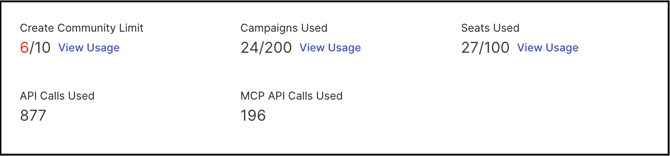
The Usage section provides a detailed breakdown of consumption across the Workspace. The following metrics are tracked:
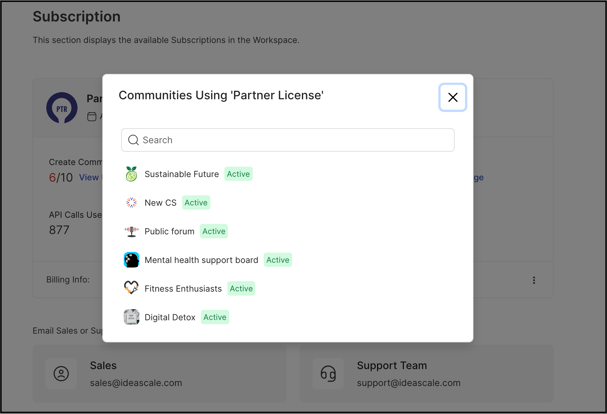
- Create Community Limit: Displays the number of communities created within the Workspace against the total number of communities permitted under the subscription. Selecting the View Usage link opens a pop-up modal listing all existing communities.
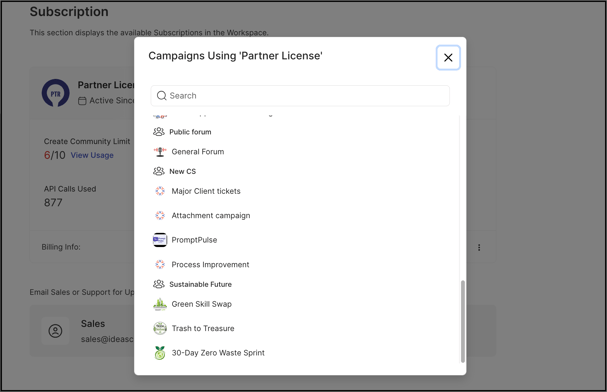
- Campaigns Used: Displays the number of Active or Launched campaigns within the Workspace against the allotted campaign limit. Selecting the View Usage link opens a pop-up modal listing all existing Active and Launched campaigns. See Exceptions below for campaign statuses excluded from this count.
- Seats Used: Displays the number of seats currently occupied across all communities in the Workspace against the total allotted seats. One seat corresponds to one individual — identified by name or email address — assigned to any of the following roles:
- Global Administrator
- Admin Group
- Campaign Group Administrator
- Campaign Administrator
- Global Moderator
- Group Moderator
- Campaign Moderator
- Custom Field Moderator
- Translation Moderator
- Custom Admins
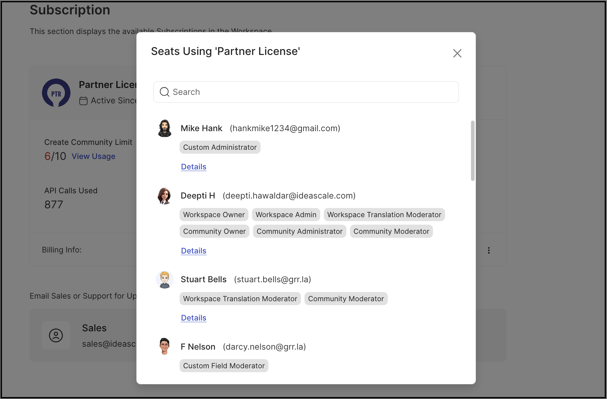
- API Calls Used: Displays the total number of REST API calls made against the Workspace data.
- MCP API Calls Used: Displays the total number of API calls made to retrieve community data via the MCP server for communities within the Workspace.
Billing Info
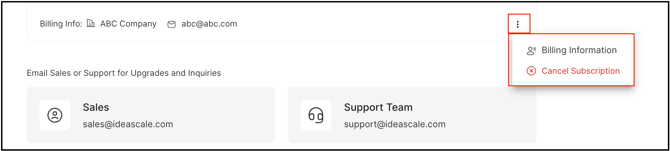
The Billing Info section displays the company name and associated email address on record. A More (⋮) icon provides access to the following options.
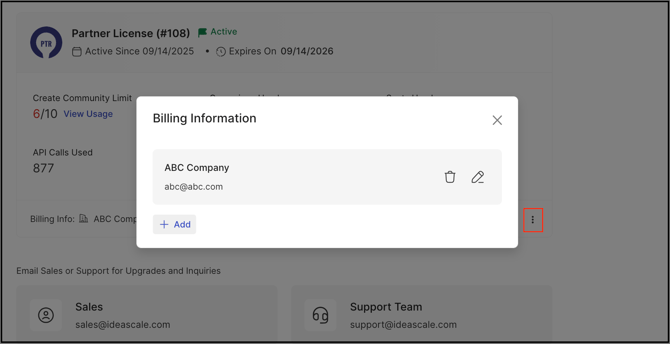
Billing Information
Selecting Billing Information opens a pop-up modal displaying the company name and email address. Both the Workspace Administrator and Community Administrator can add, edit, or delete this information using the Pencil icon.
Cancel Subscription
Selecting Cancel Subscription is available to the Workspace Administrator only. Cancelling a subscription permanently deletes the Workspace, along with all associated data, members, and communities. To confirm the cancellation, the Workspace Administrator must enter the IdeaScale account password.
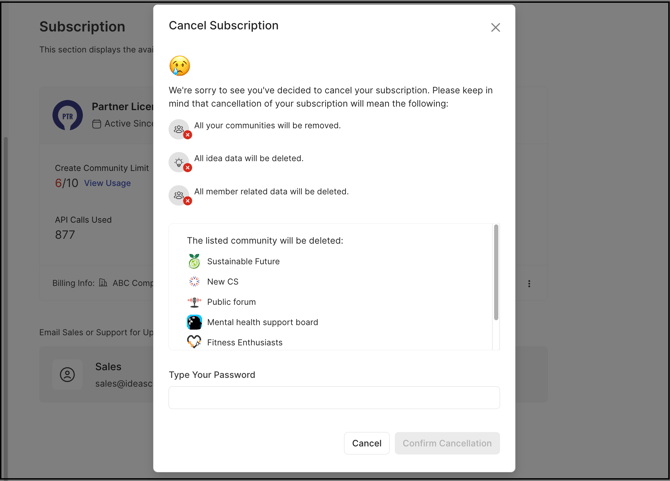
Note: Once the subscription is cancelled, the Workspace, communities, or data within cannot be restored.
Email Sales or Support

The Email Sales or Support section provides the contact email addresses for the Sales and Support teams. Either team can be reached for subscription-related or account-related queries.
Exceptions
- Campaigns Used Count: Draft and Archived campaigns are excluded from the Campaigns Used count; only Active or Launched campaigns are counted against the subscription's campaign limit.
- Seats Used Count: An individual assigned to multiple qualifying roles across multiple communities within the Workspace still occupies only one seat. The seat is released for reassignment only once the individual is removed from every applicable role.
Frequently Asked Questions
Can a Community Administrator cancel the Workspace subscription?
No. Cancel Subscription is available to the Workspace Administrator only; it does not appear as an option for the Community Administrator.
Do Draft or Archived campaigns count toward the Campaigns Used limit?
No. Only Active or Launched campaigns are counted against the allotted campaign limit. Draft and Archived campaigns are excluded from the Campaigns Used count.
Does assigning a member to more than one role use more than one seat?
No. An individual holding multiple qualifying roles across multiple communities within the Workspace still occupies only one seat. The seat is only released for reassignment once the individual is removed from all applicable roles.
Can the Subscription Dashboard's usage figures be edited?
No. The Subscription Dashboard is read-only. The only editable content is Billing Information, which the Workspace Administrator and Community Administrator can add, edit, or delete.
What happens to Workspace data after a subscription is cancelled?
Cancelling a subscription permanently deletes the Workspace, along with all associated data, members, and communities. This action cannot be undone.
Related Articles