
Path: Workspace Homepage >> Navigation Panel >> Reporting >> Outcomes
|
What are Strategic Themes? |
|
Strategic Themes are the top-level pillars of an organization's strategy — the broadest categories under which all outcomes and initiatives are organized. |
They represent the major areas leadership has identified as priorities, such as "Operational Efficiency" or "Customer Experience." Strategic Themes serve as the foundation for all outcomes reporting and can be configured from two paths: at the workspace level by a Workspace Administrator via the Manage Themes board, or from within Campaign Management by a Community Administrator or Campaign Administrator. All Strategic Outcomes and Tactical Outcomes roll up under Themes, making them the anchor of the entire Outcomes hierarchy.
Role Permissions
- Workspace Administrator: Creates new Strategic Themes and manages existing ones (view, edit, archive, restore, delete) from the Manage Themes board, located under Reporting >> Outcomes Dashboard.
- Community Administrator, Campaign & Custom Administrator: Do not have access to Outcomes dashboard or view and assign Strategic Themes in Campaigns.
- Community & Campaign Moderator: Can only assign an existing Strategic Theme to an idea on the Idea details page & Idea Portfolio.
- Custom field Moderator: Can only assign an existing Strategic Theme to the ideas with their custom field only, on the Idea details page & Idea Portfolio. They cannot see themes of other ideas
- Idea Owners: Can assign an existing Strategic Theme to their owned ideas only, on the Idea details page & Idea Portfolio. They cannot see themes of other ideas.
TABLE OF CONTENTS
Strategic Theme Setup
Campaign Linking
Outcomes Dashboard
Frequently Asked Questions
Strategic Theme Setup
Navigate to Reporting >> Outcomes and select the Themes tab, then select Manage Themes to view existing themes and create new ones.
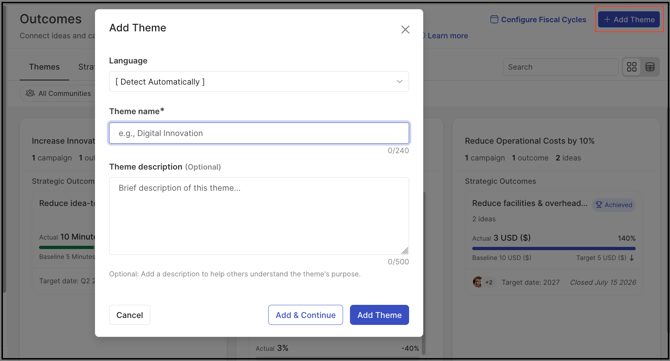
To create a new theme, select + Add Themes, complete the following fields, and select Add Theme to save, or Add & Continue to create another theme:
1. Theme name: The desired name for the Strategic Theme in 240 characters.
2. Theme description (Optional): A brief description to help others understand the theme's purpose in 500 characters.
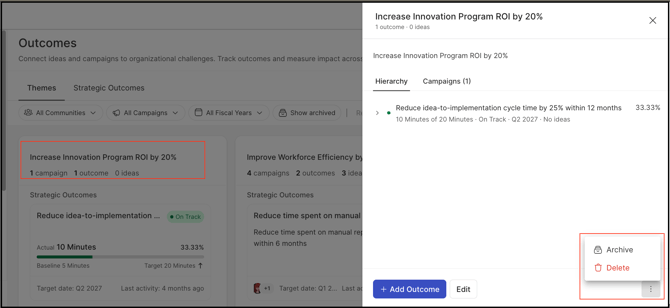
Once created, a theme can be viewed, edited, archived, restored, or deleted from the Theme's sidedrawer by the Workspace administrator. Click on the Theme name to open the sidedrawer.
Help Article for Outcomes Dashboard
Campaign Linking
Once a Strategic Theme has been created, it can be associated with a campaign by navigating to Basic Information >> Link to Theme & Outcomes >> Themes within the campaign's edit settings, or a new Theme can be created using the + Create Theme button beside the dropdown. This action can be performed by a Community Administrator or a Campaign Administrator in Campaigns only if they are also a Workspace administrator.
Outcomes Dashboard
Once configured, Strategic Themes appear as cards on the Outcomes Dashboard, each showing the Theme's associated Strategic Outcomes and linked ideas, with status indicators of On Track, At Risk, Off Track, or Pending. The full breakdown of the Themes Tab, its cards, and the Manage Themes board is covered in the Outcomes Dashboard article.
Help Article for Outcomes Dashboard
Frequently Asked Questions
Can a Strategic Theme be created without linking it to a campaign?
Yes. Themes are configured at the workspace level via the Manage Themes board, independent of any single campaign. Campaign linking happens separately, afterward, from within the campaign's own edit settings.
Is a Theme description required when creating a Strategic Theme?
No. Theme description is optional; only Theme name is required to create a new theme.
Who can link a Strategic Theme to a campaign?
A Community Administrator or a Campaign Administrator who is also a Workspace administrator, from within the campaign's Basic Information >> Link to Theme & Outcomes settings.
Can a Community Administrator or Campaign Administrator edit or delete a Strategic Theme after it's created?
No. Editing, archiving, restoring, and deleting a Theme is only possible from the Manage Themes board, which only a Workspace Administrator can access. Community and Campaign Administrators do not have access to the Outcomes Dashboard section this board lives under.
Related Articles
- Help Article for Campaigns
- Help Article for Outcomes Dashboard