
Path: Workspace Homepage >> Navigation Panel >> Settings >> Community >> Integrations >> All Apps >> Social Share
| What is Social Share Integration? |
|---|
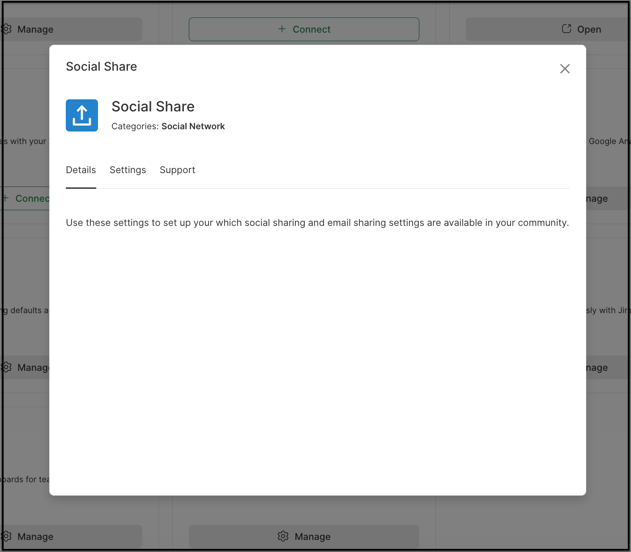
| Social Share Integration allows members of a community to share ideas and community details to Facebook, X, LinkedIn, and Email, with a customizable image, title, and description for each post. |
Social Share Integration is configured from the App Directory within Community Settings - Integrations. It allows a Community Administrator to enable sharing to specific social platforms and to customize the image, title, and description that accompany posts shared from Community Pages and Idea Pages.
Role Permissions
- Community Administrator: Enables Support Sharing to Facebook, Support Sharing to X, and Support Sharing to LinkedIn, and configures the Share Image, Page Title, and Page Description for both Community Pages and Idea Pages.
TABLE OF CONTENTS
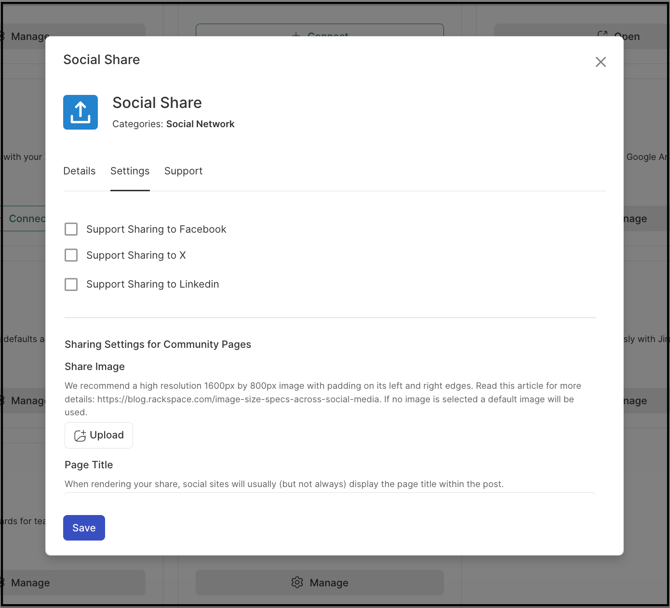
Support Sharing to Facebook
Support Sharing to X
Support Sharing to LinkedIn
Sharing Settings for Community Pages
Sharing Settings for Idea Pages
Exceptions
Frequently Asked Questions
Support Sharing to Facebook
Enabling Support Sharing to Facebook allows the Community Administrator to share an idea on Facebook using the Page Title and Page Description configured in the social share settings.
Support Sharing to X
Enabling Support Sharing to X allows the Community Administrator to post about an idea or community on X (formerly Twitter).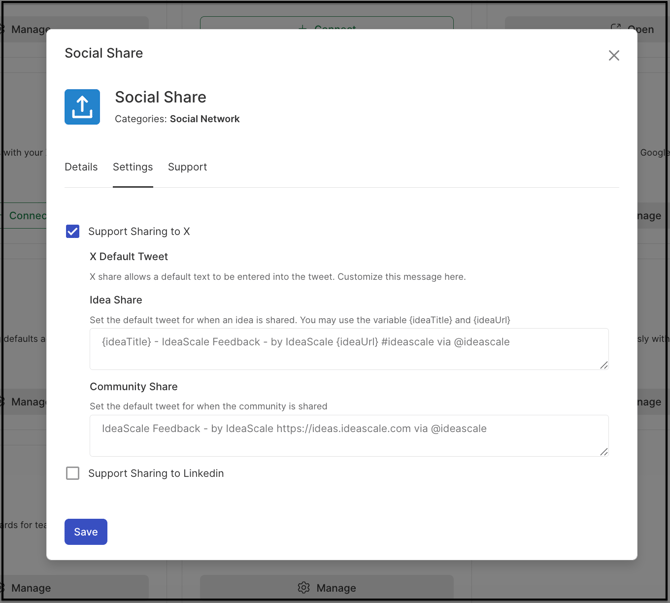
Twitter Default Tweet
- Idea Share: A default tweet is provided for sharing an idea; the Community Administrator can customize the text used for all idea shares made through X.
- Community Share: A default tweet is provided for sharing the community; the Community Administrator can customize the text used for all community shares made through X.
Support Sharing to LinkedIn
Enabling Support Sharing to LinkedIn allows the Community Administrator to share an idea on LinkedIn using the Page Title and Page Description configured in the social share settings.
Sharing Settings for Community Pages
- Share Image: An image used when the community is shared. The recommended size is 1600px x 800px, with approximately 160px of padding on the left and right sides of the image. The Community Administrator can also select an image directly from the community's File Library.
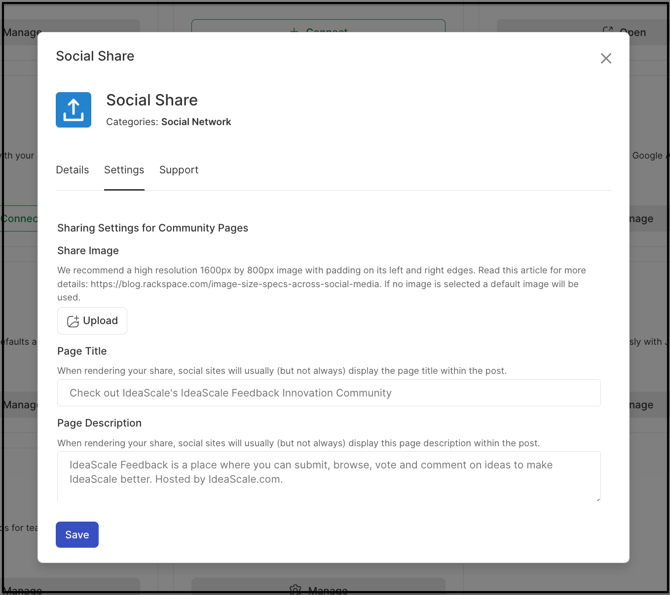
- Page Title: A customizable title displayed alongside the community post when shared on the supported social platforms.
- Page Description: A customizable description displayed alongside the community post when shared on the supported social platforms.
Sharing Settings for Idea Pages
- Page Title: A customizable title displayed alongside the idea page post when shared on the supported social platforms.
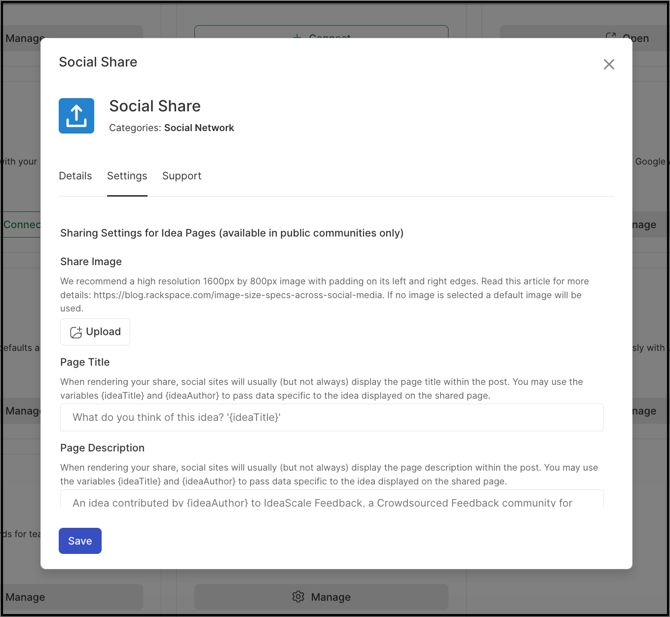
- Page Description: A customizable description displayed alongside the idea page post when shared on the supported social platforms.
Note: When a member shares an idea with another member of the community, the recipient sees the share reflected in their In-App Notifications, along with a corresponding email notification.

Exceptions
- Share Image visibility: A Share Image must be made public from the community's File Library before it can be used; images that have not been made public are not available for selection.
- Idea specifics on Community shares: Sharing to X, LinkedIn, or Facebook from Community Pages shares community-level information only; specific idea details are not included.
- Public communities: For Public communities specifically, sharing an idea via X, LinkedIn, or Facebook displays the Idea Title alongside the Page Title and Page Description configured in Sharing Settings for Community Pages.
Frequently Asked Questions
What image dimensions are recommended for the Share Image?
A Share Image of 1600px x 800px is recommended, with approximately 160px of padding on the left and right sides of the image to accommodate how the image is cropped or overlaid on different social platforms.
Does sharing a community to social media expose the details of individual ideas?
Not by default. Sharing from Community Pages to X, LinkedIn, or Facebook includes community-level information only. The exception is Public communities, where the Idea Title is also displayed alongside the configured Page Title and Page Description when an idea is shared.
Is a member notified when their idea is shared with someone else?
Yes. When one member shares an idea with another member, the recipient's In-App Notifications reflect the share, and a corresponding email notification is also sent.
Can the default tweet text for X be customized?
Yes. Both the Idea Share and Community Share default tweets can be customized by the Community Administrator, and the customized text applies to all future shares of that type made through X.
Related Articles