
Path: Workspace Homepage >> Navigation Panel >> Settings >> Security >> Authentication >> Single Signon >> SCIM
| What is SCIM? |
|---|
| SCIM (System for Cross-domain Identity Management) is a protocol that automates the sharing of user identity data between an Identity Provider (IdP) and IdeaScale. |
SCIM automates the creation and maintenance of member accounts and groups in an IdeaScale Workspace, removing the need for a Workspace Administrator to manage them manually. It is available only for workspaces with Single Sign On (SSO) already configured (see Exceptions below).
Role Permissions
- Workspace Administrator: Views the SCIM setting, copies the SCIM token for use in Identity Provider (IdP) configuration, and generates a new SCIM token. Cannot enable or disable SCIM for the workspace (see Exceptions below).
- All Other Roles (Community Administrator, Moderators & Members): Do not have access to the setting.
TABLE OF CONTENTS
SCIM Functionality
IdeaScale Settings
SCIM Provisioning in IdP Application
Exceptions
Frequently Asked Questions
SCIM Functionality
SCIM operates on a client-server model, in which a SCIM server such as IdeaScale retrieves user data from a SCIM client — the Identity Provider (IdP) — using a REST API. This removes the need for a Workspace Administrator to manually create and update member accounts and groups in the Workspace. Secure communication between the IdP and IdeaScale is maintained using authentication methods such as OAuth and basic authentication.
SCIM performs the following CRUD operations:
- Create: The IdP creates a new member account within IdeaScale using SCIM.
- Read: The IdP retrieves existing member information from IdeaScale.
- Update: The IdP updates member details (for example, email address or password) within IdeaScale.
- Delete: The IdP deactivates or deletes a member account within IdeaScale when employment ends or access needs to be revoked (see Exceptions below).
IdeaScale Settings
SCIM is available only for workspaces with SSO enabled; an active SSO setup must exist in the Workspace before SCIM can be used (see Exceptions below).
The Workspace Administrator can view this setting at Workspace Homepage >> Navigation Panel >> Settings >> Security >> Authentication >> Single Sign On >> SCIM.
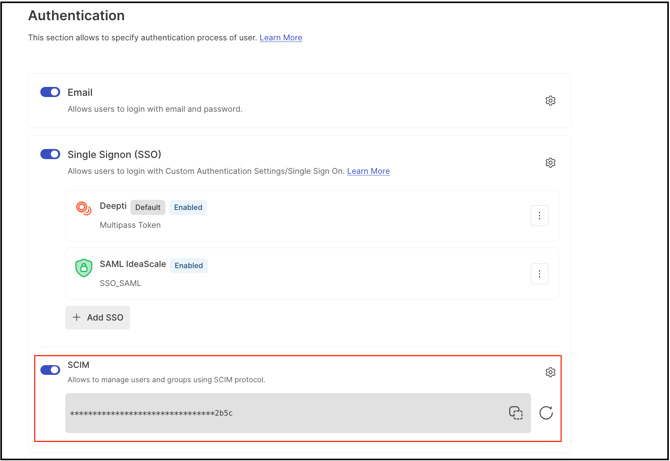
The Workspace Administrator copies the SCIM token using the Copy icon and pastes it into the corresponding configuration field of the IdP application (for example, the Azure portal). A new SCIM token can be generated using the Reload/Regenerate icon.
Note: The Workspace Administrator cannot enable or disable the SCIM setting directly (see Exceptions below).
SCIM Provisioning in IdP Application
The Workspace Administrator needs administrative access within the IdP application to configure SCIM for IdeaScale. Setup steps are provided below for Azure and Okta.
SCIM in Azure
1. Create a new Provisioning configuration for IdeaScale SSO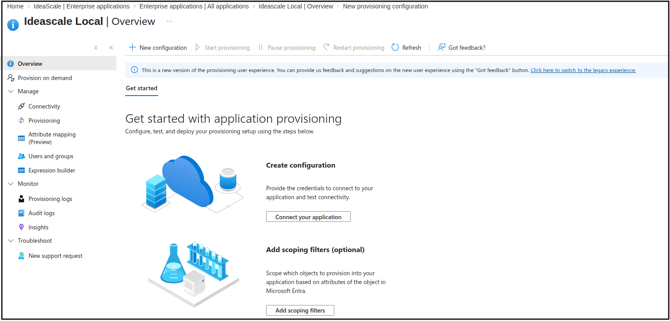
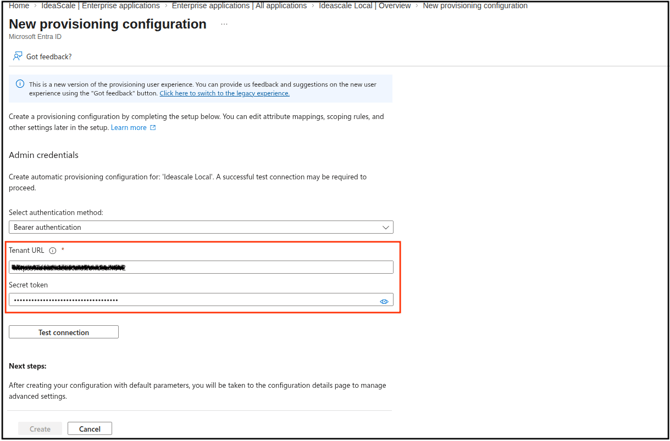
2. Enter the following details to configure and test the connection:
- Select authentication method: Select the desired authentication method.
- Target URL: Enter the IdeaScale Workspace URL followed by
scim/v2(for example,https://ides.ideascale.com/scim/v2). - Secret token: Paste the SCIM token generated in IdeaScale.
3. Once the connection is established, add the created or updated members or groups to be pushed to IdeaScale.
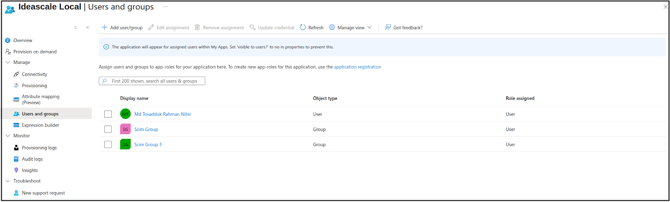
Note: Visibility of pushed changes in IdeaScale depends on the IdP client policy (real time, every 40 minutes, or once per day).
SCIM in Okta
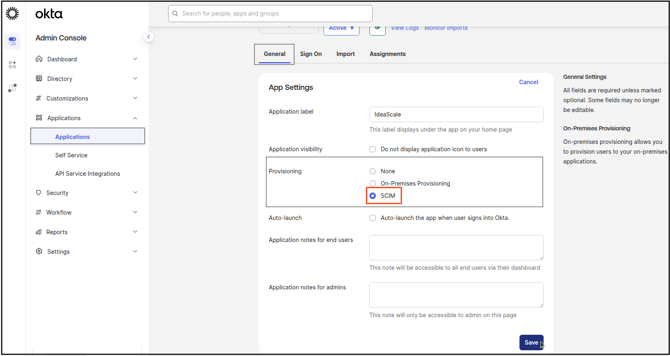
- To create a new Provisioning configuration for IdeaScale SSO, go to Applications >> General, select the SCIM option under Provisioning, and save.
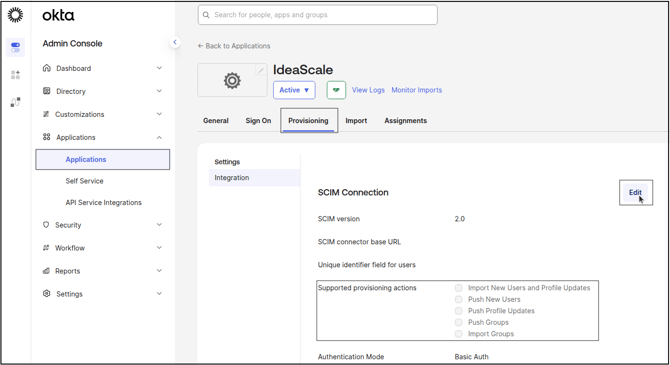
- Go to the Provisioning tab, which appears after saving the SCIM option, and select Edit.
- Configure the following fields:
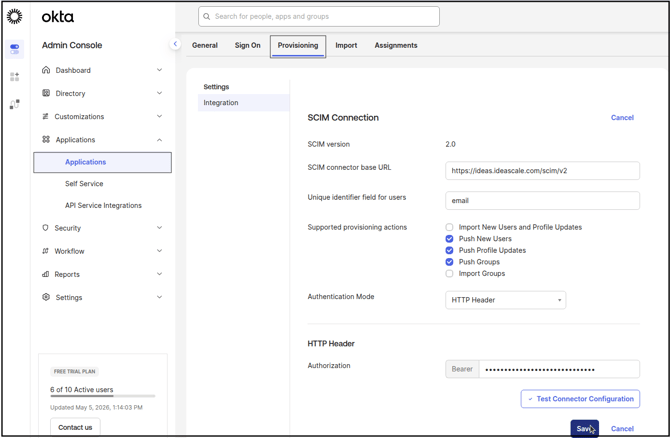
- SCIM connector base URL: Enter the IdeaScale Workspace URL followed by
scim/v2(for example,https://ides.ideascale.com/scim/v2). - Unique identifier field for users: Enter the desired identifier field for a member, such as email or username.
- Supported provisioning actions: Enable the actions that should be performed using SCIM. Push options push data from Okta to IdeaScale; the remaining options pull data from IdeaScale into Okta.
- Authentication Mode: Select HTTP Header from the dropdown.
- HTTP Header > Authorization: Paste the SCIM token generated in IdeaScale.
- SCIM connector base URL: Enter the IdeaScale Workspace URL followed by
- After saving these configuration details, select and enable the specific provisioning actions to be performed by SCIM (such as creating, updating, or deactivating members and groups), then save the changes.
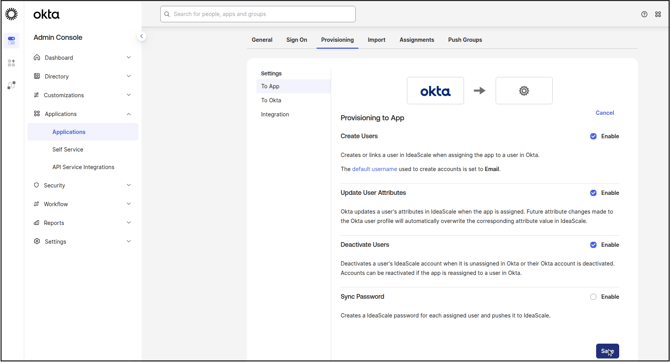
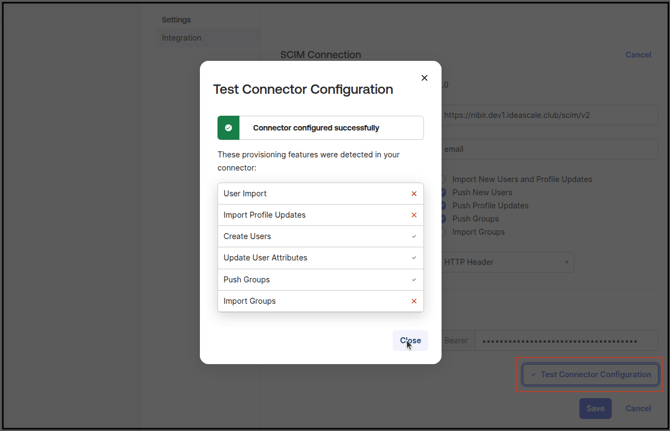
- Once configuration is complete, select Test Connector Configuration to verify that the connection is set up correctly. This step confirms that the SCIM integration can communicate securely and reliably with IdeaScale. Once the test succeeds, select Save to store the settings and activate the configuration.
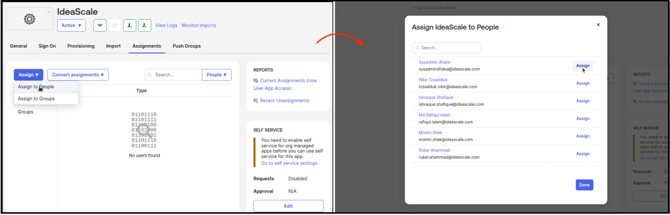
- Navigate to the Assignments section and select Assign to People from the dropdown, then select members from the pop-up modal to add them to IdeaScale.
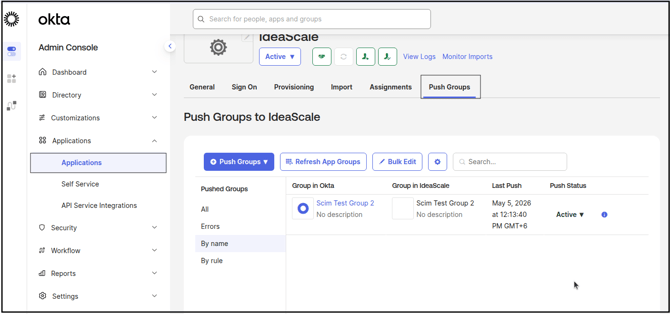
Assign to Groups and select the group. This pushes only the members of the group into IdeaScale; the group itself is not pushed (see Exceptions below). - To push an actual group into IdeaScale, navigate to the Push Groups tab and select the group to be pushed.
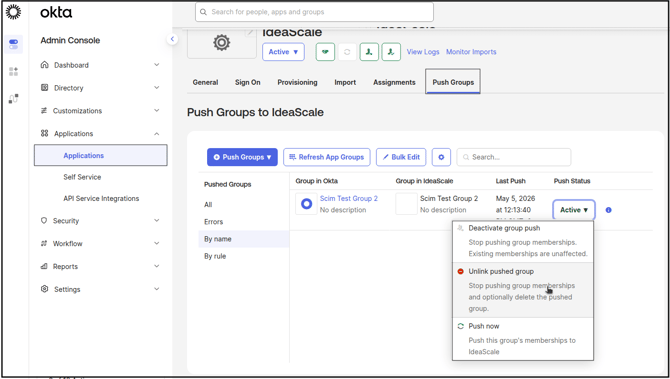
- To remove a pushed group from IdeaScale, select the Active dropdown under Push Status and select Unlink Pushed Group. This removes the group and its members from IdeaScale.
Exceptions
- Enabling or Disabling SCIM: A Workspace Administrator cannot enable or disable the SCIM setting for a workspace directly; this requires contacting the Customer Success Manager.
- SCIM Availability: SCIM is available only for workspaces with SSO already enabled and configured.
- User Deletion via SCIM: Deleting a member through SCIM performs a Ban rather than a permanent removal — the member is disabled from accessing the workspace, their data is retained, and the action is reversible.
- Group Deletion via SCIM: Deleting a group through SCIM is permanent. The group and its associated membership information are removed from the workspace and cannot be recovered.
- Group Assignment in Okta: Using Assign to Groups in Okta pushes only the individual members of a group into IdeaScale; the group itself is not created in IdeaScale unless pushed separately using the Push Groups tab.
Frequently Asked Questions
What happens when a member is deleted through SCIM?
The member is banned rather than permanently removed. The member is disabled from accessing the workspace, but their data is retained, and the action can be reversed if needed.
Is a group permanently deleted when removed through SCIM?
Yes. Deleting a group through SCIM permanently removes the group, along with its associated membership information, from the workspace. This action cannot be reversed.
Can a workspace connect to more than one SCIM provider?
Yes. A workspace can connect to multiple SCIM providers.
Can a Workspace Administrator enable or disable SCIM without assistance?
No. Enabling or disabling SCIM for a workspace requires contacting the Customer Success Manager; a Workspace Administrator cannot make this change directly.
Related Articles