
Path: Workspace Homepage >> Navigation Panel >> >> Campaign >> Community >> Workflow >> ReviewScale Stage
| What is the ReviewScale Stage? |
|---|
| The ReviewScale Stage is a workflow stage in which ideas are evaluated by designated reviewers against configurable criteria — Value, Cost, and Constraints — using a standardized High, Medium, Low, or NA (Not Applicable) rating scale. |
During the ReviewScale Stage, ideas are systematically evaluated by subject matter experts using clearly defined criteria such as Value, Cost, and Constraints. Each criterion can include multiple questions, and each question is rated using a standardized scale: High, Medium, Low, or NA (Not Applicable). To support transparent and informed decision-making, reviewers can add explanatory notes for each question, documenting the reasoning behind the selected rating.
Role Permissions
- Community Administrator: Creates and configures the ReviewScale Stage across its Info, Settings, Automation, and Permissions tabs; defines evaluation criteria for the Value, Cost, and Constraints categories; relabels the High, Medium, Low, and NA rating options; assigns the Value/Cost/Constraint Reviewer Team for each enabled factor; and configures who can view reviews and scores on the Idea Detail Page.
- Reviewer (assigned Member, Group, or Team Role): Rates ideas against the criteria enabled for the stage and may add explanatory notes documenting the reasoning behind each rating.
- Community Member (with view permission): Views review notes, ratings, and the Impact Ratio on the Idea Detail Page, subject to the permissions configured by the Community Administrator.
TABLE OF CONTENTS
ReviewScale Stage Setup
1. Info
2. Settings
3. Automation
4. Permissions
Stage Functionality on Homepage
Export to Excel
Exceptions
Frequently Asked Questions
ReviewScale Stage Setup
ReviewScale Stage setup is divided into four tabs — Info, Settings, Automation, and Permissions.
1. Info
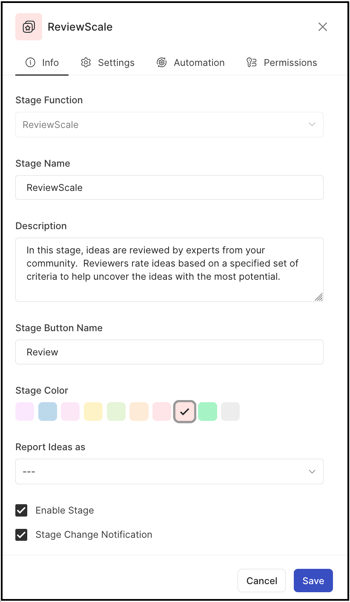
The Info section contains the following basic details about the stage:
- Stage Function: Selects the Ideate stage from a dropdown. Once selected and saved, this field is greyed out and cannot be changed to a different stage.
- Stage Name: A custom name or label for the stage. Note: Character limit is 40.
- Stage Key: A unique identifier for the stage, required for API call data retrieval. Once saved, the Stage Key cannot be changed.
- Description: A description of the stage's functionality or intended use. This description appears as mouseover text on the stage stack in the right navigation of the Community Homepage.
- Stage Color: A color for the stage, selected from 10 available default options.
- Reported Ideas As: Sets the stage as Selected, Implemented, or blank, applying the respective label to all ideas within the stage. Help Article for Selected & Implemented Ideas
Help article on Selected & Implemented Ideas - Enable Stage: A checkbox that activates the stage, allowing ideas to be moved into it.
- Stage Change Notification: A checkbox that activates the stage change notification, sending a stage change email to members who have opted in.
2. Settings
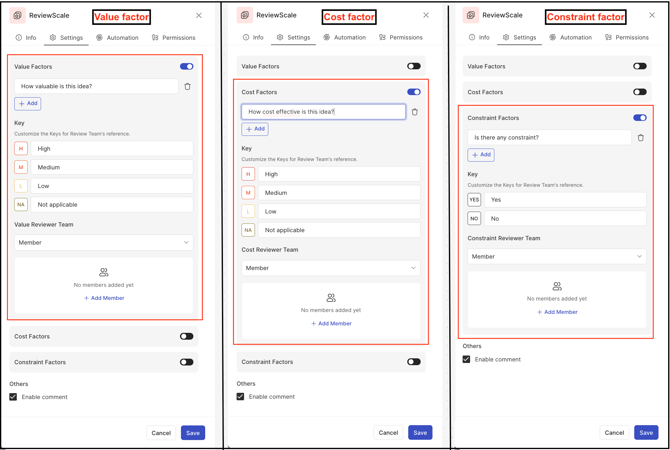
The Community Administrator can customize this stage to align it with the goals of the community and campaign.
Three categories are available for configuration:
- Value: A weighted business goal category. Reviewers rate ideas on this category using a Low, Medium, High scale.
- Cost: A variable cost structure category. Reviewers rate ideas on this category using a Low, Medium, High scale.
- Constraints: A potential business constraint category. Reviewers answer Yes or No. See Exceptions below for how Constraint ratings affect scoring.
After a category is enabled, the Community Administrator can define new evaluation questions for it and assign a dedicated Reviewer Team responsible for assessing that portion of the review. The Community Administrator can also configure what each rating option — H (High), M (Medium), L (Low), and NA (Not Applicable) — represents in the context of the review.
- Add: Creates evaluation questions for each enabled factor, allowing Reviewers to systematically assess an idea against those criteria.
- Key: Relabels the rating options associated with H (High), M (Medium), L (Low), and NA (Not Applicable) to align with the community's evaluation framework.
- Value/Cost/Constraint Reviewer Team: Configures the reviewer team for an enabled factor by selecting an individual Member, a Group, or a Team Role from the dropdown.
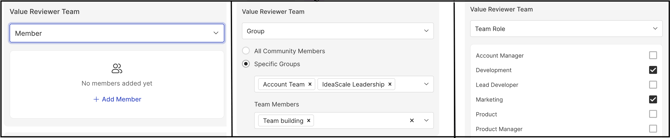
3. Automation
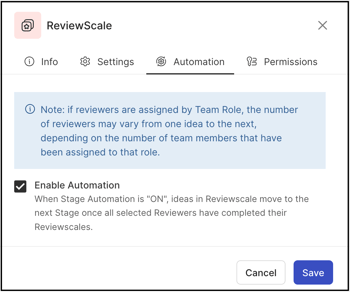
This section configures automation for the ReviewScale Stage. When automation is enabled, an idea automatically advances to the next stage in the workflow once all assigned Reviewers have completed their review questions. The number of Reviewers required may differ per idea depending on the assigned Team Role.
4. Permissions
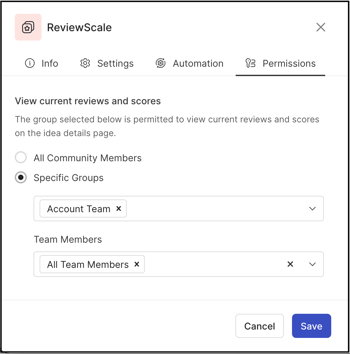
This section defines who can view reviews and their scores on the Idea Detail Page. The Community Administrator can configure this for all community members, for a specific group, or for a specific Team Member role — available only if a Team Role has been specified and filled in any Build Team stage within the same funnel.
Stage Functionality on Homepage
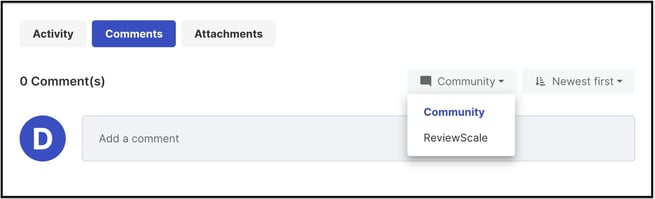
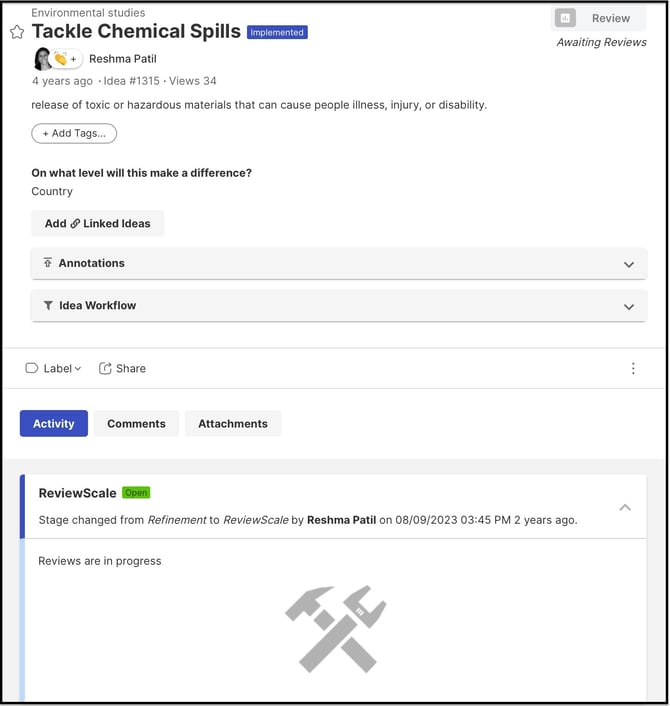
Reviewers assigned to the ReviewScale Stage rate ideas from the idea itself. Selecting an idea opens the Activity tab, which displays the configured factors along with the available ratings and an option to add Review Notes.
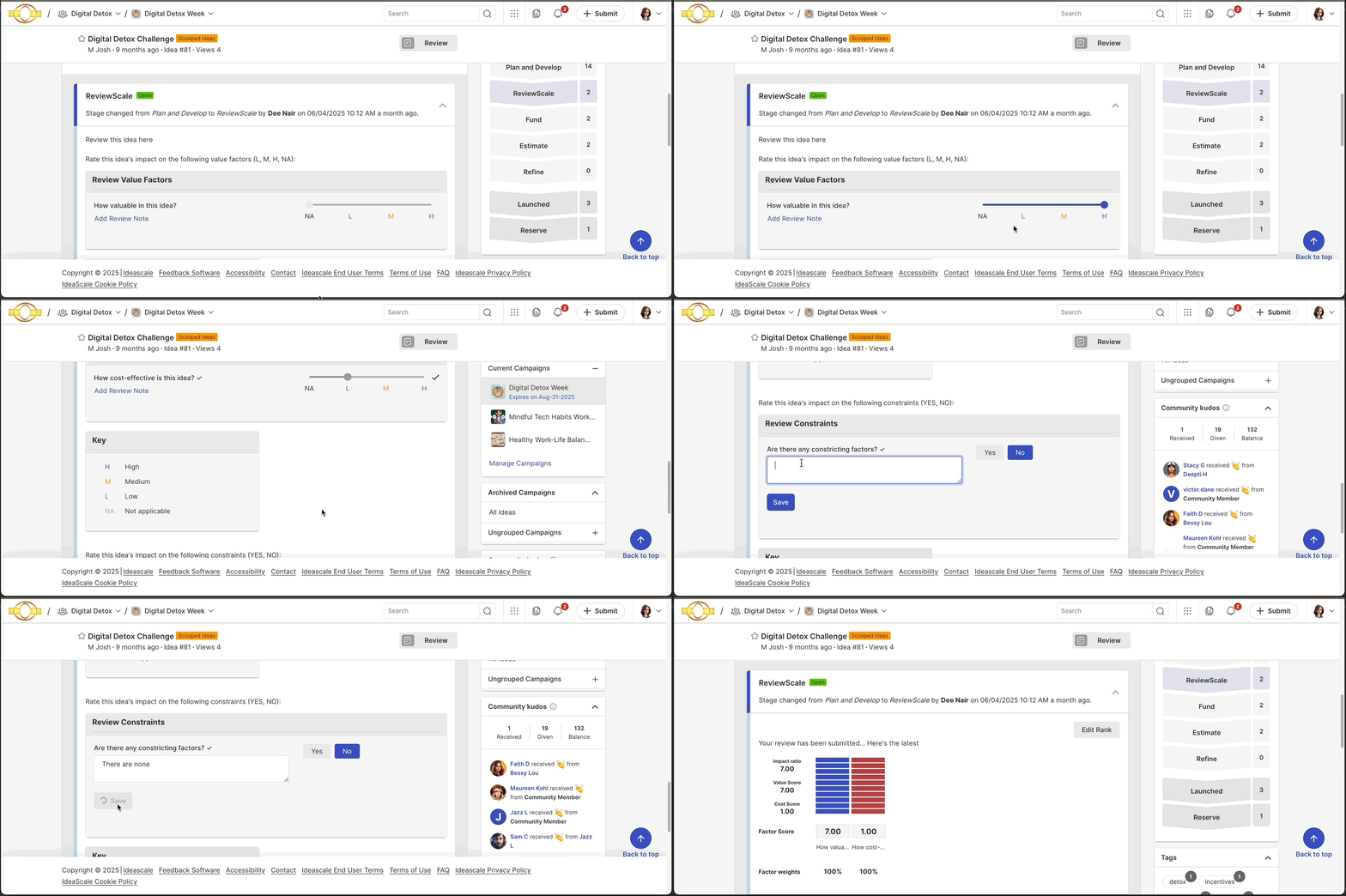
The Community Administrator can view Review Notes in the exported ReviewScale report. Administrators, Reviewers, and members permitted to review the stage can also view Review Notes from the Activity tab. A Reviewer can edit a submitted rating using the Edit Rank link.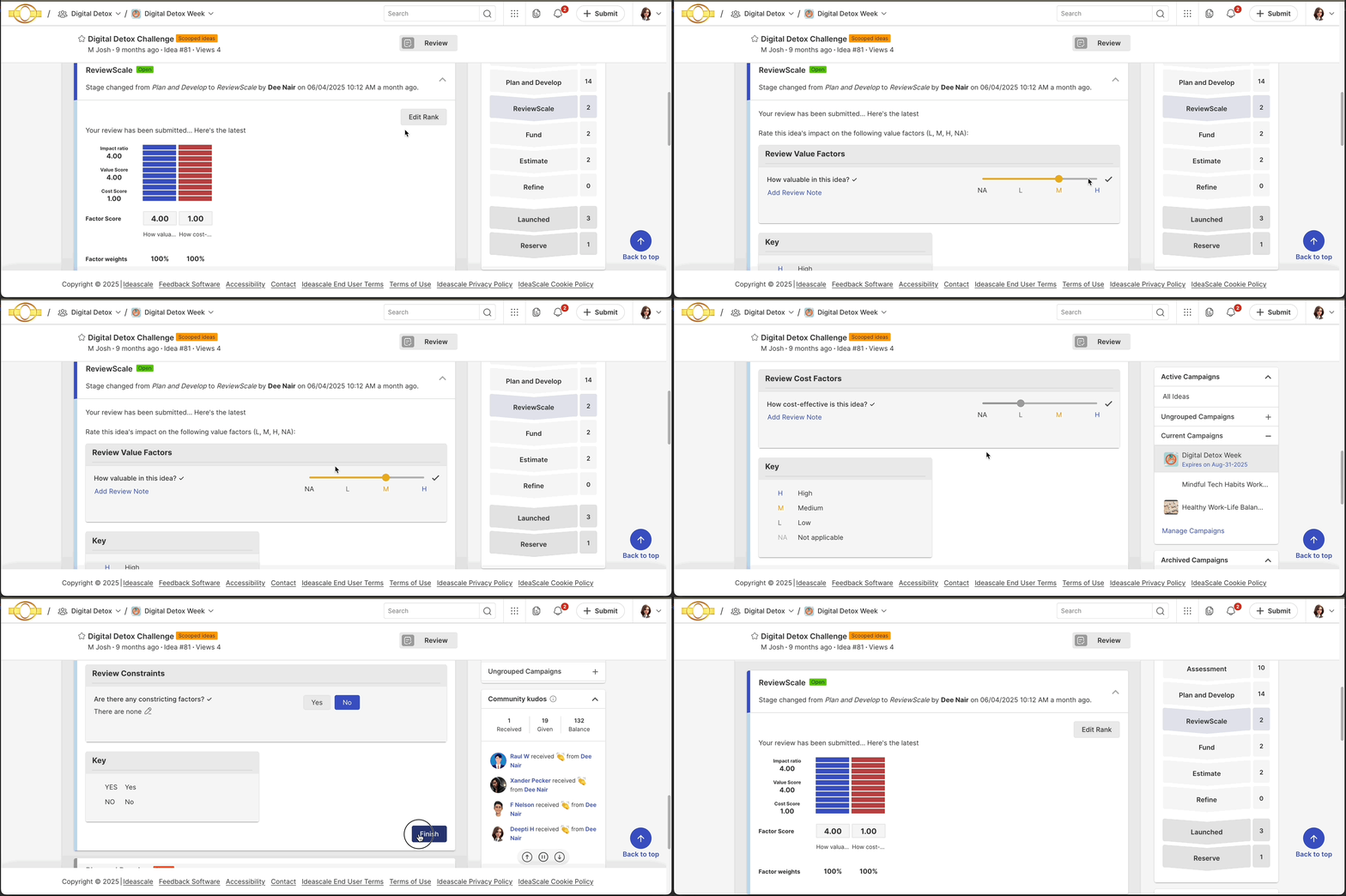
Depending on the viewing permissions configured for the stage, Reviewers and members may see the Impact Ratio for an idea. The Impact Ratio is the average of the Value and Cost factors configured by the Community Administrator, calculated as follows:
Impact Ratio = sum of Value factor scores ÷ sum of Cost factor scores
An Impact Ratio of 1 or higher indicates the idea presents more value than cost.
- Value Score: The combined score from all Value ratings (Low, Medium, High) submitted by all Reviewers.
- Cost Score: The combined score from all Cost ratings (Low, Medium, High) submitted by all Reviewers.
Example, using weights of Low = 1, Medium = 4, High = 10:
- Reviewer 1 rates an idea: Value = Low, Cost = Medium.
- Reviewer 2 rates an idea: Value = High, Cost = High.
- Value Total: 11 ÷ 2 = 5.5
- Cost Total: 14 ÷ 2 = 7
- Impact Ratio: 0.785
When an additional Reviewer rates the Value and Cost factors for an idea, the new rating is added to the existing totals and averaged rather than replacing any prior value. See Exceptions below for how NA ratings and an unrated Cost factor affect this calculation.
Members not permitted to view or participate in the ReviewScale Stage do not see the progress bar, the Impact Ratio average, or the Impact Ratio details.
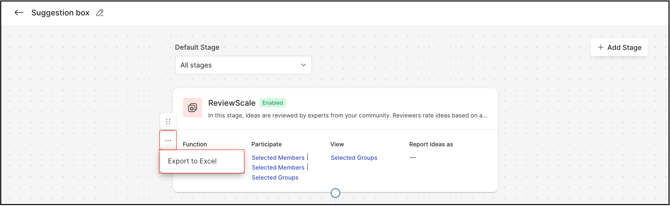
Export to Excel
All ReviewScale data can be exported to an Excel file for further analysis and documentation. To export, open the Workflow, locate the ReviewScale Stage, select More (the three-dot menu), and select Export to Excel.
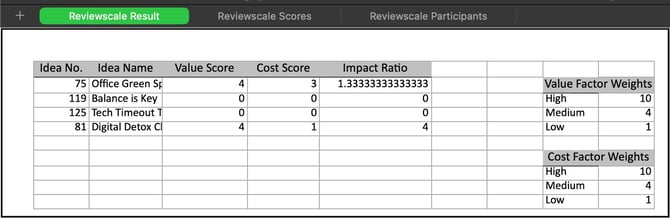
The exported file contains three tabs:
- ReviewScale Result: Idea number, idea name, Value score, Cost score, Impact Ratio, and the weight assigned to each factor.
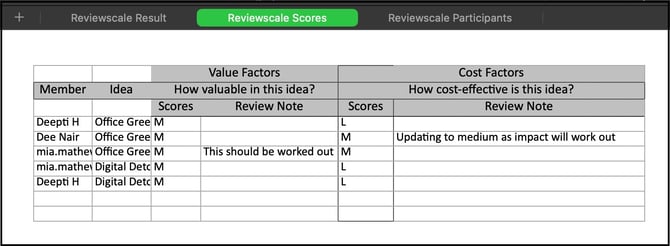
Reviewscale Scores: Member name, idea title, Value factor title, score, and Review Notes, along with Cost factor title, score, and Review Notes.
Reviewscale Participants: The member who completed the review and the number of ideas rated by that member.
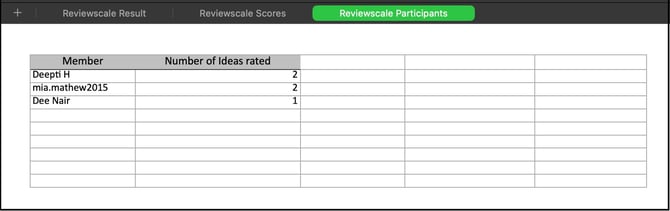
Note: Constraint responses are visible only in the individual participant's sheet in the exported file.
Exceptions
- Constraint Scoring: Ratings submitted for the Constraints category (Yes/No) do not contribute to the Value Score, Cost Score, or Impact Ratio calculations.
- NA Ratings: A rating of NA is not assigned a value and is excluded from the average used to calculate the Impact Ratio.
- Unrated Cost Factor: If only the Value factor is rated and the Cost factor is not configured or not rated, the Impact Ratio is calculated as the Value factor divided by 1. A Cost factor is recommended for a balanced Impact Ratio.
- Viewing Restrictions: Community members without permission to view or participate in the ReviewScale Stage cannot see the progress bar, Impact Ratio average, or Impact Ratio details.
Frequently Asked Questions
Can the Stage Function be changed after it has been saved?
No. Once the Stage Function is selected and saved in the Info tab, the field is greyed out and cannot be changed to a different stage.
Does adding a new Reviewer replace an existing rating on an idea?
No. When an additional Reviewer rates the Value and Cost factors for an idea, the new rating is added to the existing totals and averaged rather than replacing any prior value.
Can a Reviewer change a rating after submitting it?
Yes. A Reviewer can edit a previously submitted rating using the Edit Rank link.
Does the Constraints category affect the Impact Ratio?
No. Constraint responses are recorded as Yes or No but are not included in the Value Score, Cost Score, or Impact Ratio calculations. See Exceptions above.
Who can view Review Notes?
The Community Administrator can view Review Notes in the exported ReviewScale report. Administrators, Reviewers, and members permitted to review the stage can also view Review Notes from the Activity tab.
Related Articles
- Help Article for Selected & Implemented Ideas