Path: Workspace Homepage >> Navigation Panel >> >> Campaign >> Community >> Workflow >> Refine Stage
The Refine stage enables an idea submitter, or a collaborating group, to add additional information and context in order to further develop and clarify the idea.
Community administrators can configure guiding questions that function similarly to custom fields. These fields can include: large or single-line text boxes, single or multiple choice questions, US ZIP code, global postal code, URL, YouTube video, date, checkbox, attachment, or integer fields.
TABLE OF CONTENTS
Refine Stage Setup
1. Info
2. Settings
3. Automation
4. Permissions
Refinement Questions
Refinement Templates
Stage Functionality on Homepage
Refine Stage Setup
Refine Stage setup is divided into 4 tabs - Info, Settings, Automation & Permissions. Let's see them in detail.
1. Info
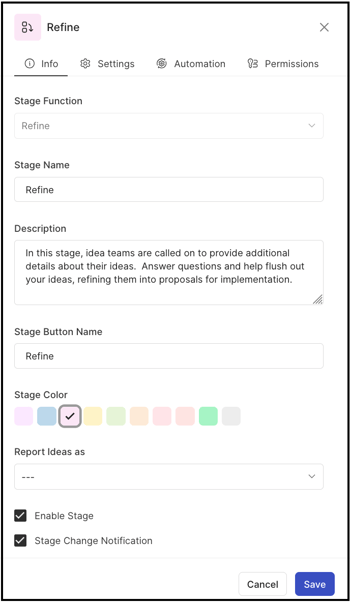
Info section contains basic details about the stage as follows:
Stage Function - Select Refine stage from drop down. Once selected and saved, this section will be greyed out and cannot be changed to other stage
Stage Name - Create a custom name/label for the stage. Note: Character limit is 40.
Stage Key - It is a unique identified for the specific stage required for API call data retrieval. Once saved, the key cannot be changed.
Description - Describe stage functionality or how you would like to use this stage. This description will be mouseover text on the stages stack on the right navigation of the community homepage
Stage Color - Select a color for the stage from the 10 available default options.
Reported Ideas As - Set the stage as Selected, Implemented or blank to apply the respective label to all ideas within that stage. Help article on Selected & Implemented Ideas
Enable Stage - Select this checkbox to activate the stage, enabling ideas to be moved into it.
Stage Change Notification - Select this checkbox to activate the stage change notification. Enabling it will send a stage change email notification to the members who have opted for it.
2. Settings
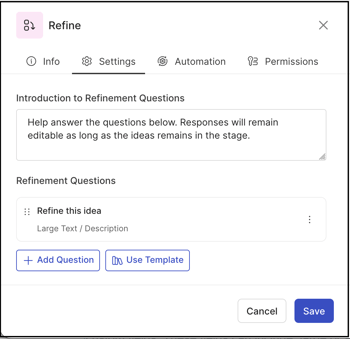
Settings section contains stage specific settings as follows:
Introduction to Refinement Questions: Use this setting to customize the default introduction that appears for the refinement questions selected.
Refinement Questions: Refinement questions are a type of custom field used to further develop, clarify, and fine‑tune submitted ideas. Know more about Refinement questions.
Add Question: Community administrators can create additional refinement questions by using this button.
Use Template: Community admins can also configure refinement questions by selecting one of our predefined templates using this button. Community admins can choose from five available templates to quickly apply a structured set of refinement questions. Know more about Templates below.
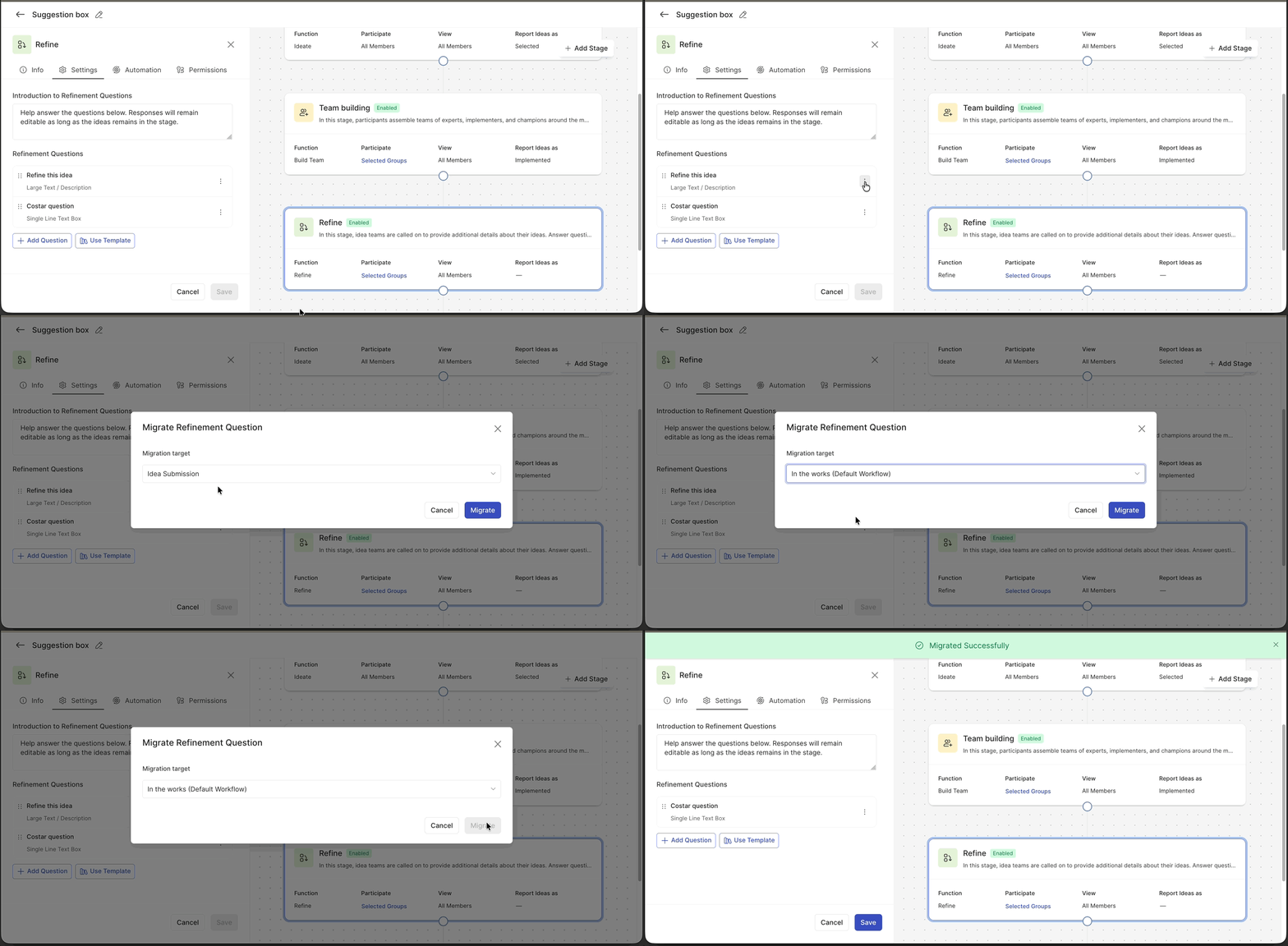
Edit/ Migrate/Delete: Using the More (3 dots) option besides each refinement question, they can also be Edited to make changes, Deleted entirely (Data associated with it will also be deleted permanently) or Migrated to the idea submission custom field or other Refine stages.
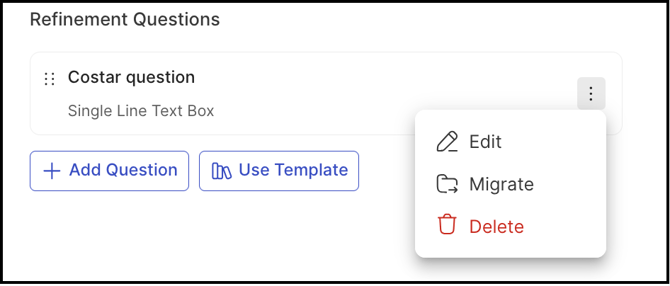
Once migrated these fields will move from the current stage to the selected option from the dropdown menu (idea submission or other refine stage).
3. Automation
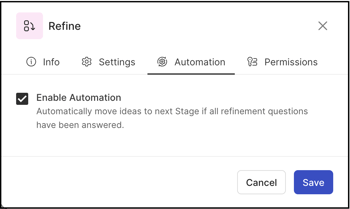
Use this section to configure automation for the Refine stage. When automation is enabled, once all the refinement questions are answered, it will automatically advance to the next stage in the workflow.
4. Permissions
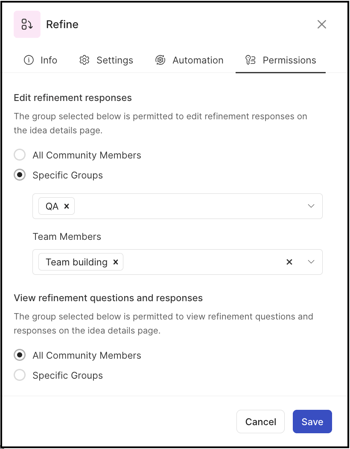
The Permissions section in the Refine stage defines who can edit the refinement responses in that stage and who can view the refinement questions & responses on the idea detail page. A community administrator can configure these permissions for all community members, for a specific group, or for a specific Team Member role (Only if a team role has been specified & filled in any build team stage in the same funnel).
Refinement Questions
To create a new refinement question, click the Add Question button located in the upper-right corner of the Refine stage–specific settings. A new modal will appear, prompting to complete the following fields.
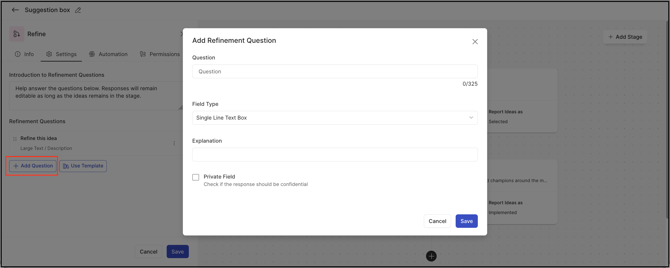
Question: Name of refine custom field question.
Field Type: Type of refine custom field. e.g single choice, multiple-choice, large text, etc. Help article on custom field types responses
Explanation: Give a brief explanation about the refinement question. This explanation will appear as small pop-over text next to the refinement question.
Private Field: Responses of the reviewers can be kept confidential by marking the fields as "Private". It will be visible only to the reviewers permitted to edit the refinement answers in the stage. All the members or groups permitted to view refinement questions and answers will not be able to see answers that are marked private.
Refinement Templates
Templates help community administrators minimize repetitive work when configuring refinement questions. You can choose from five predefined templates, each providing a ready-made, structured set of refinement questions that can be applied quickly to your stage.
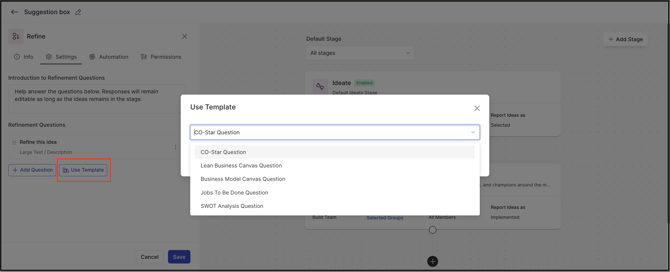
The following is a summary of the questions included in each template. All these questions are Large text box fields.
COSTAR
Who is the customer?
What is the significant, high-impact opportunity?
What is your solution?
Who needs to be on the team?
What is your advantage over alternatives?
What results will be achieved?
Lean Business Canvas
Problem
Solution
Key Metrics
Cost Structure
What is our unfair advantage?
Customer segments
Channels
Revenue Streams
Business Model Canvas:
Key Partnerships
Key Activities
Key Resources
Value Proposition
Customer Relationships
Customer Segments
Distribution Channels
Cost Structure
Revenue Streams
Jobs To Be Done:
Functional Criteria
Emotional Criteria
Social Criteria (Social)
Define
Locate
Prepare
Confirm
Execute
Monitor
Modify
Conclude
SWOT Analysis:
Strengths
Weaknesses
Opportunities
Threats
Note: All the responses to the questions in the template by default will be in Large Text / Description. You can change the expected response as per your choice. You can also add in more questions apart from what is added by the template.
Stage Functionality on Homepage
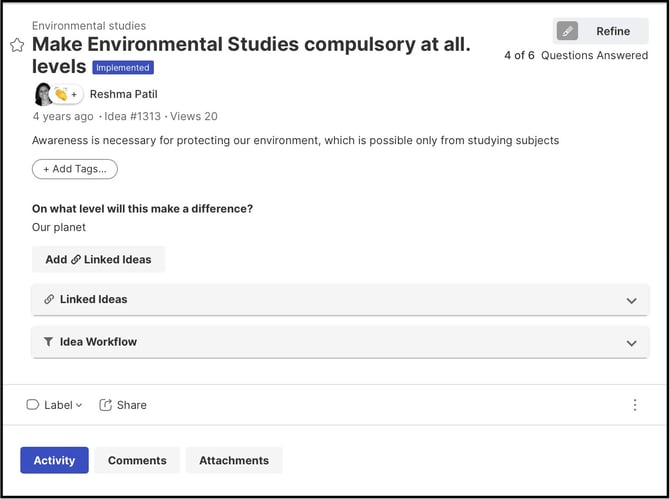
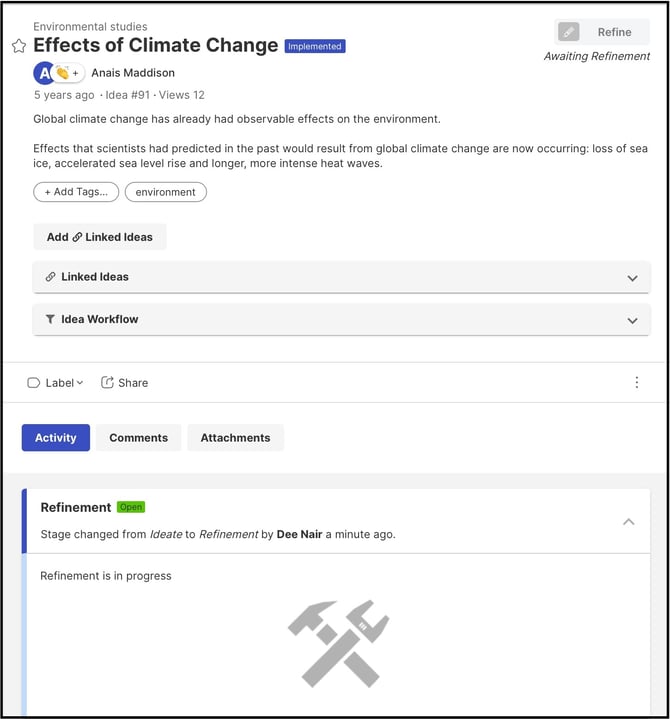
Clicking on REFINE IDEA button will open the idea detail page with idea refinement questions. Team members who are part of the idea team can participate by submitting/editing responses as shown above. Community members who are restricted to participate but permitted to view the stage can view refine stage questions & answers on the idea detail page.
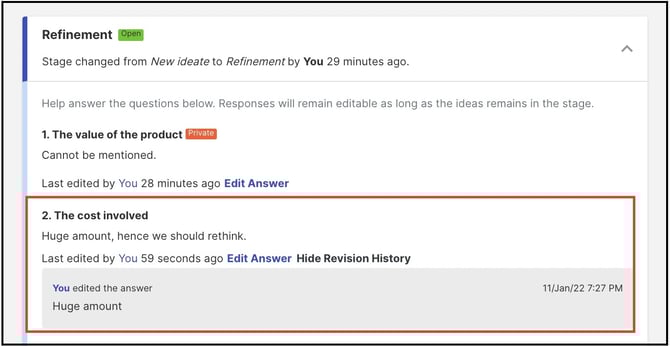
Refine stage offers the members selected in this stage to see a Revision History of all the refinement answers edited by the members during the life of an idea in the refinement stage.
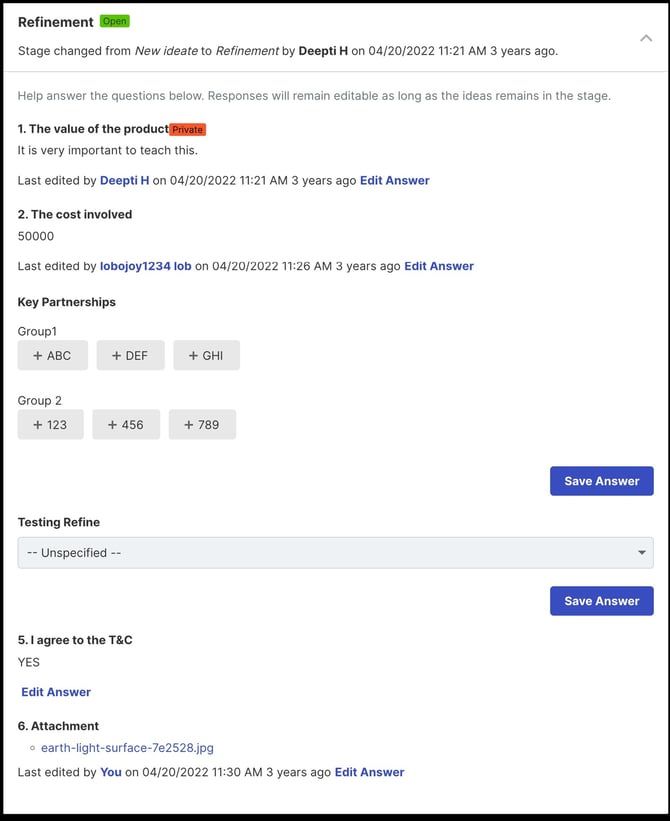
Clicking on Show Revision History will expand and show all the history of revisions made on the refinement answers.
Participants who are not permitted to view or participate will not see the progress bar, the number of questions answered or the refinement details.