
Path: Workspace Homepage >> Navigation Panel >> Settings >> Community >> Integrations >> All Apps >> Power BI
| What is the Power BI Desktop App Connector? |
|---|
| The Power BI Desktop App Connector is an integration that connects an IdeaScale community's data to the Power BI Desktop app, Microsoft's business analytics tool, so that Community Administrators can build custom reports and visualizations from community data. |
Power BI is a business analytics tool created by Microsoft that allows customers to build custom reports. A Community Administrator can connect an IdeaScale community with the Power BI Desktop app by installing and setting up the connector from All Apps, enabling impactful analysis of community data through Power BI custom visualizations.
Before signing in to IdeaScale Analytics, the Community Administrator must have an IdeaScale account with administrator permissions (email address and password) within the community being connected.
Role Permissions
- Community Administrator: Installs and sets up the Power BI connector from All Apps, generates and downloads the connector package, signs in to IdeaScale Analytics, and is the only role that can access the IdeaScale Analytics API.
TABLE OF CONTENTS
Connecting to IdeaScale Analytics from Power BI Desktop
Limitations
Exceptions
Frequently Asked Questions
Power BI Setup
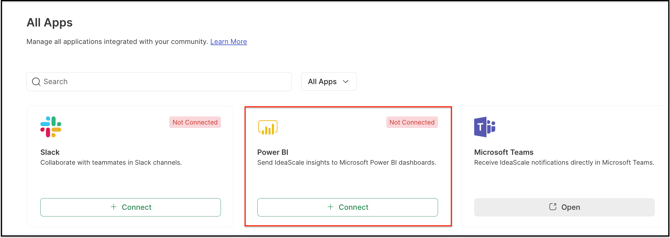
-
Select Connect to set up Power BI for the community.
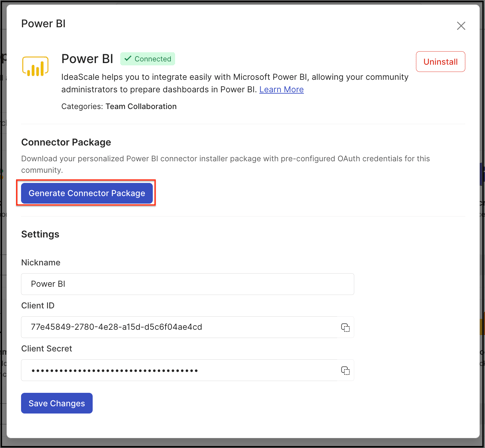
-
Select Manage to generate the connector package. This allows the connector package to be downloaded and Power BI to be set up for the IdeaScale community.
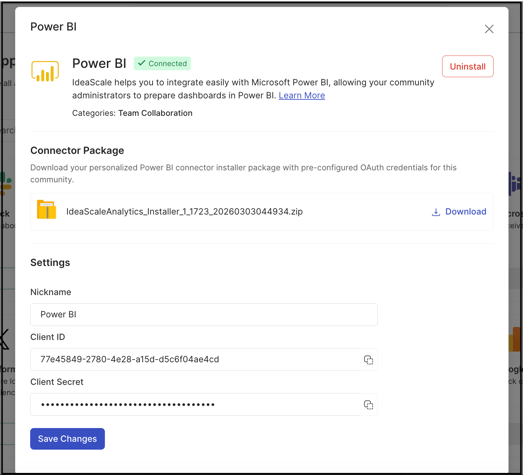
3. Download the IdeaScale Analytics Installer to set up on the local computer.
4. Complete the installation using the setup.exe file and add it to the computer's installed apps.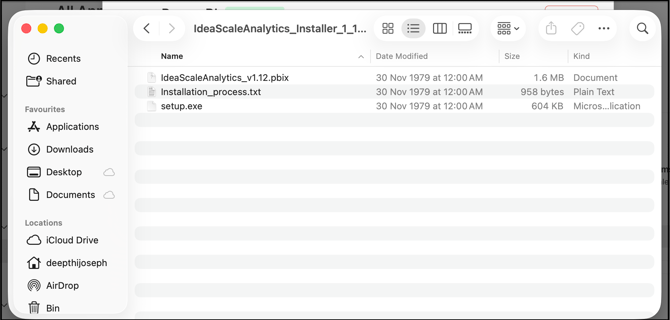
Once installation is complete, the IdeaScale Analytics app appears in the Apps section of the computer.
Connecting to IdeaScale Analytics from Power BI Desktop
Once the Power BI Desktop app is open, the Community Administrator can connect to IdeaScale Analytics data: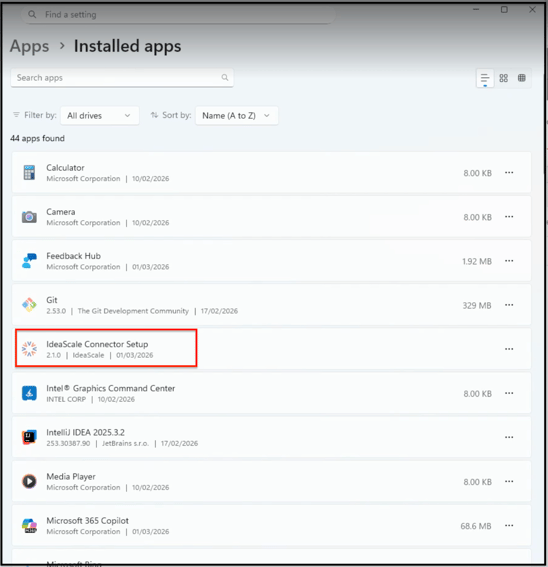
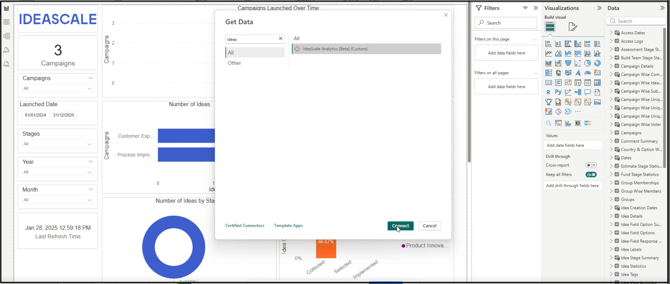
1. Select Get Data from the Home ribbon in Power BI Desktop. Select Other from the categories on the left navigation, select IdeaScale Analytics (Beta), then select Connect.
2. Select Sign In to sign in to the IdeaScale Analytics account. 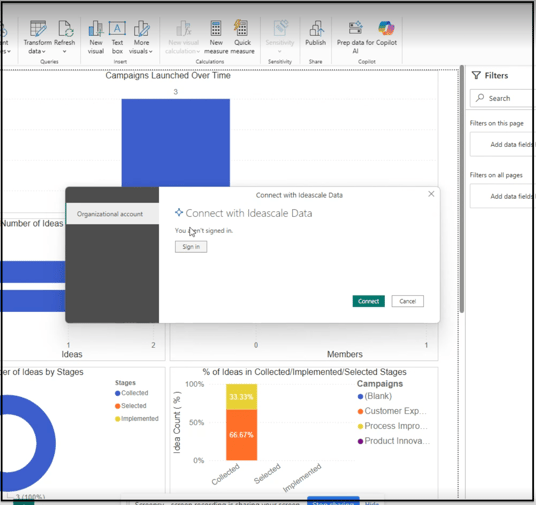
3. On the IdeaScale login page, enter the IdeaScale email address and password, or sign in using Single Sign-On if it is enabled at the community level.
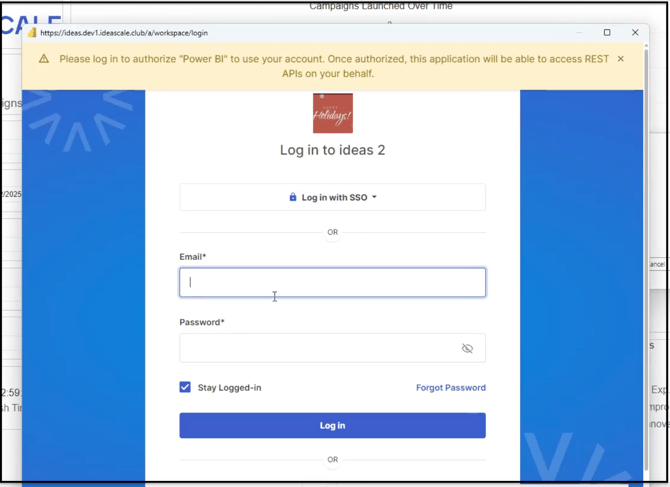
4. Once signed in, select Connect.
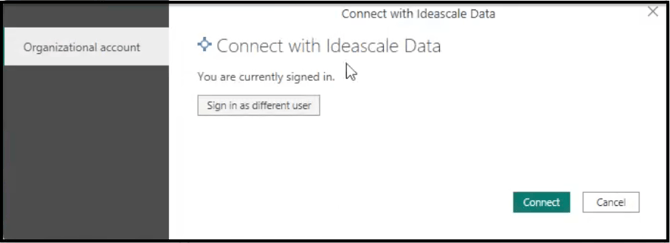
5. Once the connection is established, the Navigator section opens in Power BI. Close the Navigator, then select Refresh to retrieve the latest report for the community, or use the panel on the right to edit or run a new query.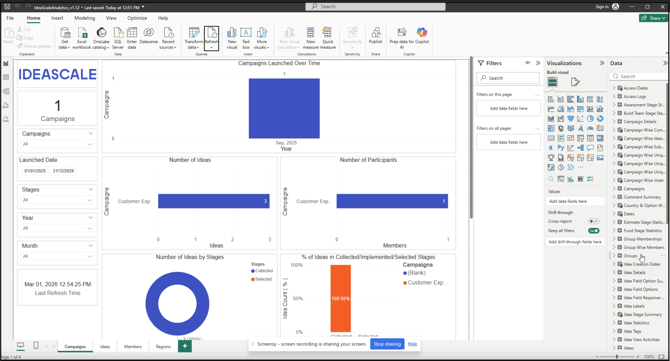
Note:
- To create Custom Report, the community administrator will have to transform data of each desired field on the Navigator section, which may be necessary for the custom report.
- To use a preloaded report created by IdeaScale, simply open the IdeaScaleAnalytics_v1.12.pbix.
Limitations
- Row Limit: IdeaScale Analytics has a built-in limit of 1,000 rows returned per API call.
- Role Access: Only Community Administrators can access the IdeaScale Analytics API. See Role Permissions above.
- Social Login: Signing in to IdeaScale Analytics does not currently support Social Login.
Exceptions
- Expired OAuth Token: If the OAuth token has expired, the API call returns a relevant error message.
- Locked Administrator or Blocked Community: If the Community Administrator's account is locked, or if the community is blocked, the API call returns a relevant error message.
Frequently Asked Questions
What is required before connecting an IdeaScale community to Power BI?
The Community Administrator must have an IdeaScale account with administrator permissions, including an email address and password, within the community being connected, before signing in to IdeaScale Analytics.
How much data can be retrieved in a single API call?
IdeaScale Analytics has a built-in limit of 1,000 rows returned per API call.
Can a member sign in to IdeaScale Analytics using Social Login?
No. Social Login is not currently supported for signing in to IdeaScale Analytics from Power BI Desktop.
What happens if the OAuth token expires while connected to Power BI?
The API call returns a relevant error message. See Exceptions above.
Where can the available Power BI tables and fields be reviewed?
See the Help Article for Power BI Fields Explained.
Related Articles