
Path: Settings >> Workspace >> Workspace Configuration >> Outcome Cycle Settings
| What is Configuring Fiscal Cycle |
| Fiscal Cycles set the yearly period that Outcomes are measured against. They let a workspace match outcome labels and dates to its own financial calendar instead of the default calendar year. |
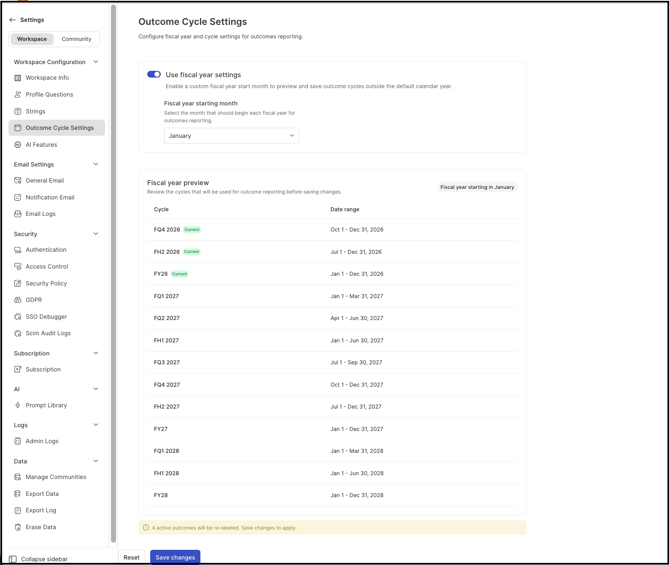
Outcome Cycle Settings control when the outcomes cycle starts each year. By default, outcomes follow the calendar year. A Workspace Administrator can set a custom fiscal year start month and decide how the change applies to outcomes that are already in progress. The fiscal cycle in use is also shown on the Outcomes Dashboard, where results can be filtered by fiscal year.
Role Permissions
- Workspace Administrator: Opens Outcome Cycle Settings from the Outcomes Dashboard or from Settings, sets the fiscal year start month, and chooses how cycle changes apply to existing outcomes.
- Community Administrator, Campaign Administrator, Custom Administrator: Do not have access to the Outcomes Dashboard or to Outcome Cycle Settings.
- Community Moderator, Campaign Moderator, Custom Field Moderator: Do not have access to the Outcomes Dashboard or to Outcome Cycle Settings.
TABLE OF CONTENTS
Access Outcome Cycle SettingsSet a Fiscal Year Start Month
Apply Cycle Changes to Existing Outcomes
Fiscal Cycles on the Outcomes Dashboard
Exceptions
Frequently Asked Questions
Access Outcome Cycle Settings
A Workspace Administrator can open Outcome Cycle Settings in either of two ways:
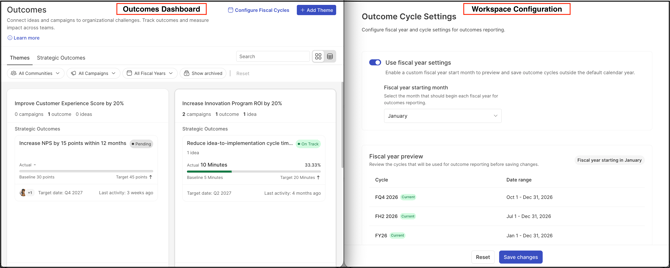
- From the Outcomes Dashboard: Select the Configure Fiscal Cycles button on the right side of the dashboard. This goes straight to Outcome Cycle Settings.
- From Settings: Settings >> Workspace >> Workspace Configuration >> Outcome Cycle Settings.
Both routes open the same settings page.
Set a Fiscal Year Start Month
When the Use fiscal year settings switch is off, outcomes follow the default calendar year. Turning the switch on lets the outcomes cycle start in any month to match the organization's financial calendar.
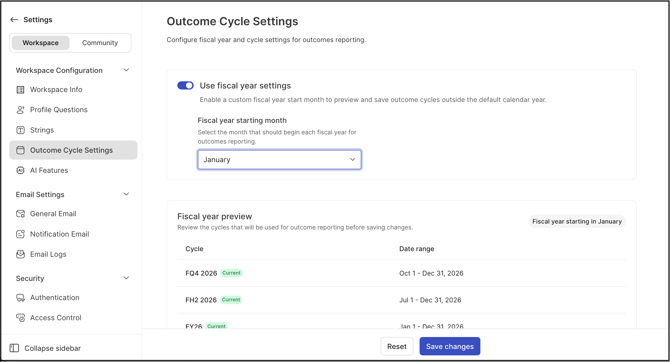
- Enable the Use fiscal year settings switch.
- Select the start month from the dropdown.
- Check the Fiscal year preview section. It updates automatically to show how the fiscal year will be laid out with the selected start month.
- Select Save Changes. A confirmation modal opens with a preview of how existing outcomes will be affected.
Note: Review the Fiscal year preview before saving. Once saved, the confirmation modal asks how the new cycle should apply to outcomes that are already active.
Apply Cycle Changes to Existing Outcomes
The confirmation modal shows how the new cycle will affect existing outcomes. The Workspace Administrator then chooses one of two options.
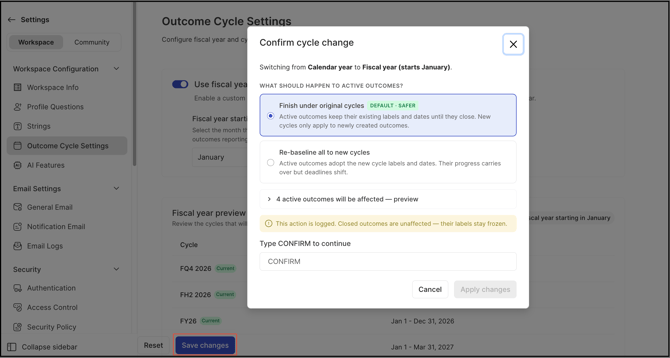
Finish Under Original Cycles
Active outcomes keep their existing labels and dates until they close. The new cycle applies only to outcomes created after the change. This is the default and recommended option. Active outcomes finish on their original schedule, which keeps them consistent with their original project timelines.
Re-Baseline All to New Cycles
Active and in-progress outcomes take on the new cycle labels and dates and move to the closest matching period in the updated fiscal hierarchy. Current progress carries over, but deadlines shift. This option is useful when existing initiatives need to line up with the updated financial calendar right away.
Note: Closed outcomes are not affected by either option. See Exceptions below.
Fiscal Cycles on the Outcomes Dashboard
The Outcomes Dashboard (Workspace Homepage >> Navigation Panel >> Reporting >> Outcomes) is where the fiscal cycle shows up in day-to-day reporting. Three parts of the dashboard are tied to it.
Configure Fiscal Cycles Button
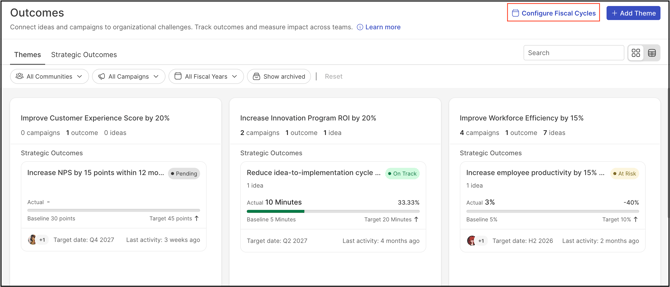
The Configure Fiscal Cycles button sits on the right side of the Outcomes Dashboard. It is a shortcut to Outcome Cycle Settings, so a Workspace Administrator can change the cycle without leaving reporting to go through Settings.
Fiscal Years Filter
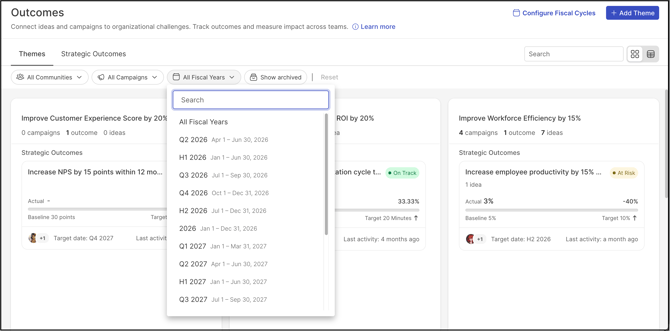
By default, the dashboard shows results for every fiscal year on both the Themes Tab and the Strategic Outcomes Tab. The Fiscal Years filter can narrow the view to one fiscal year, and the fiscal year currently in use is marked with a Current label. Selecting Reset clears all applied filters and returns the dashboard to its default, unfiltered view.
Target Period
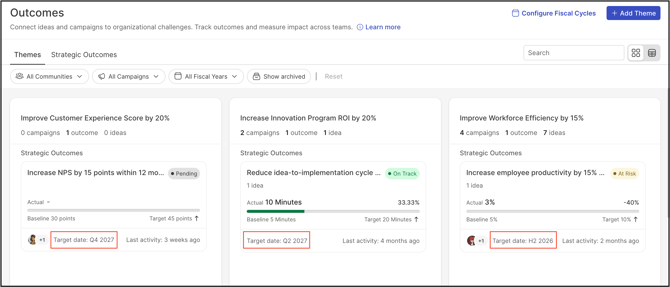
Each Strategic Outcome card shows a Target Period: the time period by which the outcome should be met. It can be a Year (for example, 2025 or 2026), a Half Year (H1 or H2), or a Quarter (Q1 through Q4). These periods follow the configured fiscal cycle.
Help Article for Outcomes Dashboard
Exceptions
- Closed Outcomes: When the fiscal cycle changes, closed outcomes keep the cycle that was in place when they were created. Neither Fiscal Under Original Cycles nor Re-Baseline All to New Cycles changes their labels or dates.
Frequently Asked Questions
What cycle do outcomes follow if fiscal year settings are not configured?
Outcomes follow the default calendar year until a Workspace Administrator enables the Use fiscal year settings switch and selects a custom start month.
Which option should be selected when changing the fiscal cycle?
Fiscal Under Original Cycles is the default and recommended option. Active outcomes keep their existing labels and dates until they close, and only newly created outcomes use the new cycle.
Does Re-Baseline All to New Cycles reset an outcome's progress?
No. Current progress carries over when outcomes move to the new cycle. Only their labels, dates, and deadlines shift to the closest matching period in the updated fiscal hierarchy.
Are closed outcomes affected by a fiscal cycle change?
No. Closed outcomes keep the cycle that was in place when they were created, whichever option is selected.
How can the current fiscal year be identified on the Outcomes Dashboard?
In the Fiscal Years filter on the Outcomes Dashboard, the fiscal year currently in use is marked with a Current label.
Related Articles