
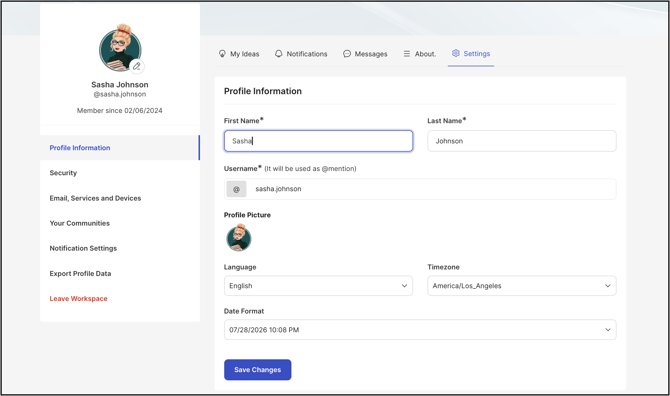
Path: Profile >> Settings >> Leave Workspace
| What is Leave Workspace? |
|---|
| Leave Workspace is a self-service option that allows a member to permanently delete their own profile, account, and submitted data from an IdeaScale Workspace. |
Leave Workspace is available only when the Workspace has enabled the Member can delete their own account setting. Once enabled, eligible members can access the option from their Profile under the Settings section.
Role Permissions
- Member: Can select Leave Workspace to permanently delete their profile, account, and submitted data across every community in the Workspace, provided the Member can delete their own account setting is enabled.
- Administrator, Moderator: Receive the same Leave Workspace option as any other Member; holding an Administrator or Moderator role does not change access to this feature.
- Workspace Owner: Does not receive the option to Leave Workspace. See Exceptions below.
TABLE OF CONTENTS
Leave Workspace OptionSteps to Leave Workspace
Exceptions
Frequently Asked Questions
Leave Workspace Option
The Leave Workspace option is not available by default. It must first be enabled at the account level by contacting IdeaScale's Account Manager or Support team to turn on the Member can delete their own account setting.
Once enabled, members see the option to Leave Workspace under the Profile's Settings section.
Steps to Leave Workspace
- Navigate to the Profile's Settings section, then select Leave Workspace.
- Review the confirmation message, which details what leaving the Workspace entails. Note: Members are reminded to export their data before continuing, if desired.
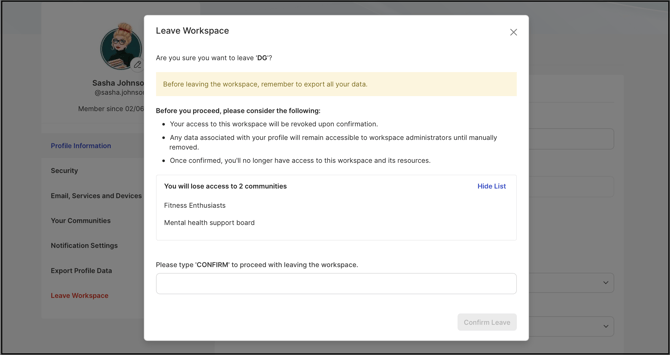
- Enter CONFIRM in the confirmation field and select the confirmation button.
- IdeaScale logs the member out and removes them from the Workspace. Rejoining the Workspace afterwards requires registering again.
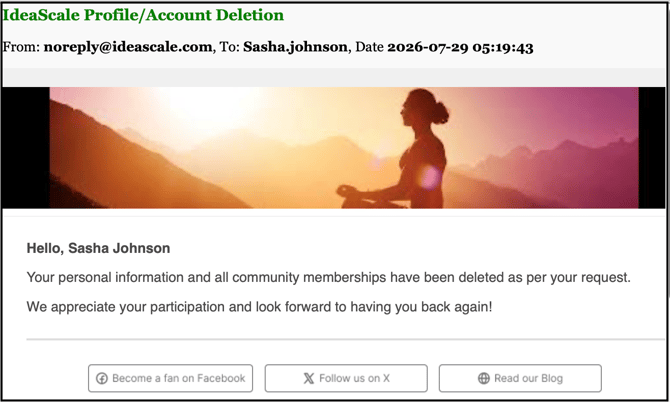
- The member receives an email confirming the deletion.
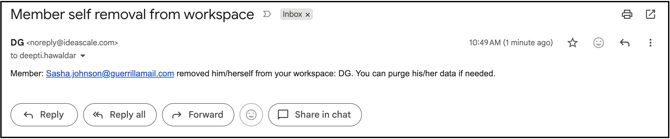
Once the member is removed from the Workspace, Workspace Administrators receive a Member self-removal email notification.
Exceptions
- Workspace Owner: The Workspace Owner does not receive the option to Leave Workspace and cannot self-delete their account through this feature.
- Leave Community vs. Leave Workspace: Leaving a single community removes the member from that community only. Leave Workspace permanently deletes the member's profile, account, and submitted data across every community in the Workspace.
Frequently Asked Questions
Can a member rejoin a Workspace after using Leave Workspace?
No. Leaving the Workspace removes the member entirely. Rejoining requires registering for the Workspace again as a new member.
What happens to a member's submitted data after they leave the Workspace?
Leave Workspace permanently deletes the member's details and the data submitted across every community the member was part of within the Workspace.
Does the Workspace Owner have access to Leave Workspace?
No. All Members, Administrators, and Moderators receive the option to Leave Workspace except the Workspace Owner.
Is leaving a single community the same as using Leave Workspace?
No. Leaving a community removes membership from that community alone, while Leave Workspace deletes the member's account and data across the entire Workspace.
Are Workspace Administrators notified when a member leaves the Workspace?
Yes. Once a member is removed through Leave Workspace, Workspace Administrators receive a Member self-removal email notification.
Related Articles