
Path: Workspace Homepage >> Navigation Panel >> Settings >> Community >> Community Configuration >> Tags >> Import Tags
Path: Workspace Homepage >> Navigation Panel >> Settings >> Community >> Campaigns >> Action (3 Dots) Dropdown >> Tags >> Import Tags
| What is Import Tags? |
|---|
| Import Tags is the bulk upload of Predefined User Tags or Predefined Moderator Tags into a Community or Campaign using an Excel file. |
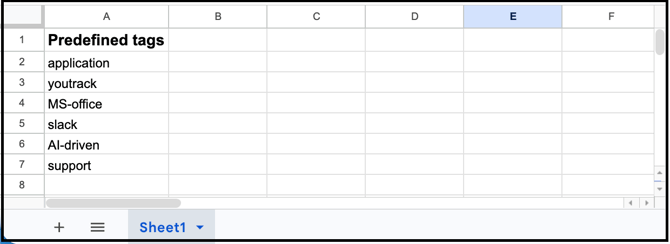
Import Tags supports bulk importing of Predefined User Tags and Predefined Moderator Tags at both the Community and Campaign levels. To ensure a successful import, the Excel sheet must be formatted so that all tags are listed in the first column, with each row containing only one tag.
Note: Tags may consist of a single word or multiple hyphen-separated words. See Exceptions below for how multi-word tags are handled during import.
Role Permissions
- Community Administrator: The Community Administrator has the option to import predefined tags in bulk using an Excel file.
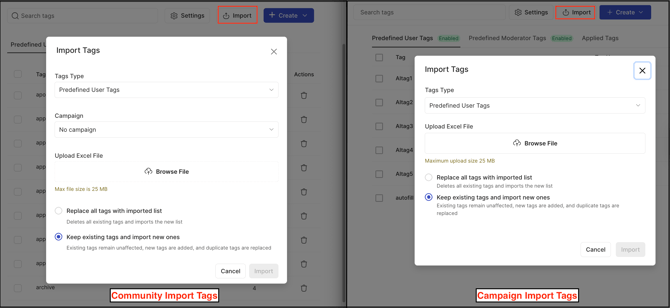
TABLE OF CONTENTS
Import Tags - Predefined User Tags
Import Tags - Predefined Moderator Tags
Exceptions
Frequently Asked Questions
Import Tags - Predefined User Tags
To import Predefined User Tags at the Community or Campaign level, the following options must be configured in the corresponding section:
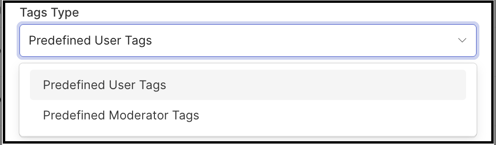
Tag Type: Select Predefined User Tags from the drop-down menu.
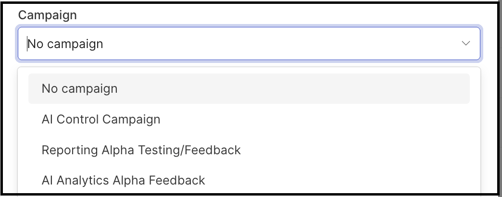
Campaign: Select a specific campaign or the No Campaign option from the dropdown to import the Predefined User Tags. This option is available only at the Community Tags level.
Browse Excel File: Drag and drop the Excel file, or browse for it on the computer, to upload it.
Replace All Tags With Imported List: Enabling this option replaces all existing User Tags for the Community Tags or Campaign Tags section, depending on where the import is performed.
Keep Existing Tags and Import New Ones: Enabling this option adds the new Predefined User Tags to the existing list of User Tags. Duplicate tags, if any, are merged.
Excel File Format:
Import Tags - Predefined Moderator Tags
To import Predefined Moderator Tags at the Community or Campaign level, the following options must be configured in the corresponding section:
Tag Type: Select Predefined Moderator Tags from the drop-down menu.
Campaign: Select a specific campaign or the No Campaign option from the dropdown to import the Predefined Moderator Tags. This option is available only at the Community Tags level.
Browse Excel File: Drag and drop the Excel file, or browse for it on the computer, to upload it.
Replace All Tags With Imported List: Enabling this option replaces all existing Moderator Tags for the Community Tags or Campaign Tags section, depending on where the import is performed.
Keep Existing Tags and Import New Ones: Enabling this option adds the new Predefined Moderator Tags to the existing list of Moderator Tags. Duplicate tags, if any, are merged.
Excel File Format:
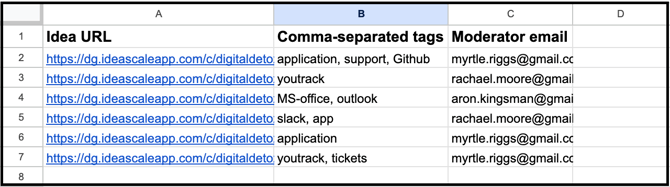
Apply to Ideas: Applies the Moderator Tags being uploaded to ideas immediately, by adding a second sheet to the Excel file containing three columns — Idea URL, Comma-Separated Tags, and Moderator Email. This setting is visible only when Predefined Moderator Tags are being imported.
Exceptions
- Hyphen-Separated Tags: Multi-word tags separated by hyphens, such as Co-operation or Bio-degradable, are recognized and imported as a single tag.
- Space-Separated Tags: Multi-word tags separated by spaces are imported as separate individual tags rather than a single tag — for example, Save The Earth results in three separate tags being created.
- Underscore-Separated Tags: Tags separated by underscores, such as Save_The_Earth, are not recognized and are not imported.
Frequently Asked Questions
What happens to existing tags when Replace All Tags With Imported List is enabled?
All existing User Tags or Moderator Tags for the corresponding Community Tags or Campaign Tags section are replaced with the tags in the imported Excel file.
What happens to duplicate tags when using Keep Existing Tags and Import New Ones?
Duplicate tags are merged with the existing list rather than being imported as separate entries.
Is the Campaign dropdown available when importing tags directly at the Campaign level?
No. The Campaign dropdown, which selects a specific campaign or No Campaign, is available only at the Community Tags level.
Can Apply to Ideas be used when importing Predefined User Tags?
No. Apply to Ideas is visible only when Predefined Moderator Tags are being imported.
Related Articles