
Path: Workspace Homepage >> Navigation Panel >> Settings >> Community >> Data >> Import Data >> Co-submitters
| What is Import Co-Submitters? |
|---|
| Import Co-Submitters is a bulk upload tool that assigns members as Idea Co-Submitters to ideas that already exist within a community or campaign. |
Import Co-Submitters allows a Community Administrator to bulk-assign existing members as Idea Co-Submitters using a completed Excel file, rather than adding co-submitters to ideas one at a time. The feature is accessed from Import Data and is best used with the generated template to ensure the file matches the required column structure.
Role Permissions
- Community Administrator: Generates the import template, uploads the completed Excel file, and bulk-assigns members as Idea Co-Submitters to existing ideas.
TABLE OF CONTENTS
Generate TemplateImport Settings
Excel File Columns
Exceptions
Frequently Asked Questions
Generate Template
Selecting Generate Template downloads a spreadsheet pre-formatted with the exact columns required for the import. Using the generated template is recommended for every import, since it removes the risk of a missing or mislabeled column causing the file to fail.
Import Settings
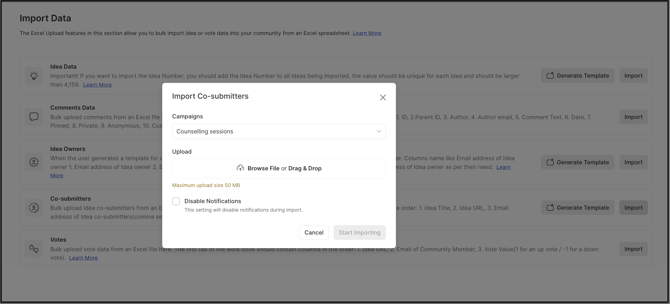
Before uploading the completed file, the following settings are configured:
- Select Campaign: The specific campaign whose ideas the co-submitters are being imported for, chosen from a dropdown.
- File to Upload: The completed Excel file containing the co-submitter assignments.
- Disable Notification: Switches off email notifications to members while the import is processing.
Excel File Columns
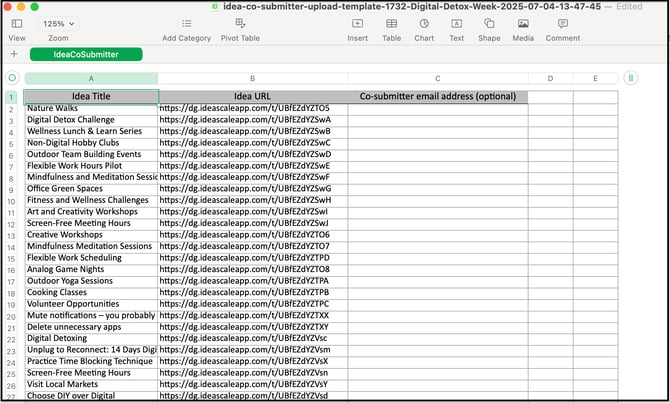
The generated template includes the following columns:
- Idea Title: Automatically populated with the title of every idea in the selected campaign.
- Idea URL: Automatically populated with each idea's short URL. This column does not require any changes.
- Co-Submitter Email Address: The email address of the member being assigned as the co-submitter for that idea. Multiple co-submitters can be assigned to a single idea by separating each email address with a comma. Members with an Invited status are also added as co-submitters to the idea. See Exceptions below for blank entries.
Once the file has been uploaded, the Community Administrator receives an email notification confirming the import. If an error occurs during the import, the Community Administrator receives an email describing the error instead.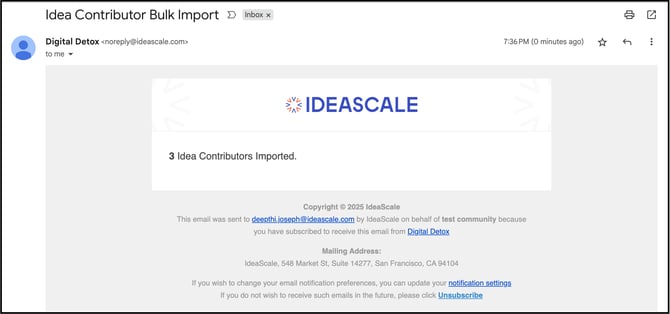
Exceptions
- Blank Co-Submitter Email Address: The Co-Submitter Email Address column can be left blank for any idea where no co-submitter should be assigned; the import proceeds for the remaining rows.
Frequently Asked Questions
Can more than one co-submitter be assigned to the same idea?
Yes. Multiple co-submitters can be assigned to a single idea by separating each member's email address with a comma in the Co-Submitter Email Address column.
Does a member need to have accepted their invitation to be added as a co-submitter?
No. Members with an Invited status, meaning they have not yet accepted or logged in, are still added as co-submitters to the idea.
What happens if the uploaded file contains an error?
The Community Administrator receives an email describing the error instead of the standard import confirmation email.
Is it necessary to edit the Idea Title or Idea URL columns in the generated template?
No. Both columns are populated automatically from the selected campaign and do not require any changes.
Related Articles