
Path: Path: Workspace Homepage >> Navigation Panel >> >> Campaign >> Community >> Workflow >> Ideate Stage
| What is the Ideate Stage? |
| The Ideate stage is a workflow stage where community members vote ideas up or down, with each member limited to a single vote per idea. |
The Community Administrator can configure the voting experience for the stage, including disabling downvotes to allow only upvotes and choosing whether to permit vote retraction based on program needs.
Role Permissions
- Community Administrator: Configures the Ideate stage's Info, Settings, Automation, and Permissions tabs, including enabling voting and commenting, setting automation thresholds, and defining who may vote or view voting activity.
- Campaign Administrator: They have access to edit and update the campaign too.
TABLE OF CONTENTS
Ideate Stage Setup
1. Info
2. Settings
3. Automation
4. Permissions
Stage Functionality on Homepage
Exceptions
Frequently Asked Questions
Ideate Stage Setup
Ideate Stage setup is divided into 4 tabs - Info, Settings, Automation & Permissions. Let's see them in detail.
1. Info
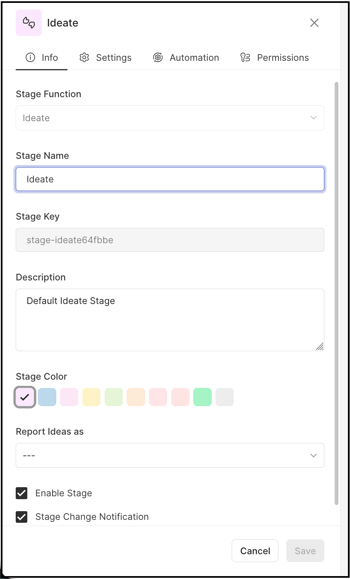
The Info tab contains basic details about the stage:
- Stage Function: Selected from a dropdown. Once selected and saved, this field is greyed out and cannot be changed to another stage.
- Stage Name: A custom name or label for the stage. Character limit is 40.
- Stage Key: A unique identifier for the stage, required for API call data retrieval.
- Description: Describes the stage's functionality or intended use. This description displays as mouseover text on the stage stack in the right navigation of the community homepage.
- Stage Color: A color for the stage, selected from 10 available default options.
- Reported Ideas As: Sets the stage to apply a Selected or Implemented label to all ideas within it, or leaves the field blank to apply no label. See Help Article for Selected & Implemented Ideas.
- Enable Stage: Activates the stage, allowing ideas to be moved into it.
- Stage Change Notification: Activates the stage change notification, sending a stage change email to members who have opted in.
Note: The Stage Key cannot be changed once saved.
2. Settings
Settings
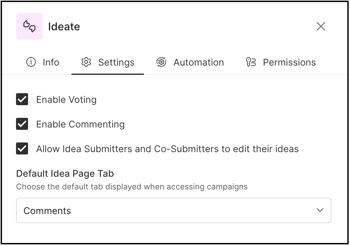
The Settings tab contains stage-specific settings:
Enable Voting: A switch that controls whether voting is active for the stage. When enabled and a second Ideate stage is configured in the workflow, the vote Counting Method can also be set — votes may be tallied cumulatively across stages or separately for each stage. See Exceptions below for counting method availability.Help article on Cumulative vote vs per stage basis vote
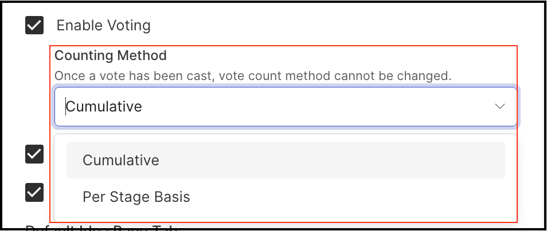
Note: The Counting Method option is available only when a second Ideate stage is configured in the workflow. If there is only one Ideate stage, this option does not appear.
Enable Commenting: A switch that controls whether commenting is active for the stage.
Allow Idea Submitters and Co-Submitters to edit their ideas: A switch that, when enabled, allows idea submitters and co-submitters to edit their ideas while in this stage.
Default Idea Page Tab: Sets the default tab displayed on the idea details page — Comments, Activity, or Attachments.
3. Automation
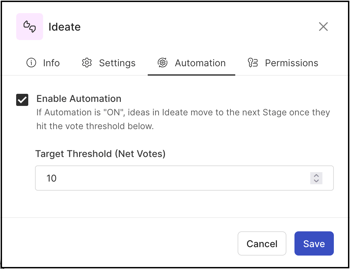
Automation settings define whether ideas move forward automatically. When automation is enabled, the Community Administrator sets a target Net Votes threshold; once an idea meets or exceeds this threshold, it automatically advances to the next stage in the workflow.
4. Permissions
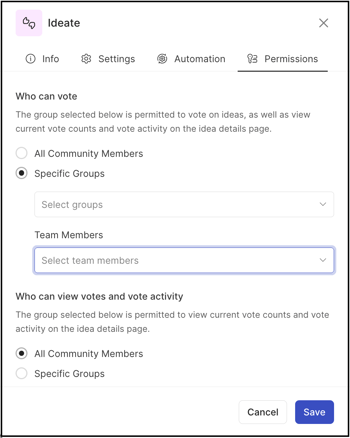
The Permissions tab defines who can vote on ideas in the stage and who can view vote counts and voting activity on the idea detail page. The Community Administrator can configure these permissions for all community members, for a specific group, or for a specific Team Member role, provided that role has been specified and filled in a Build Team stage within the same funnel.
Stage Functionality on Homepage
-
Once an idea moves into the Ideate stage, participants permitted to vote can vote on it. The vote count displayed in the vote box is Net Votes — the difference between upvotes and downvotes.
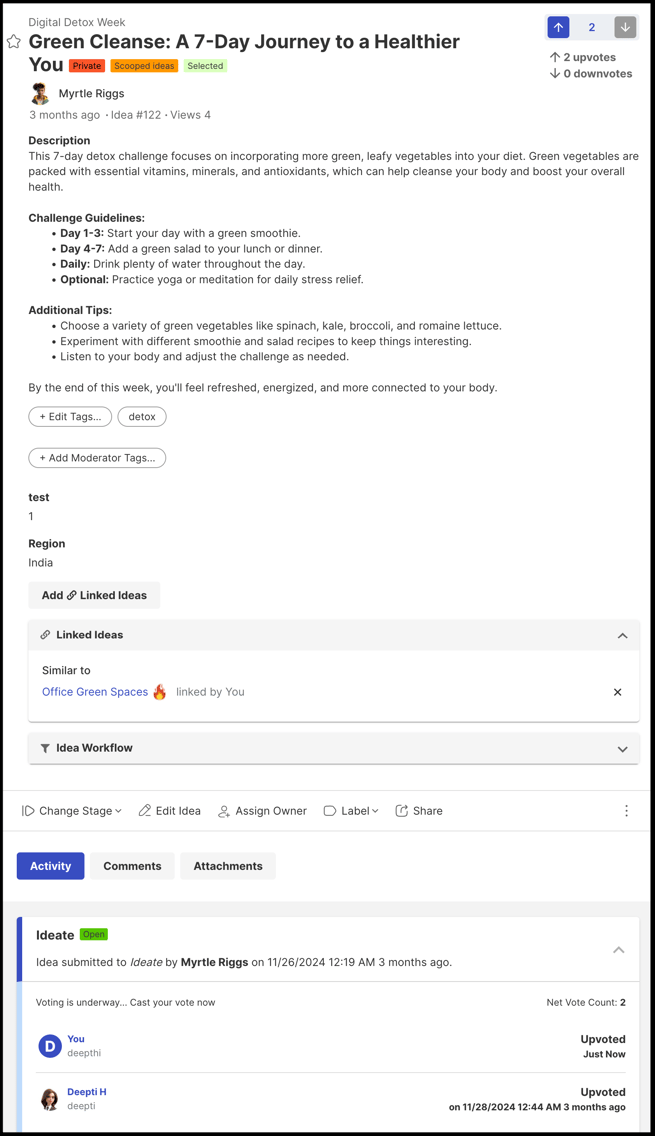
- Participants permitted only to view can see the vote count and voting activity, with the voting arrows greyed out.
-
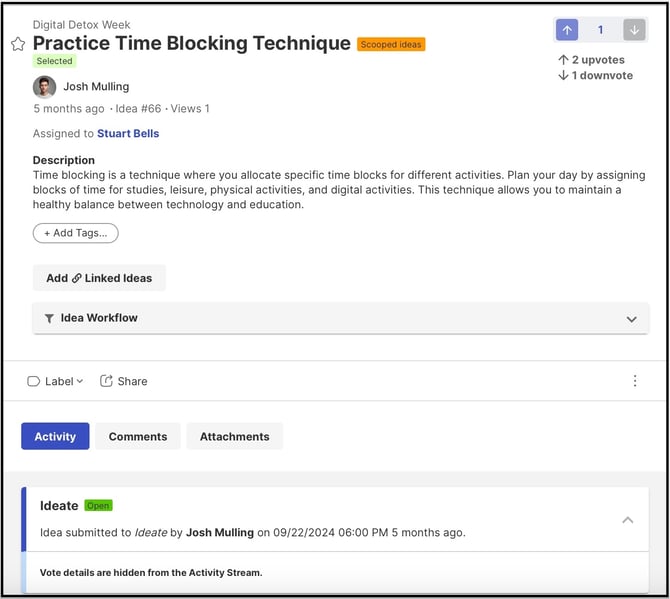
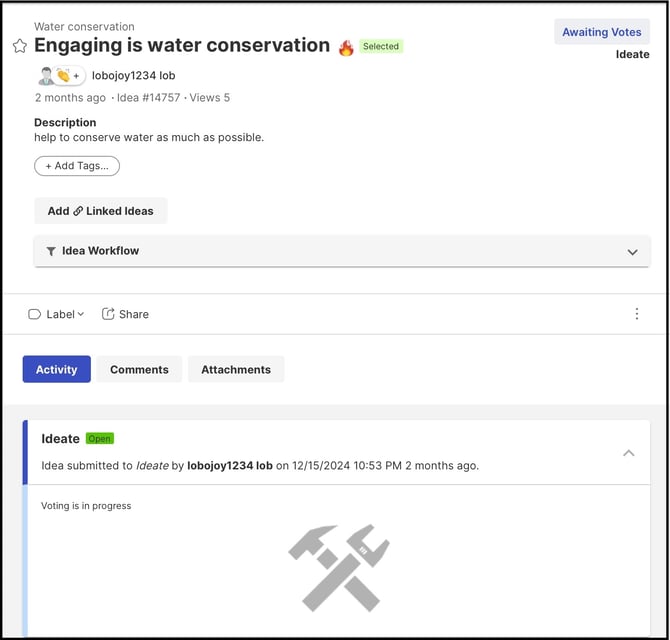
Participants not permitted to view or participate do not see the progress bar, Net Votes, or voting details.
Exceptions
- Counting Method Visibility: The Counting Method option appears only when a second Ideate stage is configured in the workflow. If there is only one Ideate stage, this option does not appear.
- Stage Change Notification: Only members who have opted in to stage change notifications receive the stage change email.
Frequently Asked Questions
Can a member vote more than once on the same idea in the Ideate stage?
No. Each member is limited to a single vote per idea.
What does the Net Votes count in the vote box represent?
Net Votes is the difference between the number of upvotes and downvotes an idea has received.
Can the Stage Key be changed after the stage is saved?
No. Once the Ideate stage is saved, the Stage Key cannot be changed.
What happens if only one Ideate stage exists in the workflow?
The Counting Method option does not appear, since counting method only applies when a second Ideate stage is configured.
Who decides whether vote retraction is permitted?
The Community Administrator configures whether vote retraction is permitted, based on program needs.
Related Articles
- Help Article for Selected & Implemented Ideas
- Help Article for Cumulative Vote vs Per Stage Basis Vote