
Path: Workspace Homepage >> Navigation Panel >> Whiteboard >> Task Manager
| What is the Task Manager? |
|---|
| Task Manager is a tool within IdeaScale Whiteboard for creating, assigning, and tracking tasks connected to whiteboard boards. |
The Task Manager helps teams manage tasks connected to their boards. It can be opened from the dashboard or from within an individual board. Tasks can be viewed for one specific board or across all boards available in the community. Each community dashboard has its own Task Manager, and tasks are not shared across communities.
Role Permissions
- Member with IdeaScale Whiteboard Access: Has access to the Task Manager and can view tasks linked to boards the member has access to.
- Member with Edit Access to a Board: Can be assigned tasks linked to that board, and can access, edit, and comment on all tasks linked to that board.
- Member without Access to a Non-Public Board: Cannot view or edit tasks linked to that board. See Exceptions below.
TABLE OF CONTENTS
Task Manager
Filters and Search
Creating a New Task
Task Activity and Comments
Exceptions
Frequently Asked Questions
Task Manager
The Task Manager is available in two views. The view it is opened from determines the default scope of the tasks displayed. The scope can be changed at any time, which lets teams focus on tasks in specific places.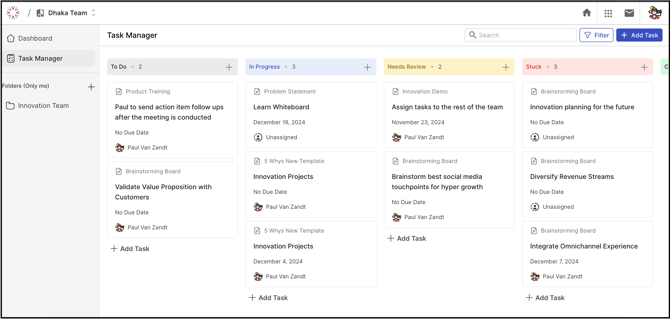
Dashboard View
When the Task Manager is opened from the dashboard, it shows tasks across all boards in the campaign by default.
Board View
When the Task Manager is opened from within a board, it is filtered by default to show only tasks linked to that board.
Filters and Search
The Task Manager provides filters that organize tasks into sections and determine how tasks are categorized and sorted within each section. The available filters are:
- My Tasks: Displays only the tasks assigned to the current member.
- Status: Organizes tasks by their current status. This is the default filter when the Task Manager is opened.
- Board: Organizes tasks by the board they are linked to.
- Assignee: Organizes tasks by the member assigned to them.
- Due Date: Organizes tasks by their due date.
Switching between filters gives teams different perspectives on projects and tasks. This supports overall task management and workflow.
All tasks can also be searched using the search bar.
Creating a New Task
A new task can be created in two ways: through the full Add Task option, or through a quick add directly within a column.
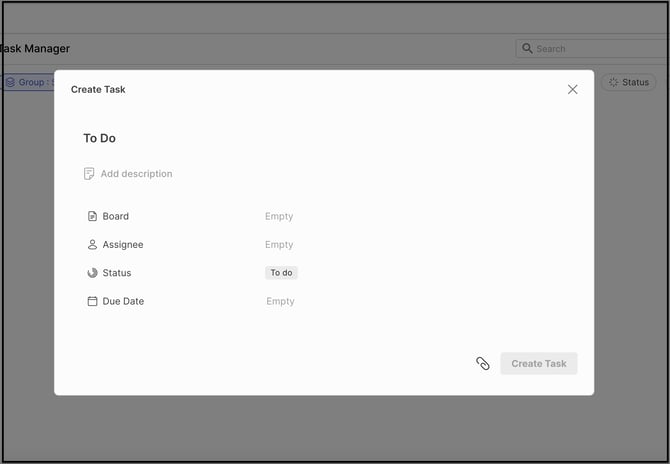
Add Task
- Select the Add Task button.
- Enter a unique title and a description for the task.
- Assign the following fields as needed:
- Board: The board the task is linked to. This field is mandatory. See Exceptions below.
- Assignee: The member responsible for the task. Only members with edit access to the selected board can be assigned.
- Status: The current status of the task.
- Due Date: The date by which the task should be completed.
- Save the task: confirm the exact label of the save/create button.
Note: Assignees have edit access to all tasks linked to the board selected for the task.
Quick Add from a Column
Selecting Add Task within any column instantly creates a new task with only the essential information. This is a faster alternative to the full Add Task option. The remaining fields can be completed later by editing the task.
Task Activity and Comments
Once a task is created, members with edit access to the linked board can access, edit, and comment on it from their dashboard. Task comments can be viewed by selecting Show Activity in the top right of the task.
Note: Only members with access to a task's linked board can view or edit that task.
Exceptions
- Task Without a Board: A task cannot be created without a Board selected; the Board field is mandatory.
- Task Linked to a Non-Public Board: The task is not visible to, and cannot be edited by, members who do not have access to that board.
- Tasks Across Communities: Tasks are not shared across communities. Each community dashboard has its own Task Manager.
Frequently Asked Questions
Can a task be created without linking it to a board?
No. The Board field is mandatory, and a task cannot be created without it.
Who can be assigned to a task?
Only members with edit access to the board linked to the task can be selected as assignees.
Why can't a particular task be seen in the Task Manager?
The task may be linked to a board that is not public and that the member does not have access to. Such tasks are not visible to members without access to the linked board. It is also possible that the Task Manager is in Board View, which by default shows only tasks for the current board.
Are tasks shared between communities?
No. Each community dashboard has its own Task Manager, and tasks are not shared across communities.
Where are comments on a task found?
Comments are found by selecting Show Activity in the top right of the task.
Related Articles