
Path: Workspace Homepage >> Navigation Panel >> Settings >> Security >> Authentication >> Single Signon Settings
| What is Azure Active Directory Integration? |
| Azure Active Directory Integration is a Single Sign-On method that connects IdeaScale with an organization's Azure Active Directory (Azure AD), so Azure AD controls which members have access to IdeaScale and members can be signed on automatically using their existing Azure AD accounts. |
Integrating IdeaScale with Azure Active Directory lets an organization control, from Azure AD, which members have access to IdeaScale, enables automatic sign-on for members using their existing Azure AD accounts, and allows accounts to be managed from a single central location, the Azure portal. Additional background on single sign-on integration between SaaS applications and Azure Active Directory is available directly from Microsoft: https://docs.microsoft.com/en-us/azure/active-directory/active-directory-appssoaccess-whatis.
Role Permissions
- Workspace Administrator: Configures the SAML-based Single Sign-On connection between Azure AD and IdeaScale from Single Signon Settings, and provisions IdeaScale member accounts to complete the link between Azure AD users and their IdeaScale counterparts.
- Member: Authenticates to IdeaScale automatically through Azure AD once assigned access to the IdeaScale application in the Azure portal, rather than logging in with separate IdeaScale credentials.
TABLE OF CONTENTS
Prerequisites
Adding IdeaScale from the gallery
Configuring and testing Azure AD single sign-on
Exceptions
Frequently Asked Questions
Prerequisites
Configuring Azure Active Directory Integration with IdeaScale requires the following:
- Azure AD Subscription: An active Azure Active Directory subscription.
- IdeaScale Single Sign-On-Enabled Subscription: An IdeaScale subscription with Single Sign-On enabled.
Note: Testing the steps in this article in a production environment is not recommended.
This article tests Azure AD Single Sign-On in a test environment using a test user named Myrtle Riggs, and covers two main building blocks: Adding IdeaScale from the Gallery, and Configuring and Testing Azure AD Single Sign-On.
Adding IdeaScale from the Gallery
Configuring the integration of IdeaScale into Azure AD requires adding IdeaScale from the gallery to the list of managed SaaS apps.
To add IdeaScale from the gallery:
- In the Azure portal, on the left navigation panel, select the Azure Active Directory icon.

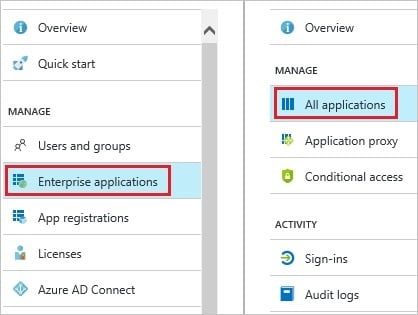
- Navigate to Enterprise Applications, then go to All Applications.
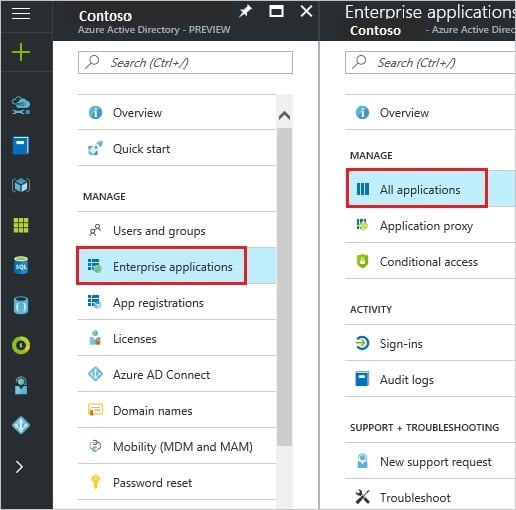
- Select the New Application button at the top of the dialog to add a new application.

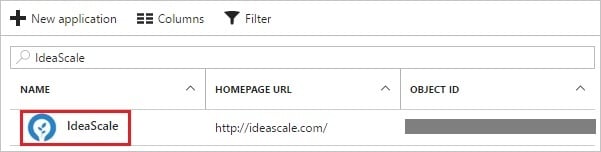
- In the search box, type IdeaScale.

- In the results panel, select IdeaScale, then select the Add button to add the application.

Configuring and testing Azure AD single sign-on
This section configures and tests Azure AD Single Sign-On with IdeaScale, based on a test user called Myrtle Riggs.
For Single Sign-On to work, Azure AD needs a link relationship between an Azure AD user and the corresponding IdeaScale user. In IdeaScale, the value of the user name in Azure AD is assigned as the value of the Username field to establish this link.
Configuring and testing Azure AD Single Sign-On with IdeaScale involves the following building blocks:
- Configuring Azure AD Single Sign-On: Enables Single Sign-On for members.
- Creating an Azure AD Test User: Tests Azure AD Single Sign-On with Myrtle Riggs.
- Creating an IdeaScale Test User: Creates a counterpart of Myrtle Riggs in IdeaScale, linked to the Azure AD representation of the user.
- Assigning the Azure AD Test User: Enables Myrtle Riggs to use Azure AD Single Sign-On.
- Testing Single Sign-On: Verifies whether the configuration works.
Configuring Azure AD Single Sign-On
This section enables Azure AD Single Sign-On in the Azure portal and configures Single Sign-On in the IdeaScale application.
To configure Azure AD Single Sign-On with IdeaScale:
- In the Azure portal, on the IdeaScale application integration page, select Single Sign-On.
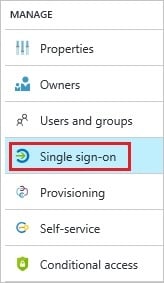
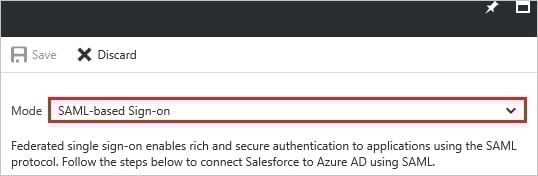
- On the Single Sign-On dialog, select SAML-based Sign-on as the Mode to enable Single Sign-On.
- On the IdeaScale Domain and URLs section:
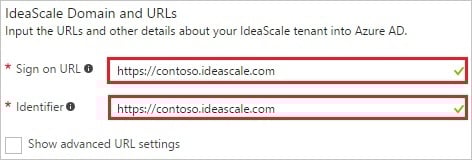
a. In the Sign-on URL textbox, enter a URL using the pattern: https://<companyname>.ideascale.com
b. In the Identifier textbox, enter a URL using the same pattern: https://<companyname>.ideascale.com - On the SAML Signing Certificate section, select Metadata XML and save the metadata file.

- Select the Save button.
- On the IdeaScale Configuration section, select Configure IdeaScale to open the Configure Sign-On window, and copy the Sign-Out URL and SAML Entity ID from the Quick Reference section.

- In a separate browser window, log in to the IdeaScale company site as a Workspace Administrator.
- Go to Settings >> Security >> Authentication >> Single Signon Settings.
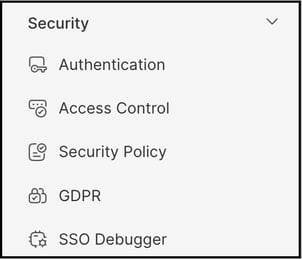
- As Single-Signon Type, select SAML 2.0.
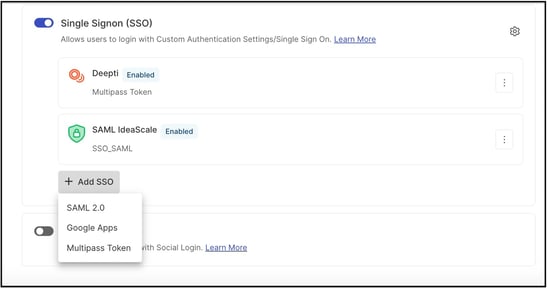
- On the Single Signon Settings dialog:
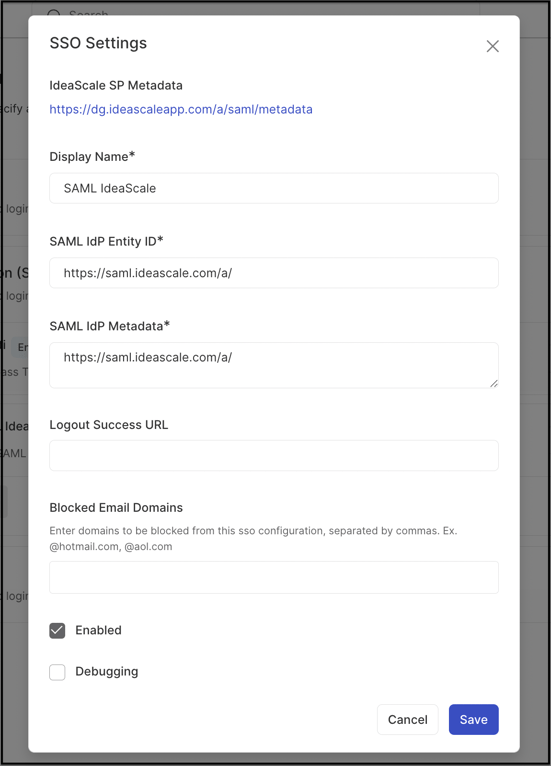
a. In the SAML IdP Entity ID textbox, paste the value of the SAML Entity ID copied from the Azure portal.
b. Paste the content of the downloaded metadata file from the Azure portal into the SAML IdP Metadata textbox.
c. In the Logout Success URL textbox, paste the value of the Sign-Out URL copied from the Azure portal. d. Select Save Changes.
Creating an Azure AD Test User
This section creates a test user in the Azure portal called Myrtle Riggs.

To create a test user in Azure AD:
- In the Azure portal, on the left navigation panel, select the Azure Active Directory icon.
- To display the list of users, go to Users and Groups and select All Users.
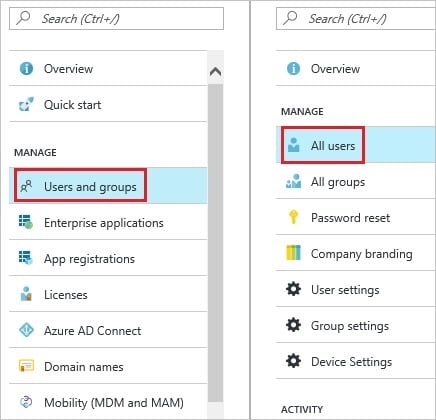
- To open the User dialog, select Add at the top of the dialog.

- On the User dialog page:
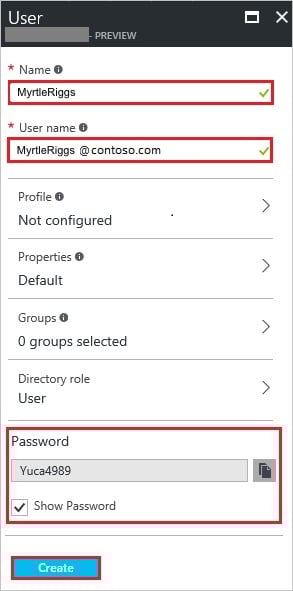
a. In the Name textbox, enter MyrtleRiggs.
b. In the User Name textbox, enter the email address for Myrtle Riggs.
c. Select Show Password and record the value of the Password.
d. Select Create.
Creating an IdeaScale Test User
For Azure AD users to log in to IdeaScale, they must be provisioned into IdeaScale. Provisioning is a manual task in IdeaScale.
To configure user provisioning:
- Log in to the IdeaScale site as a Workspace Administrator.
- Go to Workspace Homepage >> Navigation Panel >> Members.
- Select Quick Add.
- In the Add New Member section:
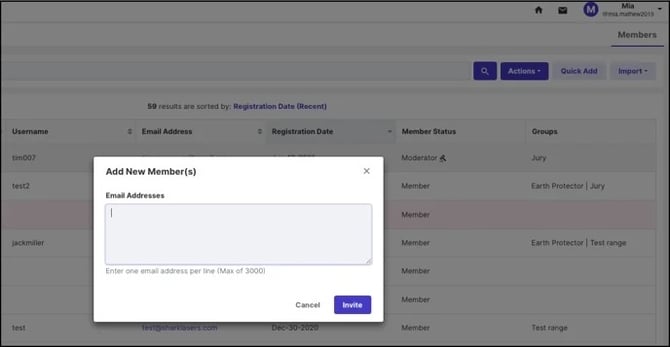
a. In the Email Addresses textbox, enter the email address of the Azure AD account to provision.
b. Select Save Changes.
See Exceptions below for account confirmation requirements.
Note: Other IdeaScale member-creation tools or APIs can also be used to provision Azure AD accounts, in place of Quick Add.
Assigning the Azure AD Test User
This section grants Myrtle Riggs access to IdeaScale, enabling her to use Azure AD Single Sign-On.
To assign Myrtle Riggs to IdeaScale:
- In the Azure portal, open the applications view, navigate to the directory view, go to Enterprise Applications, then select All Applications.
- In the applications list, select IdeaScale.
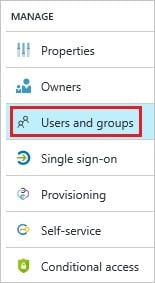
- In the left menu, select Users and Groups.
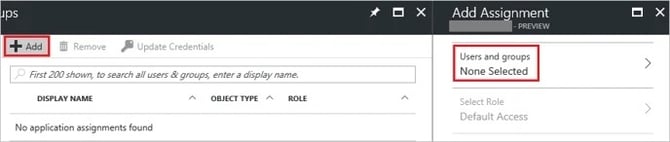
- Select the Add button, then select Users and Groups on the Add Assignment dialog.
- On the Users and Groups dialog, select Myrtle Riggs in the Users list.
- Select the Select button on the Users and Groups dialog.
- Select the Assign button on the Add Assignment dialog.
Testing Single Sign-On
This section tests the Azure AD Single Sign-On configuration using the Access Panel. Selecting the IdeaScale tile in the Access Panel signs the test user in automatically to the IdeaScale application, confirming the configuration is working correctly.
Exceptions
- Account Confirmation: An IdeaScale member account provisioned through Quick Add requires the invited person to confirm the account through a confirmation email before the account becomes active. See Creating an IdeaScale Test User above.
Frequently Asked Questions
What is Azure Active Directory Integration used for?
Integrating IdeaScale with Azure Active Directory lets an organization control which members have access to IdeaScale from Azure AD, enables automatic sign-on for members using their existing Azure AD accounts, and allows accounts to be managed from a single central location, the Azure portal.
What is required before configuring Azure Active Directory Integration?
An Azure AD subscription and an IdeaScale Single Sign-On-enabled subscription are required. Testing the configuration in a production environment is not recommended.
How is an Azure AD user linked to the corresponding IdeaScale user?
The value of the user name in Azure AD is assigned as the value of the Username field in IdeaScale, establishing the link relationship Single Sign-On requires.
Is a newly provisioned IdeaScale test user active immediately?
No. See Exceptions above — the invited person must confirm the account through a confirmation email before it becomes active.
Where can the Azure AD Single Sign-On configuration instructions be accessed directly within the Azure portal?
A concise version of the configuration instructions can be read inside the Azure portal after IdeaScale is added under Enterprise Applications, by selecting the Single Sign-On tab and then the Configuration section.
Related Articles
- Help Article for Workspace Single Sign-On Settings
- Help Article for SAML Single Sign-On at IdeaScale
- Help Article for Workspace Authentication
- Help Article for Member Management