
Path: Workspace Homepage >> Navigation Panel >> Settings >> Email Settings >> Emails Logs >> Email Delivery Log
Path: Workspace Homepage >> Navigation Panel >> Settings >> Community >> Email Settings >> Emails Logs >> Email Delivery Log
| What is the Email Delivery Log? |
| The Email Delivery Log is a record of email activity that shows the internal details of each email transaction, helping to diagnose delivery issues when email settings are being configured or when emails are not behaving as expected. |
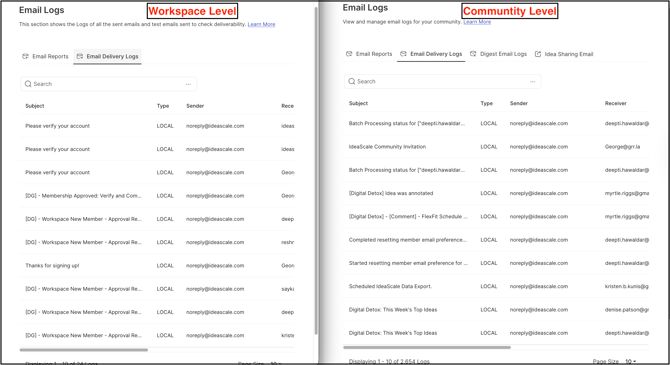
The Email Delivery Log records details for any activity that generates an email. At the workspace level, only workspace-related emails, such as verification and new member signup emails, appear in the log; at the community level, only community-related emails appear. See Exceptions below for this scope distinction.
Role Permissions
- Workspace Administrator: Views and searches the Email Delivery Log for workspace-related emails.
- Community Administrator: Views and searches the Email Delivery Log for community-related emails.
TABLE OF CONTENTS
Log Entry AttributesSearch the Email Delivery Log
Exceptions
Frequently Asked Questions
Log Entry Attributes
Each entry in the Email Delivery Log displays the following attributes:
- Type: Indicates whether the email was sent using the LOCAL variant or through SMTP.
- Status: Indicates whether the email was SENT (though not necessarily delivered) or whether an ERROR was encountered.
- Sender: The email address the message was sent from.
- Receiver: The email address of the member who received the email.
- Subject: The subject line of the email.
- Timestamp: The date and time the email was sent.
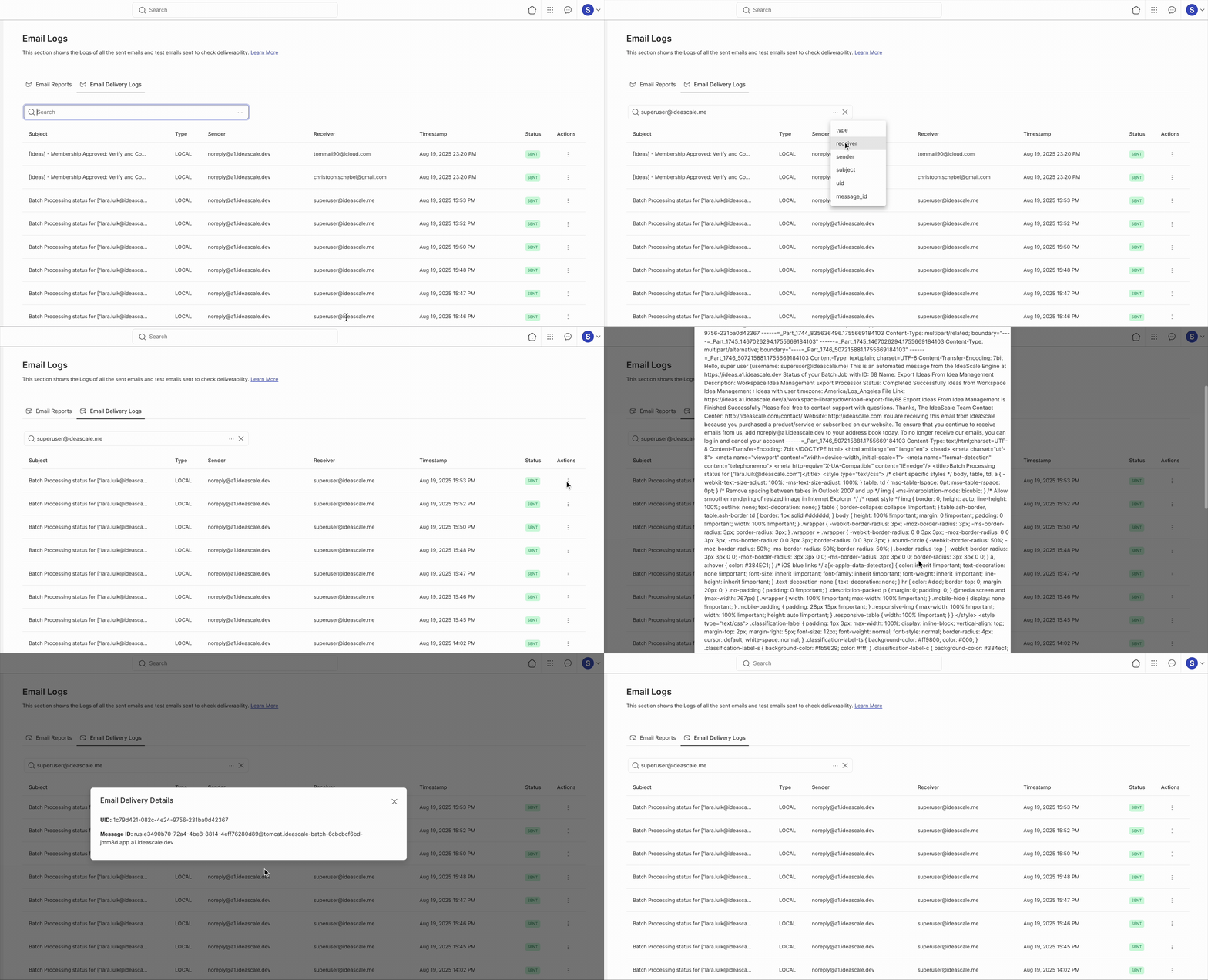
- Action: Provides access to two sets of details. Selecting Details displays the UID and Message ID. Selecting Debug Log opens an expandable modal panel showing the full entry logged by the underlying library that performs the sending, including the internal protocols and result of the transaction.
Note: The Sender address defaults to IdeaScale's system email address unless SMTP is configured with a different sender address.
Search the Email Delivery Log
A search bar is available to locate specific email entries. The Workspace Administrator or Community Administrator selects a Type from the dropdown — Receiver, Sender, Subject, UID, or Message ID — then enters the corresponding text into the search box. For example, selecting Receiver as the Type and entering a member's email address returns every log entry sent to that address.
Exceptions
- Log Scope by Level: The Email Delivery Log displays only workspace-related emails (such as verification and new member signup emails) when accessed at the workspace level, and only community-related emails when accessed at the community level.
Frequently Asked Questions
What is the difference between the Email Delivery Log at the workspace level and at the community level?
The workspace-level log shows workspace-related emails, such as verification and new member signup emails. The community-level log shows emails related to that community. See Exceptions above.
What does the Type attribute show for a log entry?
Type shows whether the email was sent using the LOCAL variant or through SMTP.
What is the difference between Details and Debug Log within the Action column?
Details displays the UID and Message ID for the entry. Debug Log opens an expandable modal panel containing the full entry logged by the underlying library that performs the sending, including the internal protocols and result of the transaction.
How can a specific email be located in the Email Delivery Log?
A Type is selected from the search bar dropdown — Receiver, Sender, Subject, UID, or Message ID — and the corresponding text is entered into the search box to filter matching entries.
Does a SENT status confirm that an email was delivered?
Not necessarily. SENT indicates the email was sent properly but does not confirm delivery. ERROR indicates an error was encountered during sending.
Related Articles