
Path: Member Management >> Custom Roles
| What are Custom Roles? |
|---|
| A Custom Role allows the Community Administrator to define, in a granular way, the type of access a member will have within a community. |
The Custom Admin role has been renamed to Custom Roles. Custom Roles let the Community Administrator choose from a range of available features and grant access by enabling the switch only for the specific capabilities needed, so multiple Custom Roles can be created and assigned to different members to match distinct responsibilities across the community.
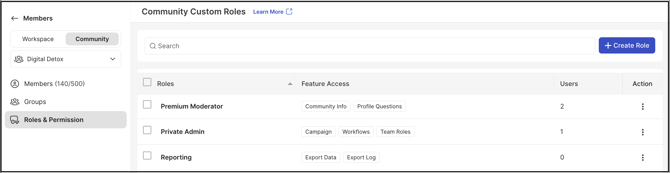
Role Permissions
- Community Administrator: Creates, edits, deletes, and searches Custom Roles, and assigns them to one or more community members.
- Custom Role: Accesses only the features enabled for the assigned Custom Role, as configured by the Community Administrator.
- Administrator, Campaign Administrator, Campaign Group Administrator: Not eligible to be assigned a Custom Role. See Exceptions below.
TABLE OF CONTENTS
Custom Role Settings
Custom Role Assignment
Custom Role Access
Exceptions
Frequently Asked Questions
Custom Role Settings
The Custom Role Settings section enables the Community Administrator to create new Custom Roles and modify existing ones. The Community Administrator can choose from a range of available features and grant access by enabling the switch only for those specific capabilities. Multiple Custom Roles can be created and assigned to different members, enabling tailored permission sets that match distinct responsibilities across the community.
1. Create Role
To add a new Custom Role with a unique combination of permissions, the Community Administrator selects Create Role. This opens a side panel for configuring the Custom Admin Settings for that role.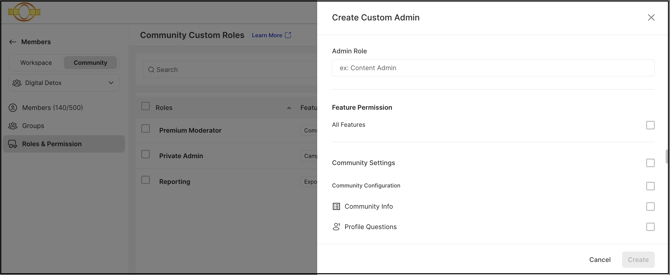
From this panel, the Community Administrator configures which features each newly assigned Custom Role will be able to manage:
- Admin Role: A clear, descriptive name for the Custom Role, entered so its purpose is easy to identify.
- Feature Permission: A choice of whether the Custom Role should have access to all available features or only a selected set of specific features, depending on the responsibilities being delegated.
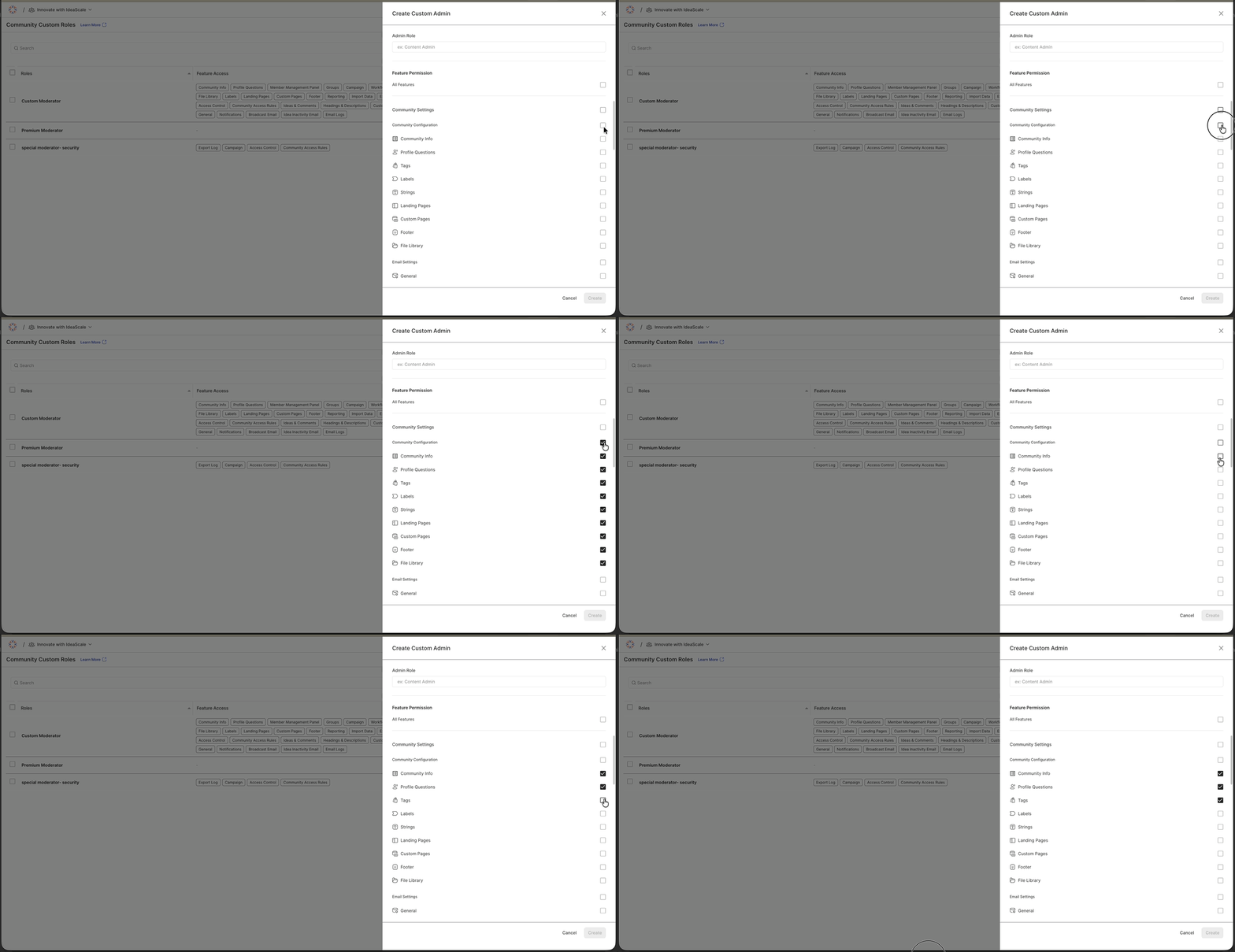
The following feature groups can be assigned either collectively or individually to a Custom Role:
- Community Settings: Includes all configuration options within Community Configuration, Email Settings, Automation, Community Access, Integration, and Data and Logs.
- Admins / Moderators / Groups: Includes the Member Management Panel and Groups, covering membership management, assignment of administrative or moderator responsibilities, and organization of members into groups.
- Campaign Management: Includes Campaigns, Workflows, and Team Roles, covering the design and operation of innovation campaigns, funnel creation, and role-based responsibilities for team members.
- Reporting: Provides access to reporting tools for viewing, analyzing, and interpreting community and campaign performance data.
- Whiteboard: Grants access to collaborative whiteboarding capabilities for visual brainstorming, planning sessions, and innovation workshops.
- Translation Moderator: Includes management of Ideas & Comments, Headings & Descriptions, Custom Field Questions, and Stages Content, covering review and moderation of translated content to ensure clarity and consistency across languages.
2. Search
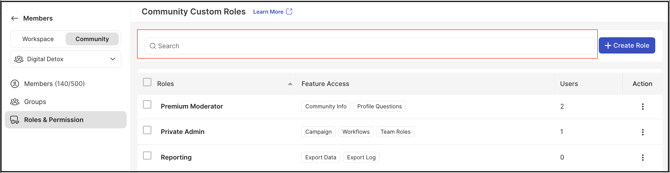
The search bar locates specific Custom Role names. The Community Administrator can search using either partial or complete words from the role name.
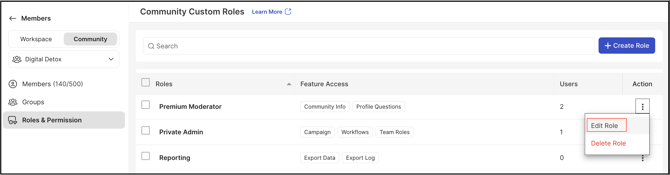
3. Edit Role
To update an existing Custom Role, the Community Administrator opens the More options menu (the three dots) in the Action column and selects Edit Role. This opens the configuration for that Custom Role for modification.
4. Delete
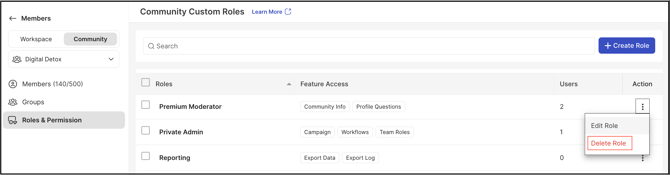
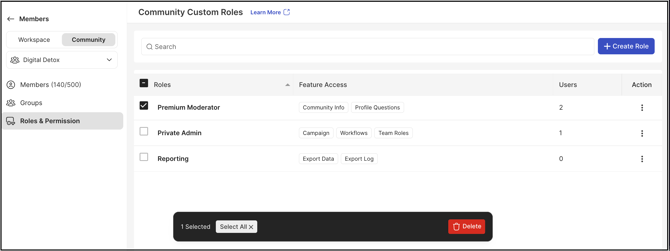
A Custom Role can be deleted in either of two ways:
1. In the Action column, the Community Administrator opens the More options menu (the three dots) and selects Delete to remove that specific Custom Role.
2. The Community Administrator selects the checkbox next to one or more Custom Role names, then selects the Delete button that appears in the bottom bar. This option deletes multiple Custom Roles at the same time.
Custom Role Assignment
Custom Roles are assigned to community members from the Members section within Member Management.
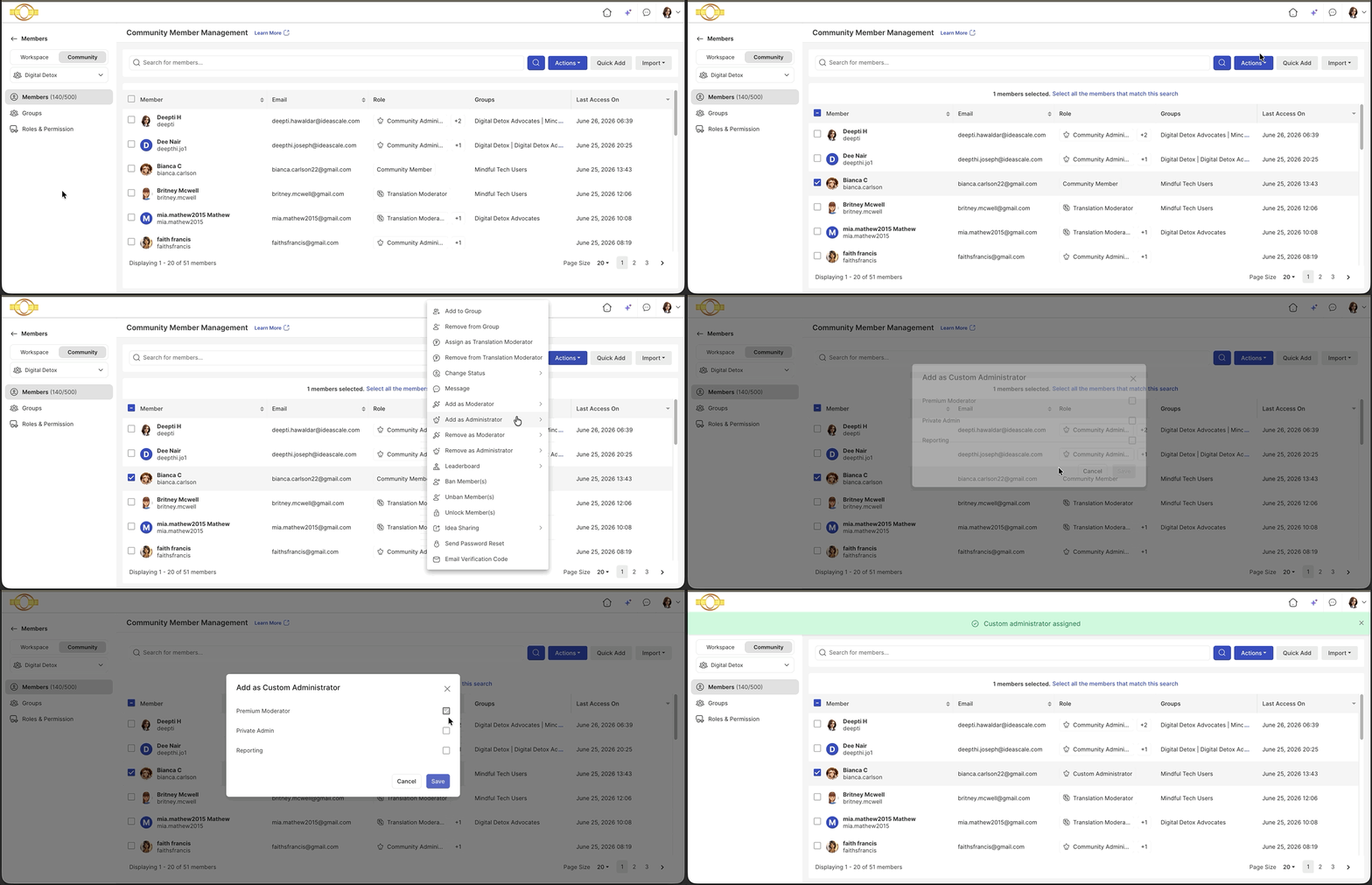
The Community Administrator selects one or more members using the checkboxes, opens the Actions dropdown menu, and selects Add as Administrator >> Custom. A pop-up window opens, allowing the Community Administrator to choose which Custom Role or roles to assign to the selected member(s).
Once members are assigned a Custom Role, the count updates for that Custom Role under Custom Roles >> Users.
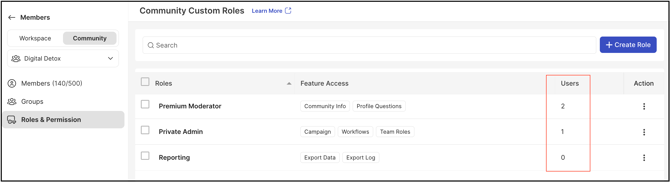
Custom Role Access
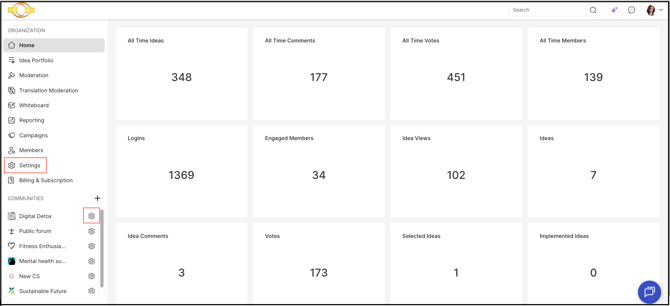
Based on the access sections the Community Administrator selects for a Custom Role, the assigned member sees the Settings option in the Workspace Homepage's Navigation Panel, or from the Settings icon beside the community name.
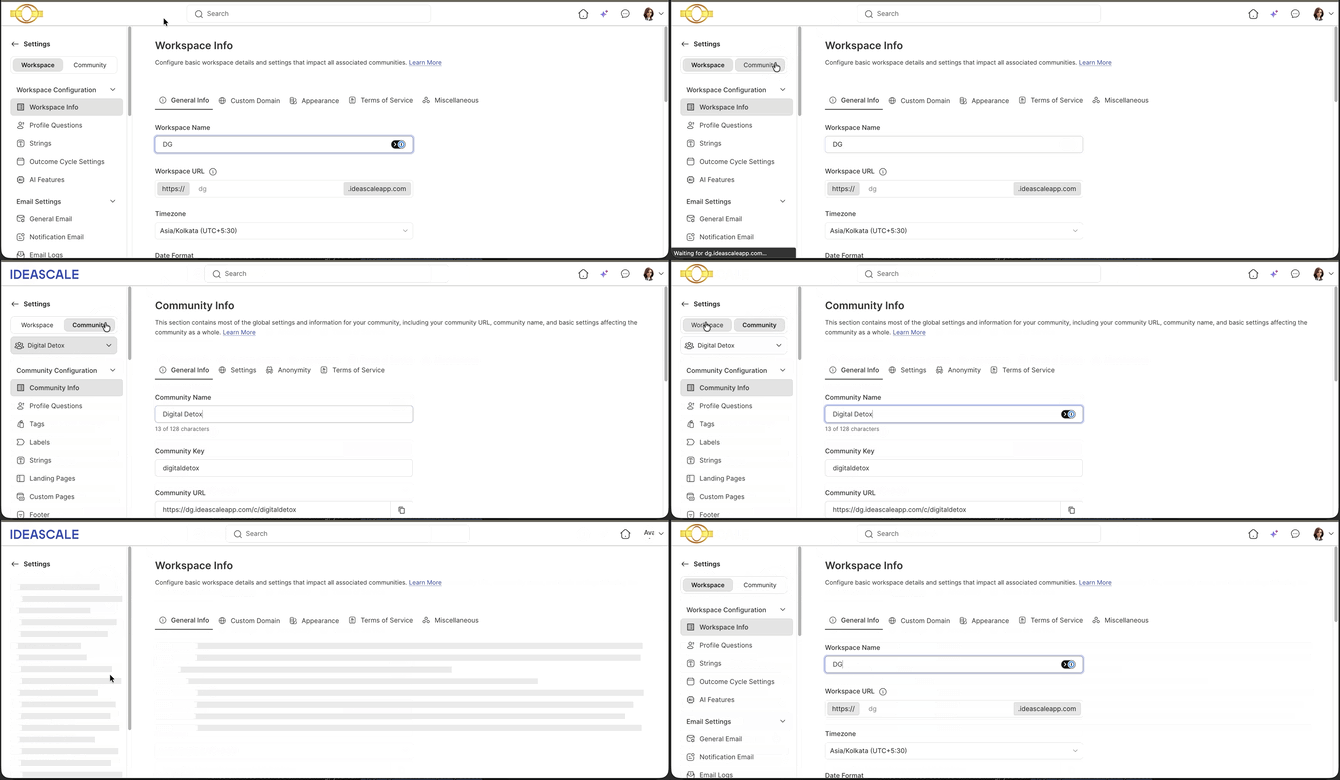
The assigned member can switch between Workspace Settings and Community Settings using the switch.
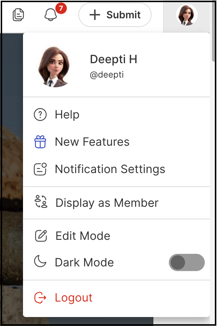
The assigned member also has the Display as Member option available, which allows them to experience the community interface as a regular member.
A Custom Role is granted a range of permissions but cannot assign or change the roles of campaign sponsors or campaign moderators. See Exceptions below.
Exceptions
- Campaign Sponsor and Campaign Moderator Roles: A Custom Role cannot assign or change the roles of campaign sponsors or campaign moderators. It can, however, remove (unassign) an existing campaign sponsor.
- Idea Submission on Behalf of Members: A Custom Role can submit ideas on behalf of community members only if the Community Administrator has enabled this capability.
- Existing Administrators: An individual already serving as an Administrator, Campaign Administrator, or Campaign Group Administrator is not eligible to be assigned a Custom Role. This keeps role responsibilities clearly defined and prevents overlap that could complicate community governance.
Frequently Asked Questions
Can more than one Custom Role be assigned to the same community member?
Yes. When assigning Custom Roles from the Members section, the Community Administrator can select one or more Custom Roles to assign to the selected member(s) at the same time.
Can an individual who already serves as an Administrator be assigned a Custom Role?
No. Individuals already serving as an Administrator, Campaign Administrator, or Campaign Group Administrator are not eligible to be assigned a Custom Role, to keep role responsibilities clearly defined.
Can a Custom Role change who is assigned as a campaign sponsor or campaign moderator?
No. A Custom Role cannot assign or change the roles of campaign sponsors or campaign moderators, though it can remove (unassign) an existing campaign sponsor.
What does the Display as Member option do?
It allows a member assigned a Custom Role to experience the community interface as a regular member would.
Can multiple Custom Roles be deleted at once?
Yes. Selecting the checkboxes next to one or more Custom Role names and selecting the Delete button in the bottom bar deletes multiple Custom Roles at the same time.
Related Articles