
Path: Workspace Homepage >> Navigation Panel >> Settings >> Community >> Community Configuration >> Custom Pages
| What are Custom Pages? |
|---|
| Custom Pages are a Community Configuration feature that lets a Community Administrator publish additional, community-specific content for members and visitors to view from the community's Explore tab. |
Common use cases include publishing community FAQs, linking to key external resources such as the organization's website, outlining a community's Rules of Engagement, and highlighting success stories from previously submitted ideas. Custom Pages are accessible from the Explore tab on the community homepage.

Role Permissions
- Community Administrator: Creates, edits, configures, reorders, and manages the visibility of custom pages within a community.
TABLE OF CONTENTS
Custom Page Creation
Action Tab
Custom page Components
Reorder Custom Pages
Draft Mode
Custom Page Update
Exceptions
Frequently Asked Questions
Custom Page Creation
To create a new custom page, the Community Administrator selects + Create and completes the fields on the pop-up modal:
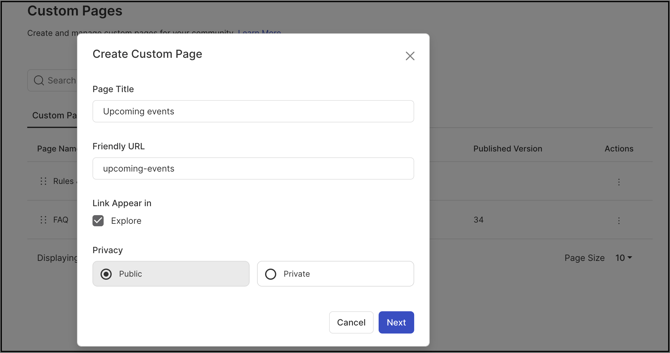
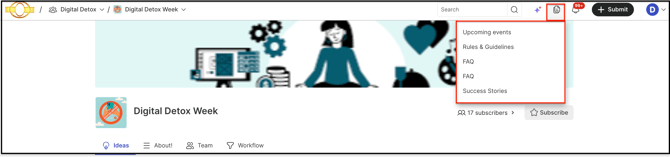
- Page Title: The display name of the custom page. It appears under the Explore icon on the frontend Topbar.
- Friendly URL: The key used in the API call. It must be entered in lowercase, with no spaces, and words separated only by hyphens (for example, custom-page).
- Link Appears In: Selecting the Explore checkbox displays the custom page under the Explore tab on the community Topbar.
-
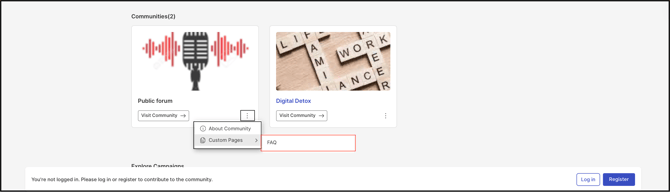
Privacy: Sets the custom page to Public or Private. Private pages are visible only to community members through the community Topbar, while Public pages are accessible to non-members and users who are not logged in. Public pages appear on the Workspace Homepage and are discoverable through external search engines.
-
Templates: Selecting Next navigates to template selection. The Community Administrator can select a ready-made template for FAQ, Rules & Guidelines, or About Us, or select Start from Scratch to begin with a blank page.
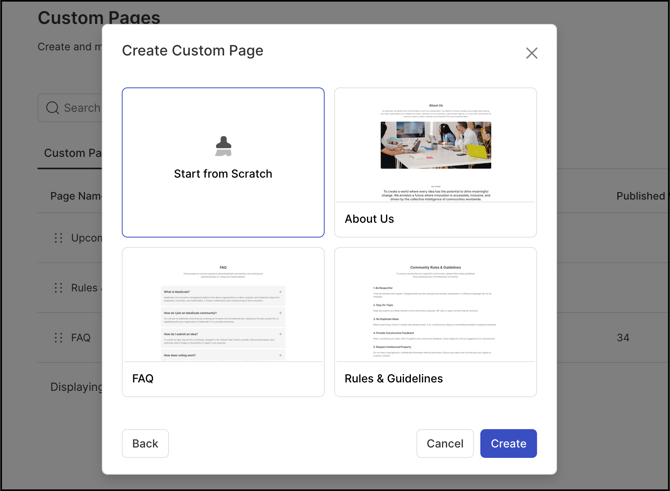
After selecting Create, the custom page opens, where the Community Administrator can edit the template by selecting Start Editing.
Once the custom page is configured and published, it becomes available to members on the Workspace Homepage.
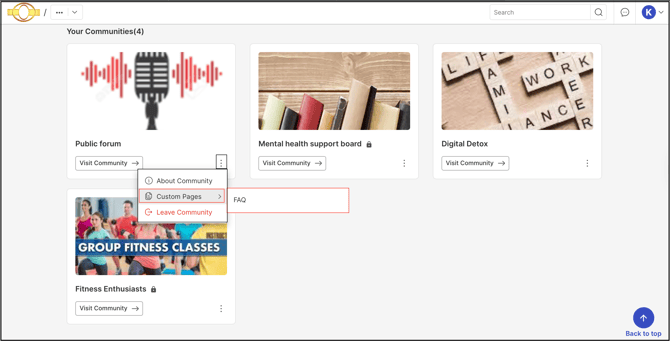
Actions Tab
The More Options (three dots) menu under the Actions tab provides the following options to the Community Administrator:
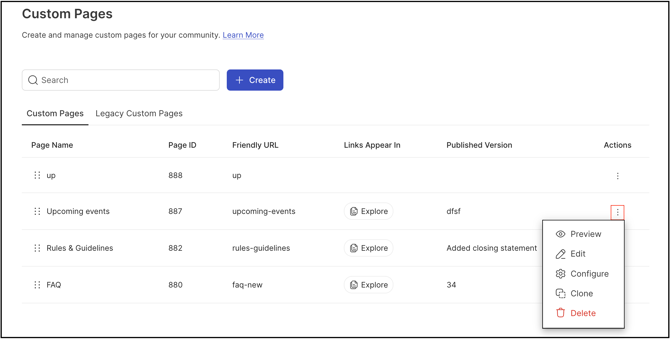
- Preview: Navigates to the custom page on the frontend. See Exceptions below for availability.
- Edit: Allows editing of the custom page's components and elements.
- Configure: Opens the custom page's metadata settings:
-
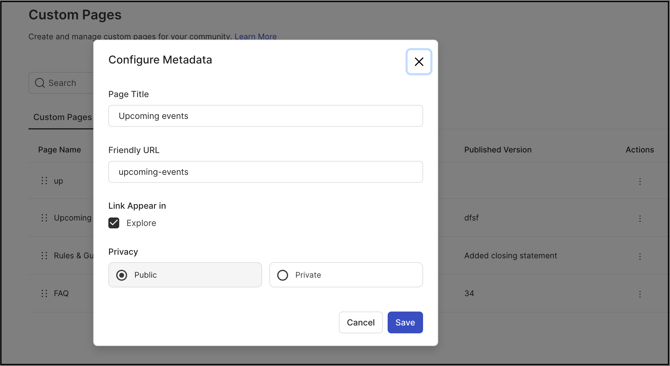
- Page Title: The custom page's title or name.
- Friendly URL: The URL extension of the custom page.
- Link Appears In: A checkbox that determines whether the custom page name appears under the Explore tab on the Topbar.
- Privacy: Sets the custom page to Public (visible to anyone with the link) or Private (visible only to community members).
- Clone: Duplicates the custom page under the same name, followed by "Copy," along with its components. See Exceptions below for availability.
- Delete: Permanently removes the custom page. See Exceptions below for availability.
Custom Page Components
Custom Page Elements are preconfigured templates, similar to Landing Page sections, that a Community Administrator can use to build more visually appealing and professional custom pages.
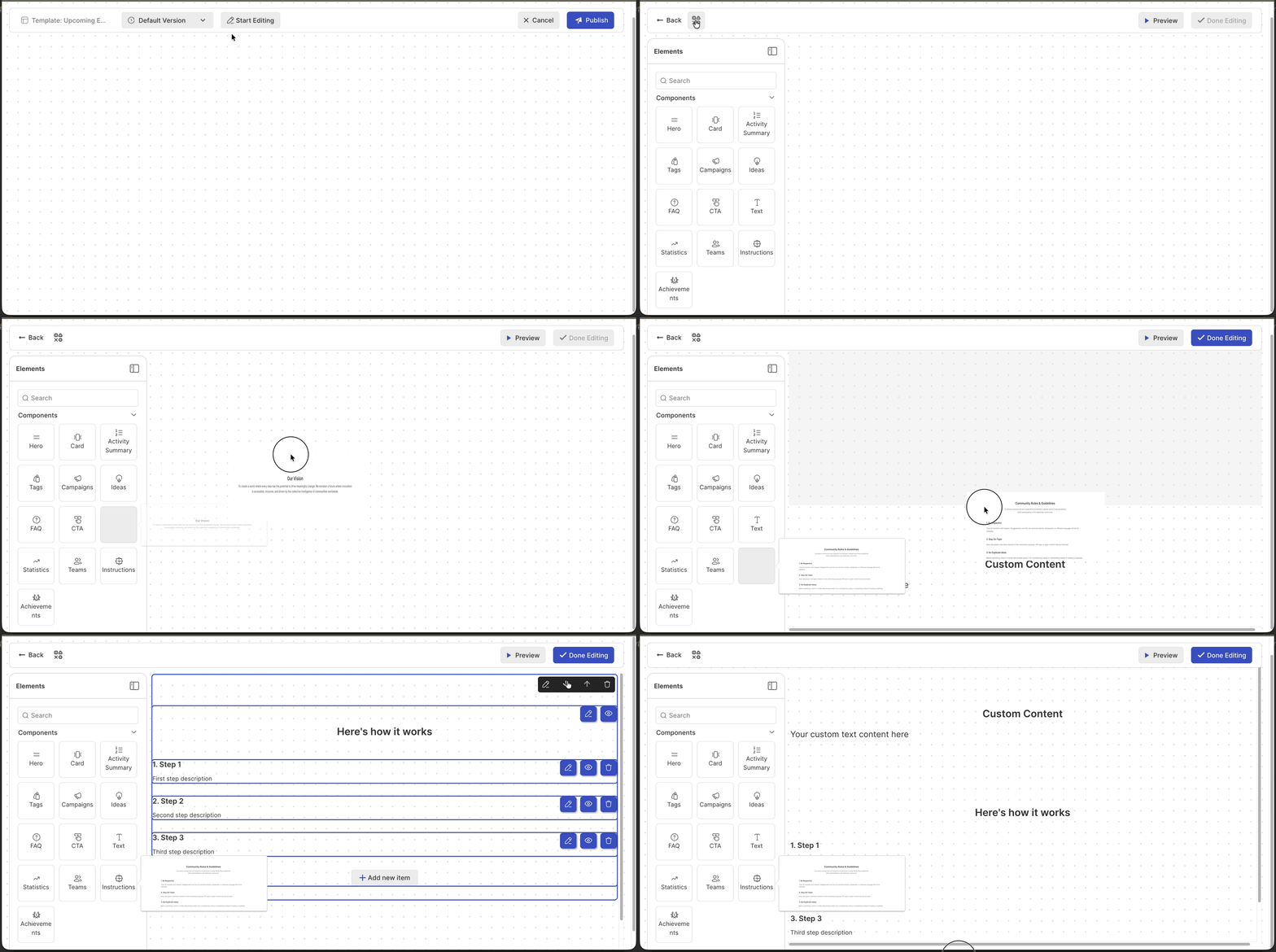
From the custom page's edit mode, selecting the Components icon expands the available elements. Components can be dragged and dropped onto the page and edited directly.
Help article on Custom page components.
Versions
Each time changes are made to a custom page and the Community Administrator selects Done Editing, the system creates a new version of the page. A name must be provided for the version, an optional note can be added, and one of the following options must be selected:
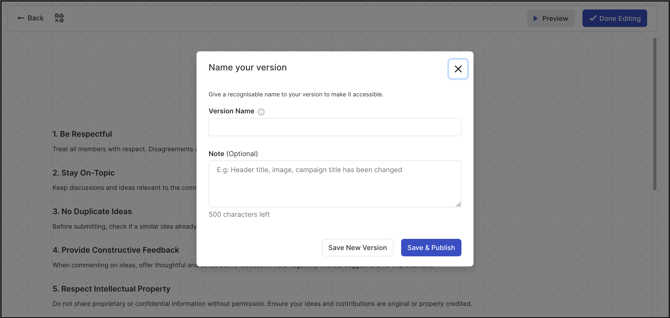
- Save New Version: Saves the changes without publishing them.
- Save & Publish: Saves and immediately publishes the changes.
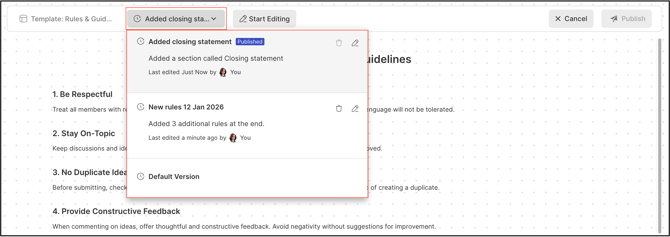
A Community Administrator can restore any previous version by selecting Publish on that version. See Exceptions below for the version retention limit.
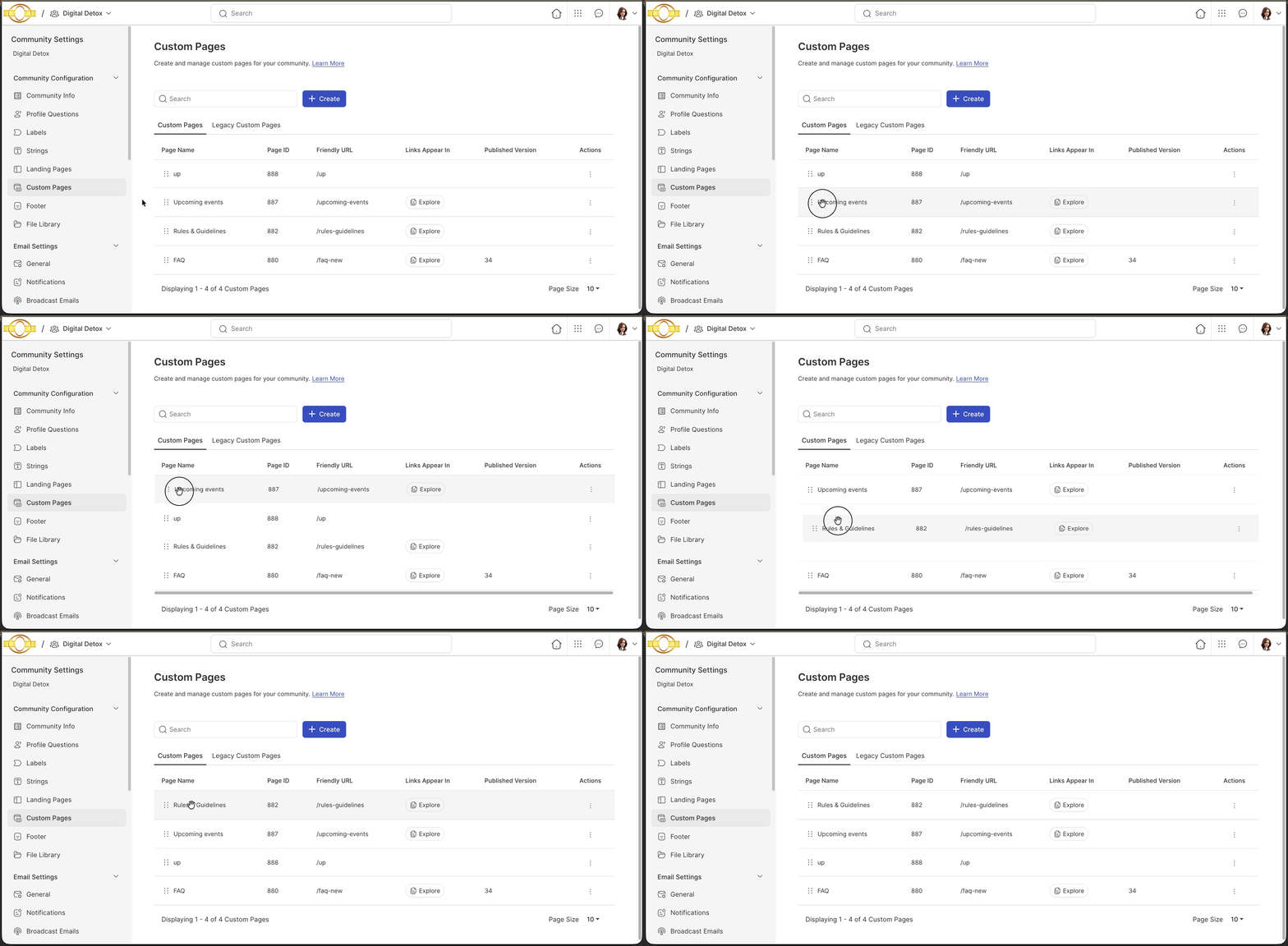
Reordering Custom Pages
Custom pages can be reordered by dragging the dots grid associated with each page.
Draft Mode
Draft Mode lets a Community Administrator prevent a custom page from being visible to end users. In the Custom Pages settings, a page's Explore Tab status displays as On when the page is live for end users to view.
To place a custom page in Draft Mode:
- Select Edit Meta under the Actions column next to the page to be placed in draft.
- Clear the checkbox for Link Appears In >> Explore.
- Select Save.
This process is repeated for every custom page that should not appear in the Explore dropdown.
Custom Page Update
A custom page that has been updated is denoted by its Explore button turning blue. Links to that custom page also appear in blue until the update has been viewed.

Exceptions
- Preview, Clone, and Delete Availability: These actions are available only on published custom pages.
- Version Retention: Only the 20 most recently saved versions of a custom page are retained. Older versions are automatically deleted and cannot be recovered.
Frequently Asked Questions
Can a deleted custom page be recovered?
No. Delete permanently removes the custom page and cannot be reversed. Draft Mode can be used instead when a page needs to be temporarily hidden from end users without losing it.
What is the difference between a Public and a Private custom page?
Public custom pages are accessible to non-members and users who are not logged in, appear on the Workspace Homepage, and are discoverable through external search engines. Private custom pages are visible only to community members through the community Topbar.
Can an older version of a custom page be restored once 20 newer versions have been saved?
No. Only the 20 most recent versions of a custom page are retained. Once a version is automatically deleted to make room for a newer one, it cannot be recovered.
Does placing a custom page in Draft Mode delete it?
No. Draft Mode only removes the page from the Explore dropdown so it is not visible to end users. The page and its content remain intact and can be made visible again by selecting the Link Appears In >> Explore checkbox.
Related Articles