
| What is a Community? |
| A Community is an individual space within a Workspace where members submit, discuss, and collaborate on ideas, set up through a short guided creation process. |
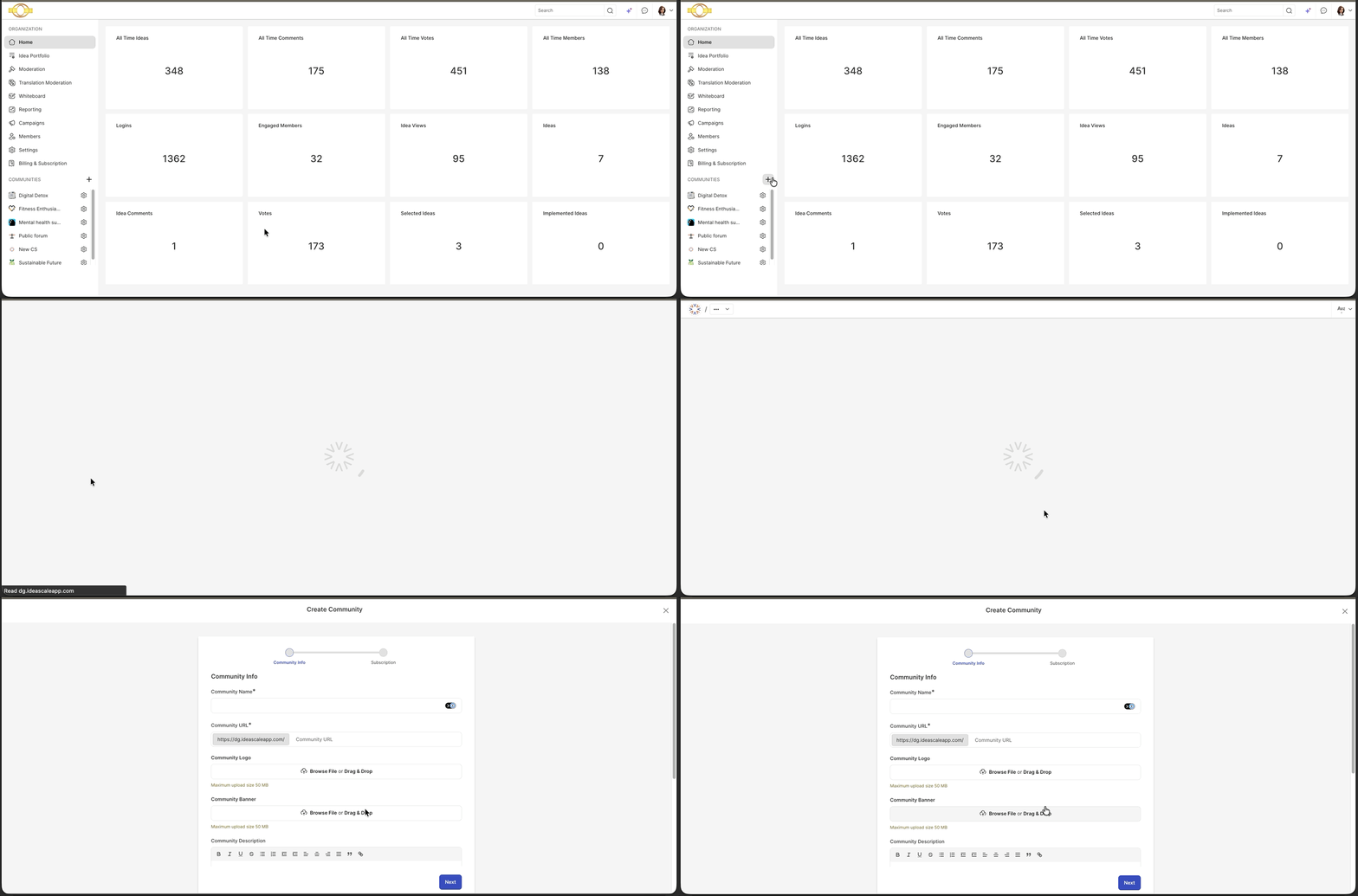
Community creation in IdeaScale is a turn-key process that can be completed in about five minutes. A Workspace Administrator initiates the process from the Navigation Panel, then completes the Community Info and Subscription steps to bring the new community online.
Role Permissions
- Workspace Administrator: Creates new communities from the Navigation Panel and completes all setup steps, including Community Info and Subscription.
- All Roles ( Administrators, Moderators & Members): All other roles do not have access to create new communities.
TABLE OF CONTENTS
Community Info
Subscription
Community on Workspace
Exceptions
Frequently Asked Questions
Community Info
Selecting the + button on the Navigation Panel opens the Create Community page. Community Info is the first section of the setup and requires a Workspace Administrator to complete the following fields for the initial setup.
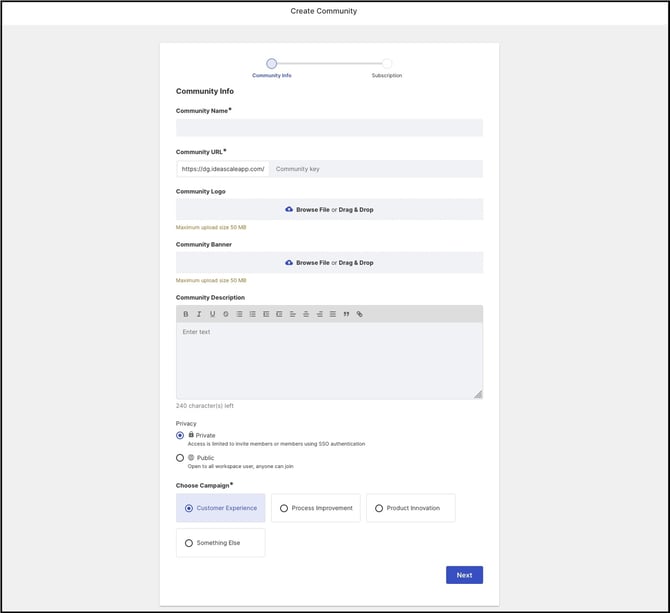
Community Name
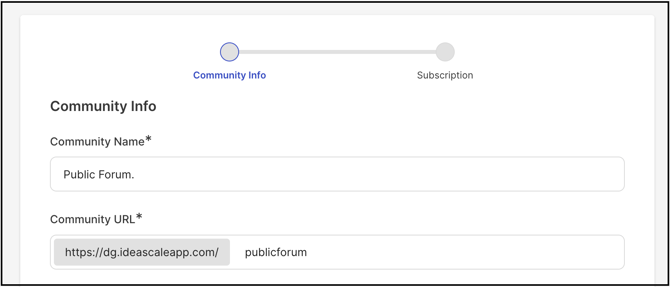
Entering a name for the community automatically populates the Community URL. The name can be changed later by a Workspace Administrator or Community Administrator from the Edit Mode option under the Profile dropdown on the Community Homepage.
Community URL
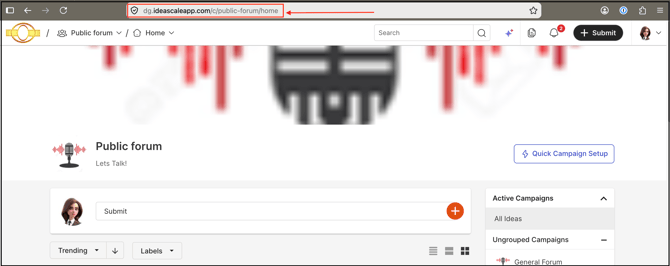
The Community Key field sets the unique word representing the community in its URL extension within the Workspace. The prefix portion of the URL is common to all communities in the Workspace and cannot be changed. See Exceptions below for character restrictions on the Community Key.

Community Logo
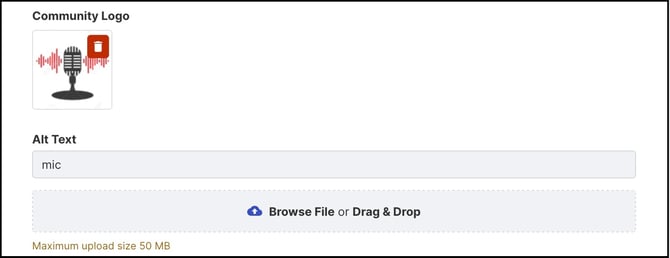
A logo can be added to represent the community by selecting Browse File or Drag & Drop to locate an image, or by dragging and dropping the file directly, then adjusting the size using the resizer. Alt Text can also be entered to describe the image in case it fails to load.
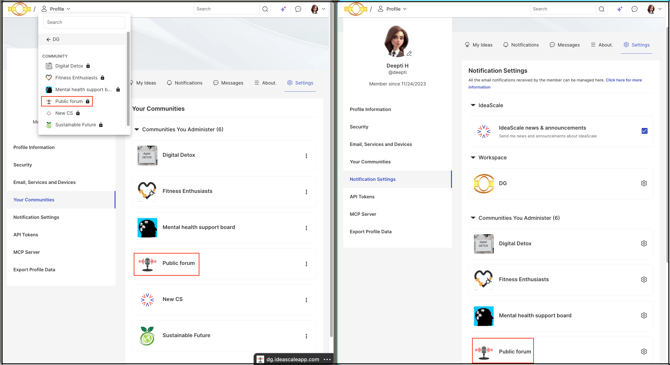
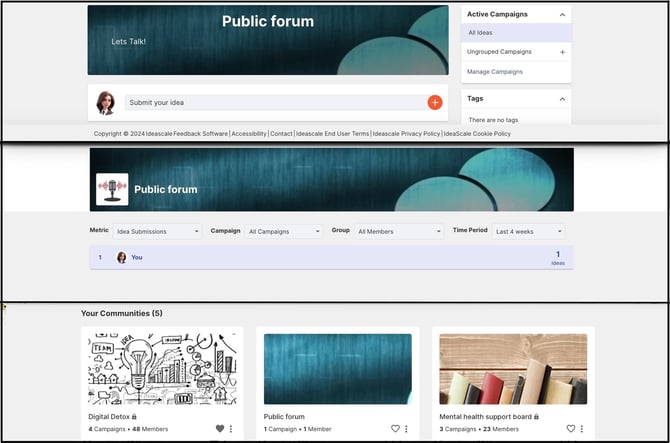
The Community Logo appears on the Community Banner across internal pages such as Leaderboard and Custom Pages. It also appears as the community icon in the Topbar Community dropdown and in the Profile section under Notification Settings, Your Communities, and API Tokens.
Community Banner
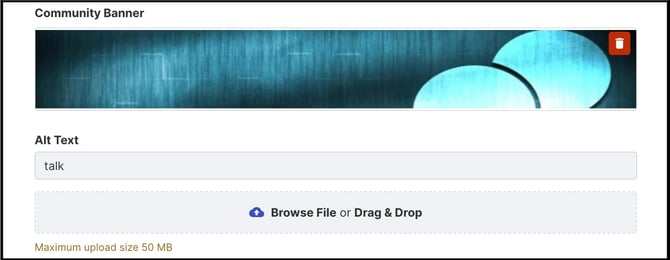
Add a banner for the community. To upload it, click on the Browse file or Drag & Drop to browse the logo on your computer or simply drag drop the image and adjust the size using resizer.
Community Description
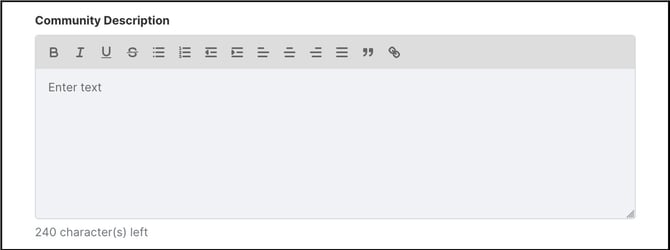
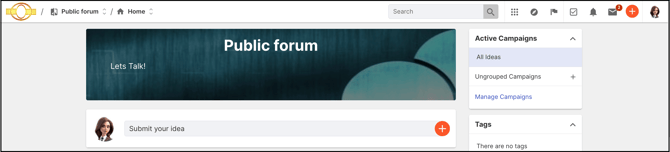
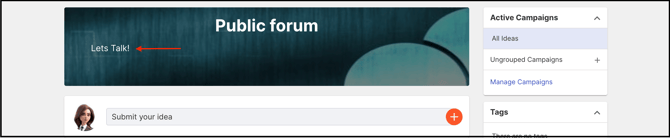
Community Description is a subtext or tagline for the community, visible beneath the Community Name on the Community Homepage.
Privacy

A Workspace Administrator selects Private to restrict community visibility to members only, or Public to make the community visible to anyone.
Help article on Private Versus Public Community.
Choose Campaign
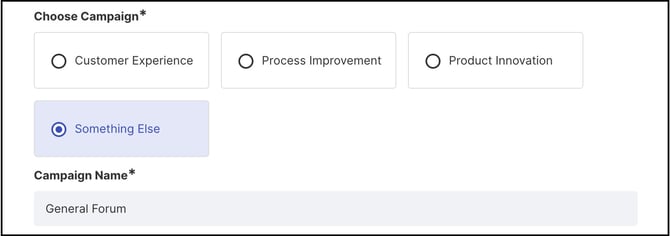
A Workspace Administrator selects one of the default campaigns, or creates a custom campaign for the community to start with. Selecting Something Else opens a text field for naming the custom campaign.
Selecting Next once all Community Info fields are completed proceeds to the Subscription step.
Subscription
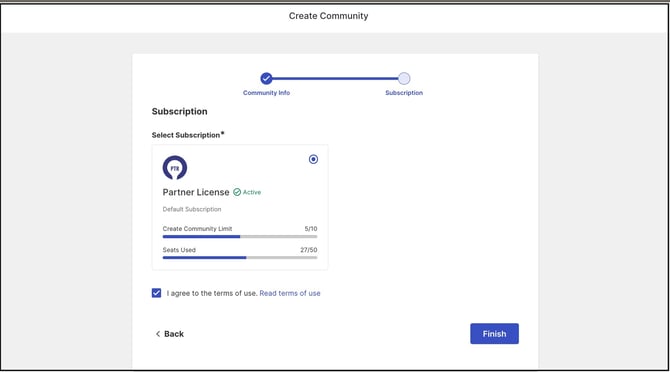
Subscription is the next step in the community creation process. The subscription under which the community is created is pre-selected. Selecting the checkbox to accept the Terms of Use, then selecting Finish, completes the community creation process.
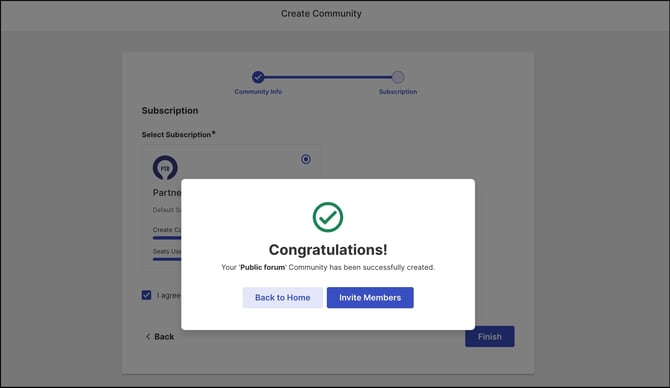
Upon completion, a success message displays with the following options:
- Back to Home: Navigates to the Workspace Homepage.
- Add Members: Navigates to the Community Member Management dashboard.
Help Article on Community Member Management.
Community on Workspace
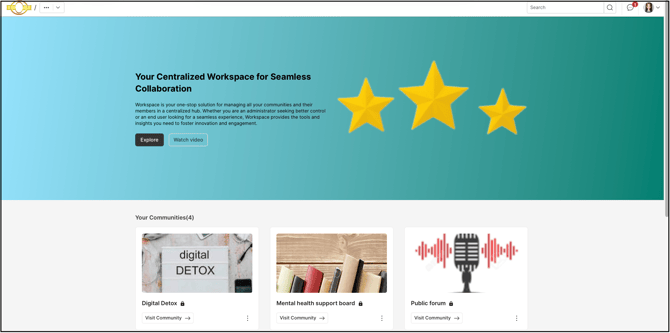
Once created, the new community appears on the Workspace Homepage as the first community listed.
Exceptions
- Community Key Characters: Only alphanumeric characters and hyphens (dashes) can be used in the Community Key.
- Community Prefix: The prefix portion of the community URL is common to all communities within the Workspace and cannot be changed.
Frequently Asked Questions
Can the Community Key be changed after the community is created?
You need to contact IdeaScale support to change the Community Key.
What characters are allowed in the Community Key?
Only alphanumeric characters and hyphens (dashes) can be used in the Community Key.
Can the Community Name be changed after the community is created?
Yes. A Workspace Administrator or Community Administrator can change the Community Name later from the Edit Mode option under the Profile dropdown on the Community Homepage.
Where does a newly created community appear on the Workspace Homepage?
It appears as the first community listed on the Workspace Homepage.
What are the two options available after completing the Subscription step?
Back to Home, which navigates to the Workspace Homepage, and Add Members, which navigates to the Community Member Management dashboard.
Related Articles
- Help Article for Edit Mode
- Help article on Image resizer
- Help article on Private Versus Public Community.
- Help Article on Community Member Management