
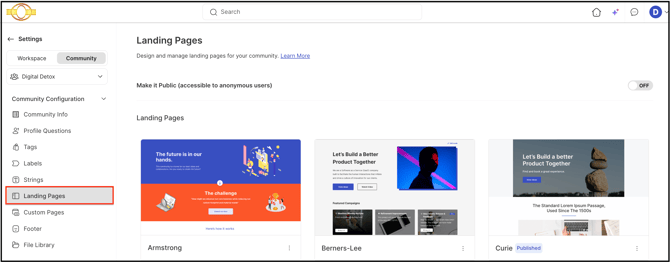
Path: Workspace Homepage >> Navigation Panel >> Settings >> Community >> Community Configuration >> Landing Pages
| What is the Community Landing Page? |
|---|
| The Community Landing Page is a customizable welcome page for a community, built from a template, that highlights the community's latest content and campaigns for members. |
The Landing Page can be updated or recreated at any time to welcome members and preview the latest content in the community. Four templates are available, and the page can be edited without leaving the front end.
Role Permissions
- Community Administrator: Creates, edits, publishes, and unpublishes the Landing Page, and manages its templates, elements, and version history.
TABLE OF CONTENTS
Landing Page TemplatesLanding Page Elements
Text
Images or Videos
How it works section
Version
Moving modules
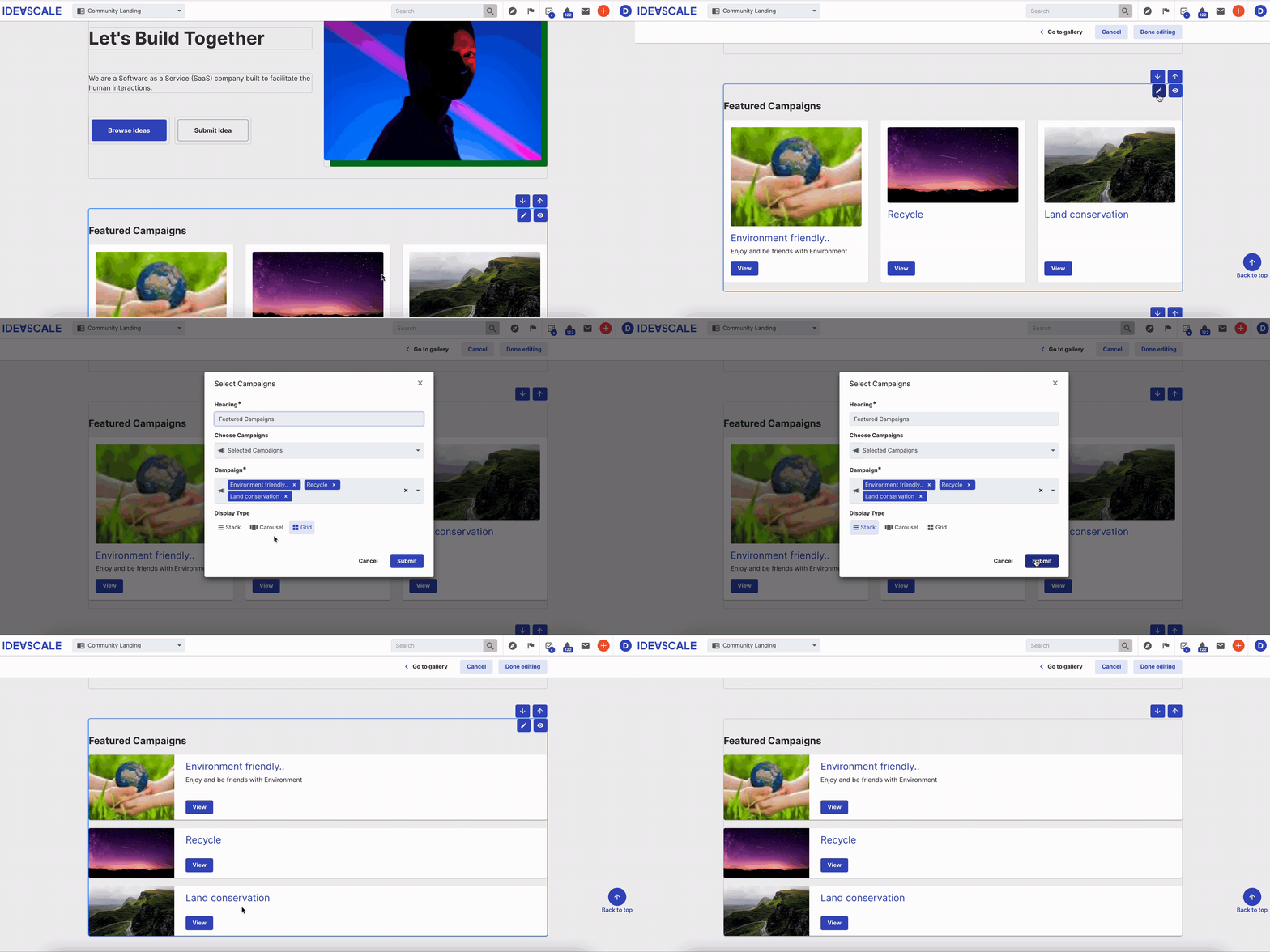
Display type for Campaign
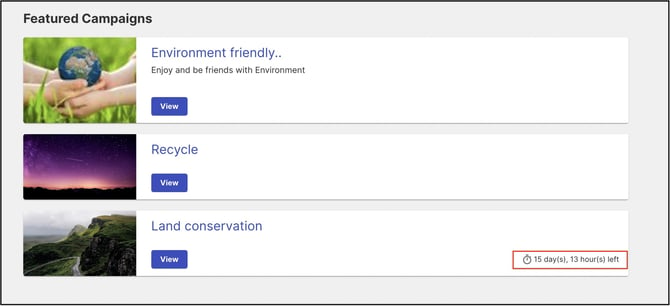
Display Campaign Expiration
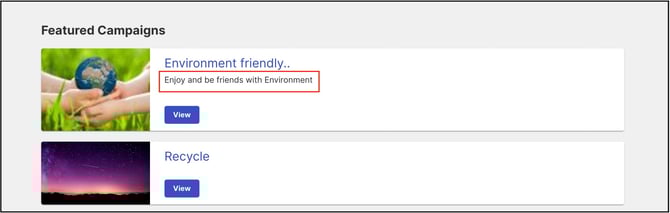
Display Campaign Subtitles
Exceptions
Frequently Asked Questions
Landing Page Templates
Four Landing Page templates are available: Armstrong, Berners-Lee, Currie, and Eastman. Each template provides a starting point for building the Landing Page.
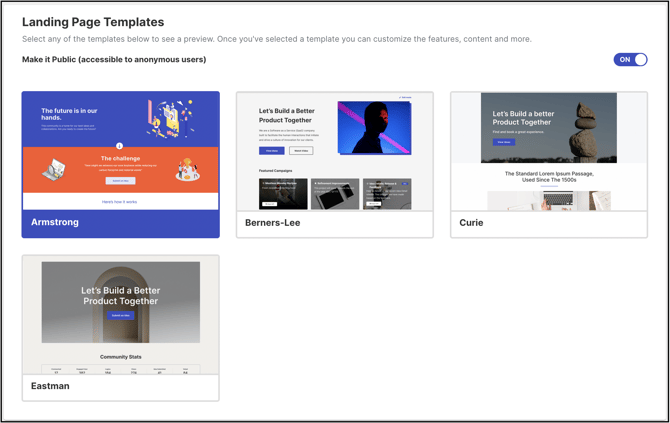
Enabling the Make it Public switch allows the public (non-logged-in users) to view the Landing Page, whether the old or new version is active.
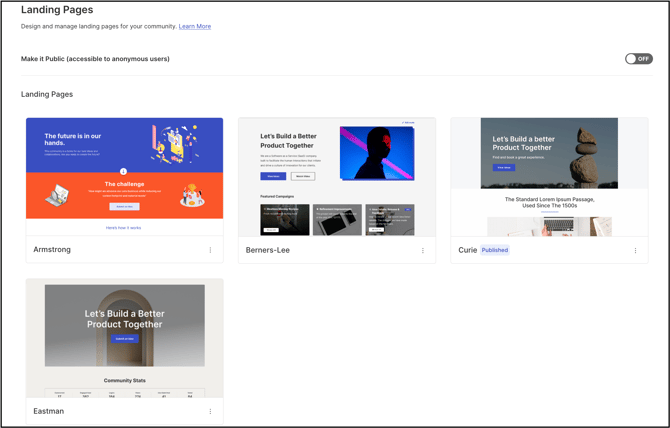
Selecting More (the three-dot icon) on a template opens a Preview option, which displays the full template page. Once a template is published, it carries a Published label, and the More option instead offers Edit and Unpublish, which allow the Community Administrator to change or unpublish the live template.
Landing Page Elements
The Community Administrator can edit the text and images provided in a template. Non-required elements can be hidden.
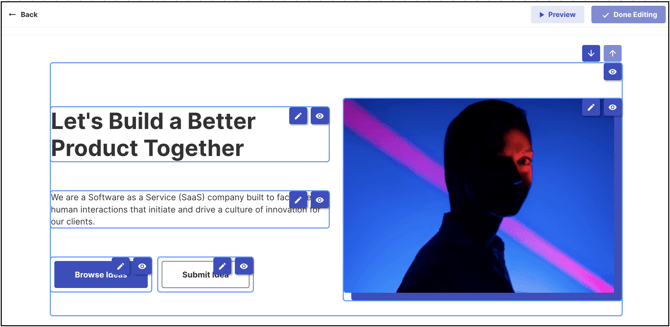
Selecting the pencil icon on a text element opens it for editing. Text can be set to Heading 1, Heading 2, Heading 3, Heading 4, or Normal, and can be made bold, italicized, underlined, or struck through, as well as hyperlinked. Text color can be set to Dark or Light depending on the background color.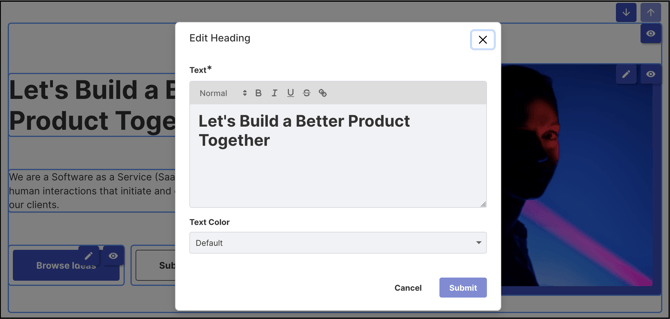
Selecting the Eye icon hides the text area; a slashed Eye icon indicates the element is not visible on the Landing Page.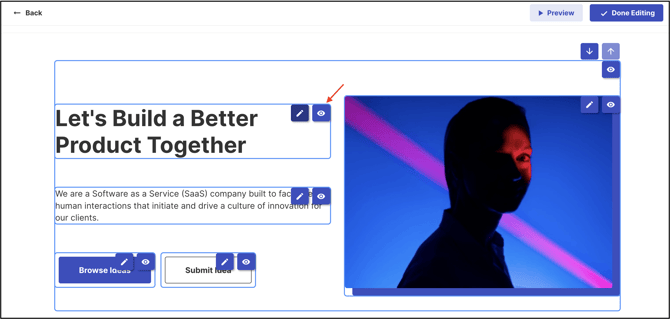
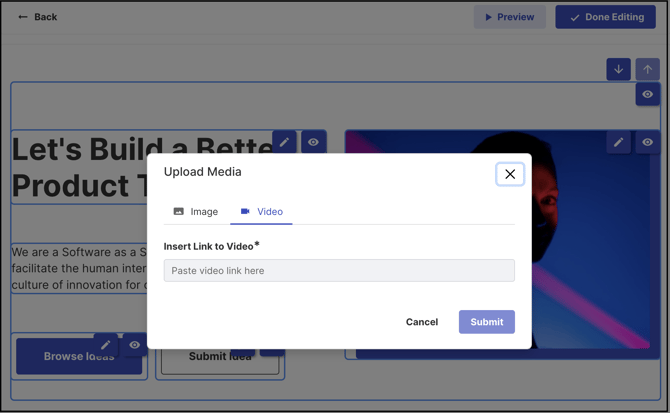
Images and videos can be replaced using the Pencil icon. An image can be dragged and dropped into the element, browsed and uploaded from a local file, or added using the image URL of a file already uploaded to the Community or Global File Library.
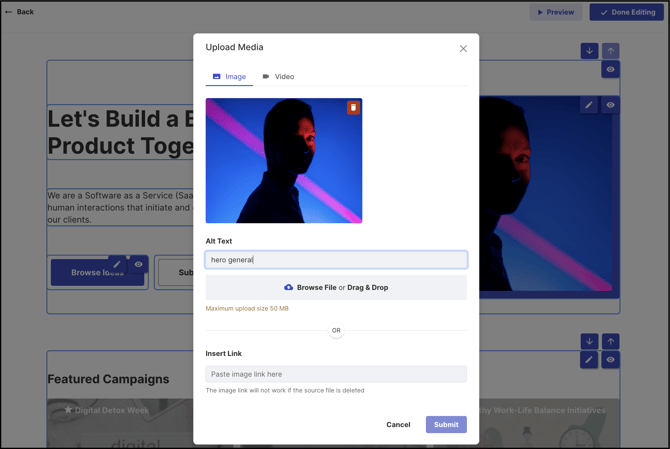
Note: A transparent PNG file is recommended for uploaded images.
How It Works Section
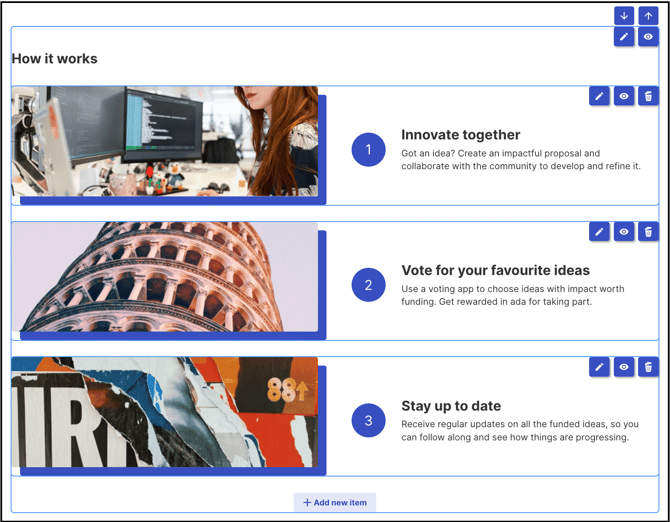
This section allows an item to be added, edited, or deleted, including its image. Select Add an Item to add a new step, complete the following fields, and select Submit:
- Title: The title text for the step.
- Description: The description text for the step.
To delete an item, select the Trash Can icon.
Version
Each time a change is made to the Landing Page and the Community Administrator selects Done Editing, the system saves a new version. 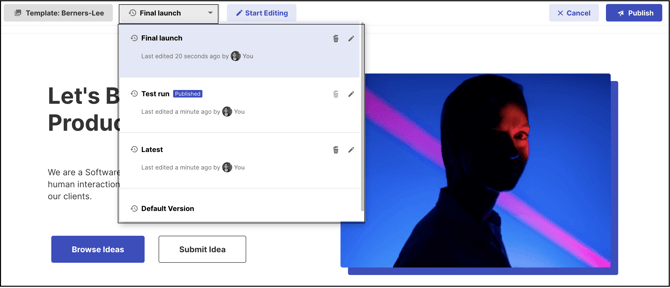
The Community Administrator can return to any previous version and restore it by selecting Publish.
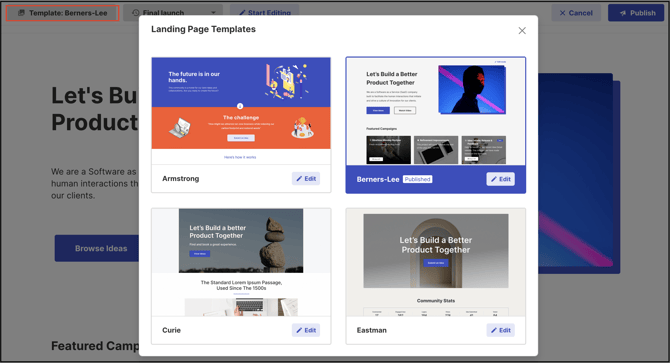
The template name link at the top of the page provides quick access to the Landing Page templates, allowing the Community Administrator to select and try other templates at any time. Selecting Unpublished removes the published Landing Page template; selecting Edit opens the existing template for editing.
Moving Modules
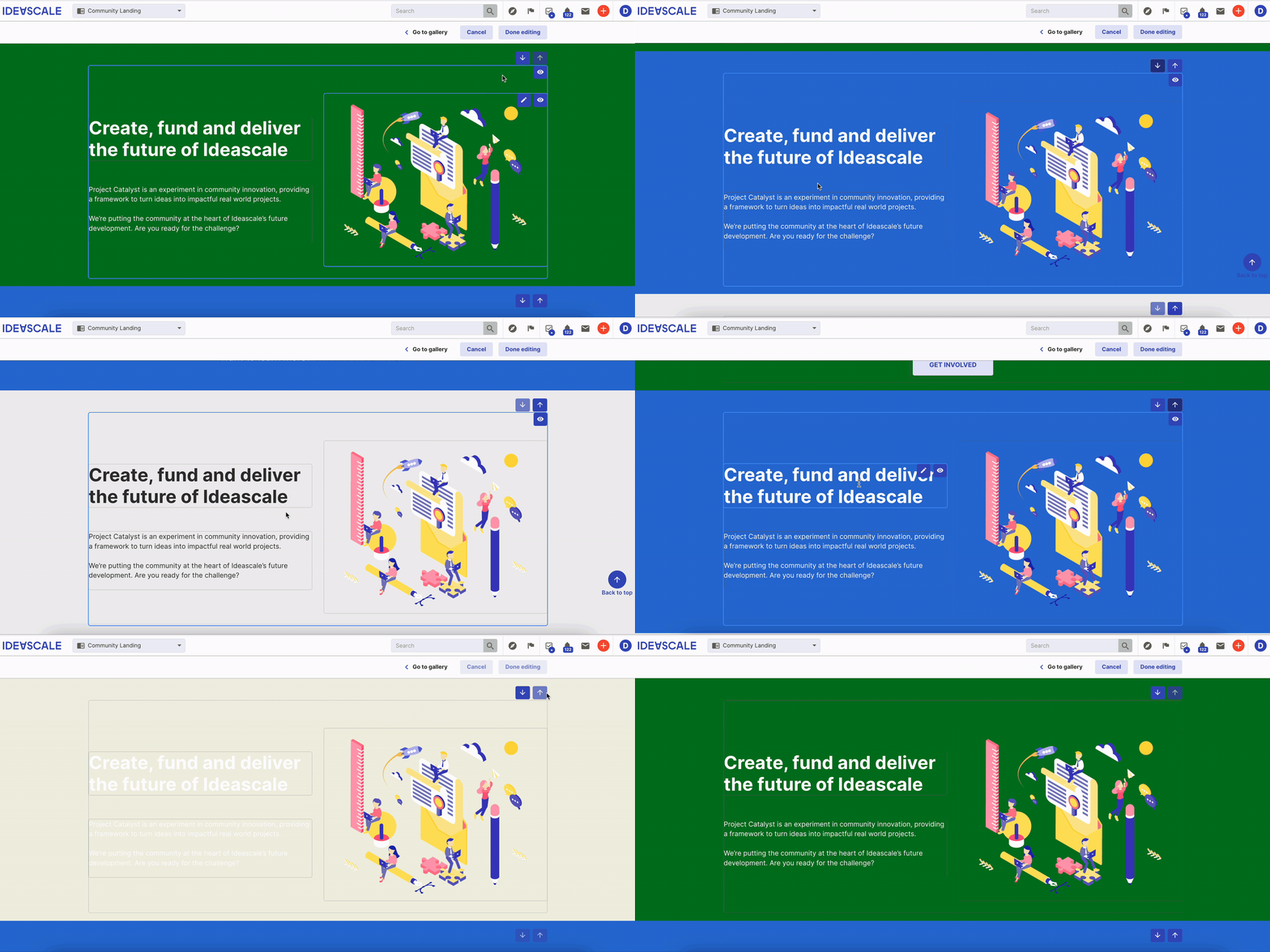
Modules on the Landing Page can be moved up and down using the arrow keys at the right corner of each module.
Display Type for Campaign
Campaigns on the Landing Page can be displayed using one of three display types: Stack, Carousel, or Grid.
Display Campaign Expiration
The Landing Page can display a campaign's expiration date when one has been set in the campaign's settings. When the countdown reaches fewer than 7 days remaining, the date appears in red.
Display Campaign Subtitles
The Landing Page can display a campaign's subtitle.
Exceptions
- Landing Page Template is Armstrong: Display Type for Campaign, Display Campaign Expiration, and Display Campaign Subtitles are not available; these options are limited to the Berners-Lee, Currie, and Eastman templates.
- More than 20 versions exist: Only the 20 most recent versions are saved. Older versions are automatically deleted and cannot be retrieved.
Frequently Asked Questions
Can Landing Page sections be removed?
No. Sections cannot be removed, but they can be reordered or hidden using the Eye icon.
How many Landing Page versions are saved?
Only the 20 most recent versions are saved. Once that limit is exceeded, the oldest version is automatically deleted and cannot be retrieved.
Which templates support the campaign display options?
Display Type for Campaign, Display Campaign Expiration, and Display Campaign Subtitles are available only on the Berners-Lee, Currie, and Eastman templates. The Armstrong template does not support these options.
Can the Landing Page be viewed by users who are not logged in?
Yes, if the Make it Public switch is enabled. This allows anonymous, non-logged-in users to view the Landing Page.
Related Articles