
Path: Workspace Homepage >> Navigation Panel >> Settings >> Community >> Logs
The Community Settings Logs section provides a detailed audit trail of all elements created, edited, or deleted within the Community Settings. Community Administrators can use this section to monitor configuration changes, track who made them, and review the exact values that were modified.

Log Table
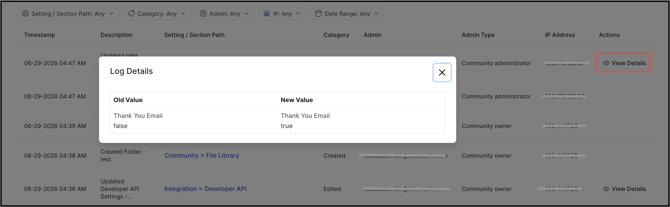
Each entry in the log table captures a comprehensive snapshot of every action performed within the Community Settings. The table includes the following columns:
1. Timestamp: The date and time when the action was performed.
2. Description: A summary of the setting that was created, updated, or deleted.
3. Setting/Section Path: The exact path of the setting that was affected.
4. Category: Indicates whether the action was a creation, update, or deletion.
5. Admin: The email address of the administrator who performed the action.
6. Admin Type: The role type of the administrator (Community Owner, Community Admin or Custom Admin) who performed the action.
7. IP Address: The IP address from which the action was performed.
8. Action: A View Details button that displays the old and new values of the setting, wherever applicable.
Filters
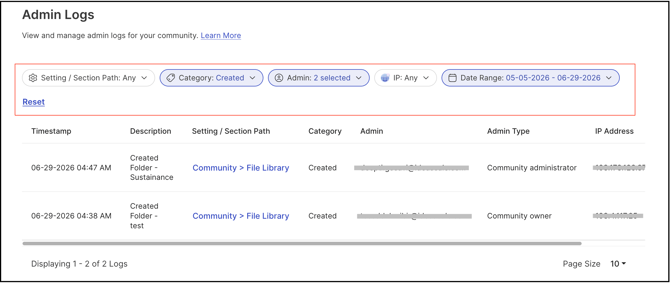
Filters can be applied to narrow down and search for specific log entries. The following filter options are available:
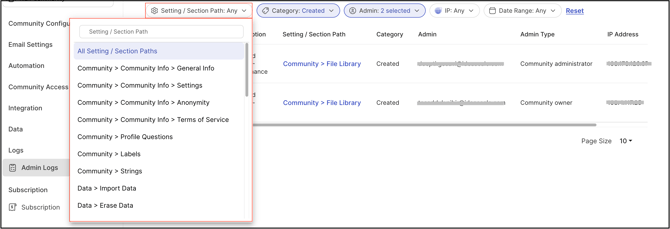
1. Settings/Section Path: By default, this filter is set to display all Settings/Section paths. A specific section path can be selected from the dropdown or entered manually by typing in the text field.
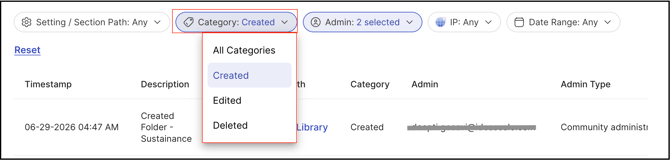
2. Category: Filter log entries by action type — select All Categories or choose a specific category: Created, Updated, or Deleted.
3. Admin: Search for a specific administrator who performed an action by selecting from the dropdown or typing their username directly into the search field.

4. IP: Enter an IP address and press Enter to search for actions performed from that address. Only valid IP addresses are accepted — an alert message will be displayed if an invalid IP address is entered.

5. Date Range: Select a start and end date from the date picker to filter log entries within a specific time period.
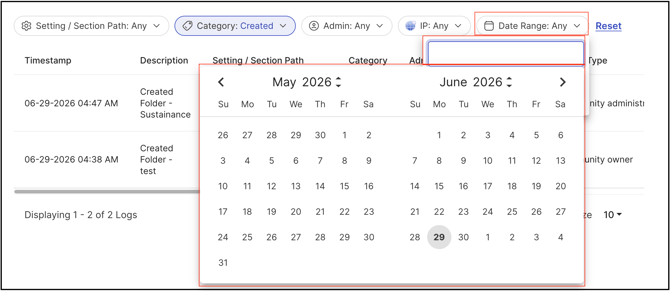
The Reset button will clear all the filters applied.