
Path: Profile Page >> Settings >> Email, Services and Devices
| What is a Primary Email Address? |
|---|
| The primary email address is the main verified email address linked to a profile, used for sign-in, account verification, and system notifications. |
The primary email address can be updated at any time from the Profile Page. This is particularly useful when administrator rights need to be transferred from one person to another, or when an account holder wants to update the email address linked to the account.
Role Permissions
- All Roles (Administrators, Moderators & Members): Can add, verify, and switch the primary email address on their own profile via the Profile Page.
TABLE OF CONTENTS
Add a New Email AddressVerify the New Email Address
Make the New Email Address Primary
Change Primary Email to an Address Already Registered with IdeaScale
Exceptions
Frequently Asked Questions
Add a New Email Address
- On the Profile Page, navigate to Settings >> Email, Services and Devices.
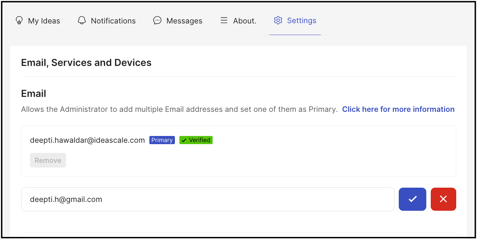
- Select the Add email address link.
- Enter the new email address in the field provided.
- Select the Check button to add it.
Verify the New Email Address
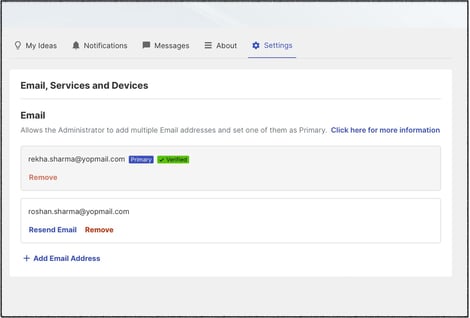
Once added, the new email address receives a verification email. Selecting the verification link in that email confirms the address.
%20copy.jpg?width=668&height=482&name=Screenshot%202024-09-06%20at%207%20(1)%20copy.jpg)
Once verified, a Verified label appears next to the email address, and the Make Primary option becomes visible in the Email, Services and Devices section.
Make the New Email Address Primary
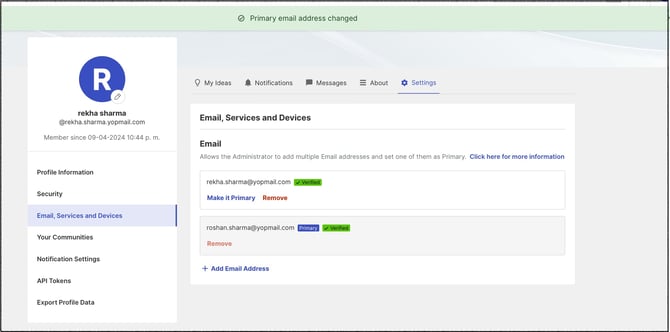
Selecting the Make Primary link next to the verified email address changes it to the primary email address.
Change Primary Email to an Address Already Registered with IdeaScale
It is also possible to change the primary email address to an address that is already verified and registered with IdeaScale and a member of the Workspace. In this scenario, the current primary email address holder must claim the desired address before it can be set as primary.
%20copy.jpg?width=670&height=453&name=Screenshot%202024-09-06%20at%207%20(2)%20copy.jpg)
Claim the Registered Email Address
- Select the Click here link to receive the Email claim verification code email.
- Select the verification link in the claim email, then log in to the community. The email address now appears as a secondary email address on the profile.
%20copy.jpg?width=670&height=467&name=Screenshot%202024-09-06%20at%208%20(1)%20copy.jpg)
- Select the Make Primary link to set the newly claimed address as the primary email address.
Exceptions
- Non-Whitelisted Email Domains: A non-whitelisted email address can be added to a profile, but attempting to set it as the primary address triggers a warning message indicating the change cannot be completed.
Frequently Asked Questions
What happens after a new email address is added to a profile?
The new address receives a verification email. Selecting the verification link confirms the address, after which a Verified label appears next to it and the Make Primary option becomes available.
How is a newly verified email address set as the primary address?
Selecting the Make Primary link next to the verified email address changes it to the primary email address.
Can a non-whitelisted email address be added to a profile?
Yes. A non-whitelisted email address can be added, but setting it as the primary address triggers a warning message indicating the change cannot be completed.
What must happen before an already registered email address can be made primary?
The current primary email address holder must claim the address first — by requesting the Email claim verification code, verifying it, logging in to the community, and then selecting Make Primary once the address appears as a secondary address on the profile.
Related Articles