
Path: Workspace Homepage >> Navigation Panel >> >> Campaigns >> Community >> Campaigns
| What is a Campaign? |
|---|
| A campaign is a designated category or container for ideas contributed by organization members, facilitating easy sorting by subject matter within the community. |
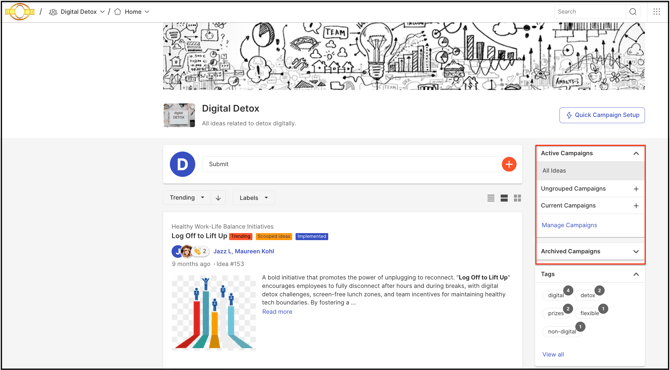
Use cases for campaigns include business functions (Sales, Marketing, Manufacturing, etc.), geographical regions (Northeast, Mid-Atlantic, Southeast, etc.), or idea types (Productivity Ideas, Fun Ideas, Profit Ideas). Campaigns appear on the right side of the community portal.
Role Permissions
- Community Administrator, Custom Administrator: Can create, edit and update a campaign.
- Campaign Administrator: Can update the Campaign Banner, Campaign Logo, and Campaign Featured Image using Edit mode from the front-end campaign page.
TABLE OF CONTENTS
Managing Campaigns
A. Search
B. Filters
C. Quick Setup
D. Create Campaign
E. Create Campaign Group
F. Action Tab
Creating and Editing Campaigns
A. Basic Information
B. Workflow
C. Settings
D. Submission Form
E. Email
F. Roles & Permissions
G. Schedule
Managing Campaigns
Managing campaigns is done through the features available in Campaign settings, described below.
A. Search
The search filter locates campaigns by campaign group name, campaign title, or campaign description, including partial-name matches.e.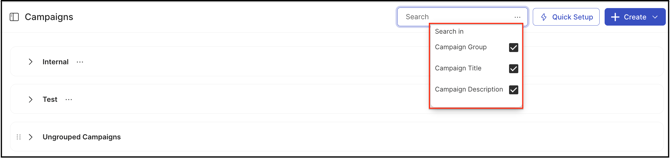
B. Filters
Campaigns can be filtered using the following conditions:

- Workflow: Filters by the selected Workflow name.
- Privacy: Filters by whether the campaign is Public or Private.
- Status: Filters by whether the campaign is Launched, Scheduled (future start date), Draft (not launched or scheduled), or Archived.
- Start Date: Filters by the campaign's start date, selected using the date picker.
- End Date: Filters by the campaign's end date, selected using the date picker.
- Created By: Filters by the Administrator who created the campaign, selected using checkboxes from the displayed admin list.
- Sponsor: Filters by campaign sponsor, selected using checkboxes from the displayed list.
- Assigned Group: Filters by assigned group, selected from the list, for Private campaigns.
C. Quick Setup
Selecting Quick Setup creates and configures a new campaign in a few clicks.
Help Article on Quick Campaign Setup
D. Create Campaign
Selecting Create launches a new campaign with a single click; its permissions and behaviors are then configured separately.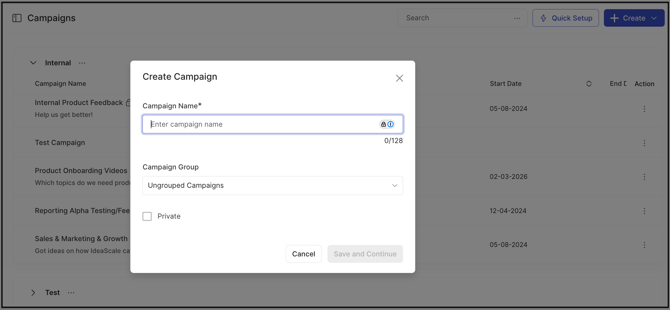
E. Create Campaign Group
Selecting Create launches a new campaign group with a single click; its permissions and behaviors are then configured separately. Campaign groups group related campaigns under one section for better operation and control.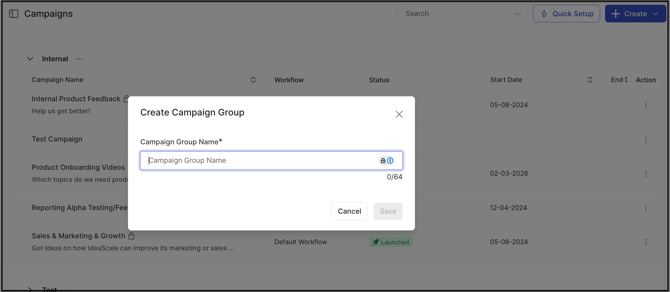
F. Action Tab
The Action Tab includes the following actions:
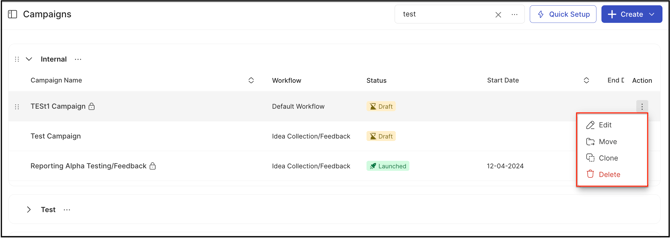
Edit
Campaigns, as well as their groups, can be edited or deleted by clicking on the respective links on the right side of the campaign name in Community settings. You can edit them even when they are active.
Move
The move option allows you to move campaign from one campaign group to another.
Delete
Delete campaigns by clicking the 'Delete' link, though once deleted all the ideas and data within this campaign will be deleted and this action cannot be undone.
Clone
To prevent the hassle of recreating a campaign with similar settings as an existing campaign, admin can use the Clone option.
Learn more about Campaign cloning
Reorder
Campaigns and campaign groups can be reordered by dragging them up and down; the new order is reflected on the frontend homepage as well.
Creating and Editing Campaigns
Campaign settings are organized into tabs, described below, so that campaigns can be configured to align with specific objectives.
A. Basic Information
The first tab includes Basic information about the campaign.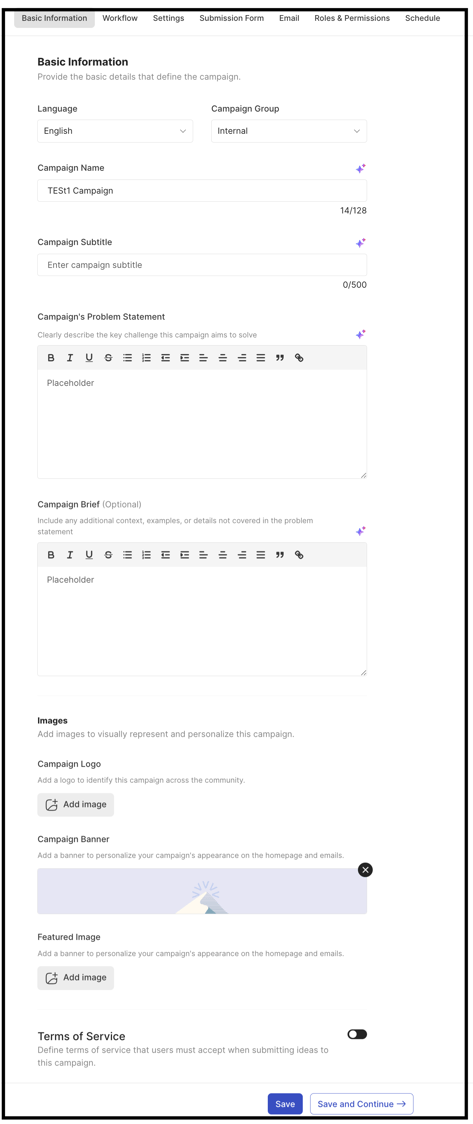
- Language: Sets the language a campaign is created in. Note: The language selection appears only during campaign creation and cannot be changed once the campaign is created.
- Campaign Group: If the community has created campaign groups, an Administrator can select a specific campaign group; otherwise the campaign moves to the community's Ungrouped campaign section.
- Campaign Name: The name specified for the campaign.
- Campaign Subtitle: Text or a line displayed just below the campaign's title.
- Campaign Problem Statement: A question or challenge statement summarizing the campaign's mission, intended to attract member participation.
- Campaign Brief: A detailed description covering information not included in the Campaign Problem Statement, such as the campaign's mission, goal, context, and evaluation criteria.
- Campaign Logo: Uploaded by drag and drop or chosen from the file library, at a recommended size of 300 x 300 pixels. Appears on the homepage as a thumbnail next to the campaign name. If no logo is set for either the community or the campaign, the thumbnail defaults to a random image from the default selection. Supported file formats for the campaign banner or logo are JPG, PNG, GIF, and BMP.
- Campaign Banner: A custom banner image visible on campaign pages, set by a Community or Campaign Administrator by dragging and dropping an image or selecting one already uploaded in the file library (requires enabling the 'Choose an image from the file library' setting). Selecting the link below the images reverts to a default selection. Uploaded images can be resized and readjusted using the image resizer. A gradient can be applied to the banner, and page titles can be displayed in black instead of white when they are not prominent against the selected banner. Note: The campaign banner image is also set as the email banner for all emails sent related to that campaign.
- Featured Image: The visual representation of the campaign, recommended as a square image at 690 x 518 pixels. Set by a Community or Campaign Administrator by dragging and dropping an image from the computer or selecting one already uploaded in the file library (requires disabling the 'Choose an image from the gallery' setting); animated GIFs are supported. Selecting the link below the images reverts to a default selection. The featured image displays on the homepage's About tab and in the campaign invitation email sent to members. Note: Apart from the Basic Information tab, the campaign name, subtitle, banner, logo, featured image, and challenge statement can also be changed from the frontend using Edit Mode.
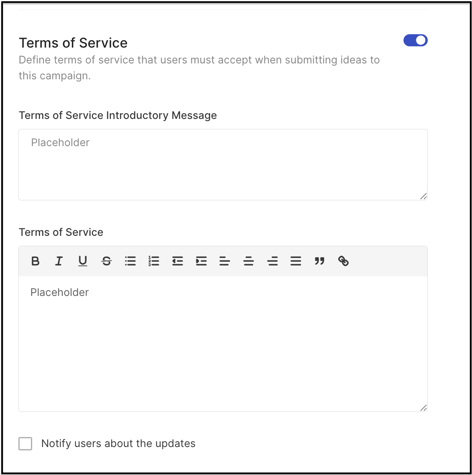
Help Article for Edit Mode - Terms of Service: A set of rules created for the campaign. Members can view and participate in the campaign only after agreeing to the Terms of Service.
Help Article for Edit Mode
B. Workflow
A Workflow is the set of stages an idea moves through on its way to becoming the best idea. Every community includes a default Workflow with a set of stages, and an Administrator can select a different Workflow using the search bar while setting up a campaign.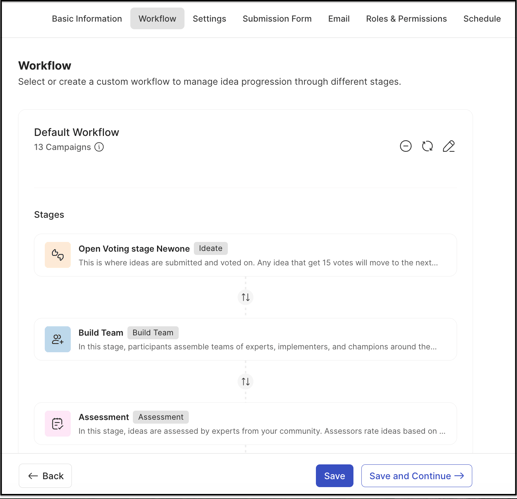
Note: Once an idea has been submitted to the campaign, the campaign's Workflow cannot be changed or altered. See Exceptions below.
Three icons to the right of the Workflow tab allow changes to the assigned Workflow: Remove Workflow, Replace Workflow, and Edit Workflow.
Help Article on Configuring Workflow
C. Settings
The Settings tab is divided into four sections — Idea, Comment, Idea Tags, and Miscellaneous — each providing configuration options for how ideas, comments, and tags are managed within the campaign.
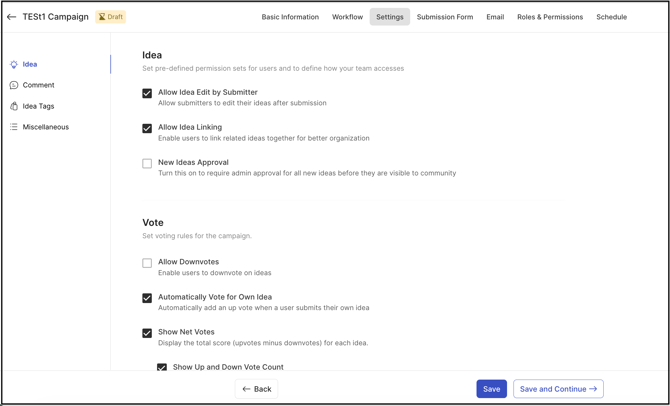
1. Idea
a.Idea
Allow Idea edit by submitter: The idea submitter will be allowed to edit the idea after the submission.
Allow Idea Linking: This allows you to link the ideas to related or similar ideas during idea submission.
New Ideas Approval: Enabling this will require each idea to be approved by a moderator before going live in the campaign for all members to view.
b. Vote
Allow Downvotes: Enabled to vote down on an idea.
Automatically vote for own idea: Idea submitter automatically votes on own idea as soon as idea is submitted.
Show Net Votes: Display the number of votes for an idea.
Show Up and Down Vote count: Enabling this setting displays the votes in Scale mode instead of Net Vote Count.
Show vote details in Idea activity tab: Includes the vote details in the Idea Details >> Activity tab.
2. Comment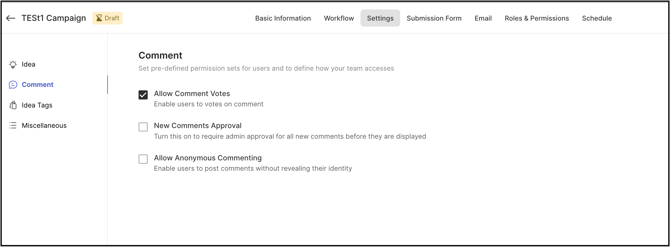
Allow comment Votes: Enables users to vote on comments.
New Comments Approval: Enabling this will require each comment to be approved by a moderator before going live in the campaign for all members to view.
Allow Anonymous Commenting: Enables users to add comment anonymously.
3. Idea Tags
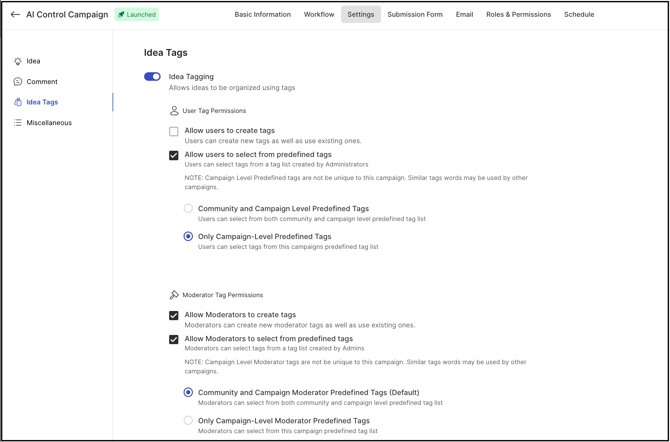
Idea Tagging: When enabled allows to turn ON tags related settings mentioned below.
a. User Tag Permissions
Allow users to create tags: Enables User applied tags that allows to assign tags to ideas.
Allow users to select from predefined tags: Allows users to assign tags from a pre-populate tag list created by admin. It has 2 additional settings
Community and Campaign Level Predefined Tags: It allows members to assign tags from both community and campaign level predefined tag list
Only Campaign Level Predefined Tags: It restricts the user to assign tags from the predefined list created for that campaign specifically.
b. Moderator Tag Permissions
Allow Moderators to create tags: Enables Moderator applied tags that allows to assign moderators tags to ideas.
Allow Moderators to select from predefined tags: Allows moderators to assign moderator tags from a pre-populate moderator tag list created by admin. It has 2 additional settings
Community and Campaign Level Predefined Tags: It allows moderators to assign moderator tags from both community and campaign level predefined moderator tag list.
Only Campaign Level Predefined Tags: It restricts the moderators to assign moderator tags from the predefined list created for that campaign specifically.
4. Miscellaneous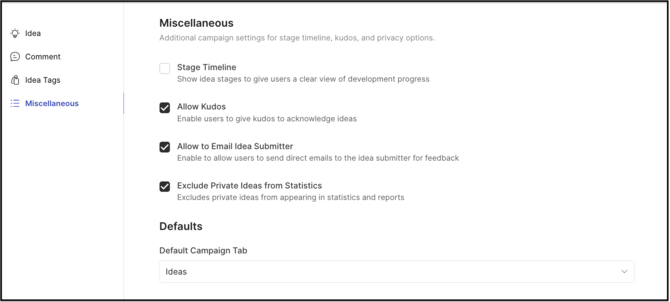
Stage Timeline: Enables the user to see a clear view and progression of the stage timeline.
Allow Kudos: Enables the users to give Kudos against ideas submitted.
Allow to Email Idea Author: Enabled the users to send direct email to the idea author.
Exclude Private Ideas from Statistics: Enabling this will exclude the private ideas from the statistics and reports of the campaign and community.
Default Campaign Tab: Administrators can select Ideas, About, Team, or Workflow from the dropdown to set the tab members see first when they open the campaign.
D. Submission Form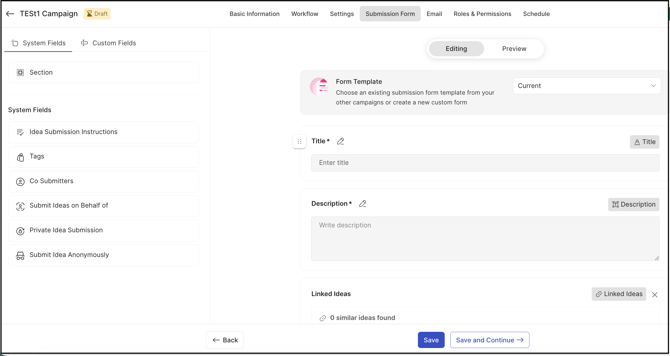
The submission form has two main sections: the Submission Form editor with a live preview on the right, and System Fields, Custom Fields, and Sections on the left. These are the elements available to build the form used to submit an idea. The form builder supports drag-and-drop, allowing questions to be arranged and reordered by dragging each element into position.
Help Article on Idea Submission Form
E. Email
The Email tab sends personalized invitations for a specific campaign, either inviting members to participate or sending a thank-you message after submission. 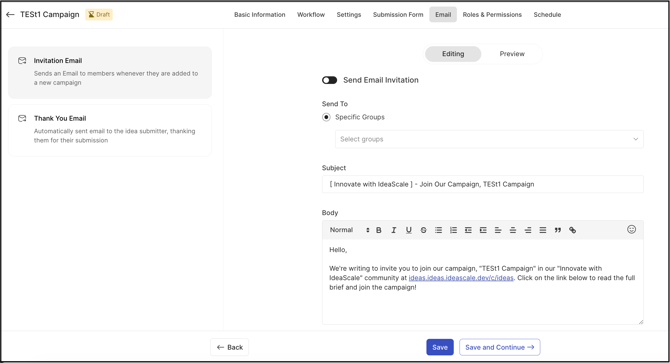
The invitation email includes the campaign banner, subject line, and body copy with key campaign details.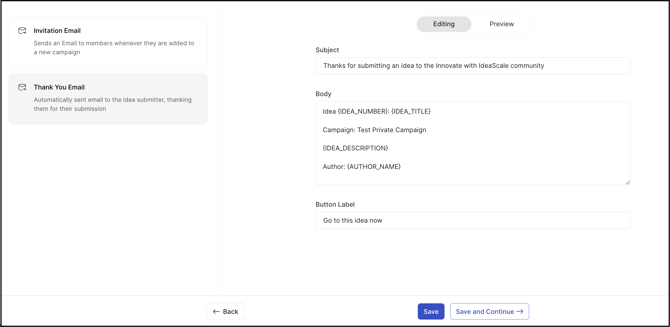
For a Thank You email, this setting customizes the message sent in response to an idea submission.
F. Roles and Permissions
The Roles and Permissions tab is divided into two sections, Roles and Permissions, visible on the left side of the campaign page.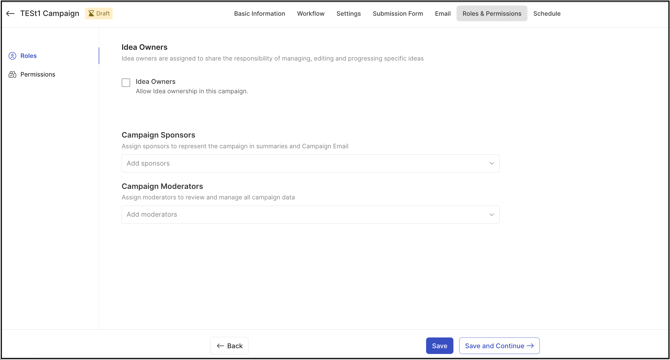
Roles: The roles included are Idea Owners, Campaign Sponsors and Campaign Moderators.
Idea owners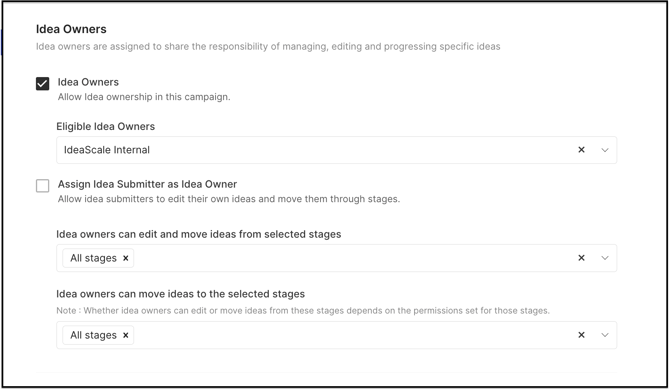
-
Idea Owners: Enables idea ownership for the campaign, which can be restricted to specific groups selected from the dropdown.
-
Assign Idea Submitter as Idea Owner: Automatically assigns the idea submitter as Idea Owner for the submitted idea.
- Idea Owners Can Edit and Move Ideas from Selected Stages: Selecting stages from the dropdown allows Idea Owners to edit ideas and move them into the specified stages.
- Idea Owners Can Move Ideas to the Selected Stages: Selecting stages from the dropdown allows Idea Owners to move ideas into the specified stages.
Permissions: Permissions shows whether the campaign is Private or Public and specifies which user groups can view ideas, submit ideas, add comments, and cast votes. 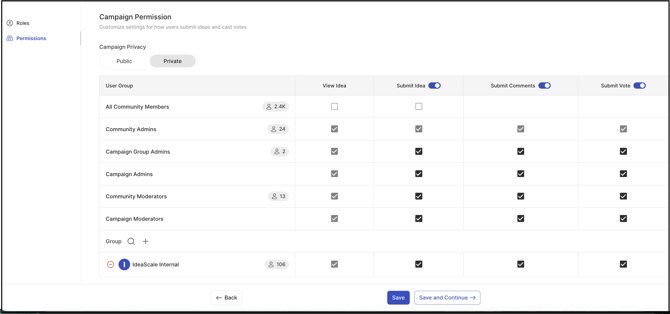
An Administrator can enable or restrict specific user actions by selecting the checkboxes next to each user group, and can add user groups permitted to participate in the campaign and manage their permissions through the permissions table.
G. Schedule
The Schedule tab launches or archives the campaign using the button on the right side of the page, and is divided into three sections:
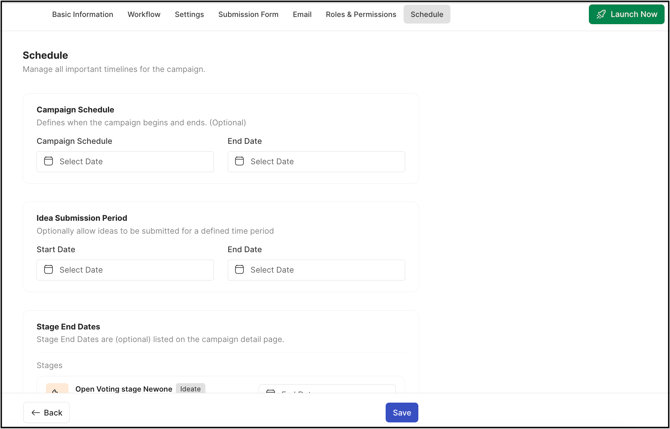
- Campaign Schedule: Defines the campaign's start and end date.
- Idea Submission Period: Defines the period during which ideas can be submitted.
- Stage End Dates: Defines a period for each stage in the campaign.
Archived Campaigns
Once a campaign passes its end date, it becomes an archived campaign and no longer appears under the Active Campaigns list on the homepage. An Archived Campaigns section appears on the homepage instead, listing all expired campaigns. See Exceptions below for access differences on archived campaigns.
.webp?width=270&height=303&name=Screenshot%202025-07-28%20at%2011%20(10).webp)
Exceptions
- Campaign Deletion: Deleting a campaign deletes all ideas and data within it; this action cannot be undone.
- Language Selection: The campaign language can be set only during campaign creation and cannot be changed afterward.
- Workflow Change: Once an idea has been submitted to the campaign, its assigned Workflow cannot be changed or altered.
- Archived Campaign Access: Community Administrators, Global Moderators, and the archived campaign's own Campaign Moderators can edit ideas, add comments, and add attachments to ideas in an archived campaign. A Campaign Moderator of a different, active campaign and a standard user can only view ideas and comments in an archived campaign; no other activity is allowed.
Frequently Asked Questions
Can a deleted campaign be recovered?
No. Deleting a campaign removes all of its ideas and data, and this action cannot be undone.
Can the campaign language be changed after the campaign is created?
No. The language selection is available only during campaign creation.
Can a campaign's Workflow be changed after ideas have been submitted?
No. Once an idea has been submitted to the campaign, the assigned Workflow cannot be changed or altered.
What happens to a campaign once it passes its end date?
The campaign becomes archived, is removed from the Active Campaigns list on the homepage, and appears instead under the homepage's Archived Campaigns section.
Who can still edit ideas in an archived campaign?
Community Administrators, Global Moderators, and the archived campaign's own Campaign Moderators can edit ideas, add comments, and add attachments. Campaign Moderators of other, active campaigns and standard users can only view ideas and comments.
Related Articles