
Path: Campaign Management >> Campaigns
| What is Campaign Cloning? |
| Campaign Cloning is a feature that lets an Administrator duplicate an existing campaign to quickly create a new one with the same configuration. |
Campaign Cloning allows an Administrator to create a new campaign in a few steps by generating an exact replica of an existing campaign, rather than configuring one from scratch.
Role Permissions
- Community Administrator: Can clone a campaign into the current community or into another community, subject to permission levels held in that other community.
- Community Moderator, Campaign Moderator: Do not have access to Campaign Cloning.
Cloning a Campaign
1. Navigate to Campaign Management >> Campaigns >> Action tab.
2. Select Clone next to the name of the campaign to be cloned.
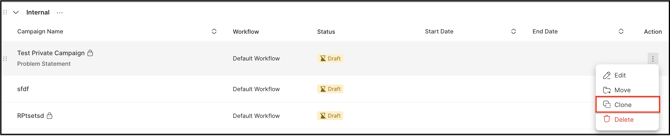
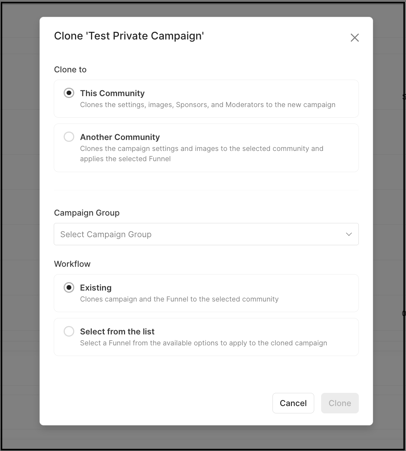
3. On the Clone Campaign page, select the community and campaign group where the new campaign will be placed, then select a workflow option:
- This Community and Existing Workflow: No further selections are required.
2. Another Community and Another Workflow: The community to clone the campaign into must be selected, along with the workflow to apply, from the available dropdowns. See Exceptions below for restrictions on which communities and workflows appear.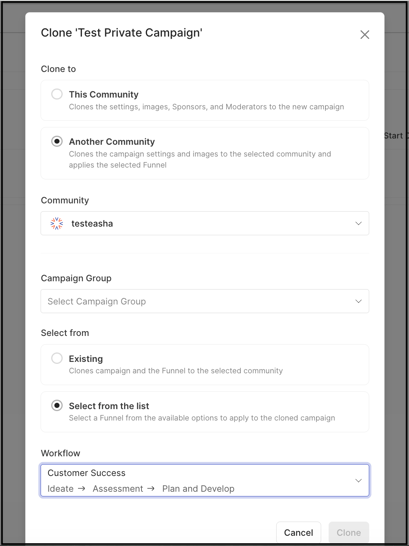
Note: The communities and workflows available for selection depend on the Community Administrator's permission levels in the other communities.
4. Once the clone is created, the new campaign appears with the name "[original campaign name] (copy)." It can be edited using the three-dot menu on the right side of the page, or the Clone Campaign page can simply be closed.
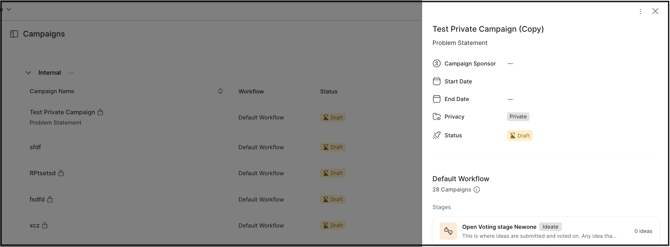
All settings, images, workflow, and moderators are copied to the new campaign. Cloning a workflow copies its settings only, not its user permissions.
Note: Predefined tags are not copied over during Campaign Cloning.
The cloned campaign appears in the List of Campaigns with the same name as the original, followed by "copy."
Exceptions
- Cross-Community Cloning: The communities and workflows available for selection when cloning into Another Community depend on the Community Administrator's permission levels in those other communities.
- Workflow Permissions: Cloning a workflow copies its settings but not its user permissions.
- Predefined Tags: Predefined tags on the original campaign are not carried over to the cloned campaign.
- Launch Status: A cloned campaign remains unlaunched. The Community Administrator must launch it manually.
Frequently Asked Questions
Is a cloned campaign launched automatically?
No. A cloned campaign remains unlaunched after creation. The Community Administrator must launch it manually.
Are predefined tags included when a campaign is cloned?
No. Predefined tags on the original campaign are not copied to the cloned campaign.
Does cloning a workflow also copy its user permissions?
No. Cloning a workflow copies only its settings. User permissions are not included and must be configured separately on the new campaign.
Can a campaign be cloned into a different community?
Yes. On the Clone Campaign page, selecting Another Community and Another Workflow allows the campaign to be cloned into a different community, provided the Community Administrator holds sufficient permission levels in that community.