
Path: Workspace Homepage >> Navigation Panel >> >> Campaign >> Community >> Workflow >> Assessment Stage
| What is the Assessment Stage? |
|---|
| The Assessment Stage is a stage in the idea workflow where designated assessors evaluate ideas against custom questions and rating criteria selected by the Community Administrator. |
The Assessment Stage allows ideas to be evaluated systematically using custom questions and rating criteria, completed by assessors designated by the Community Administrator. This stage helps organize and prioritize ideas while building alignment and support behind a community's most promising opportunities.
Role Permissions
- Community Administrator: Configures the Assessment Stage across its Info, Settings, Automation, and Permissions tabs; assigns the Assessment Team; configures assessment Permissions; sends reminder emails to unassessed members; and exports assessment results and non-assessed member lists to Excel.
- Assessor: Rates ideas against the assessment questions using the configured rating key, adds assessment notes, and can edit a submitted assessment rating from the Activity tab on the idea detail page.
- Community Member (non-assessor): Views assessment ratings and notes on the idea detail page only where the Permissions section and the Private Assessment Submission setting allow it; otherwise sees an Awaiting Assessments label.
TABLE OF CONTENTS
Assessment Stage Setup
1. Info
2. Settings
3. Automation
4. Permissions
Stage Functionality on Homepage
Reminder to all Unassessed Members
Export to Excel
Exceptions
Frequently Asked Questions
Assessment Stage Setup
Assessment Stage setup is divided into 4 tabs - Info, Settings, Automation & Permissions.
1. Info
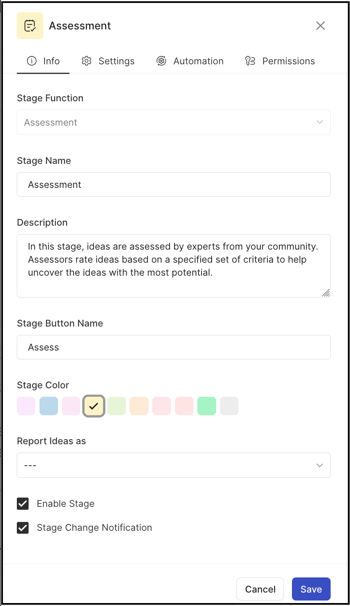
The Info tab contains basic details about the stage:
- Stage Function: Selected from a dropdown. Once selected and saved, this field is greyed out and cannot be changed to another stage.
- Stage Name: A custom name or label for the stage. Note: Character limit is 40.
- Stage Key: A unique identifier for the stage, required for API call data retrieval. Once saved, the Stage Key cannot be changed.
- Description: Describes the stage's functionality or intended use. This description displays as mouseover text on the stage stack in the right navigation of the Community Homepage.
- Stage Color: A color for the stage, selected from 10 available default options.
- Reported Ideas As: Sets the stage to apply a Selected or Implemented label to all ideas within it, or leaves the field blank to apply no label.
Help article on Selected & Implemented Ideas
- Enable Stage: A checkbox that activates the stage, allowing ideas to be moved into it.
- Stage Change Notification: A checkbox that activates the stage change notification, sending a stage change email to members who have opted in.
2. Settings
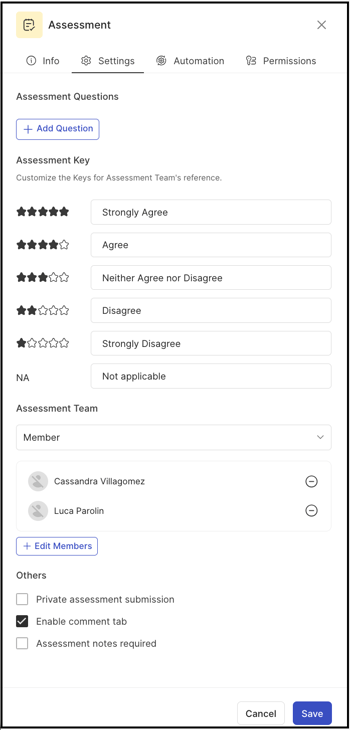
The Settings tab contains stage-specific settings:
- Assessment Questions: A set of structured custom questions used to evaluate each idea and assign a corresponding rating.
- Key: Defines what each star or rating value represents for the Assessment Team. By default, the available options are Strongly Agree (5 stars), Agree (4 stars), Neither Agree nor Disagree (3 stars), Disagree (2 stars), Strongly Disagree (1 star), and Not Applicable (NA).
- Assessment Team: Determines who assesses ideas. The Community Administrator can assign assessment to an individual member, a specific group of members, or a team role.
- Private Assessment Submission: When enabled, assessment data remains confidential and is not displayed on the idea detail page. Only the review submitter and the Community Administrator can view individual assessments, so one Assessor cannot see another Assessor's ratings, and the overall rating for the idea is not visible to other members.
- Display Anonymized Reviews To Stage Viewers: Visible only when Private Assessment Submission is enabled. See Exceptions below.
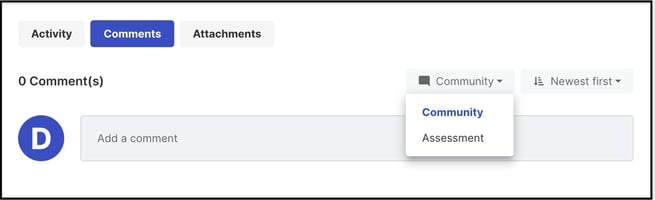
- Enable Comments tab: Creates two separate sections within the Comments tab — one labeled Community and one corresponding to the Assessment Stage. Members can contribute comments related to the idea in the Community tab, while feedback specific to the Assessment Stage is recorded in the second tab by members authorized to participate in that stage.
-
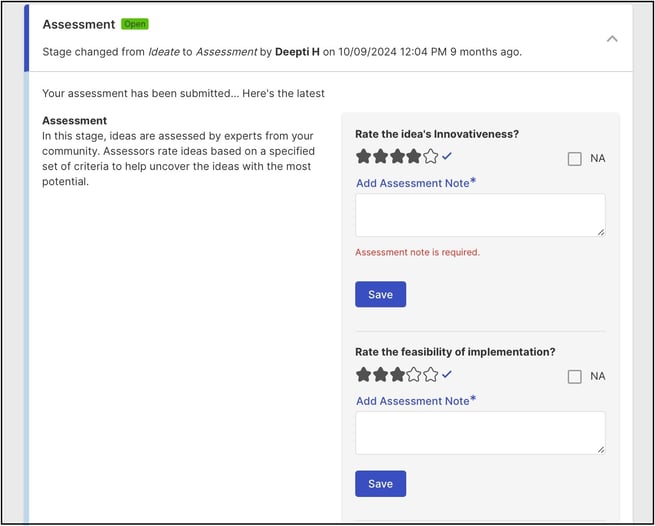
Assessment Notes Required: See Exceptions below.
3. Automation
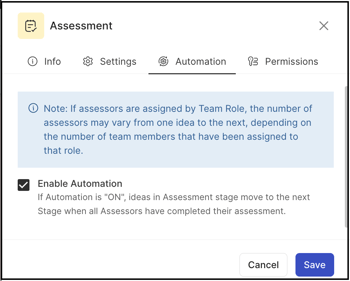
The Automation tab configures automation for the Assessment Stage. When enabled, an idea automatically advances to the next stage in the workflow once every Assessor assigned to it has completed their assessment.
4. Permissions
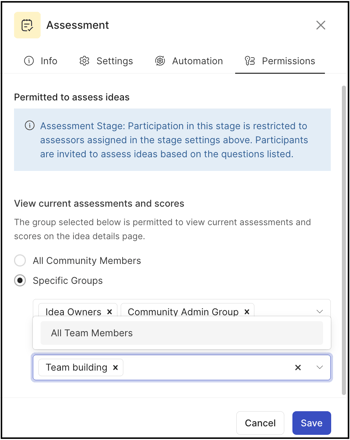
The Permissions tab defines who can view assessments and scores submitted by Assessors on the idea detail page. The Community Administrator can configure these permissions for all community members, for a specific group, or for a specific Team Member role, the last of which is available only if a team role has been specified and filled in any build team stage within the same funnel.
Stage Functionality on Homepage
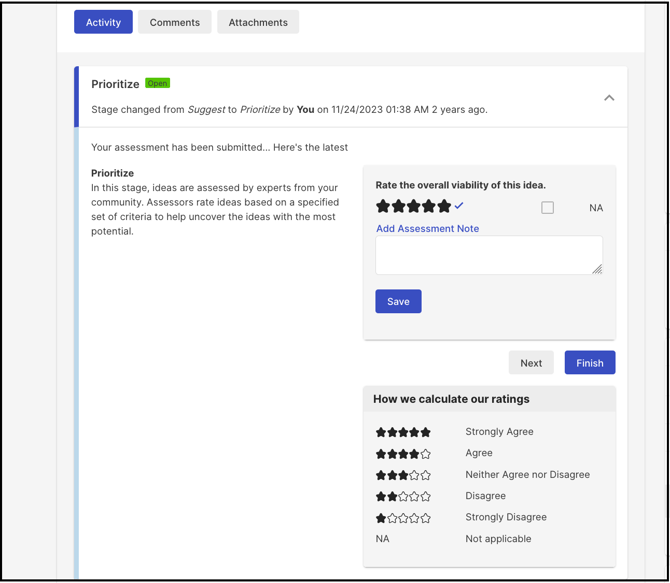
Assessors rate ideas on a 5-star scale or select NA, using the rating key shown below each question, and can add an optional or required assessment note per question before selecting Finish. Notes are visible only to the Assessor's team.
An Assessor can view their own ratings and assessment notes, as well as other Assessors' ratings, depending on the Private Assessment Submission setting, on the idea detail page. Ratings from each Assessor are added and averaged to calculate the idea's overall rating. An Assessor can edit their submitted assessment rating by selecting Edit Rank above the submitted assessment under the Activity tab on the idea detail page.
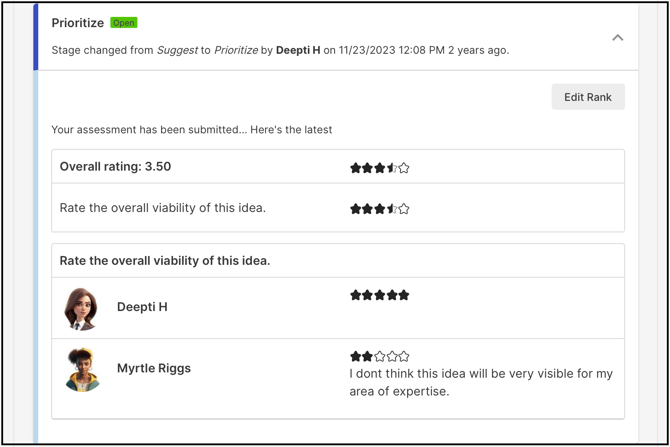
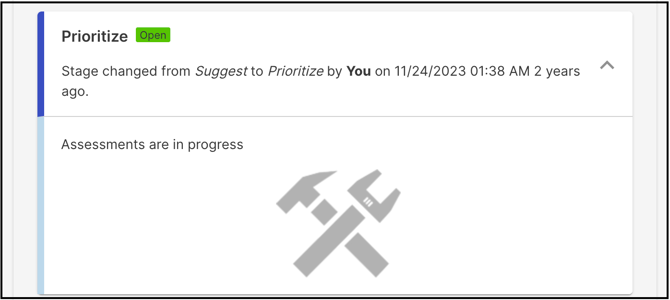
Community Members who are not assessors cannot see the assessment rating or the overall rating on the idea detail page if Private Assessment Submission is enabled; they instead see an Awaiting Assessments label in the CTA block.
Reminder to all Unassessed Members
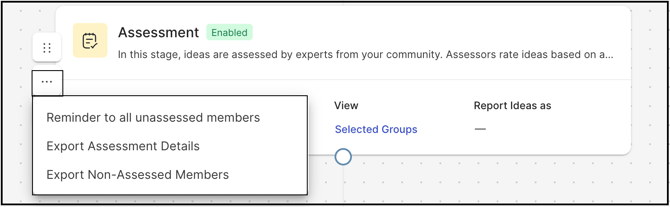
The Community Administrator can send reminder emails to all Assessors who have not yet evaluated ideas in the Assessment Stage, using the Remind all unassessed members option available under the More (three dots) menu for the relevant stage on the Workspace Edit page. See Exceptions below.
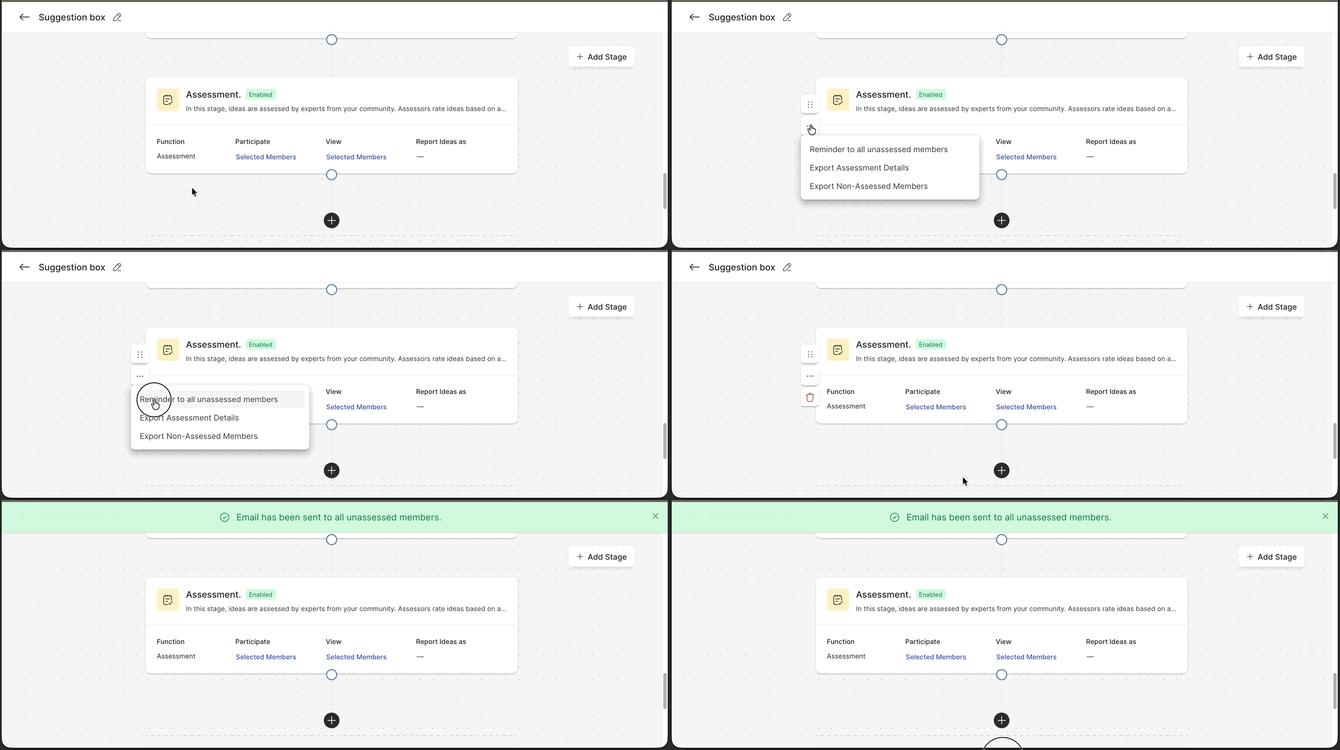
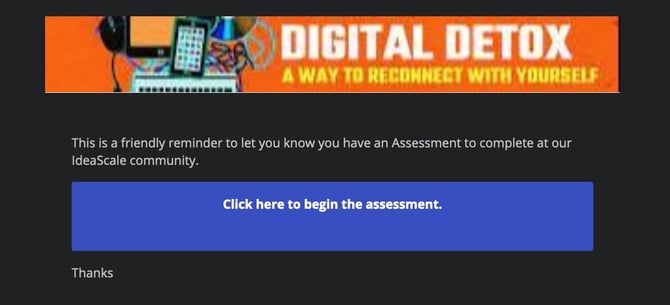
This action triggers an email notification prompting outstanding Assessors to complete their assessments.
Export to Excel
Assessment results, including all member responses and the list of non-assessed members, can be exported by the Community Administrator in Excel format, using the options available under the More (three dots) menu for the relevant stage on the Workspace Edit page.
Export Assessment Details
This Excel report contains four sheets:
Assessment with workflow name: It contains Stage Name, Stage Type, Idea ID, Idea Number, Idea Title, Idea Description, idea custom fields, Idea Submitter name and email address, Idea Owner name and email address, Idea Campaign, Tags, Assessment Ratings, Assessment, Assessment Questions, and Member name and email.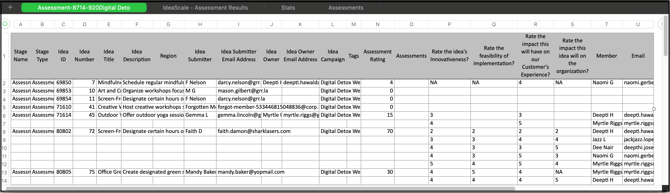
IdeaScale - Assessment Results: Contains Idea ID, Idea Title, Idea Description, Idea Submitter Name, Member ID, Stage Name, Idea Campaign, Assessment Rating, Assessment Question, Assessing Member ID, Assessing Member Name, Email, and Date.

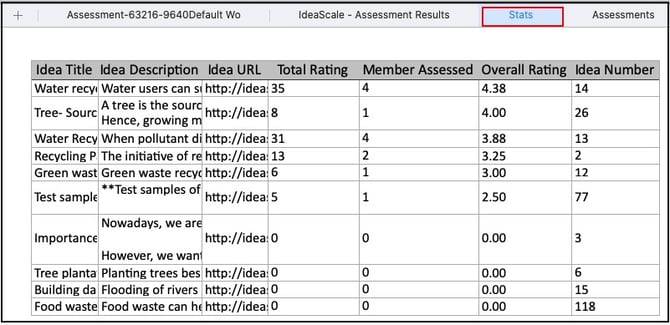
Stats: Contains Idea Title, Idea Description, Idea URL, Total Rating, Member Assessed, Overall Rating, and Idea Number.
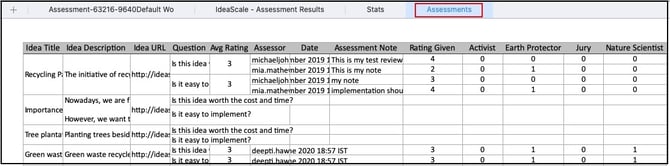
Assessment: Contains Idea Title, Idea Description, Idea URL, Question, Average Rating, Assessor, Date, Assessment Note, Rating Given, and all group names within the community.
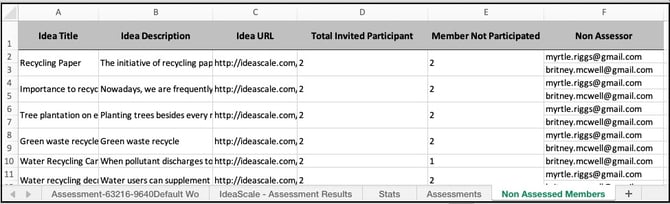
Export Non-Assessed Members
This Excel report contains Idea Title, Idea Description, Idea URL, Total Invited Participant count, Member Not Participated count, and Non-Assessor email addresses.
Help Article on Assessment Stage rating calculation formula
Exceptions
- Display Anonymized Reviews To Stage Viewers: This switch is visible only when Private Assessment Submission is enabled. When activated, scores and notes from Assessors display under the label Community Member instead of the Assessor's username; this effect becomes apparent only once the idea has moved to a different stage.
- Assessment Notes Required: When enabled, an Assessor's score for a question is not saved and the Assessor cannot advance to the next question until a note is submitted for that question.
- Reminder Frequency: Only one assessment reminder can be sent per day to unassessed members.
Frequently Asked Questions
Can one Assessor see another Assessor's ratings?
It depends on the Private Assessment Submission setting. When Private Assessment Submission is enabled, assessment data remains confidential, and one Assessor cannot see another Assessor's ratings or the idea's overall rating. When it is disabled, Assessors can see each other's ratings alongside their own on the idea detail page.
Can a submitted assessment rating be changed?
Yes. An Assessor can edit a submitted assessment rating by selecting Edit Rank above the submitted assessment under the Activity tab on the idea detail page.
Who decides which members assess an idea?
The Community Administrator determines the Assessment Team from the Settings tab of the Assessment Stage, assigning assessment to an individual member, a specific group of members, or a team role.
What happens once all assigned Assessors complete their assessment of an idea?
If Automation is enabled on the Automation tab, the idea automatically advances to the next stage in the workflow once every Assessor assigned to it has completed their assessment.
How many assessment reminders can be sent in a day?
Only one assessment reminder can be sent per day to unassessed members, triggered by the Community Administrator using the Remind all unassessed members option under the More (three dots) menu.
Related Articles
- Help Article for Selected & Implemented Ideas
- Help Article for Assessment Stage Rating Calculation Formula