
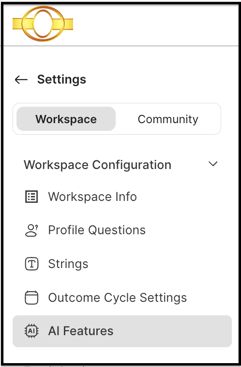
Path: Workspace Homepage >> Navigation Panel >> Settings >> Workspace Configuration >> AI Features
| What is the AI Chatbot? |
|---|
| AI Chatbot is a secure, government-grade AI assistant that analyzes community data and returns contextually appropriate responses in text or image format. |
The AI Chatbot is deployed in a FedRAMP-authorized, in-boundary environment, making it suitable for federal agencies and other highly regulated industries with strict data protection requirements. It is part of IdeaScale's broader AI toolkit and is accessible from the top navigation bar on frontend community pages.
Role Permissions
- Workspace Administrator: Has access to the AI Chatbot, including starting and reviewing chats, configuring Assistant Instructions in Settings, and creating and using Prompt Library entries.
- Community Owner: Has access to the AI Chatbot, including starting and reviewing chats, configuring Assistant Instructions in Settings, and creating and using Prompt Library entries.
- Global Administrator: Has access to the AI Chatbot, including starting and reviewing chats, configuring Assistant Instructions in Settings, and creating and using Prompt Library entries.
- Custom Administrator: Has access to the AI Chatbot, including starting and reviewing chats, configuring Assistant Instructions in Settings, and creating and using Prompt Library entries.
- Campaign Administrator: Has access to the AI Chatbot, including starting and reviewing chats, configuring Assistant Instructions in Settings, and creating and using Prompt Library entries.
- Campaign Group Administrator: Has access to the AI Chatbot, including starting and reviewing chats, configuring Assistant Instructions in Settings, and creating and using Prompt Library entries.
- Global Moderator: Has access to the AI Chatbot, including starting and reviewing chats, configuring Assistant Instructions in Settings, and creating and using Prompt Library entries.
- Campaign Moderator: Has access to the AI Chatbot, including starting and reviewing chats, configuring Assistant Instructions in Settings, and creating and using Prompt Library entries.
- Group Moderator: Has access to the AI Chatbot, including starting and reviewing chats, configuring Assistant Instructions in Settings, and creating and using Prompt Library entries.
- Custom Field Moderator: Has access to the AI Chatbot, including starting and reviewing chats, configuring Assistant Instructions in Settings, and creating and using Prompt Library entries.
- Translator Moderator: Has access to the AI Chatbot, including starting and reviewing chats, configuring Assistant Instructions in Settings, and creating and using Prompt Library entries.
- Regular Community Member: Does not have access to view or use the AI Chatbot.
TABLE OF CONTENTS
AI Chatbot Setup
AI Chatbot Window
Prompt Library
Exceptions
Frequently Asked Questions
AI Chatbot Setup
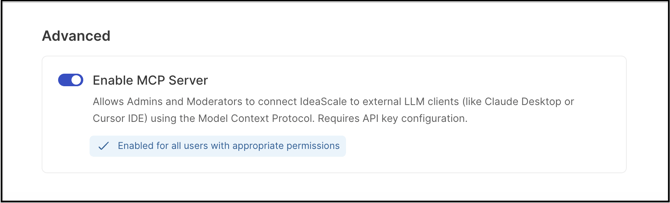
The availability of the AI Chatbot depends on the MCP server configuration in Workspace Configuration >> Workspace Info >> AI Features. The MCP server is ON by default, which makes the AI Chatbot available for use. See Exceptions below for what happens when the MCP server is turned OFF.
AI Chatbot Window
The AI Chatbot icon appears in the top navigation bar on all frontend community pages. Selecting the icon opens the AI Chatbot window, which serves as the primary interface for interacting with the AI. A Workspace Administrator or Moderator can drag the window to any location on the page, or maximize it to enter an uninterrupted, focused mode.
.gif?width=670&height=328&name=Screen-Recording-2026-06-25-at-1%20(1).gif)
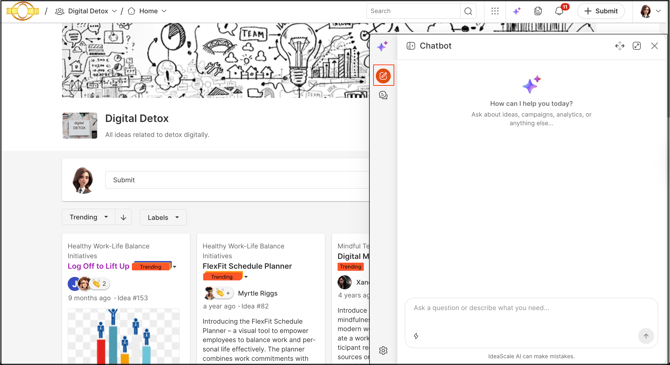
1. New Chat
By default, the AI Chatbot window opens to the New Chat section to start a new interaction. Entering a query and selecting the send button returns data from the AI Chatbot.
2. Chats
Selecting the Chats tab in the AI Chatbot window displays a chronological list of past conversations with the AI Chatbot. The list can be scrolled through and a conversation selected directly, or filtered by entering keywords into the search field. From the Chats tab, a Workspace Administrator or Moderator can resume a selected conversation and continue the previous query, or start a separate interaction at any time by selecting the New Chat button.
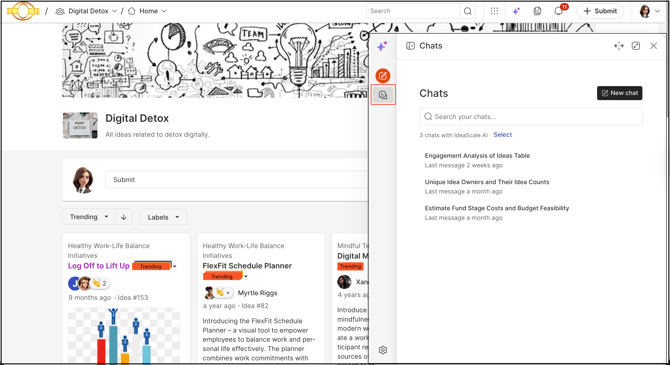
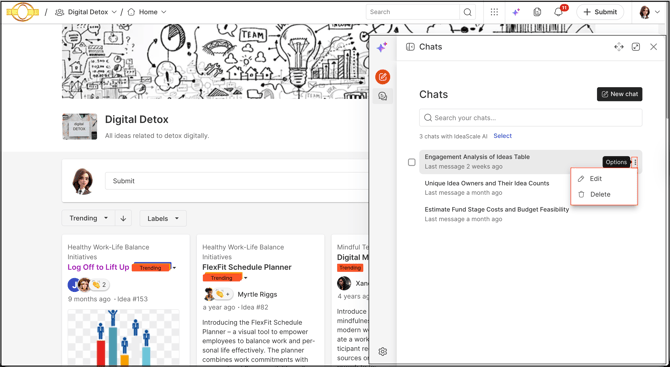
Past chats can be renamed or deleted. Hovering over a chat title and selecting the More (three dots) icon opens the option to select Edit to update the name, or Delete to remove the conversation.
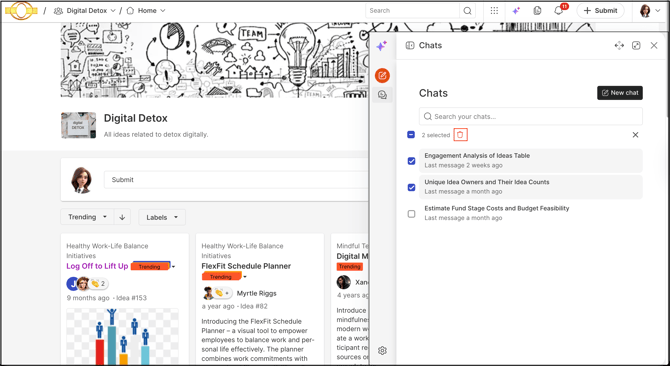
Multiple chats can also be deleted at once. Selecting the Select option below the search field allows the desired conversations to be chosen by ticking their checkboxes. Selecting the Delete icon after making selections permanently deletes the chosen chats.
3. Settings
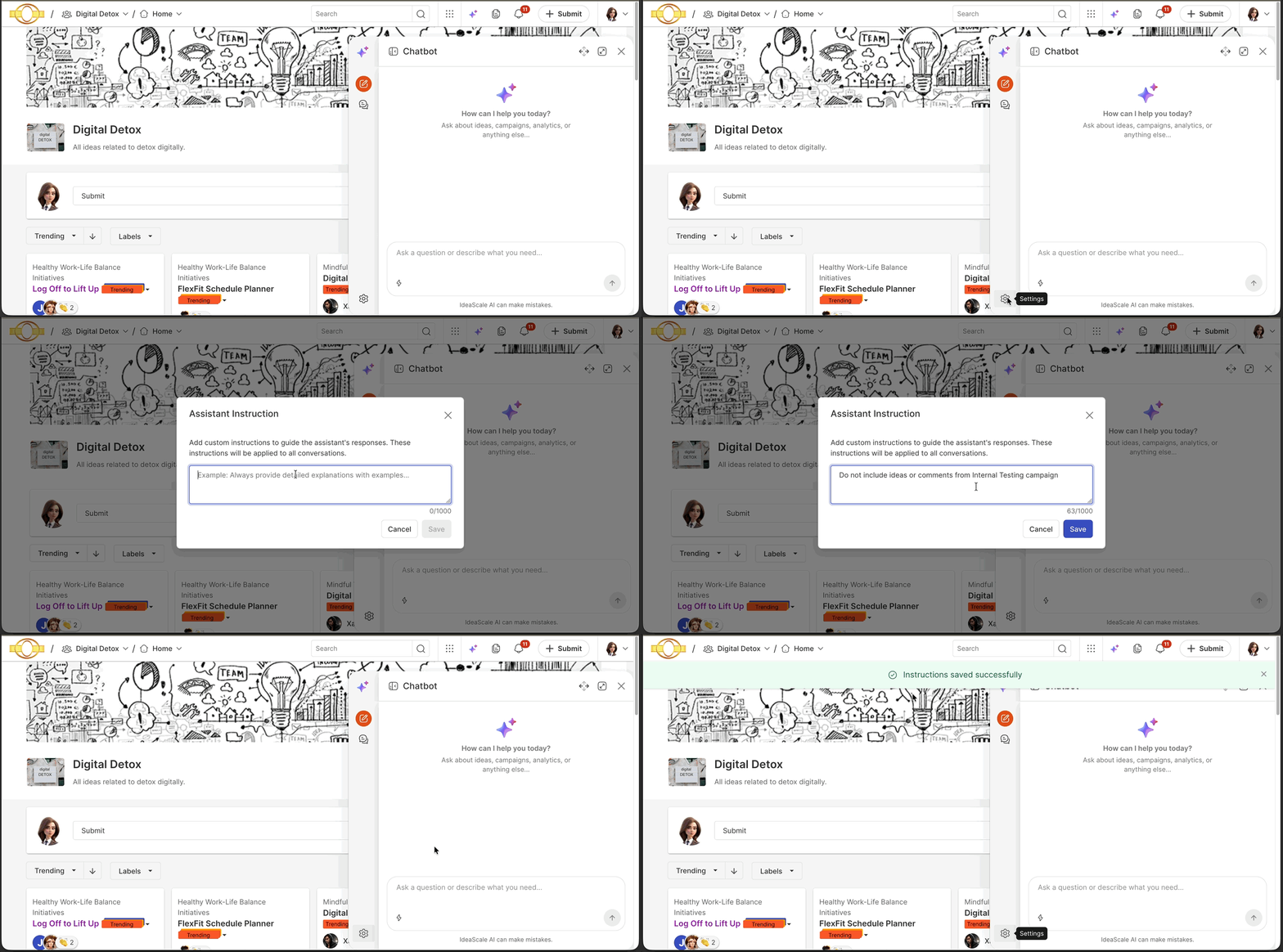
A Workspace Administrator or Moderator can define global instructions for the AI Chatbot that apply to all chats and interactions, ensuring consistent behavior and removing the need to retype the same guidance for each session. Selecting the Settings icon in the AI Chatbot window and entering text in the Assistant Instruction field configures these instructions.
Prompt Library
Prompt Library allows a Workspace Administrator or Moderator to create and store default prompts for the AI Chatbot. These reusable prompts make it easier to search for frequently needed, specific community data without retyping the same query for each interaction.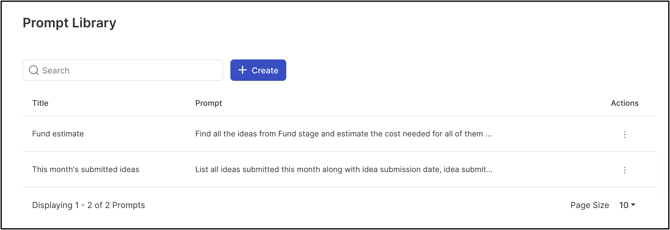
Saved prompts are displayed in the AI Chatbot window under the Prompt Library icon, where a Workspace Administrator or Moderator can select and apply them during AI interactions. Prompts created in the Workspace Prompt Library are marked with a Workspace icon, while prompts created at the community level have no icon indicator.
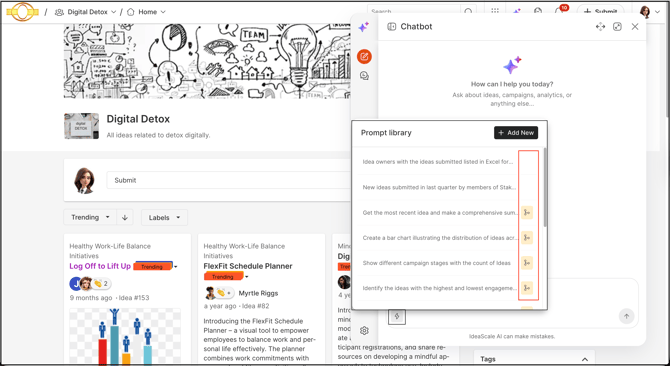
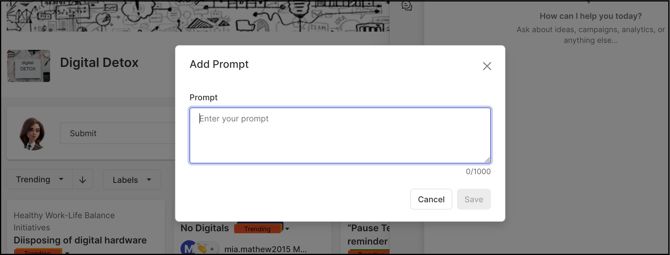
A Workspace Administrator or Moderator can choose from existing prompts in the Prompt Library, available in Community Settings, or create a new prompt directly in the AI Chatbot on the homepage by selecting the Add New button. Entering a clear, descriptive prompt in the text field — focused on the specific community data or insight the AI should return — and selecting Save stores the prompt in the Prompt Library for consistent, repeatable use in future AI Chatbot interactions.
Exceptions
- MCP Server Disabled: If the MCP server is turned OFF in Workspace Configuration >> Workspace Info >> AI Features, the AI Chatbot is disabled and unavailable for use.
Frequently Asked Questions
Can regular community members access the AI Chatbot?
No. The AI Chatbot is available only to Administrator and Moderator roles. Regular community members cannot access or view the chatbot.
What happens to the AI Chatbot if the MCP server is turned off?
Turning the MCP server OFF in Workspace Configuration >> Workspace Info >> AI Features disables the AI Chatbot, making it unavailable for use. See Exceptions above.
Can the AI Chatbot return responses in formats other than text?
Yes. The AI Chatbot can analyze community data and return contextually appropriate responses in either text or image format.
Is there a difference between prompts created in the Workspace Prompt Library and those created in a community?
Yes, in how they are labeled. Prompts created in the Workspace Prompt Library display a Workspace icon in the AI Chatbot window, while prompts created within a community have no icon indicator. Both types are otherwise selected and applied the same way during AI Chatbot interactions.
Can a deleted chat be recovered?
No. Deleting a chat, whether individually or as part of a bulk deletion, permanently removes it and cannot be undone.
Related Articles