
Path: Workspace Homepage >> Navigation Panel >> Settings >> Security >> Authentication >> Email Login Settings >> 2 Step Authentication
| What is 2 Step Authentication? |
|---|
| 2 Step Authentication (2FA) is a security feature that requires a member to verify their identity with a second authentication method — an emailed one-time code or an authenticator app code in addition to a password, when logging in. |
2 Step Authentication can be enabled at two levels: the Workspace Administrator enables and configures it for the entire workspace, and individual members manage their own 2 Step Authentication settings from the Profile page once it has been made available. The feature applies only to the IdeaScale Email and Password authentication pathway; SSO and social login are governed separately.
Role Permissions
- Workspace Administrator: Enables 2 Step Authentication for the workspace , sets the trusted-device re-authentication frequency, determines which authentication method(s) — email code, authenticator app, or both — are available to members and can force a member to reset 2 Step Authentication from Workspace Member Management.
- Member: Enables and manages 2 Step Authentication from the Profile page once the setting has been made available at the workspace level, selects an available authentication method, records backup codes, and can generate a new set of backup codes using the Refresh Codes link.
TABLE OF CONTENTS
Administrative level
Individual user level
Resetting 2 Step Authentication
Exceptions
Frequently Asked Questions
Administrative Level
The Workspace Administrator can enable 2 Step Authentication from Settings >> Security >> Authentication >> Email Login Settings >> 2 Step Authentication. The Workspace Administrator can require re-authentication using Every 30 days, which trusts a device for 30 days before prompting again, or Do not support trusted devices, which prompts for 2 Step Authentication every time a member logs in.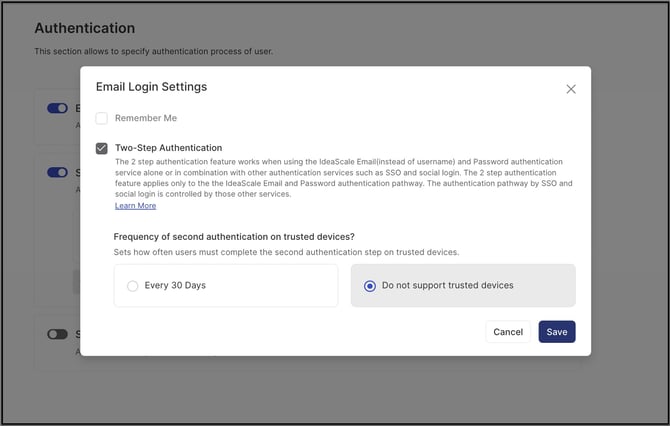
Individual User Level
2 Step Authentication is an individual Security setting made available to members once it has been enabled by the Workspace Administrator at the workspace level. The Workspace Administrator determines whether the setting is enabled or disabled for the members of the workspace.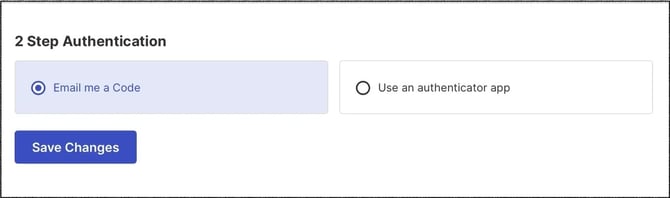
Choosing an Authentication Method
2 Step Authentication can be completed in one of two ways: by email, where a member receives a One Time Password, or by authenticator app, where a member scans a QR code to generate a 6-digit code. If only one method is made available, a member can only enable 2 Step Authentication through that method from the Profile page (see Exceptions below).
Note: If 2 Step Authentication is enabled at the workspace level, members cannot turn it off from their Profile page.
Login With 2 Step Authentication
Once 2 Step Authentication is enabled, a member logging in must enter their login credentials and is then shown a screen requesting the 2 Step Authentication code.
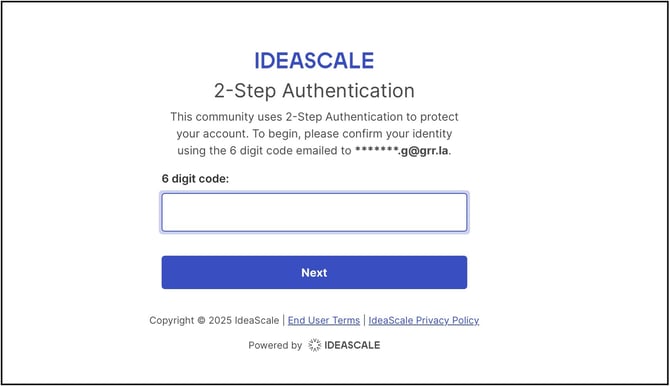
The code is sent to the member's registered email address.
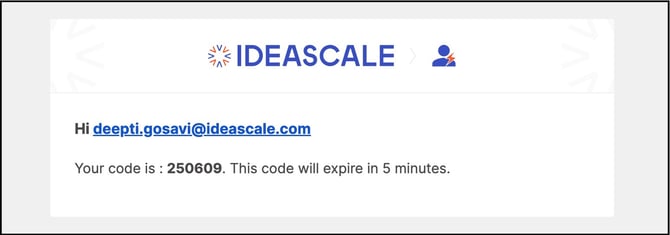
Backup Codes
The first time a member sets up 2 Step Authentication, 5 backup codes are provided for use if the member is away from their phone, is traveling, or if their device is lost or stolen. Each backup code can be used only once and should be recorded in a safe place. Selecting Complete after recording the codes returns the member to the Profile section.
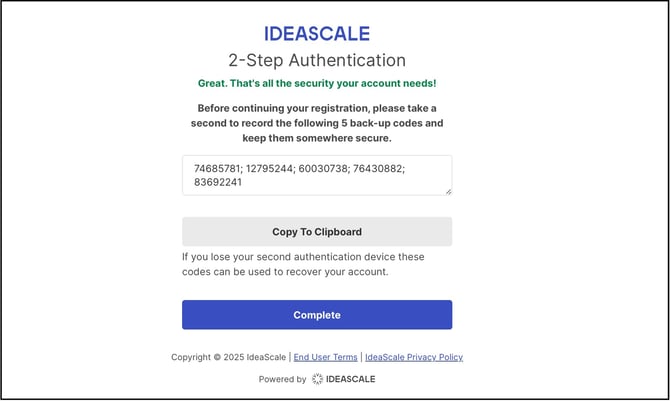
If a member did not record the backup codes during setup, they can be retrieved from Profile >> Security >> 2 Step Authentication. Backup codes are generated for the Email me a code method, and a member can select Refresh Codes to generate a new set.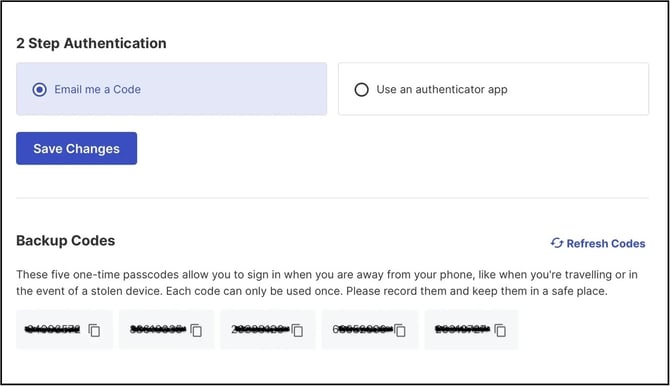
Authenticator App Setup
Selecting the Authenticator App option requires downloading an authenticator app to scan a QR code and receive a 6-digit code.
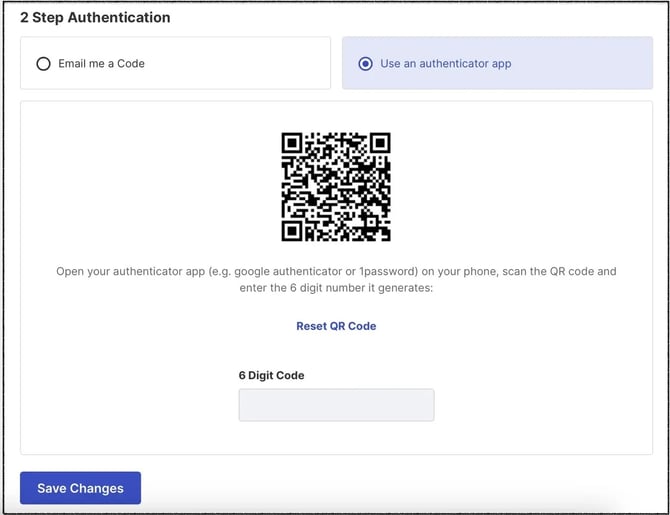
Google Authenticator, available from app stores, can scan the QR code and generate the 6-digit code.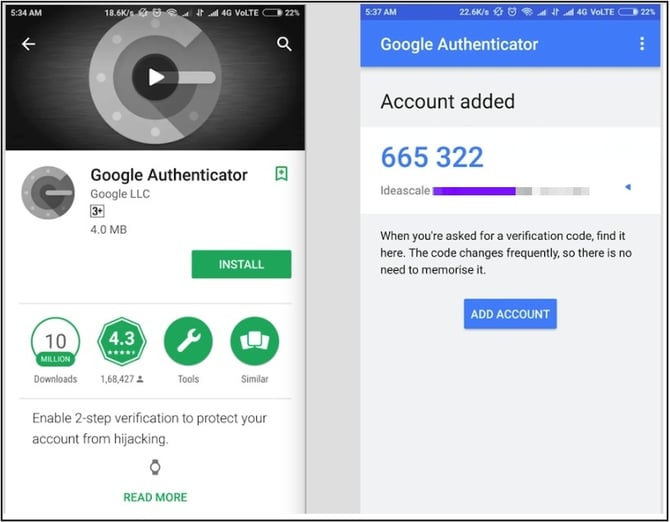
Mixed Authentication
When Mixed authentication is enabled in a community, 2 Step Authentication is required only when a member logs in using IdeaScale Email and Password. Members logging in using SSO are not asked to authenticate using 2 Step Authentication (see Exceptions below).
Resetting 2 Step Authentication
The Workspace Administrator can force a member to reset their 2 Step Authentication from Workspace Member Management >> Action tab >> Send Two Factor Auth Reset.
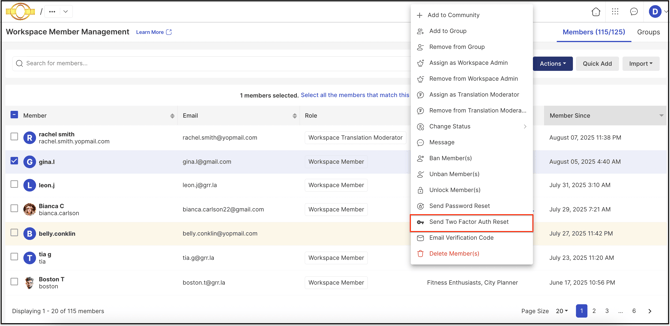
The member receives an email to complete the 2 Step Authentication reset process.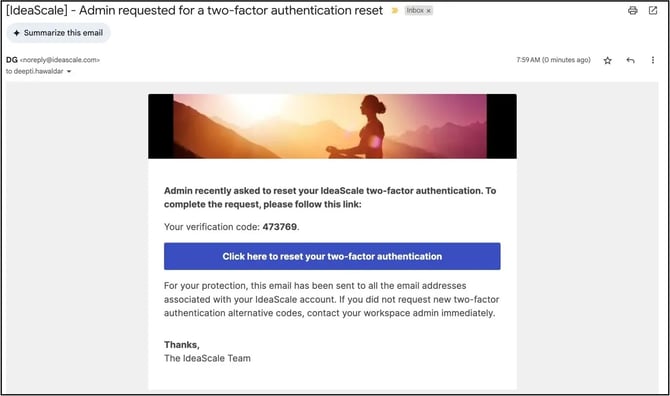
Exceptions
- SSO Login: When Mixed authentication is enabled in a community, 2 Step Authentication is not required for members logging in using SSO, even if 2 Step Authentication is enabled at the workspace level.
- Workspace-Level Enforcement: If 2 Step Authentication is enabled at the workspace level, a member cannot disable it from their Profile page.
- Single-Method Availability: If only one 2 Step Authentication method (email or authenticator app) is made available, a member can only enable 2 Step Authentication through that method from the Profile page.
Frequently Asked Questions
Can a member turn off 2 Step Authentication once it has been enabled at the workspace level?
No. If the Workspace Administrator has enabled 2 Step Authentication at the workspace level, a member cannot turn it off from their Profile page.
Is 2 Step Authentication required when logging in using SSO?
No. When Mixed authentication is enabled in a community, 2 Step Authentication only applies to members logging in using IdeaScale Email and Password. Members logging in using SSO are not asked to authenticate using 2 Step Authentication.
What happens if a member loses their backup codes?
A member who did not record their backup codes during setup can retrieve them from Profile >> Security >> 2 Step Authentication and select Refresh Codes to generate a new set. If a member is otherwise unable to complete 2 Step Authentication, the Workspace Administrator can force a reset from Workspace Member Management, after which the member receives an email to complete the reset process.
How often does a member need to re-authenticate on a trusted device?
This depends on the setting selected by the Workspace Administrator: Every 30 days trusts a device for 30 days before prompting again, while Do not support trusted devices prompts for 2 Step Authentication every time a member logs in.
Related Articles